
Talk to Team
Connect the agent to HubSpot forms and live chat
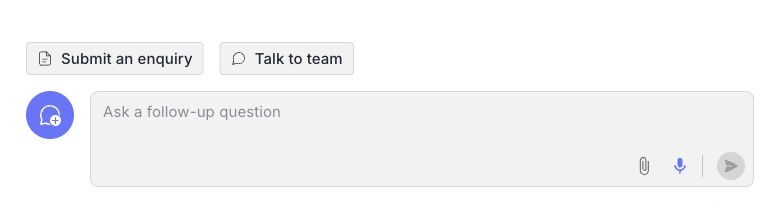
The HubSpot option adds one or more buttons to the conversation. Each button opens either one of your HubSpot forms or your HubSpot live chat. We can offer both, for example Submit an enquiry for a form and Talk to team for a chat.
HubSpot forms
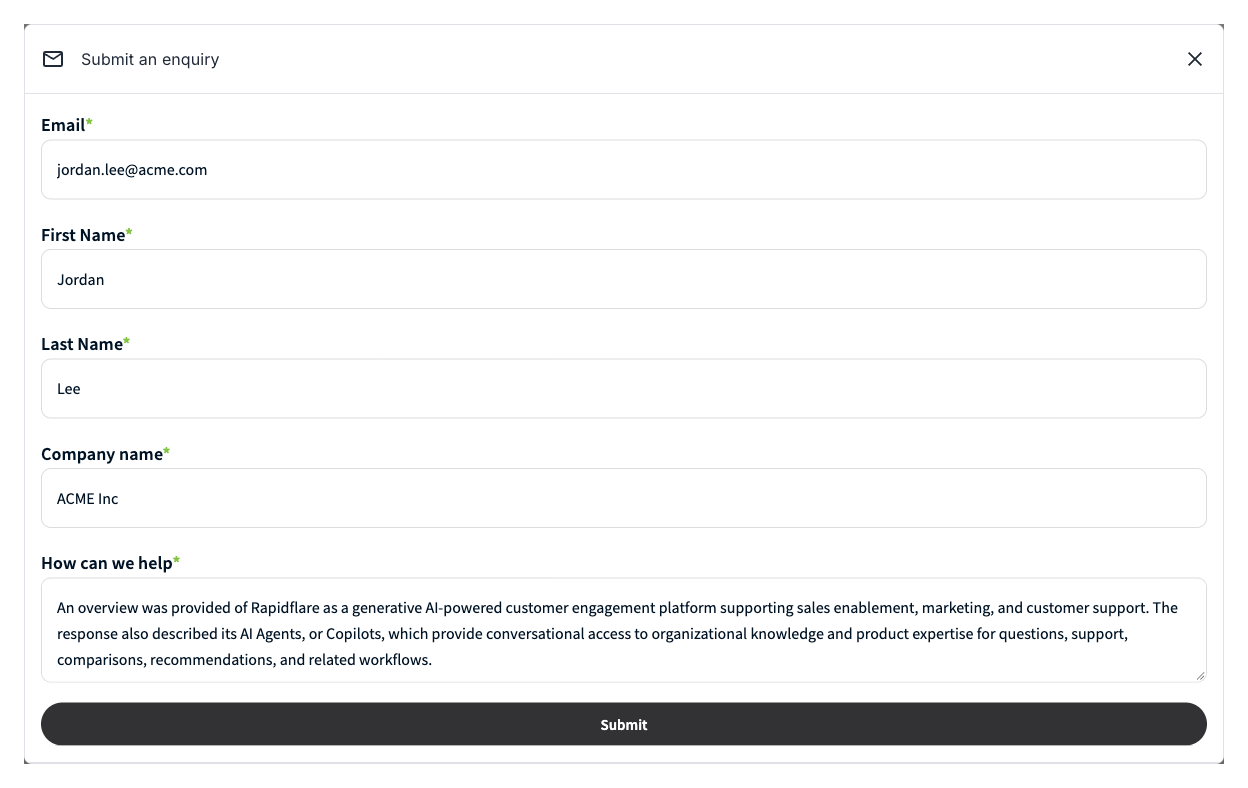
A form button opens one of your own HubSpot forms. Rapidflare fills a form field with a summary of the conversation, so the user does not have to retype it. When the user submits, HubSpot handles the submission as it does for any form on your site.
HubSpot live chat
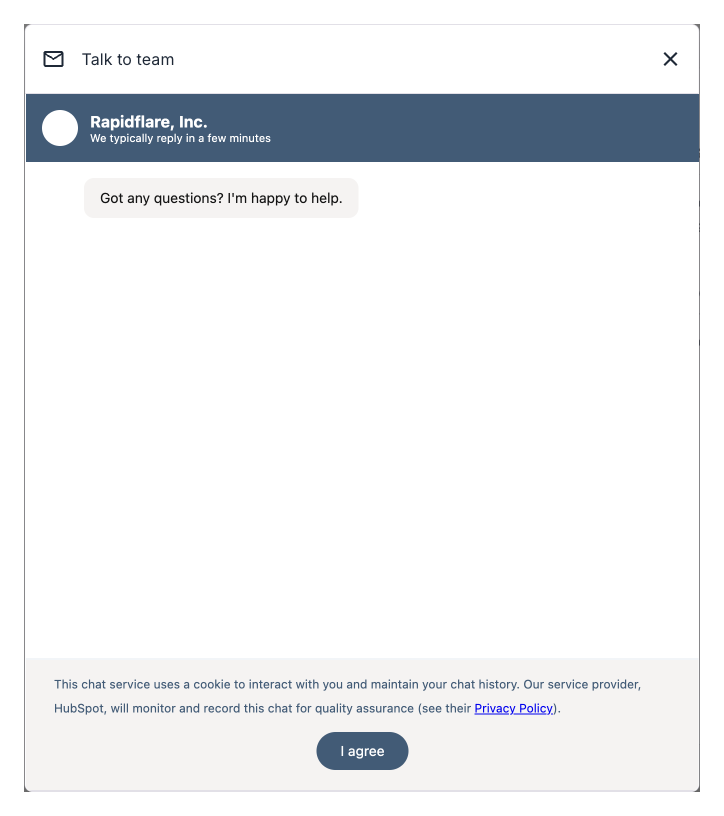
A live chat button opens your HubSpot chat, so the user can talk to your team in HubSpot. Rapidflare adds an internal comment to the chat with a link to the full conversation. The user does not see it, and your team can open the full conversation from HubSpot.
The chat needs a published chat flow
HubSpot shows the chat only when your portal has a chat flow that matches. Check in HubSpot that one is published before you contact us.
What we need from you
For a form:
- Your HubSpot account ID (the portal ID), the form ID and your data region, for example
na1oreu1. - The name of the form field that should receive the conversation summary.
- The button label and the thank-you message.
For a live chat:
- Your HubSpot account ID (the portal ID).
- The button label.
- Access to your HubSpot account, so that Rapidflare can add the comment. We walk you through connecting it. Without it the chat still works, but your team does not get the link.
Then contact us to set it up.