
Deploying Rapidflare
Web
Overview
Rapidflare offers several ways to run the AI agent on your web properties. They fall into two groups:
- Rapidflare Embed SDK — one loader script from our CDN powers five experiences on your own pages: Floating Launcher, Inline Trigger, Full Page Widget, Search Bar, and AI Overview. You choose the mode in
display.typeinsiderapidflare.init(); the script URL is the same for all five. - Whitelabel domain — a hosted agent at a URL you control (full-page in the browser, or an
<iframe>whosesrcis that URL, optionally withprompt/autoSubmit/userId/theme). No Rapidflare embed script and norapidflare.init().
For Slack or Discord, see Slack or Discord.
Which mode should I use?
Use this as a quick map—the table below has more detail.
- Corner launcher and popup chat on any page → Floating Launcher
- Your own button, nav pill, or link opens a chat panel → Inline Trigger
- Your own input box submits a question into a chat panel → Inline Trigger plus Drive the panel from your own input
- Agent inside a page you own (help center,
/askcontinuation page, etc.) → Full Page Widget (display.type: 'full-page') - Search row on your site that opens a chat panel → Search Bar — opens an on-page conversation panel by default, or set
action.type: 'external-url'to send people to a full chat page you host - Short AI summary + button into full chat → AI Overview — set
ctaUrlto the page where chat should continue - Hosted URL or iframe; no script on your pages → Whitelabel domain
| Mode | Implementation | Integration detail | Container needed? | Best for |
|---|---|---|---|---|
| Floating Launcher | Embed SDK | display.type: 'floating-launcher' | No | Persistent help button on every page |
| Inline Trigger | Embed SDK | display.type: 'inline-trigger' + trigger | No | Nav pills, CTAs, or custom buttons that open a chat panel |
| Full Page Widget | Embed SDK | display.type: 'full-page' + display.container | Yes | Help centers, embedded panels, and follow-up pages after Search Bar & AI Overview |
| Search Bar | Embed SDK | display.type: 'search' + display.container | Yes | Site search UI that opens an on-page conversation panel (default) or navigates to a full conversation on another URL you host |
| AI Overview | Embed SDK | display.type: 'ai-overview' + display.container (and usually prompt) | Yes | Short summary with a button into full chat |
| Whitelabel domain | Standalone URL or iframe | Hosted agent only; not rapidflare.init(). Full-page recommended; iframe uses your URL as src, optionally with prompt / autoSubmit / userId / theme query params. | N/A | Branded agent without the Embed SDK |
Good to know!
Get your API key from the dashboard under Hubs » Configure » Security. You need it to connect the widget to your account.
Using the Embed SDK
The Rapidflare Embed SDK is delivered as a single script from our CDN: https://cloud.rapidflare.ai/storage/v1/object/public/rapidflare-embed-sdk/latest/agent.js. It is lightweight, does not overwrite your page styles, and exposes window.rapidflare.init() for each mode below.
Ways to show the widget
The same loader and API support every option in this table—pick the one that fits each page or flow.
| Surface | Typical use |
|---|---|
| Floating Launcher | Persistent corner control and overlay chat; no layout container on your page. |
| Inline Trigger | Your existing page element opens a modal or drawer panel; no layout container. |
| Full Page Widget | Agent in a region you own—including the page people open after Search or AI Overview. |
| Search Bar | Site search entry point; opens an on-page conversation panel by default, or navigates to a URL where you run the Full Page Widget (external-url action). |
| AI Overview | Summary block with a button; ctaUrl should open a page where chat continues (usually Full Page Widget). |
Quick start
- Add the loader
<script>(for example in<head>). - For Full Page Widget, Search Bar, and AI Overview, add a container
<div>and pass it asdisplay.container. Floating Launcher and Inline Trigger do not usedisplay.container(the panel mounts todocument.body). - Call
window.rapidflare.init({ apiKey, display: { type: '...', ... } })at the end of<body>(or after the container exists).displayis required.init()returns a ref withupdate(),destroy(), andconfig().
Floating Launcher
A launcher button anchored to a corner of the page. Clicking it opens the agent in a popup overlay. No display.container needed — the widget mounts to document.body.
Example
<head>
    <script src="https://cloud.rapidflare.ai/storage/v1/object/public/rapidflare-embed-sdk/latest/agent.js"></script>
</head>
<body>
    <script>
        const widget = window.rapidflare.init({
            apiKey: 'YOUR_API_KEY',
            userId: 'user@example.com',
            theme: 'light',
            display: {
                type: 'floating-launcher',
                position: 'bottom-right',
                overlay: true,
                // trigger: '#my-trigger-button',
                // Optional: uncomment and use above to create a custom trigger
            },
            onOpen: () => { /* panel opened */ },
            onClose: () => { /* panel closed */ }
        });
    </script>
</body>
If you omit trigger, the widget's default launcher button is shown in the corner you specify; otherwise your own element is used as the trigger.
Display options
| Property | Type | Description |
|---|---|---|
position | 'top-left' | 'top-right' | 'bottom-left' | 'bottom-right' | Where the launcher button is anchored. Default: 'bottom-right'. When omitted, the default launcher can be dragged and its position is persisted in localStorage. |
overlay | boolean | If true, shows a dimmed backdrop behind the popup when it's open and allows click-to-close. Default: false. |
fullWidthOnMaximize | boolean | If true, maximizing the popup fills the full available width up to the same margin it already keeps from the viewport edge, instead of capping at a fixed size. It stays within that margin rather than going fully edge-to-edge (unlike inline-trigger) because it's a floating, corner-anchored surface — flush with the viewport would look glued to the edge rather than intentionally widened. Default: false. |
trigger | string | HTMLElement | SVGElement | CSS selector or DOM element for your own button that opens the widget. If provided, the default launcher is hidden and this element is the trigger. If omitted, the default trigger is shown. |
dragContainer | string | CSS selector. When provided, the floating bubble is constrained to drag within this element's bounds and snaps to its four corners. Falls back to viewport-scoped drag if the selector matches nothing. |
titleText | string | Optional panel header title. When omitted, the header shows only close and maximize/minimize controls (no hub fallback). |
titleLogo | string | Optional panel header logo URL. Same opt-in behavior as titleText. |
| More options | — | This table lists only floating-launcher display properties. Shared init() parameters—apiKey, theme, userId, onLoad, and the rest—apply to all modes and are documented in Shared configuration. |
Inline Trigger
An existing page element (nav pill, button, CTA link, etc.) opens a conversation panel. The trigger stays in your page; the panel overlays or pushes page content depending on the variant.
Example
<head>
    <script src="https://cloud.rapidflare.ai/storage/v1/object/public/rapidflare-embed-sdk/latest/agent.js"></script>
</head>
<body>
    <button id="ask-ai-button">Ask AI</button>
    <script>
        const widget = window.rapidflare.init({
            apiKey: 'YOUR_API_KEY',
            userId: 'user@example.com',
            theme: 'light',
            display: {
                type: 'inline-trigger',
                trigger: '#ask-ai-button',
                variant: 'right-modal',
                overlay: true,
                titleText: 'Ask AI',
                titleLogo: 'https://yourdomain.com/logo.png'
            },
            onOpen: () => { /* panel opened */ },
            onClose: () => { /* panel closed */ }
        });
    </script>
</body>
Clicking the trigger opens the panel. Close it with the panel's close button, the backdrop on modal variants, or widget.close() on the returned ref.
Variants
| Value | Behavior |
|---|---|
'right-modal' | Panel slides in from the right edge of the viewport, overlaying page content. A backdrop appears behind it (unless overlay: false). Default variant. |
'left-modal' | Panel slides in from the left edge of the viewport, overlaying page content. A backdrop appears behind it (unless overlay: false). |
'center-modal' | Panel appears as a centered dialog overlay with a backdrop. |
'right-drawer' | Docked panel from the right; pushes page content left. No backdrop. |
'left-drawer' | Docked panel from the left; pushes page content right. No backdrop. |
Display options
| Property | Type | Description |
|---|---|---|
trigger | string | HTMLElement | Required. CSS selector or DOM element the SDK binds click events to. |
variant | 'right-modal' | 'left-modal' | 'center-modal' | 'right-drawer' | 'left-drawer' | Visual variant of the conversation panel. Default: 'right-modal'. See Variants above. |
overlay | boolean | Backdrop behind the panel. Default: true for modals, false for drawers. Drawer variants ignore overlay. |
responsive | boolean | When true, narrow viewports may use a bottom-sheet layout for side modals. Defaults to the top-level responsive value (true). |
fullWidthOnMaximize | boolean | If true, maximizing the panel goes fully edge-to-edge (100% width, no margin) instead of the default capped width. Unlike floating-launcher's equivalent option, this goes flush with the viewport since a drawer/modal surface is expected to cover it when widened. Default: false. |
titleText | string | Panel header title. Defaults to the hub configuration name when omitted. |
titleLogo | string | Panel header logo URL. Defaults to the hub UI-config logo when omitted. |
| More options | — | This table lists only inline-trigger display properties. Shared init() parameters—apiKey, theme, userId, onLoad, onOpen, onClose, and the rest—apply to all modes and are documented in Shared configuration. |
Drive the panel from your own input
You can keep your own input box, ask bar, or suggested-question chips and hand each question to the panel, instead of letting the panel own the input. This is how the Rapidflare marketing site, docs, and blog headers work: a branded pill opens the inline-trigger panel and submits the typed question into it.
Three pieces make it work:
- Give the instance a stable
idatinit(), so you can address the panel. - Open the panel with
ref.open()(or let the user click the trigger). - Hand over the question with two same-window
postMessagecalls addressed to thatid:EMBED_WIDGET_OPENED, thenEMBED_WIDGET_QUESTION_ASKEDwith the question text andautoSubmit: true. This is the same channel the Search Bar uses to drive its own on-page panel, so it stays in step with the SDK.
<head>
    <script src="https://cloud.rapidflare.ai/storage/v1/object/public/rapidflare-embed-sdk/latest/agent.js"></script>
</head>
<body>
    <form id="ask-form">
        <button id="ask-open" type="button" aria-label="Open the agent">✦</button>
        <input id="ask-input" type="text" placeholder="Ask about our products" />
        <button type="submit">Ask</button>
    </form>
    <script>
        const INSTANCE_ID = 'my-ask-bar';
        let ready = false;
        let pending = null;

        const widget = window.rapidflare.init({
            id: INSTANCE_ID,
            apiKey: 'YOUR_API_KEY',
            userId: 'user@example.com',
            display: { type: 'inline-trigger', trigger: '#ask-open', variant: 'right-modal', overlay: true },
            onLoad: () => { ready = true; flush(); }
        });

        // Messages are addressed to the instance, so several widgets on one page never cross-deliver.
        function post(message) {
            window.postMessage({ ...message, rapidflareEmbedWidgetRootInstanceId: INSTANCE_ID }, '*');
        }

        // The panel ignores questions while it is still loading; queue until onLoad has fired.
        function flush() {
            if (!ready || !pending) return;
            const question = pending;
            pending = null;
            setTimeout(() => post({ type: 'EMBED_WIDGET_QUESTION_ASKED', question, autoSubmit: true }), 250);
        }

        function ask(question) {
            widget.open();
            post({ type: 'EMBED_WIDGET_OPENED' });
            if (question) { pending = question; flush(); }
        }

        document.getElementById('ask-form').addEventListener('submit', (event) => {
            event.preventDefault();
            const input = document.getElementById('ask-input');
            ask(input.value.trim());
            input.value = '';
        });
    </script>
</body>
An empty ask('') opens the panel without submitting anything, which is the right behavior for a "talk to the agent" button next to the input. Pass autoSubmit: false to place the text in the panel's composer without sending it, so the user can edit first. onOpen / onClose are useful for hiding your own bar while the panel is up.
Why postMessage and not a method?
ref.update({ prompt, autoSubmit: true }) seeds a first question at mount time only; it does not submit a new question into an already-open panel. The message channel above does, any number of times. Both message types are part of the SDK's own search-to-panel contract and are stable.
Full Page Widget
Shows the agent inside a display.container you provide—good for help centers, support pages, or any layout with a dedicated agent area. This is usually the page people land on when Search Bar or AI Overview sends them to another URL to keep chatting.
Example
<head>
    <script src="https://cloud.rapidflare.ai/storage/v1/object/public/rapidflare-embed-sdk/latest/agent.js"></script>
</head>
<body>
    <div id="my-mount-node" style="display: flex; flex-direction: column;"></div>
    <script>
        const widget = window.rapidflare.init({
            apiKey: 'YOUR_API_KEY',
            userId: 'user@example.com',
            theme: 'light',
            display: {
                type: 'full-page',
                container: '#my-mount-node'
            }
        });
    </script>
</body>
Container layout
Container sizing and auto height
The widget automatically fills all available space in its container. For the best results with auto height (where the widget grows and shrinks with its content), apply display: flex and flex-direction: column on the container:
<div id="my-mount-node" style="display: flex; flex-direction: column;"></div>
This lets the widget's internal layout expand correctly. If you use the widget mount node without display flex column, the widget still works but auto-height resizing won't behave optimally.
Fixed height with scrollbar
By default the widget expands to fill its content and the surrounding page scrolls. To give the widget a fixed height with its own internal scrollbar instead, add height (or max-height) and overflow-y: auto to the container — keep display: flex; flex-direction: column so the widget's internal layout still works:
<div id="my-mount-node" style="display: flex; flex-direction: column; height: 600px; overflow-y: auto;"></div>
Use max-height to let the container grow up to a cap and then scroll rather than a fixed cut-off:
<div id="my-mount-node" style="display: flex; flex-direction: column; max-height: 80vh; overflow-y: auto;"></div>
Adjust the height value to match your layout. The widget fills whatever space the container provides. Apply CSS directly to your container <div> to control sizing, borders, background, and positioning.
Display options
| Property | Type | Description |
|---|---|---|
container | HTMLElement or string | Required. DOM node or CSS selector where the widget is mounted. |
| More options | — | Shared init() parameters—apiKey, theme, userId, prompt, onLoad, and the rest—apply to every mode and are documented in Shared configuration. |
Search Bar
A search bar UI with optional LLM suggestions, starter prompt chips, and a send control. It requires a display.container on the page where the bar is embedded.
Two ways to continue the conversation
When someone runs a search (Send/Enter, or a starter prompt when starterPromptAutoSubmit is on), the Search Bar can continue the conversation in one of two ways, chosen by display.action:
- On-page conversation panel (default). When you omit
action, the Search Bar opens a conversation panel on the same page and submits the search into it—no second page required. The SDK creates and owns a hidden conversation widget for you (a right-side modal by default); there is no separate launcher bubble, and it reopens only when the user searches again. Setaction.type: 'widget'to choose the panel style explicitly (see On-page conversation). - Navigate to a second page (external URL). Set
action.type: 'external-url'with aurlto send people to a page you control, forwarding the search as query parameters (see Navigate to a second page). This is the classic two-page pattern where the destination page hosts a Full Page Widget.
Upgrading from
searchUrl? Existing deployments that pass flatdisplay.searchUrl/display.searchNewTabkeep working unchanged—they behave exactly likeaction.type: 'external-url'. You do not need to change your snippet. Preferactionfor new integrations.
On-page conversation panel
The default (and recommended) setup: omit action (or set action.type: 'widget') and the search submits into an on-page panel. No second page, no query-parameter plumbing.
<head>
    <script src="https://cloud.rapidflare.ai/storage/v1/object/public/rapidflare-embed-sdk/latest/agent.js"></script>
</head>
<body>
    <div id="search-mount" style="display: flex; flex-direction: column;"></div>
    <script>
        const widget = window.rapidflare.init({
            apiKey: 'YOUR_API_KEY',
            display: {
                type: 'search',
                container: '#search-mount',
                placeholder: 'Ask me anything...',
                autoFocus: true,
                // Shown explicitly so you can see its shape — this matches the default you'd get
                // by omitting `action` entirely. Change `type` / `variant` to choose a different style:
                action: {
                    type: 'widget',
                    widget: {
                        type: 'inline-trigger',   // or 'floating-launcher'
                        variant: 'right-modal',   // inline-trigger: modal/drawer placement
                        overlay: true
                    }
                },
                starterPromptAutoSubmit: false
            }
        });
    </script>
</body>
A Search Bar with a widget action creates two widget instances under the hood (the search bar plus its owned conversation child). Both appear in window.rapidflare.getInstances(). Do not pass a trigger inside action.widget—the SDK injects a hidden one for you.
Navigate to a second page
Set action.type: 'external-url' (or, for compatibility, the flat searchUrl) to send people to a URL you control when they search. That URL is almost always a page you host that loads the Embed SDK with display.type: 'full-page' (Full Page Widget). That page reads the query parameters Rapidflare adds and calls init() so the user opens full-page chat with their search already in place—not a generic page with no widget.
Rapidflare adds query parameters to the destination URL when someone searches (see below). Without a second page that loads the full-page widget, they have nowhere to go after search.
<head>
    <script src="https://cloud.rapidflare.ai/storage/v1/object/public/rapidflare-embed-sdk/latest/agent.js"></script>
</head>
<body>
    <div id="search-mount" style="display: flex; flex-direction: column;"></div>
    <script>
        const widget = window.rapidflare.init({
            apiKey: 'YOUR_API_KEY',
            display: {
                type: 'search',
                container: '#search-mount',
                placeholder: 'Ask me anything...',
                autoFocus: true,
                action: {
                    type: 'external-url',
                    url: 'https://yoursite.com/support/ask',
                    newTab: false
                },
                starterPromptAutoSubmit: false
            }
        });
    </script>
</body>
Next page (full-page widget)
Same host and path as the action.url above—here https://yoursite.com/support/ask—with the Full Page Widget reading the query string. Use URLSearchParams so you only pass userId and conversationId into init() when those keys are in the URL (for example if the user landed with them from another journey or a direct link that includes those parameters).
<div id="agent-mount" style="display: flex; flex-direction: column;"></div>
<script src="https://cloud.rapidflare.ai/storage/v1/object/public/rapidflare-embed-sdk/latest/agent.js"></script>
<script>
    const searchParams = new URLSearchParams(window.location.search);
    window.rapidflare.init({
        apiKey: 'YOUR_API_KEY',
        theme: 'light',
        display: {
            type: 'full-page',
            container: '#agent-mount'
        },
        prompt: searchParams.get('prompt') || undefined,
        autoSubmit: searchParams.get('autoSubmit') === 'true',
        userId: searchParams.has('userId') ? searchParams.get('userId') : undefined,
        conversationId: searchParams.has('conversationId') ? searchParams.get('conversationId') : undefined
    });
</script>
Query parameters on the destination URL
This applies to the external-url action only (or the compat searchUrl). When someone sends a search (or taps a starter prompt with starterPromptAutoSubmit on), the widget updates your destination URL: it drops any old prompt, autoSubmit, and conversationId, then adds the values below. This is how Rapidflare's two-page search embed works. (The on-page widget action does not navigate, so no query parameters are added.)
| Query parameter | Value | Purpose |
|---|---|---|
prompt | The search text the user sent (URL-encoded) | Pre-fills the agent; that page should pass this into init({ prompt, ... }). |
autoSubmit | Always true | Tells that page to submit the prompt on load; read it as URLSearchParams.get('autoSubmit') === 'true'. |
No other query keys are added on navigation. Preserve any other query parameters already on your destination URL (action.url, or the compat searchUrl)—they are kept when the new keys are applied.
Display options
| Property | Type | Description |
|---|---|---|
container | HTMLElement or string | Required. DOM node or CSS selector where the search bar is mounted. |
placeholder | string | Placeholder text for the search input. Optional. |
minRows | number | Minimum visible rows for the search input. Default: 1. |
maxRows | number | Maximum visible rows for the search input. Default: 1. Set maxRows higher than minRows for a multiline, auto-expanding textarea-style input. |
autoFocus | boolean | Whether to auto-focus the search input when mounted. Default: false. |
disableKeyboardTrigger | boolean | When true, disables the default keyboard shortcuts (cmd+k, cmd+f, ctrl+f) that open and focus the search input. Default: false. |
action | object | What happens on search. { type: 'widget', widget: { type: 'floating-launcher' | 'inline-trigger', ... } } opens an SDK-owned on-page conversation panel (see On-page conversation); { type: 'external-url', url, newTab? } navigates to a page you host (see Navigate to a second page). Omit for the default on-page panel (inline-trigger right-modal). Do not pass a trigger inside action.widget. |
searchUrl | string | Compat only (equivalent to action.type: 'external-url'). Legacy flat destination URL where you mount the Full Page Widget (type: 'full-page'). Receives prompt and autoSubmit as above. Use an absolute URL (e.g. https://yoursite.com/ask); relative paths are not supported and will not navigate correctly. Prefer action for new integrations. |
searchNewTab | boolean | Compat only (equivalent to action.newTab). If true, the send link opens in a new tab; if false, the same tab. Default: false. |
aiSuggestionsDisabled | boolean | If true, disables typeahead ghost text and the LLM suggestions popover. Default: false (suggestions enabled). |
starterPromptsDisabled | boolean | If true, hides starter prompt chips. Default: false (starter prompts shown when configured for the copilot). |
starterPromptHeaderText | string | Optional heading shown above the starter prompts section. |
starterPromptAutoSubmit | boolean | If true, tapping a starter prompt acts like Send (opens the on-page panel, or navigates for an external-url action). If false, the chip only fills the input. Default: false. |
| More options | — | This table lists only search display properties. Shared init() parameters—apiKey, theme, userId, onLoad, and the rest—apply to all modes and are documented in Shared configuration. |
AI Overview
AI Overview shows a search-style block on your site (summary plus overlay). It uses the same Embed SDK as the other modes. You pass display.container, optional top-level prompt for the first topic, and display options for branding and the CTA button. When prompt is set, AI Overview always auto-submits it on load.
Why you need a second page
The CTA button (for example "Ask AI") opens display.ctaUrl. Point ctaUrl at the page where chat should continue—same idea as Search Bar: a URL you host that loads the widget as display.type: 'full-page' (Full Page Widget). That's how people go from the short summary to full chat. If ctaUrl is missing or isn't a page with the full-page widget, the button won't help.
Rapidflare may add userId and conversationId to ctaUrl when someone clicks the button—pass them into init() on the next page if you want to keep the same chat (see Next page (full-page widget) below).
Example
Use a flex column container so streaming height and expand/collapse behave correctly (see Layout and expand/collapse below).
<div
  id="rapidflare-ai-overview-container"
  style="display: flex; flex-direction: column; width: 100%;"
></div>
<script src="https://cloud.rapidflare.ai/storage/v1/object/public/rapidflare-embed-sdk/latest/agent.js"></script>
<script>
  const widget = window.rapidflare.init({
    apiKey: 'YOUR_API_KEY',
    userId: 'user@example.com',
    theme: 'light',
    prompt: 'Getting started with Acme products',
    display: {
      type: 'ai-overview',
      container: '#rapidflare-ai-overview-container',
      titleText: 'AI Overview',
      titleLogo: 'https://yourdomain.com/logo.png',
      ctaText: 'Continue with Copilot',
      ctaColor: '#222222',
      ctaBackground: '#38BDF8',
      ctaUrl: 'https://yoursite.com/support/ask',
      ctaNewTab: false
    }
  });
</script>
Next page (full-page widget)
Use the same URL as ctaUrl—for example https://yoursite.com/support/ask—for the Full Page Widget (type: 'full-page'). When someone clicks the AI Overview button, Rapidflare adds userId and conversationId to that URL (see query parameters on ctaUrl); read them from the address bar and pass them into init() only when they're there so full-page chat can continue the same thread.
<div id="agent-mount" style="display: flex; flex-direction: column;"></div>
<script src="https://cloud.rapidflare.ai/storage/v1/object/public/rapidflare-embed-sdk/latest/agent.js"></script>
<script>
  const searchParams = new URLSearchParams(window.location.search);
  window.rapidflare.init({
    apiKey: 'YOUR_API_KEY',
    theme: 'light',
    display: {
      type: 'full-page',
      container: '#agent-mount'
    },
    userId: searchParams.has('userId') ? searchParams.get('userId') : undefined,
    conversationId: searchParams.has('conversationId') ? searchParams.get('conversationId') : undefined
  });
</script>
Display options
Object passed inside display when type is 'ai-overview'.
| Property | Type | Description |
|---|---|---|
container | HTMLElement or string | Required. DOM node or CSS selector where the overview card is mounted. |
titleText | string | Title label at the top of the overview card. Defaults to the hub-configured title when omitted. |
titleLogo | string | Logo URL rendered alongside the title. Defaults to the hub-configured logo when omitted. |
ctaText | string | CTA button label. Default: 'Ask AI'. |
ctaBackground | string | CSS color for the CTA button background. Defaults to the hub-configured value when omitted. |
ctaColor | string | CSS color for the CTA button text. Default: '#ffffff'. |
ctaUrl | string | Required for a complete flow. URL opened when the button is clicked—should be a page you host where the user continues in the Full Page Widget (type: 'full-page'). When omitted, the current page URL is used as the fallback target, which is usually not what you want for continuation. |
ctaNewTab | boolean | Whether to open ctaUrl in a new tab. Default: true. |
| More options | — | This table lists only ai-overview display properties. Shared init() parameters—apiKey, theme, userId, prompt, onLoad, and the rest—apply to all modes and are documented in Shared configuration. If prompt is set for AI Overview, it auto-submits on load. |
Query parameters on ctaUrl
When someone clicks the button, the Embed SDK updates query parameters on your ctaUrl: it removes any existing prompt, autoSubmit, and aiModeConfig keys, then sets the values below. (aiModeConfig is a legacy URL query parameter name kept for backward compatibility on destination pages—it is not the modern display field in init(). These are query parameter names on the opened URL, not init() option names.)
| Query parameter | When set | Purpose |
|---|---|---|
userId | When the widget knows a user id | So the next page can use the same user ID (read it from the URL if you need it). |
conversationId | When there is an active chat | So the next page can continue that chat when your full-page widget reads it from the URL. |
Unlike query parameters on searchUrl, the AI Overview button does not add prompt or autoSubmit—the next page should use conversationId (and your init() options) for context.
Layout and expand/collapse
While the AI-generated answer streams, the block uses a default max height of 400px. After streaming completes, Expand removes that cap; Collapse restores 400px.
For expand/collapse and height transitions to work reliably, the same display: flex and flex-direction: column rules apply as for the Full Page Widget container:
<div id="rapidflare-ai-overview-container" style="display: flex; flex-direction: column; width: 100%;"></div>
Without flex on the container, expand/collapse can look broken even though the overlay renders.
Need help?
Our team can help you set up AI Overview on your site—reach out if you want help with your button URLs and hosting pages.
Shared configuration
These settings apply to every Embed SDK mode—Floating Launcher, Inline Trigger, Full Page Widget, Search Bar, and AI Overview—unless the Modes column below says otherwise. Earlier sections for each mode document display-specific properties inside display; you still pass the shared options in the same rapidflare.init() call. Whitelabel does not use this API—see Whitelabel Domain.
All surfaces use the same rapidflare.init() API. The table lists each parameter and which surfaces use it.
Configuration options
| Parameter | Required? | Type | Default | Modes | Description |
|---|---|---|---|---|---|
apiKey | Yes | string | - | All | Connects your agent to Rapidflare. Do not share outside your enterprise. |
display | Yes | object | - | All | Discriminated union keyed by type. See Floating Launcher, Inline Trigger, Full Page Widget, Search Bar, and AI Overview. display.type cannot be changed via update(). |
id | Optional | string | - | All | Stable instance id. If an instance with this id is already mounted, init() returns the existing ref instead of creating a duplicate. Omit to auto-generate one. |
userId | Optional | string | - | All | We recommend the current user's email for usage tracking and feedback. |
theme | Optional | 'light' | 'dark' | - | All | Matches your site's color scheme. Invalid values are ignored. |
prompt | Optional | string | - | Floating Launcher, Inline Trigger, Full Page Widget, AI Overview | Starter text. For AI Overview, setting prompt always auto-submits it on load. Search Bar does not use this field—it submits whatever the user types into its on-page panel or forwards it to the next page (see Search Bar). |
autoSubmit | Optional | boolean | false | Floating Launcher, Inline Trigger, Full Page Widget | If true and prompt is set, submits on load. AI Overview always auto-submits when prompt is set, so this option does not apply there. Search Bar submits into its on-page panel, or forwards autoSubmit as a query param for the external-url action. |
conversationId | Optional | string | - | All | ID of an existing chat so you can resume it. |
responsive | Optional | boolean | true | All | When false, disables mobile-specific responsive styling. inline-trigger can also set display.responsive to override per instance. |
onLoad | Optional | function | - | All | Runs when the widget has finished loading and is ready to use. |
onOpen | Optional | function | - | Floating Launcher, Inline Trigger | Runs when the conversation panel opens. |
onClose | Optional | function | - | Floating Launcher, Inline Trigger | Runs when the conversation panel closes. |
doNotTrack | Optional | boolean | false | All | Disables product analytics when true. Must be set at init(). See Consent and analytics. |
container vs trigger
display.container is the mount target for Full Page Widget, Search Bar, and AI Overview. display.trigger (on Floating Launcher and Inline Trigger) attaches open/close to your own control and is not a layout container.
API
| Method | Description |
|---|---|
rapidflare.init(config) | Mounts the widget with the given config. Required: apiKey and display. Returns a ref object with id (string), open(), close(), maximize(), minimize(), update(partial), resetConversation(), destroy(), and config(). |
rapidflare.getInstances() | Returns an array of refs for all currently mounted widget instances. Each ref has id, open, close, maximize, minimize, update, resetConversation, destroy, and config. |
ref.open() | Programmatically open the panel. Most useful for imperative control flows or custom wrappers around an existing trigger element. Applies to floating-launcher and inline-trigger. To also submit a question from your own input, see Drive the panel from your own input. |
ref.close() | Programmatically close the panel. Applies to floating-launcher and inline-trigger. |
ref.maximize() | Expand the panel to its wider view. Applies to floating-launcher and inline-trigger. |
ref.minimize() | Collapse the panel to its default size. Applies to floating-launcher and inline-trigger. |
ref.update(partial) | Updates a subset of options (e.g. theme, prompt, userId, display properties other than type) without remounting. display.type cannot be changed via update()—call destroy() then init() with a new type instead. |
ref.resetConversation() | Clears the current conversation and starts a fresh one in place, without remounting the widget. Use it to back a "New chat" control in your own UI. The panel stays open and keeps its config; only the conversation is discarded. Affects that instance only—on a Search Bar with a widget action, calling it on the search bar's ref resets the conversation in its owned child, so you do not need to look the child up yourself. |
ref.destroy() | Unmounts that widget instance and cleans up. Other instances are unaffected. Call before calling init() again for the same container if you need a different config. |
ref.config() | Returns the current config. |
Script loading and behavior
- The loader script does not overwrite
window.rapidflareif it is already set. - There is no global
window.rapidflare.update()orwindow.rapidflare.destroy(); all per-instance control is through the ref returned byinit()(or refs fromgetInstances()). - Multiple instances: Each
init()call returns a separate instance. Callupdate(),destroy(), andconfig()on the returned reference, not onwindow.rapidflare. Usewindow.rapidflare.getInstances()to get all currently mounted instances. - If you call
init()before the runtime script has finished loading, your config is queued and applied automatically when the runtime is ready. resetConversation()is a no-op if called before the runtime has loaded: the widget has not rendered yet, so there is no conversation to clear.
Script URL
Load the Embed SDK from this URL (always the latest build—we do not publish or support pinning to older semver paths for this script the way the legacy widget did):
https://cloud.rapidflare.ai/storage/v1/object/public/rapidflare-embed-sdk/latest/agent.js
If you need a fixed artifact for compliance, host a copy you control or coordinate with Rapidflare—do not rely on undocumented URL patterns.
Whitelabel Domain
Whitelabel means people open your AI agent at a URL you control—often on your own domain (for example https://support.yourcompany.com or https://ai.yourcompany.com). We agree the exact address with you; you don't have to use a specific subdomain like agent..
How you get your whitelabel URL: You can't turn this on yourself in the dashboard yet. Email support@rapidflare.ai (or contact your Rapidflare account team). We help you pick the URL, set it up for your agent, and send the DNS records to add. When DNS is working, that URL is yours.
For whitelabel, most teams open the agent at its URL as a full page in the browser. No Rapidflare Embed SDK is involved.
Direct access
When setup and DNS are done, people can bookmark or open your whitelabel URL directly—for example https://support.example.com (example only; your real URL is the one Rapidflare gives you). That opens the full-page, branded agent.
Embedding as an iframe
You may put the same URL in an <iframe> on another page. Set src to your whitelabel URL. Size the iframe with CSS. Add an allow attribute if your agent needs things like the microphone or fullscreen (ask Rapidflare if you're not sure what to list).
For a short summary with a button that opens full chat on your own pages, use the Embed SDK AI Overview mode. On a whitelabel iframe you can still pass prompt, autoSubmit, userId, and theme in the src URL to pre-fill text, auto-submit, set who the user is, and pick light or dark—same options as the widget's shared settings—but that only affects the full agent inside the iframe, not the AI Overview layout.
<!-- Replace src with YOUR whitelabel URL from Rapidflare -->
<iframe
  src="https://your-whitelabel-host.example.com"
  title="Rapidflare"
  style="width: 100%; min-height: 500px; border: none; outline: none; box-shadow: none;"
  allow="microphone; midi; encrypted-media; autoplay; accelerometer; fullscreen; gyroscope; usb; magnetometer; clipboard-read; clipboard-write; picture-in-picture; web-share"
></iframe>
Optional: prompt, autoSubmit, userId, and theme on iframe src
You can append query parameters to the whitelabel URL used as the iframe src so the embedded agent opens with starter text, optional auto-submit, an optional signed-in user identity, and optional light or dark appearance.
| Query parameter | Required? | Type | Description |
|---|---|---|---|
prompt | Optional | string | Initial message or question for the agent. Must be URL-encoded when used in src. |
autoSubmit | Optional | boolean | If true, the agent submits the prompt when the iframe loads. Use the string true or false in the query string. |
userId | Optional | string | A unique ID for the user (we recommend email for usage tracking and feedback—same as Embed SDK userId). Must be URL-encoded when used in src. |
theme | Optional | string | light or dark to match your page (same as the Embed SDK theme). Invalid values are ignored. |
Static src: build the query string yourself (encode prompt and userId).
<!-- Replace src with YOUR whitelabel URL from Rapidflare -->
<iframe
  src="https://your-whitelabel-host.example.com?theme=light&userId=user%40example.com&prompt=How%20do%20I%20reset%20my%20password%3F&autoSubmit=true"
  title="Rapidflare"
  style="width: 100%; min-height: 500px; border: none; outline: none; box-shadow: none;"
  allow="microphone; midi; encrypted-media; autoplay; accelerometer; fullscreen; gyroscope; usb; magnetometer; clipboard-read; clipboard-write; picture-in-picture; web-share"
></iframe>
Building the URL in JavaScript: use URL + URLSearchParams so encoding is handled correctly, then set the iframe src (or render it in your app shell).
<iframe
  id="rf-whitelabel"
  title="Rapidflare"
  style="width: 100%; min-height: 500px; border: none; outline: none; box-shadow: none;"
  allow="microphone; midi; encrypted-media; autoplay; accelerometer; fullscreen; gyroscope; usb; magnetometer; clipboard-read; clipboard-write; picture-in-picture; web-share"
></iframe>
<script>
  // Replace `base` with YOUR whitelabel URL domain from Rapidflare
  const base = new URL('https://your-whitelabel-host.example.com');
  base.searchParams.set('theme', 'light');
  base.searchParams.set('userId', 'user@example.com');
  base.searchParams.set('prompt', 'How do I reset my password?');
  base.searchParams.set('autoSubmit', 'true');
  document.getElementById('rf-whitelabel').src = base.href;
</script>
Consent and analytics
If your site uses a consent manager, pass doNotTrack: true when analytics consent is denied. Chat and other widget features work the same either way. Default is false.
window.rapidflare.init({
  apiKey: 'YOUR_API_KEY',
  doNotTrack: !hasAnalyticsConsent(), // your consent check
  display: {
    type: 'floating-launcher',
    position: 'bottom-right'
  }
});
Implement hasAnalyticsConsent() using your consent manager. You can also delay rapidflare.init() until consent is resolved.
Init-time only
Set doNotTrack in rapidflare.init(), not via ref.update(). If consent changes later, call ref.destroy() and init again.
For a detailed cookie and storage inventory (for consent classification), contact support@rapidflare.ai.
Security
You use an API key to connect the widget to Rapidflare. We recommend restricting it to specific domains in your dashboard so only your sites can use it. Domain allow-listing is optional but recommended.
We use Google reCAPTCHA Enterprise to help protect your key. Google's terms of service and privacy policy apply.
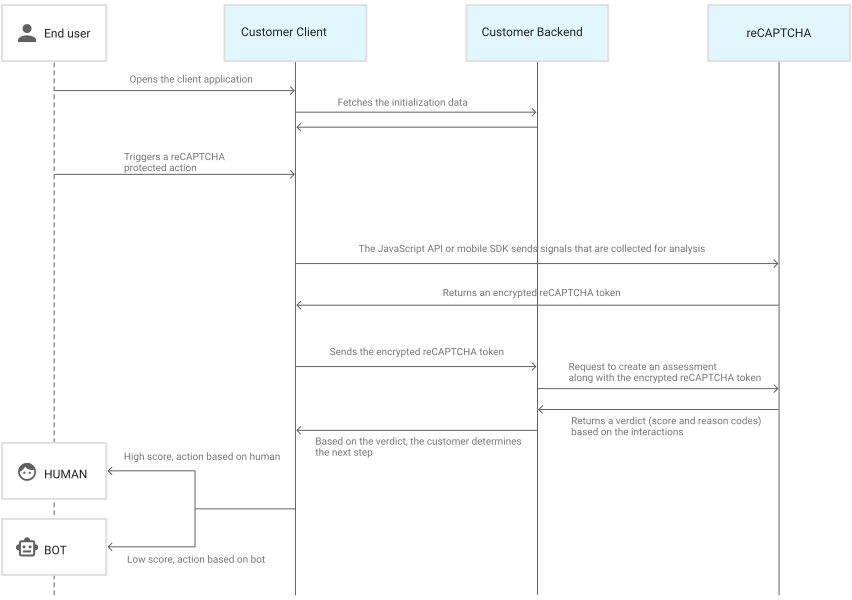
| Scenario | Will API key work? |
|---|---|
| Request coming from spam / bot / known bad IP address | No ❌ |
| Request coming from non allow-listed domain | No ❌ |
| Request not from a real browser | No ❌ |
| Request initiated by a human and coming from allow-listed domain | Yes ✅ |
Legacy widget
Deprecated
The legacy widget is deprecated and will not receive future updates. Use the Embed SDK for new deployments.
Full reference for existing integrations—code snippets, launcher position, configuration, and script versioning—is on Legacy widget. It is not listed in the sidebar so the main Web guide stays focused on the Embed SDK.