
Deploying Rapidflare
Integrating Rapidflare AI Agent with your Discord server
This guide will help you learn how to integrate Rapidflare into your Discord server. This is an admin flow.
Prerequisites
- Discord server administrator permissions
- Access to the Rapidflare Admin Dashboard
Option A: Using Rapidflare AI Agent (Recommended)
Coming Soon
This feature is currently being implemented. Please use Option B (Custom Agent) for now.
This will be the simplest way to get started. You'll use Rapidflare's Discord agent without needing to create your own Discord application.
Option B: Using Your Own Agent (Custom Agent)
If you prefer to use your own Discord application with custom branding, follow these steps.
Step 1: Create Discord Application
- Go to the Discord Developer Portal
- Click New Application
- Enter your application name (e.g., "Your Company Agent")
- Click Create
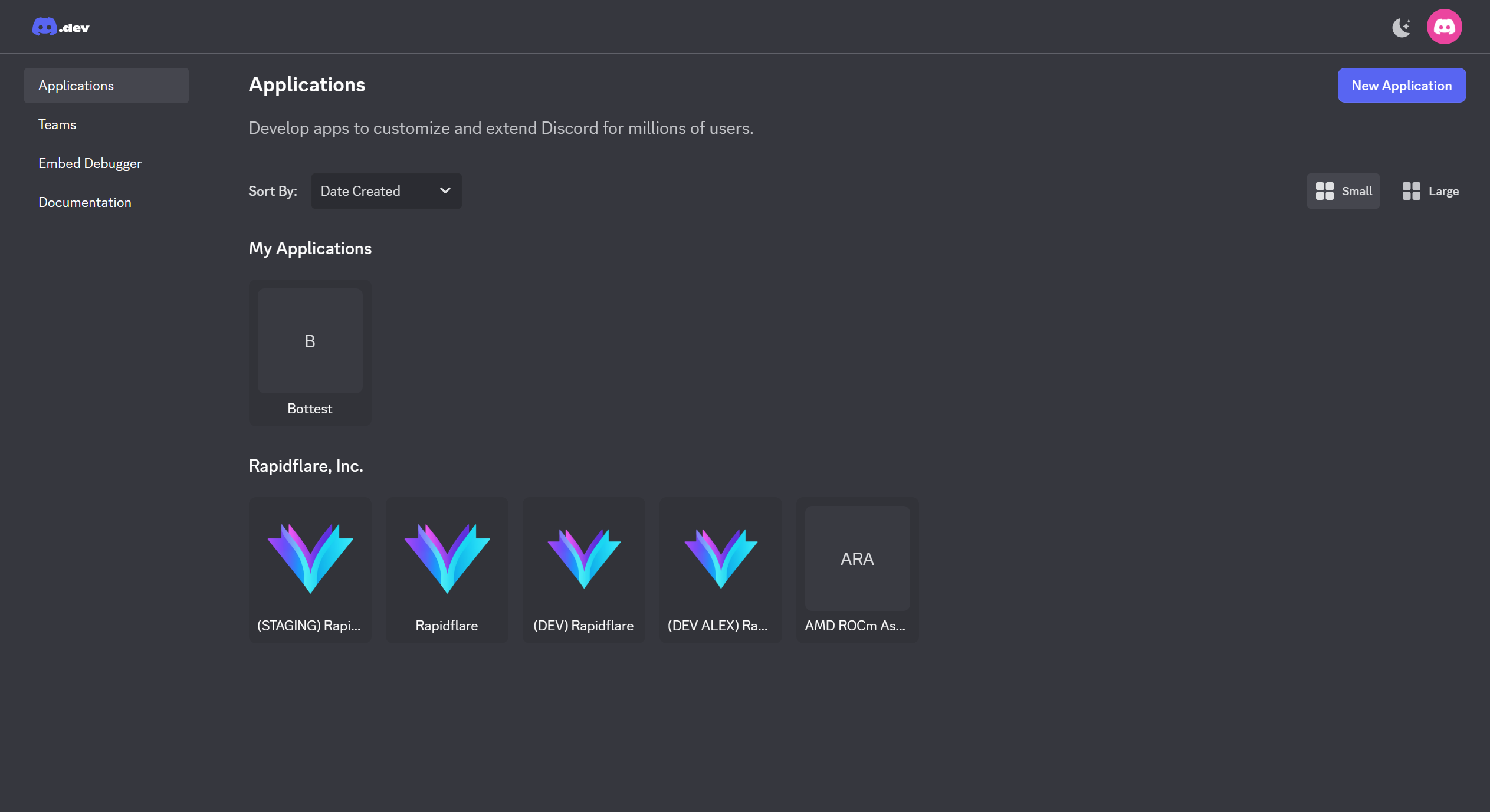
Step 2: Get Credentials
- In the left sidebar, click Applications and select the application you just created.
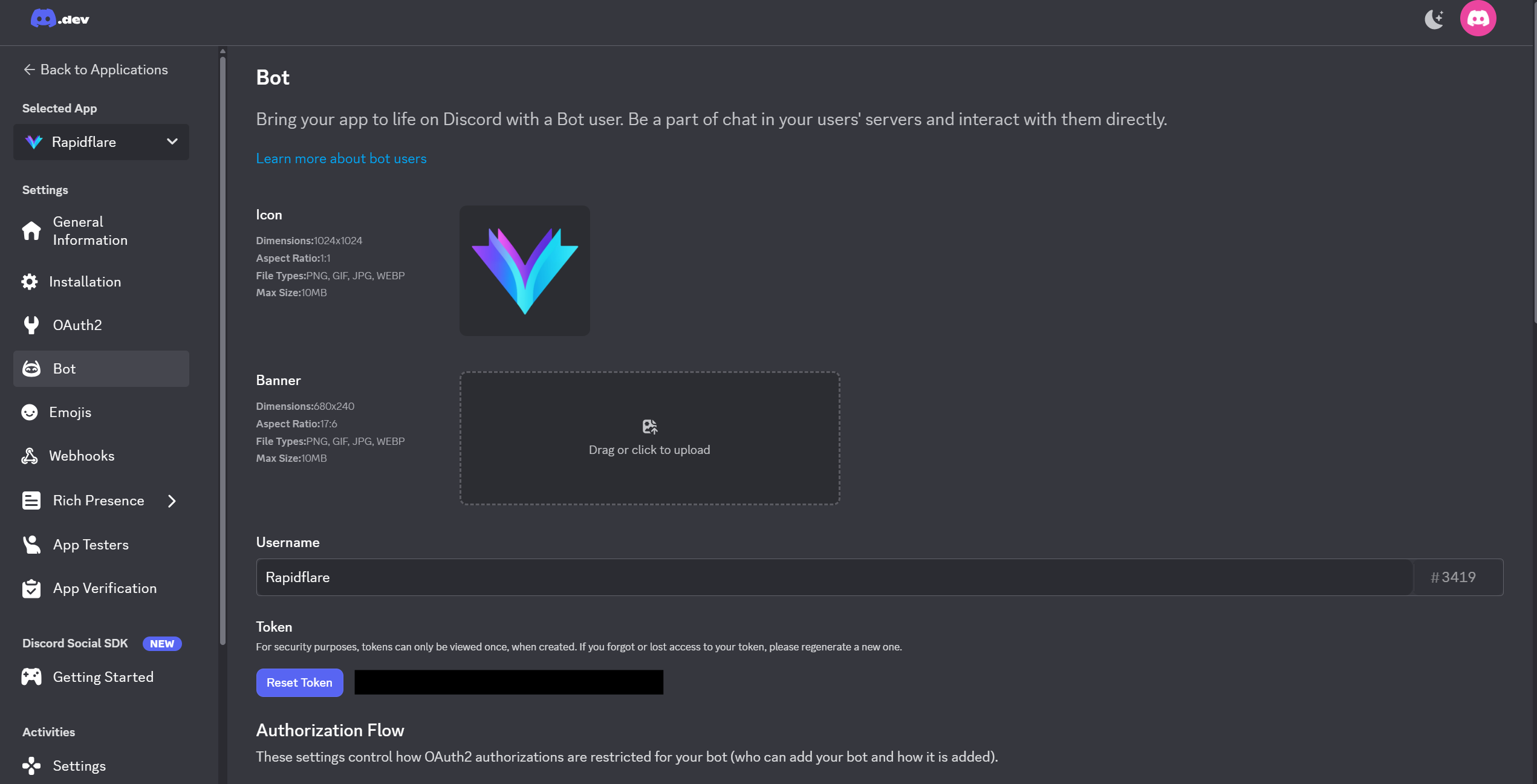
- Click Bot and then click Reset Token to copy the Bot Token (save this securely!)
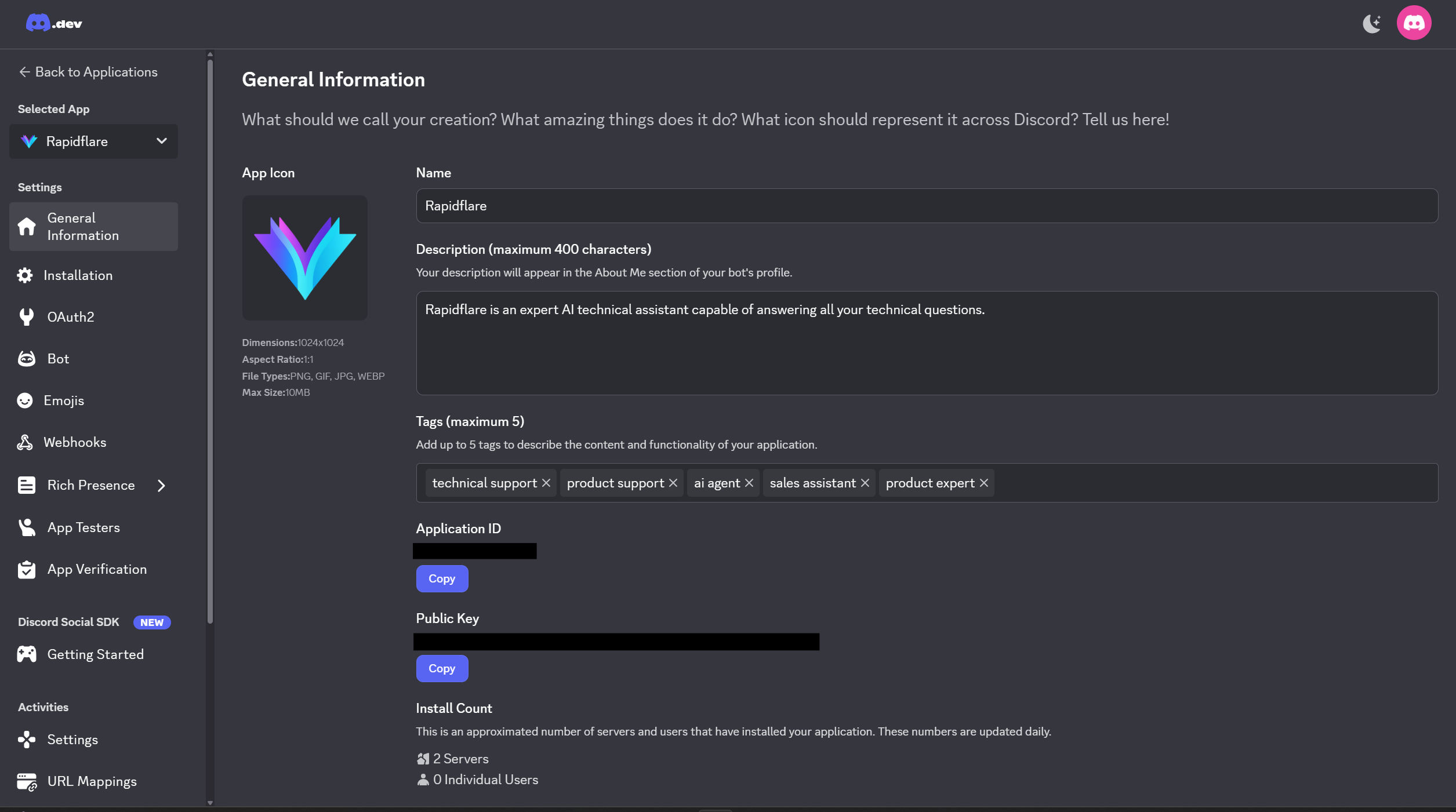
- Go to General Information:
- Copy the Application ID
- Copy the Public Key
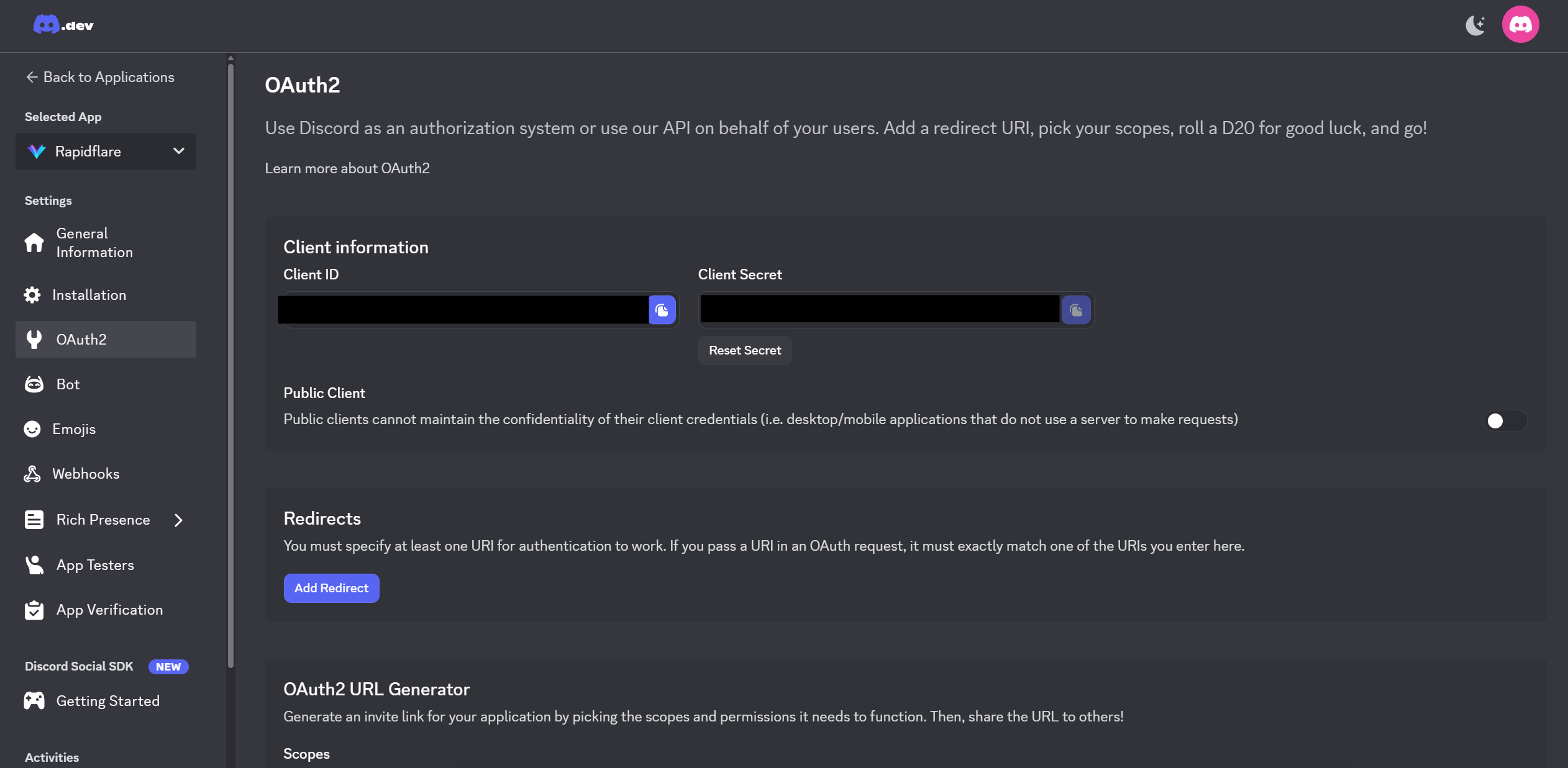
- Go to OAuth2:
- Copy the Client Secret
Step 2.5: Enable Privileged Gateway Intents
Required for automatic forum replies
This step is required for the Post First Responder and Opt-In Post Reply forum modes. Without it, Discord withholds post content from the agent — it will see a new post appear but receive an empty body, so it cannot answer.
To let the agent respond automatically to new forum posts, you must enable Privileged Gateway Intents in the Discord Developer Portal:
- In the Discord Developer Portal, go to your application
- Click Bot in the left sidebar
- Scroll down to the Privileged Gateway Intents section
- Enable MESSAGE CONTENT INTENT (toggle it ON)
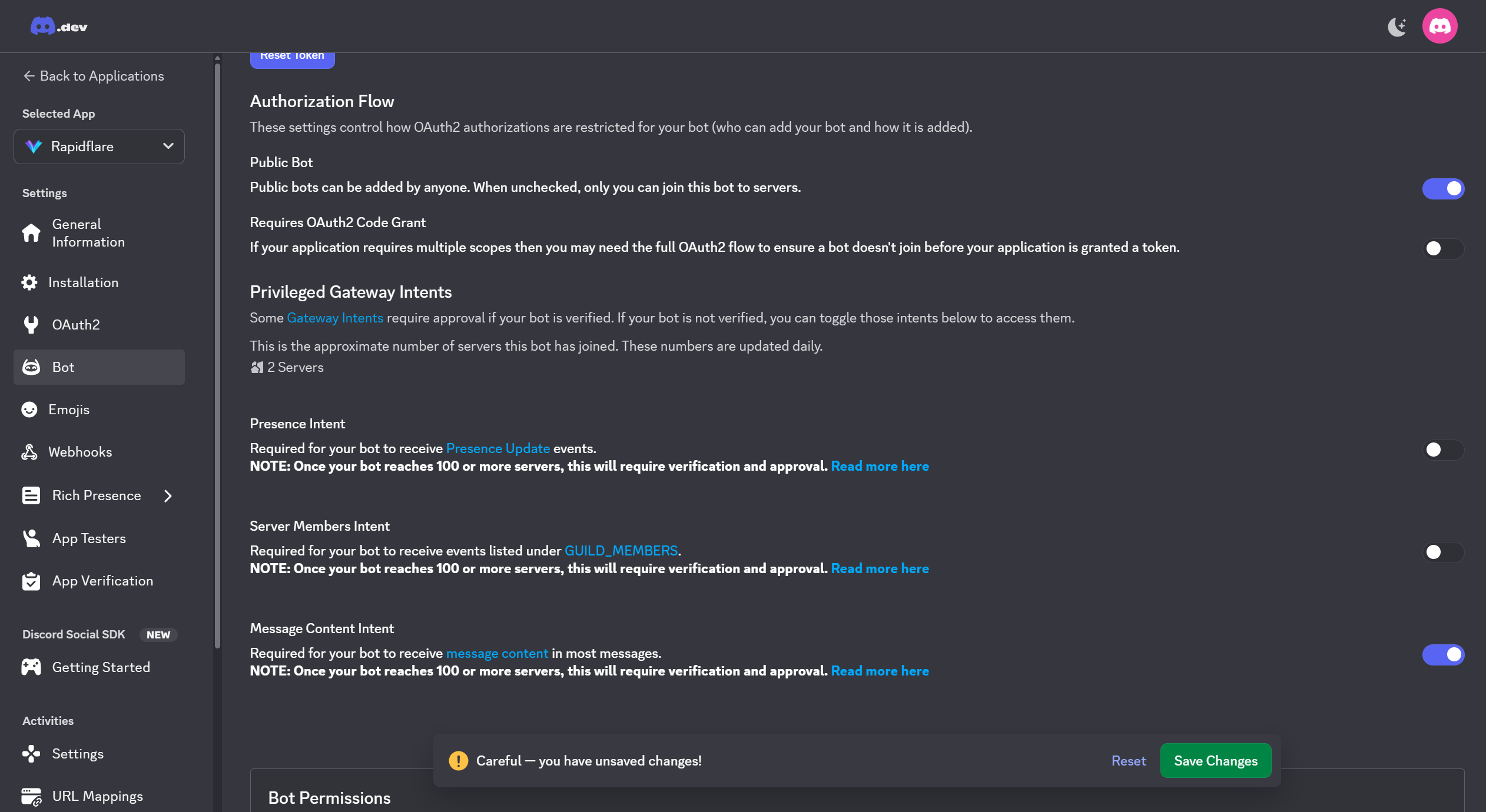
| Intent | Required | Description |
|---|---|---|
| Presence Intent | No | Not required for Rapidflare |
| Server Members Intent | No | Not required for Rapidflare |
| Message Content Intent | Yes | Required for automatic forum replies |
- Click "Save Changes" at the bottom of the page
Don't forget to Save!
After toggling the intent ON, you must click the "Save Changes" button at the bottom of the page. The setting will not be applied until you save.
If you skip this step, the symptom is silent: the agent joins the server and slash commands keep working, but new forum posts get no automatic reply. /ask continues to work normally.
Step 3: Configure in Rapidflare Dashboard
- Go to your admin dashboard's Deployments page
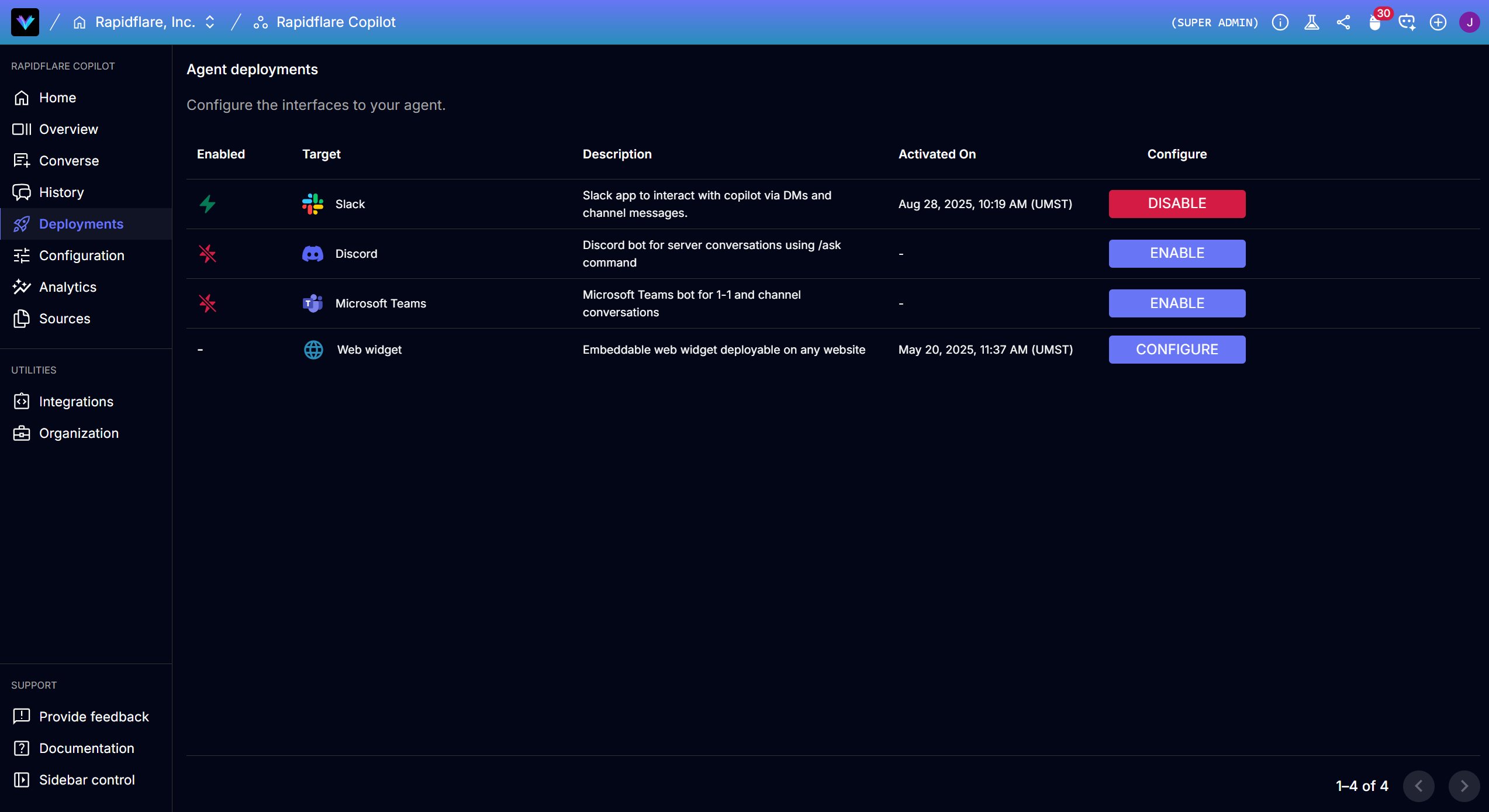
- Click on Discord and select Use Custom Agent option
- Enter the credentials you collected:
- Bot Token
- Application ID
- Public Key
- Client Secret
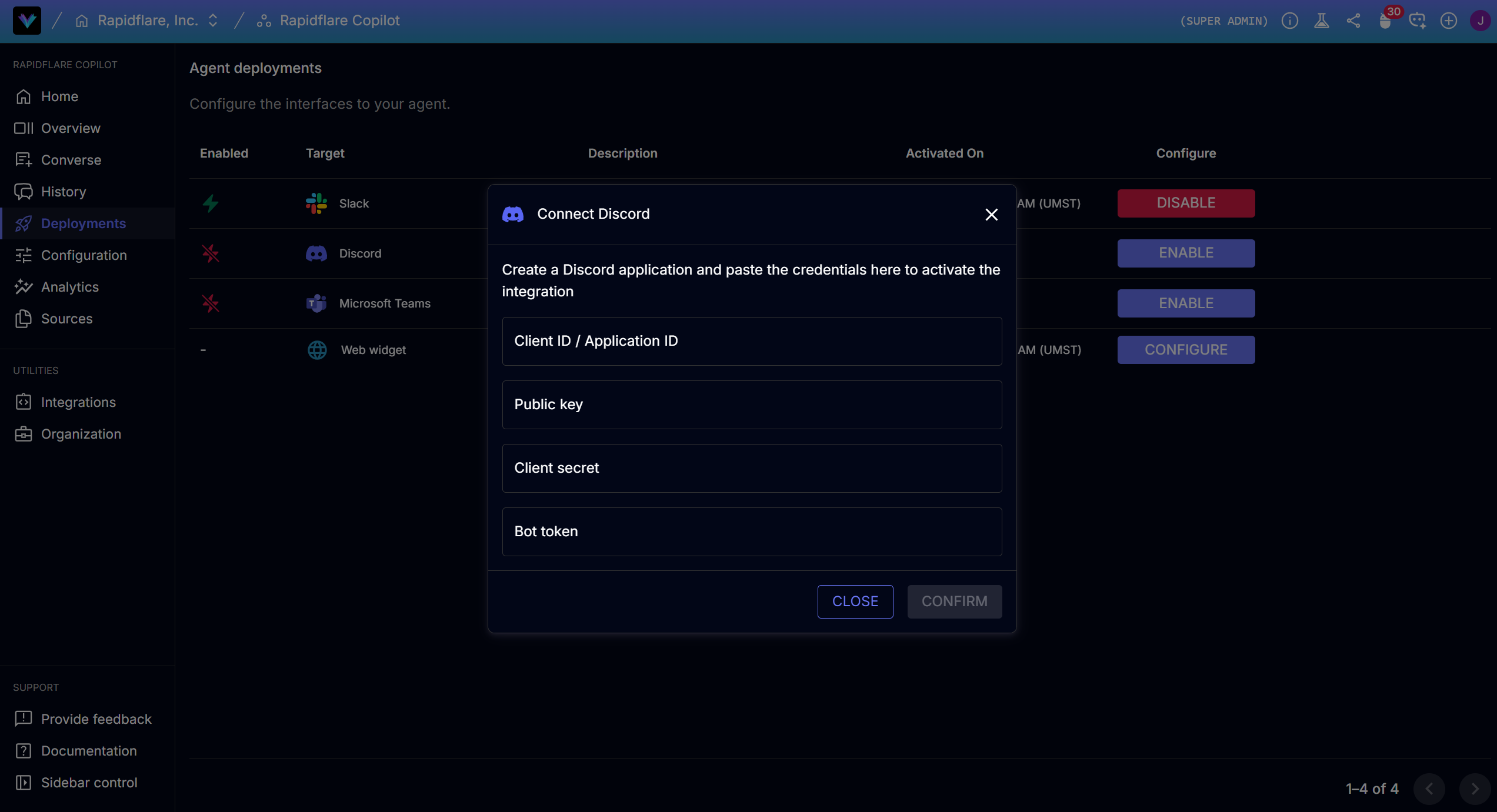
- Click Confirm. Rapidflare will generate the Interactions Endpoint URL and OAuth Redirect URL.
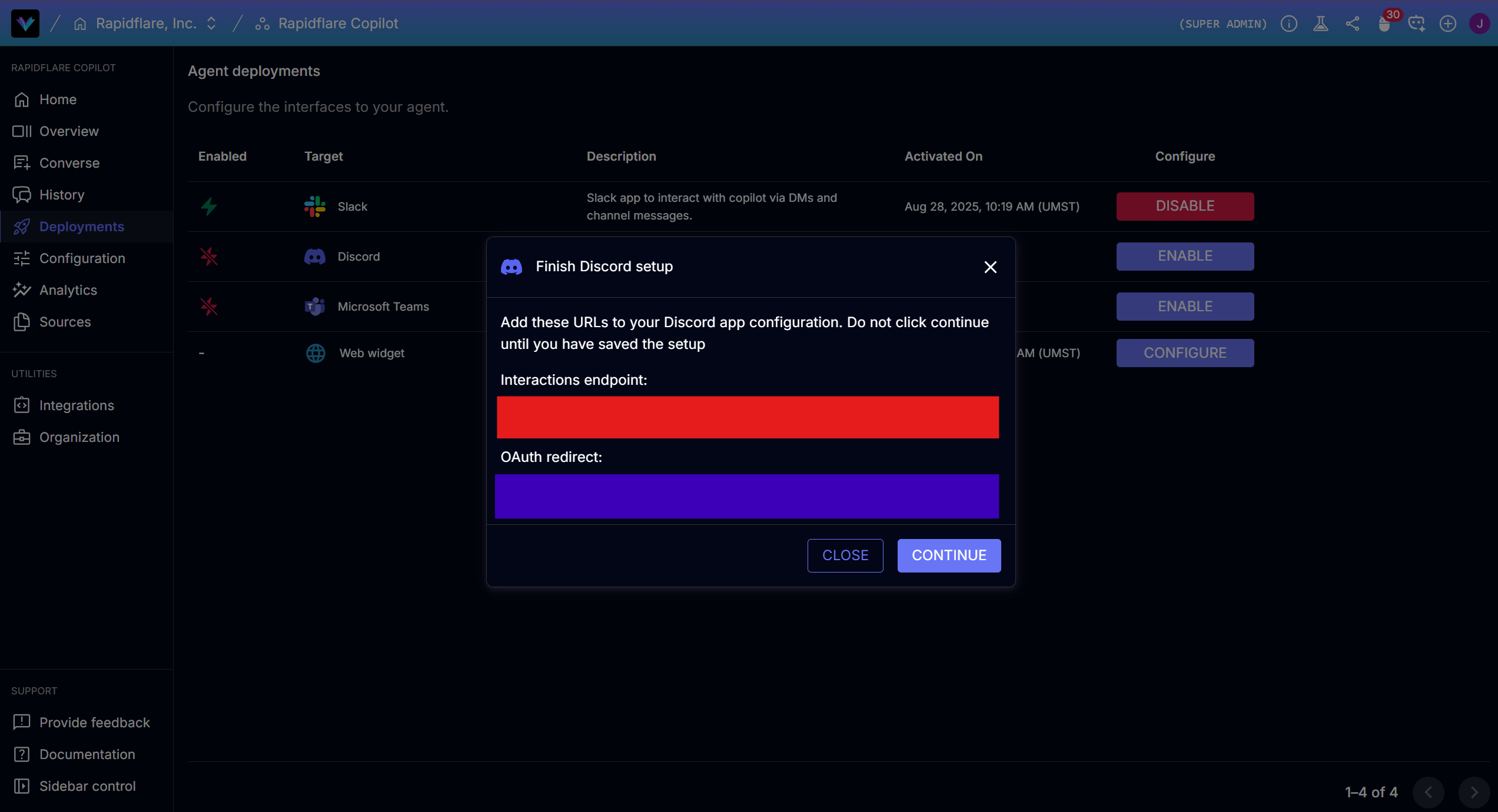
Do NOT click Continue yet!
You must configure the generated URLs in Discord Developer Portal first before proceeding.
Step 4: Set Redirect URLs in Discord Developer Portal
Go back to the Discord Developer Portal and configure these URLs. You can copy both URLs directly from the Rapidflare dashboard.
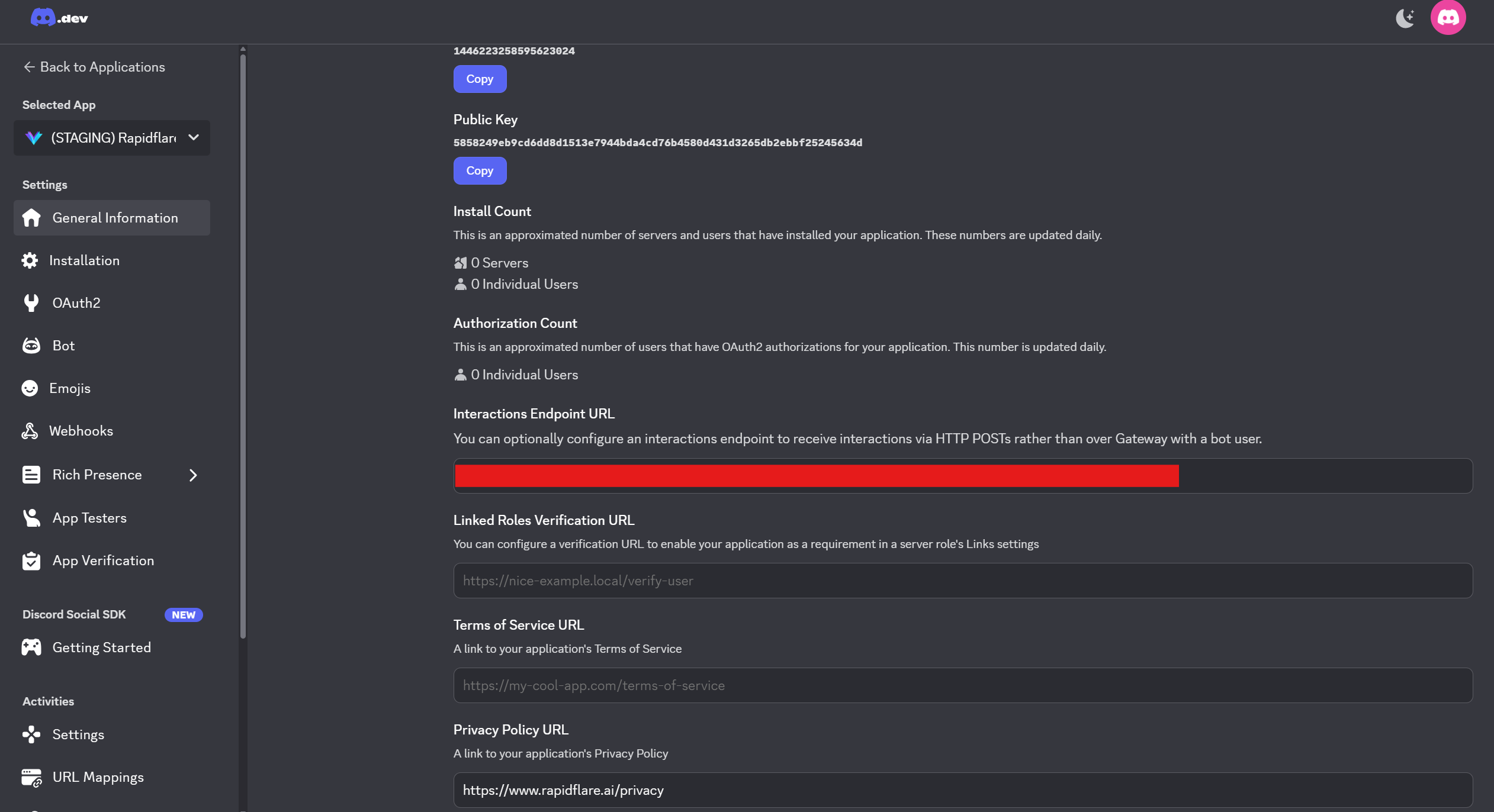
General Information → Interactions Endpoint URL:
Copy the Interactions Endpoint URL from the Rapidflare dashboard and paste it here.
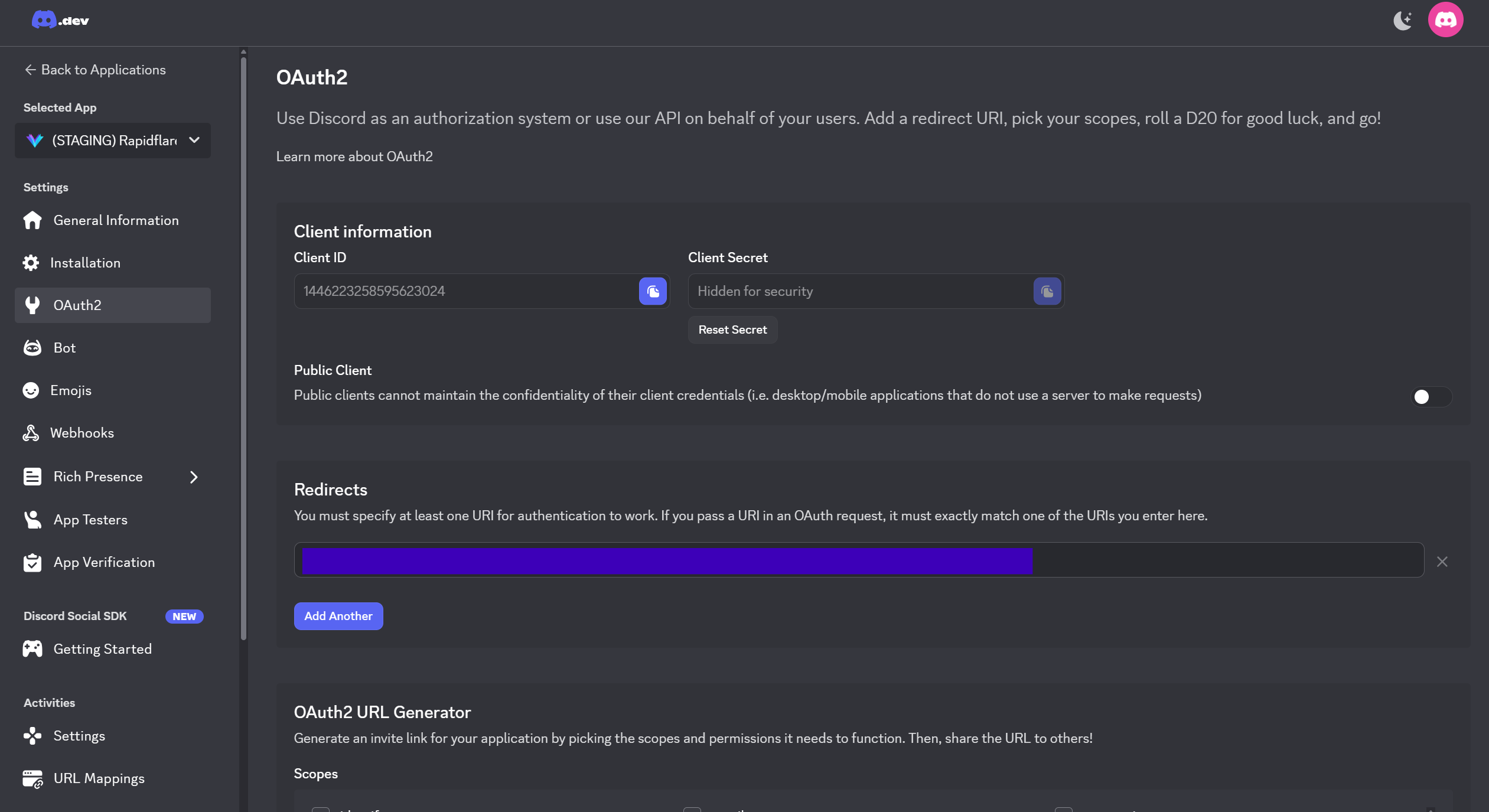
OAuth2 → Redirects:
Copy the OAuth Redirect URL from the Rapidflare dashboard and paste it here.
- After configuring the URLs in Discord, go back to the Rapidflare dashboard and click Continue.
Step 5: Invite Agent to Server
- Select your Discord server
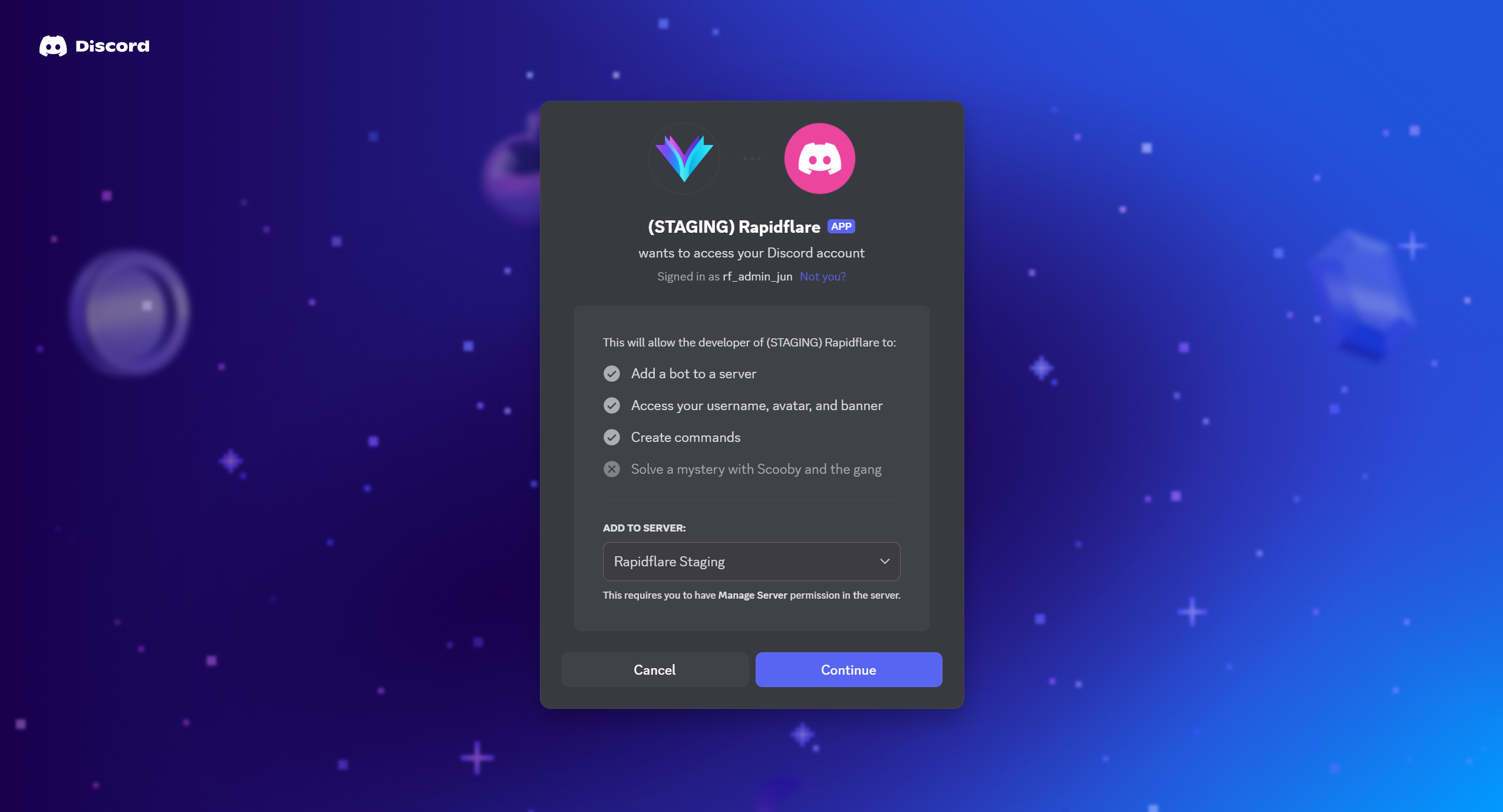
- Authorize the required permissions
- The agent will appear in your server
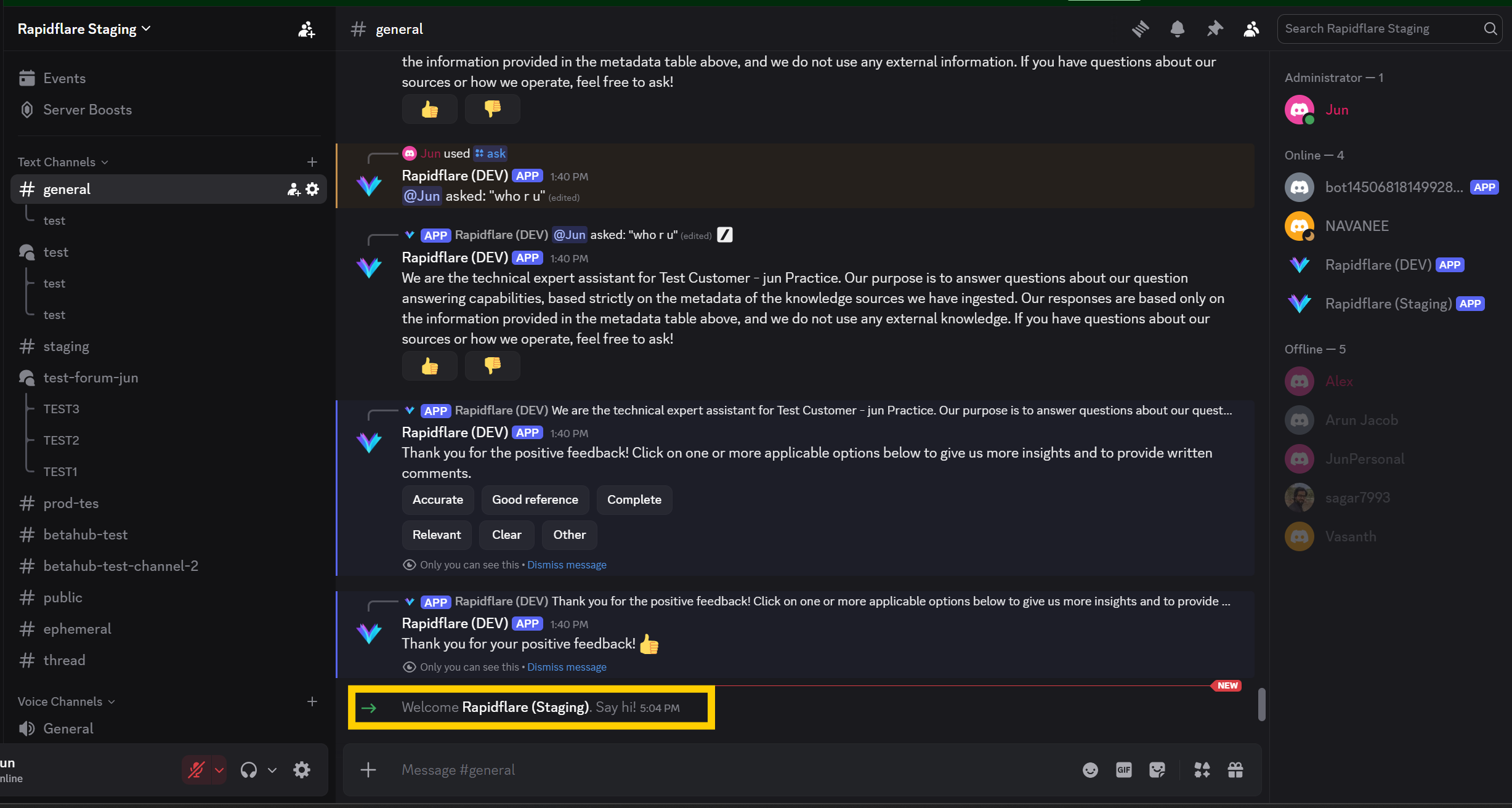
One agent per Discord server
A Discord server can be connected to only one Rapidflare agent at a time. If you run this flow for a different agent against the same server, the previous agent is disconnected and its Discord settings — installed channels, escalation rules, notification channel — are cleared. Reconnecting the original agent does not restore them.
Slash commands can take up to an hour to appear
Rapidflare registers /ask, /ask-private, /install, and /uninstall as global Discord commands. Discord publishes global commands to every server on its own schedule, which can take up to an hour on a brand-new application. If the commands don't show up right away, wait and refresh Discord.
Step 6: Configure Escalation (Optional)
If you want the agent to notify your support team when it cannot resolve an issue, follow these steps.
6a. Create a Notification Channel
- In your Discord server, create a private Text Channel (e.g.,
#agents-notification) - Add the bot role to the channel with Send Messages permission
Why a private channel?
Escalation notifications contain thread links and issue details. A private channel ensures only your support team sees these notifications.
6b. Set Up Escalation Rules in Dashboard
- Go to your admin dashboard's Deployments page
- Click on Discord and navigate to the Escalation Rules tab
- Click Add Rule to create a new escalation rule:
- Query Type — The category of issue (e.g., "Account Access", "Platform Bug")
- Target Type — Whether to notify a Discord role or a specific user
- Discord ID — The role or user ID to mention
- Name — A display name for the target
- Add as many rules as needed for different issue types
- Click Save Rules
6c. Set Notification Channel
- In the same Discord deployment settings, navigate to the Notifications tab
- Enter the Notification Channel ID and channel name from the private channel you created in Step 6a
- Optionally, set a Default Escalation Target as a fallback when no specific rule matches
- Click Save
How does escalation work?
When the agent determines it cannot resolve an issue, it automatically selects the appropriate escalation rule and sends a notification (with a link to the conversation thread) to your private notification channel. The user sees only "I've notified the support team" — no role or user mentions are exposed in the public channel.
Step 7: Optional settings
These settings live in the same place as the channel list: Deployments → Discord. All of them are optional.
Activity status
The grey line shown under the agent's name in the member list (for example, "Listening to /ask for questions").
- In the Installed Channels tab, find Activity Status
- Pick a verb — Listening to, Watching, or Playing — and enter the text
- Click Save
Clearing the text removes the status. The change is applied the next time the agent reconnects to Discord, not immediately.
Opt-In Post Reply greeting
The message the agent posts alongside its Help / I will wait buttons on new forum posts. This section appears once at least one forum channel is installed.
- In the Installed Channels tab, find Opt-In Post Reply Greeting
- Enter your own wording, up to 1,500 characters
- Click Save — or Clear to go back to the default greeting
Two placeholders are substituted when the message is posted:
| Placeholder | Replaced with |
|---|---|
{copilot_name} | The agent's name |
{minutes} | The wait time before the agent follows up |
Wait time
The agent waits 30 minutes before following up on an unanswered post. This is not currently editable from the dashboard — contact support@rapidflare.ai if you need a different interval.
Customizing Agent Appearance
Good to know!
Unlike Slack, Discord allows full customization of agent name and avatar. You can change the agent's nickname per-server through Server Settings → Integrations → select your agent → Edit.
Next Steps
Congratulations! Your Discord agent is now connected to Rapidflare AI Agent.
Inviting the agent does not make it answer yet. You still need to activate it per channel with the /install command, choosing how it should reply there. See the Discord User Guide for:
- How to use
/installand/uninstall, and the reply types available in text and forum channels - The three forum modes — Post First Responder, Opt-In Post Reply, and Only when /ask-ed
- Asking questions with
/askand/ask-private, including file attachments - Managing installed channels
- Providing feedback on responses
For additional support, contact us at support@rapidflare.ai.