
Product Overview
Discord User Guide
Here's how to use the Rapidflare AI Agent via Discord.
Introduction
After enabling Discord, you will see an agent added to your Discord server. The agent responds to slash commands in channels where it has been installed.
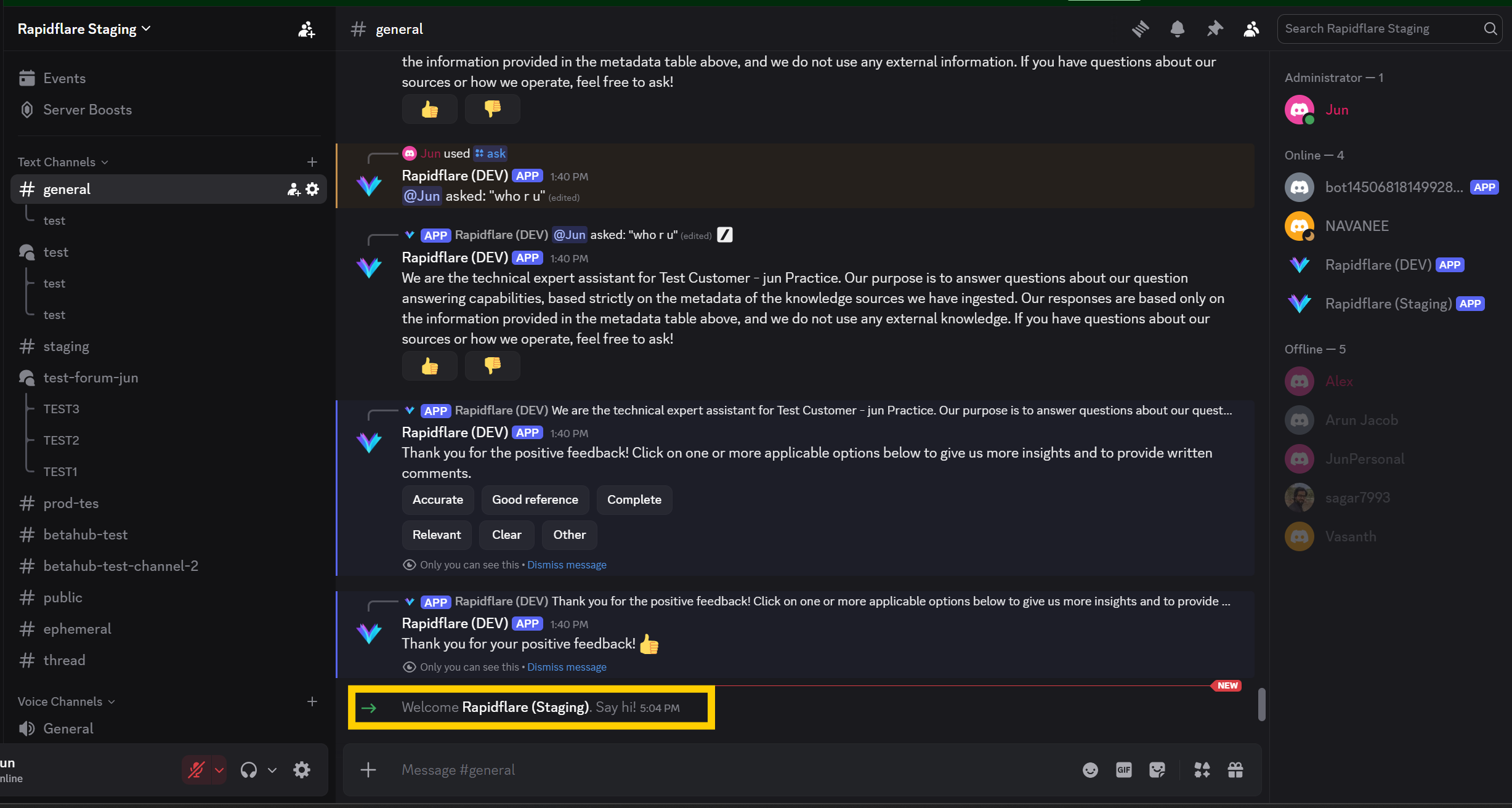
What the Agent Can Do
The agent autonomously decides how to help based on your question:
- Search & Answer — Searches documentation, compatibility matrices, and the web to provide accurate answers. No manual routing is needed — the agent picks the best source automatically.
- Ask Clarifying Questions — If more context is needed, the agent presents interactive dropdown menus to narrow down the issue before answering.
- Escalate to Support — When the issue requires human intervention (e.g., credentials, account access, or platform bugs), the agent notifies the support team in a private channel. You will see "I've notified the support team" in the response.
Commands Overview
| Command | Description | Permission |
|---|---|---|
/install [reply_type] | Activate the agent in a channel and choose how it replies | Manage Channels |
/uninstall | Deactivate the agent in a channel | Manage Channels |
/ask <question> [file] | Ask the agent a question, optionally with a file | All users |
/ask-private <question> [file] | Ask the agent privately (only you see the answer) | All users |
Slash Commands
There are four slash commands available:
1. /install command
Use the /install command to activate the agent in a specific channel. This is the first step after adding the agent to your server.
Usage: /install [reply_type]
This command requires Manage Channels permission. Once installed, users can use the /ask command in that channel.
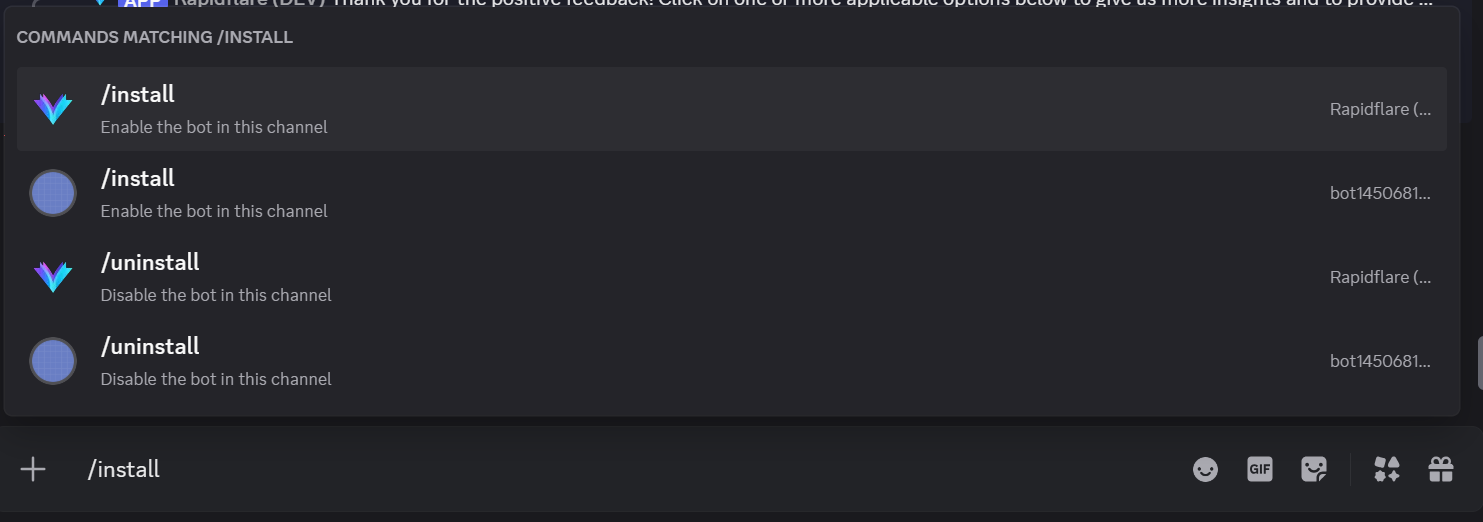
Reply Type Options
The reply types offered depend on the channel you run /install in. Text channels and forum channels have different options, and the list updates automatically as you type.
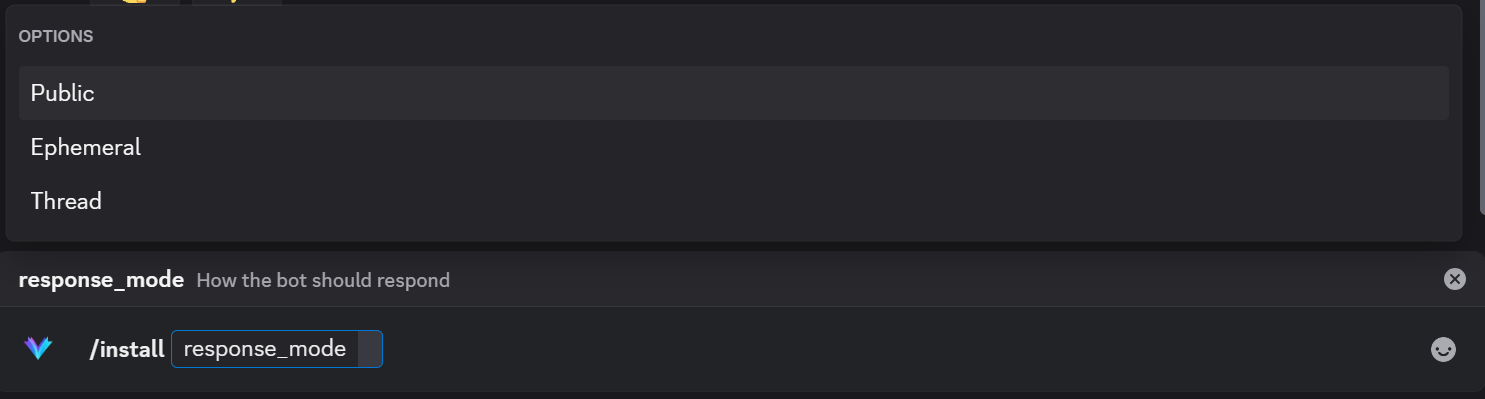
Text channels
| Reply Type | Description |
|---|---|
| Public | Agent responds publicly in the channel. Everyone can see the response. |
| Ephemeral | Agent responds with ephemeral messages. Only the person who asked can see the response. |
| Thread | Agent creates a new thread for each question and responds within that thread. |
Forum channels
| Reply Type | Description |
|---|---|
| Post First Responder | Agent answers every new forum post automatically, as the first reply. |
| Opt-In Post Reply | Agent offers the post author a choice first, and only answers later if the post is still unresolved. |
| Only when /ask-ed | Agent never replies on its own. It answers only when someone runs /ask in the post. |
See Forum channels for how each forum mode behaves.
Installing from inside a forum post
Forum channels cannot run slash commands directly. Open any post in the forum and run /install there — the agent registers the parent forum channel, which enables every post in it.
Public Response
The default behavior. The agent's response is visible to everyone in the channel.

Ephemeral Response
Only the user who asked the question can see the response. This is useful for channels where you want to keep conversations private or reduce clutter.
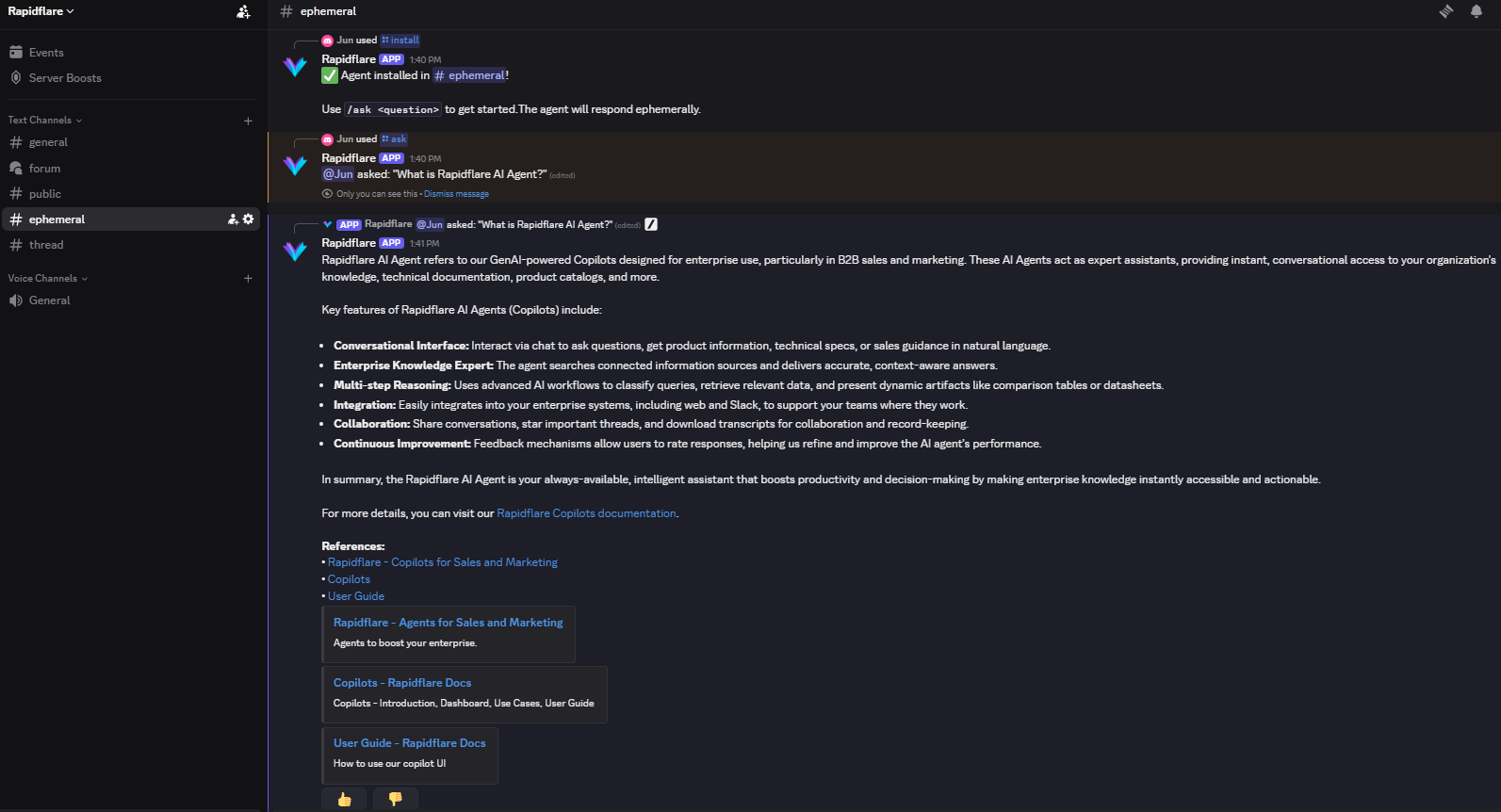
Thread Response
The agent automatically creates a new thread for each question. This helps organize conversations and keeps the main channel clean.

Thread & Forum Support
When you install the agent in a channel, all threads created in that channel also have access to the agent. For forum channels, installing from inside any post enables the agent in every post of that forum.
Once installed, you'll see a success message describing the mode you chose:

2. /uninstall command
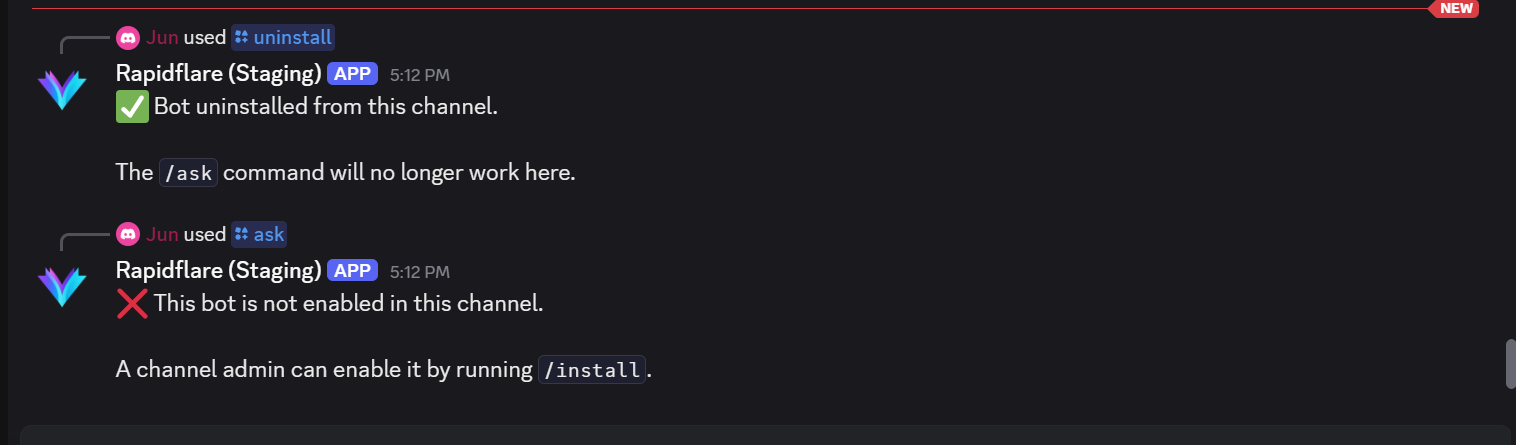
Use the /uninstall command to deactivate the agent from the current channel.
Usage: /uninstall
This command also requires Manage Channels permission.
3. /ask command
Use the /ask command to ask questions to the Rapidflare AI Agent.
Usage: /ask <your question> [file]
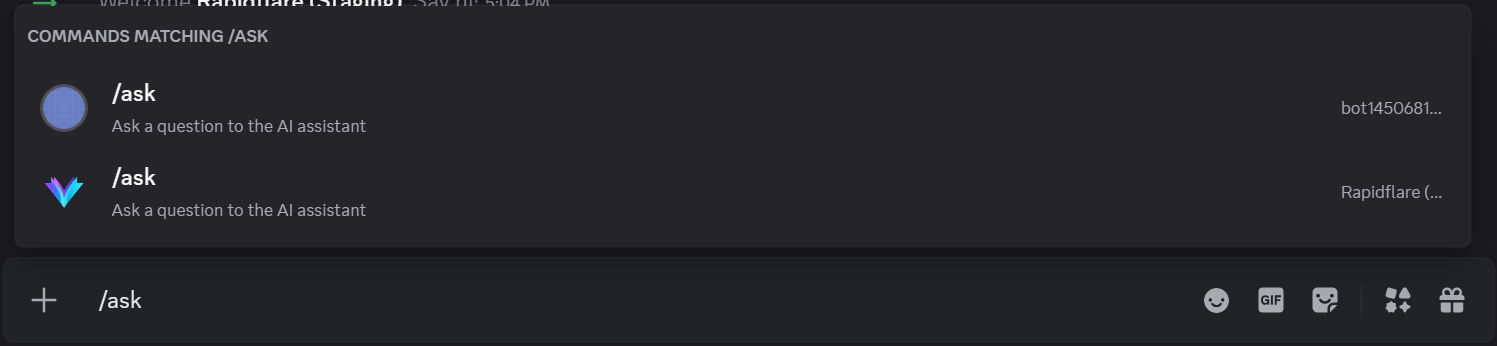

You can optionally attach a file to your question — see Attaching files.
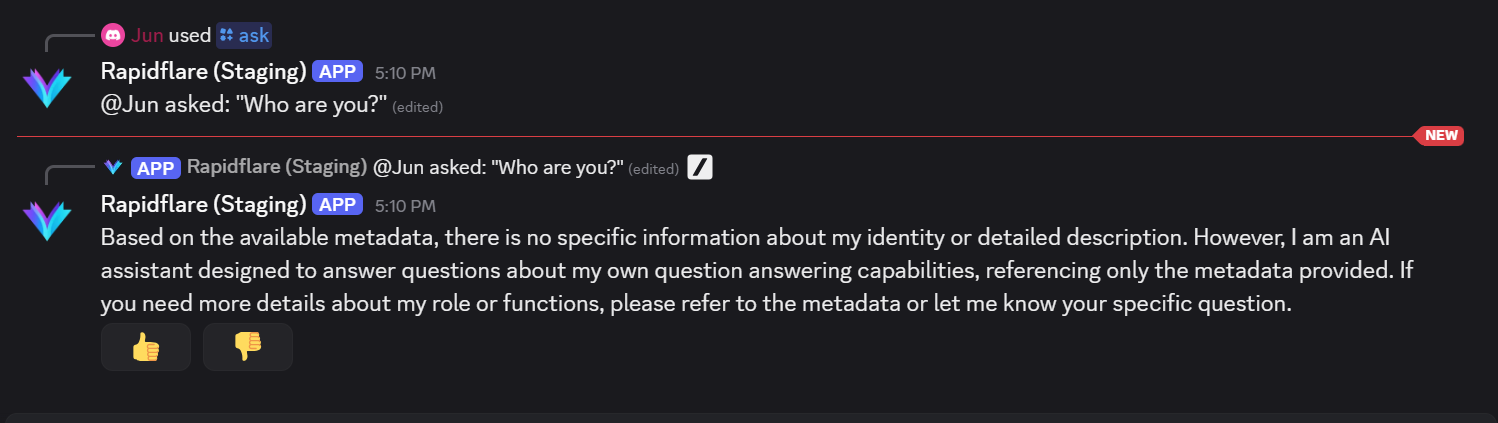
While the agent works, your question message updates in place with live progress, such as which sources it is searching. The agent then replies with the answer and its references.
Long answers and tables
Discord limits messages to 2,000 characters, so longer answers are split into several messages labeled "Message 1/2", "Message 2/2", and so on. Discord also renders wide tables poorly, so any table in the answer is attached as a table.txt file next to the message instead.
4. /ask-private command
Use /ask-private to ask the agent privately. Only you see the answer, no matter which reply type the channel is installed with — including in channels set to Public.
Usage: /ask-private <your question> [file]
Your private conversation continues as long as you keep asking in the same channel, with a 15-minute idle window between questions. After 15 minutes of silence the next /ask-private starts fresh.
When you use it inside a thread or forum post that already has public /ask discussion, the agent picks up that public discussion as background so your private follow-up can refer to it without repeating context.
Privacy
Private sessions are isolated per person. Nobody else can see your private conversation, and other people's private conversations are never mixed into yours. The channel still has to be installed — /ask-private does not bypass channel activation.
Forum channels
Forum channels let the agent answer new posts without anyone running a command. Which behavior you get depends on the reply type chosen at /install, and you can change it at any time by running /install again with a different reply type.
Post First Responder
The agent answers every new post automatically. It reads the post title and body, posts a short progress message while it works, then replaces it with the answer as the first reply in the post.
Use this for support forums where people expect an immediate first response.
Opt-In Post Reply
The agent does not answer immediately. Instead it greets the post author with two buttons:
| Button | What happens |
|---|---|
| Help | The agent answers the post right away. |
| I will wait | The agent stays out of it, so the community can answer first. |
If the author uses neither button, the agent waits — about 30 minutes by default — and then checks the post again. If the community has already answered it, the agent stays quiet and closes the offer. If the post is still unresolved, the agent posts an answer.
Only the post author can use these buttons. Anyone can still run /ask in the post at any time.
Use this for community forums where an instant bot reply would crowd out human answers.
Customizing the greeting
Admins can replace the default greeting with their own wording from the dashboard — see optional settings. The wait time is 30 minutes by default; contact us if you need a different one.
Only when /ask-ed
The agent never posts on its own. It answers only when someone runs /ask or /ask-private inside a post. Use this when you want the agent available but strictly on demand.
Automatic forum replies need one Discord setting
Post First Responder and Opt-In Post Reply both need MESSAGE CONTENT INTENT enabled in the Discord Developer Portal. Without it the agent cannot read post content. See Enable Privileged Gateway Intents.
Attaching files
You can attach one file to a /ask or /ask-private question, and the agent also reads files attached to a new forum post.
| Type | Formats | Size limit |
|---|---|---|
| Images | PNG, JPEG, WebP | 20 MB |
| Documents | 20 MB | |
| Text | TXT, CSV, Markdown, HTML | 1 MB |
Anything else is skipped with a short note above the answer, and the rest of your question is still answered. Up to five files are read per question.
Follow-up questions
The agent remembers context inside threads and forum posts, so you can ask follow-ups without repeating yourself.
| Where you ask | What is remembered |
|---|---|
Thread or forum post, using /ask | The conversation in that thread, for up to 7 days |
Any channel, using /ask-private | Your own private conversation, with a 15-minute idle window |
Regular channel, using /ask | Each question stands alone |
The agent also reads recent human discussion in the thread, so it can pick up details that were mentioned between questions rather than in the question itself.
Providing Feedback
After receiving a response, you'll see feedback buttons at the bottom of the message:
- 👍 Good - The response was helpful
- 👎 Bad - The response needs improvement
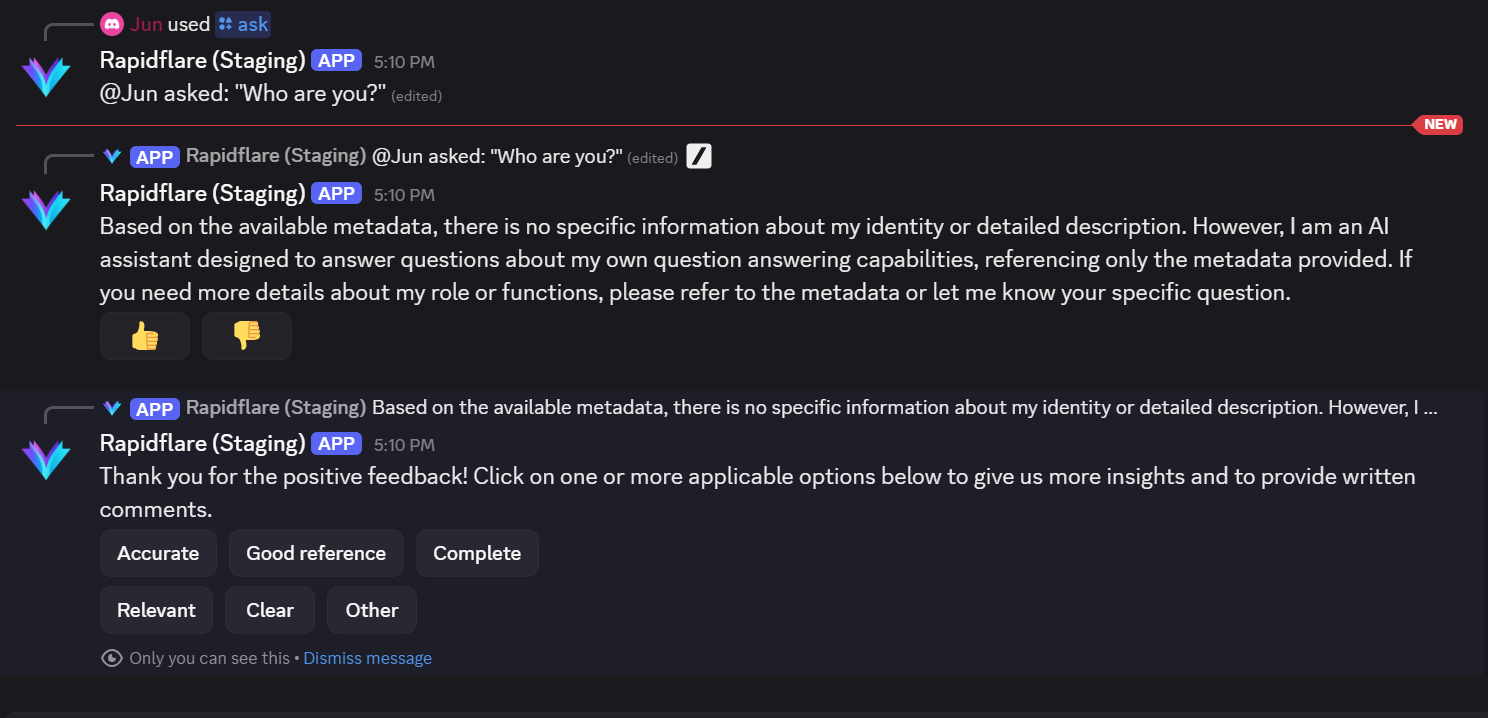
When you click a feedback button:
- You'll be asked to select a tag describing your feedback (e.g., "Accurate", "Incomplete", "Irrelevant")
- Optionally, you can provide additional comments via a popup modal
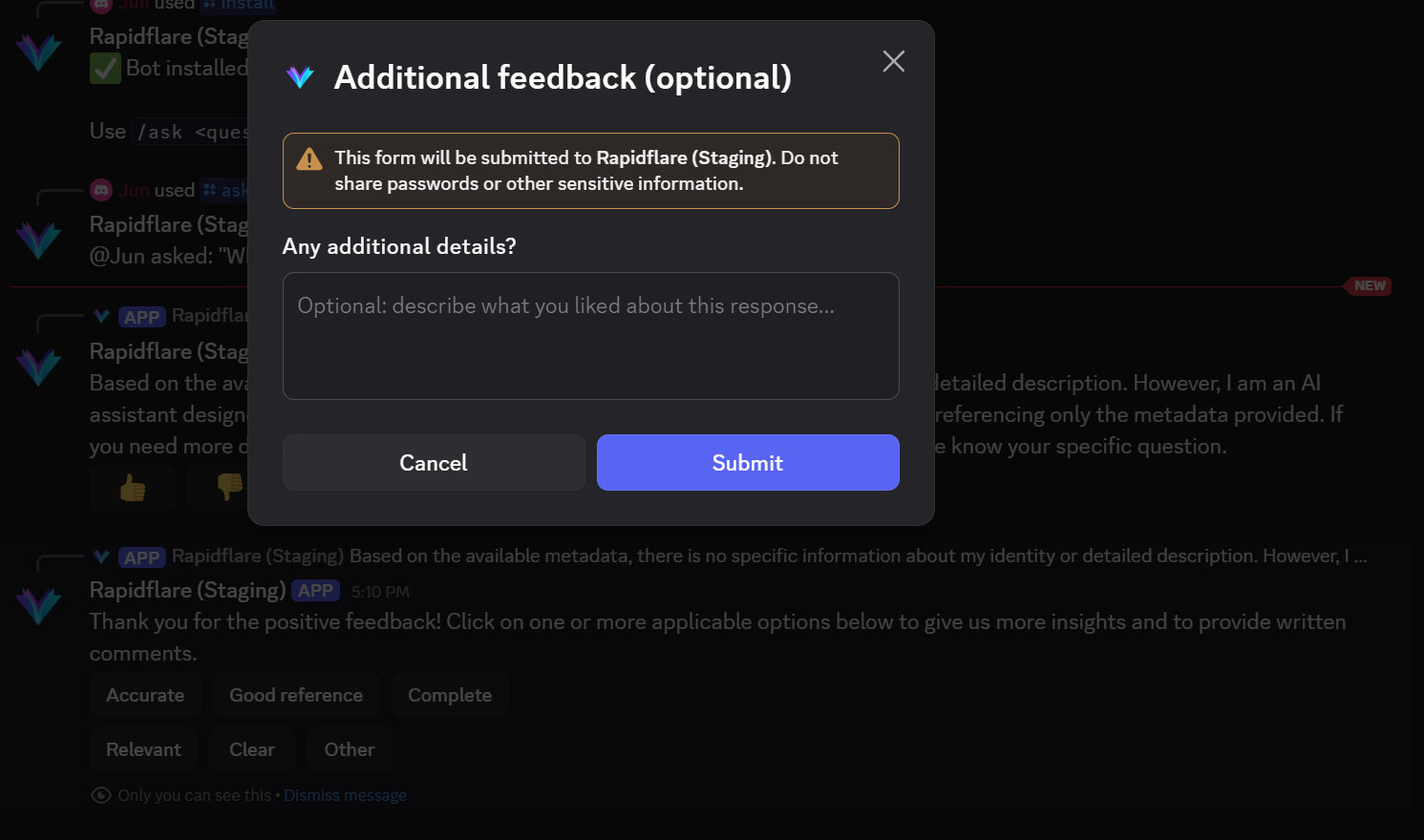
- Your feedback is saved and helps us improve the AI Agent
Good to know!
Only the person who asked the original question can provide feedback on that response. This ensures feedback is relevant and accurate.
Managing Installed Channels
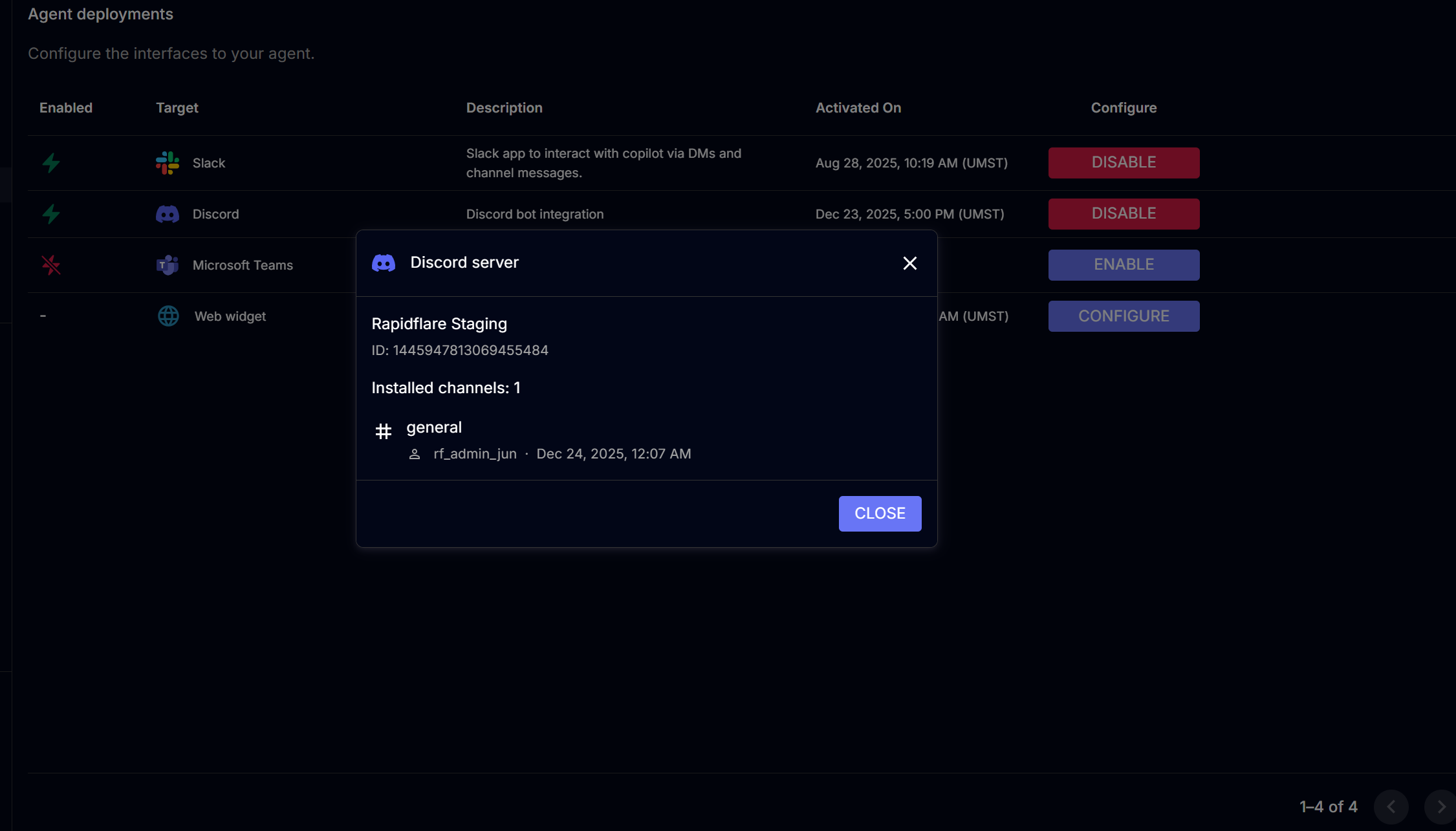
You can view which channels have the agent installed from your admin dashboard:
- Navigate to Deployments → Discord → Installed Channels
Disabling Discord Integration
You can disable Discord integration using one of these methods:
Method 1: From Rapidflare Dashboard
- Go to your admin dashboard's Deployments page
- Click Disable on the Discord row
This will disconnect the agent from your server.
Method 2: From Discord
- Go to your Discord server
- Open Server Settings → Integrations
- Find the Rapidflare agent (or your custom agent)
- Click Remove Integration
Note
Removing the agent directly from Discord doesn't notify Rapidflare of the disconnection. We recommend using Method 1 for cleaner tracking.
Troubleshooting
Agent not responding to /ask
- Run
/installin the channel first - In a thread, make sure the parent channel is installed
Agent not appearing in server
- Check if OAuth authorization was completed
Slash commands missing right after inviting the agent
- Discord can take up to an hour to publish commands to every server. Wait and refresh Discord
/install command not working
- Ensure you have Manage Channels permission
- Voice, category, announcement, stage, and media channels are not supported — use a text or forum channel
"Server not connected" error
- Re-enable Discord from the dashboard
"You are sending queries too quickly"
- Questions are rate limited per person, per channel, and per server. Wait a minute and try again
Forum posts get no automatic reply
- Confirm the forum is installed with Post First Responder or Opt-In Post Reply — Only when /ask-ed never replies on its own
- Ensure MESSAGE CONTENT INTENT is enabled in Discord Developer Portal
- Make sure you clicked "Save Changes" after enabling the intent
- Run
/installfrom inside a post in that forum, not from the forum channel itself
Opt-In Post Reply buttons do nothing
- Only the post author can use them. Everyone else should use
/ask - If the offer expired, ask directly with
/ask
Agent replies to forum posts with only the title, or seems to ignore the body
- This is the classic sign that MESSAGE CONTENT INTENT is off. Go to the Discord Developer Portal
- Select your application → Bot → Privileged Gateway Intents
- Enable MESSAGE CONTENT INTENT
- Click "Save Changes" (this step is often missed!)
For additional support, contact us at support@rapidflare.ai.