
AI Agents
Use code search in agent answers
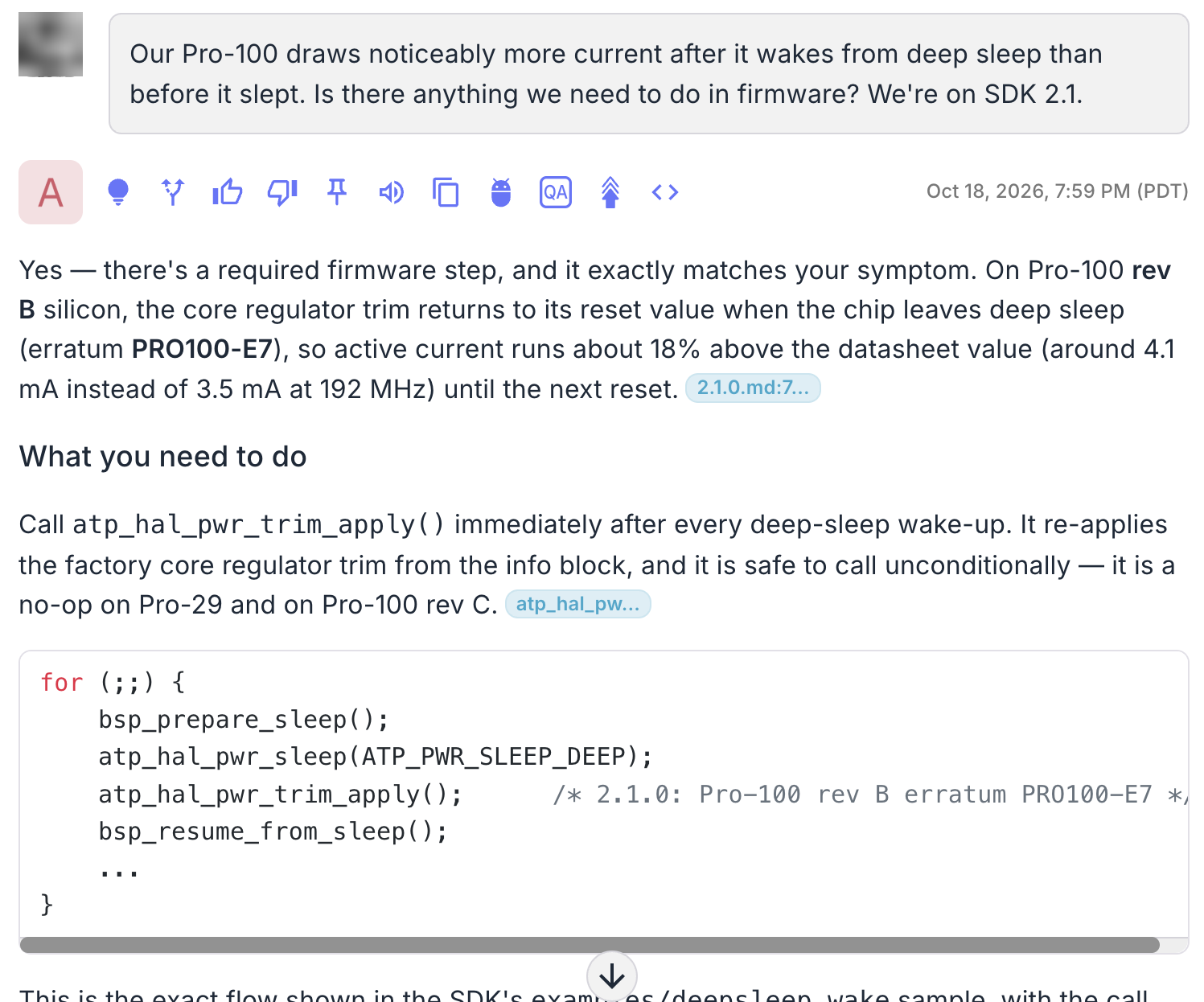
With code search on, the agent answers developer questions by searching and reading the repositories connected to the hub. Every fact it takes from the code carries a citation to the file and lines it came from, and you can follow each step of the search.
Turn on code search for a hub
Code search is on for a hub when its Software knowledge type is selected.
- Open the hub and go to Configuration → Hub configuration.
- Check that the agent mode is Single Front Door.
- Under Knowledge types, select Software. Keep Text documents selected too, so questions about datasheets and manuals can still use your documents.
- Click Save changes and confirm.

The hub also needs at least one GitHub source connected to it with a current snapshot. See Add GitHub repositories.
To turn code search off, clear Software and save. The sources and their snapshots stay in place, so turning it back on takes effect immediately.
What happens when someone asks
- The agent decides whether code can answer. It looks at the question and the repositories connected to the hub, including what each one covers.
- A code search step does the digging. It searches for the exact names in the question, lists folders, and opens the files that matter, starting from each repository's repo map.
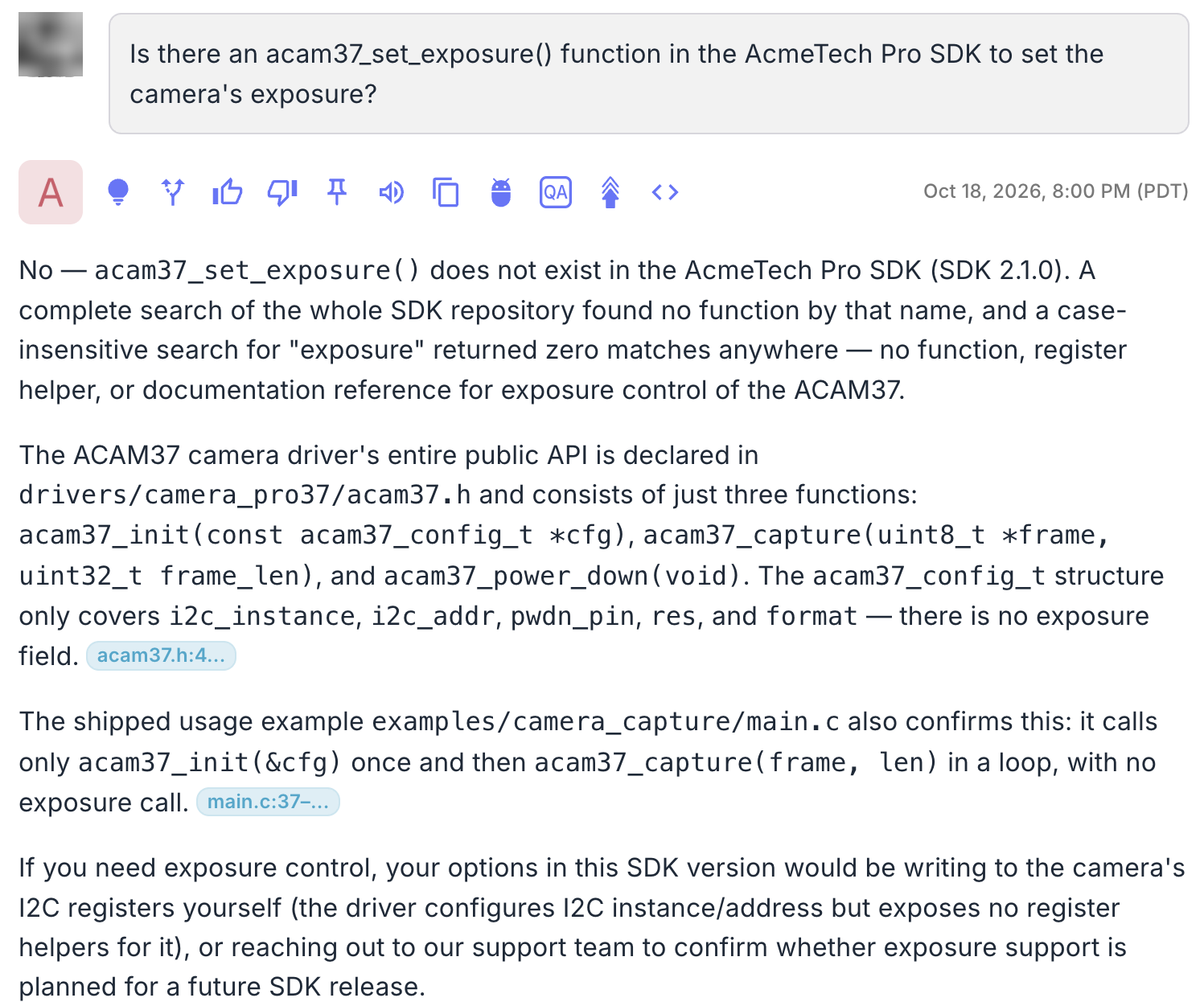
- Only verified facts come back. Each fact is checked against the lines it came from. "That doesn't exist" is reported only after a search that covered the whole repository and found nothing.
- The agent writes the answer. A short direct answer comes first, followed by steps and code, with a citation on each fact.
Most answers take under a minute. Broad questions that touch many files take longer.
The agent also tells you when something isn't in the code:
Ask questions that get precise answers
- Name the product, board or version when the answer depends on it, for example "on the Pro-100 EVK with SDK 2.1". If it matters and you leave it out, the agent asks.
- Paste exact names: function names, macros, error codes, file names and log messages. The agent searches for them first.
- Describe symptoms too, such as "current is higher after waking from sleep". The agent checks release notes and examples for required steps.
- Say when the answer lives in a repository. For questions that don't sound like code, such as test limits or failure codes kept in a repository, mention the repository or "our firmware" so the agent knows to search it.
- Ask follow-ups. The agent remembers what it already verified earlier in the conversation and doesn't search for it again.
See where an answer came from
Citations
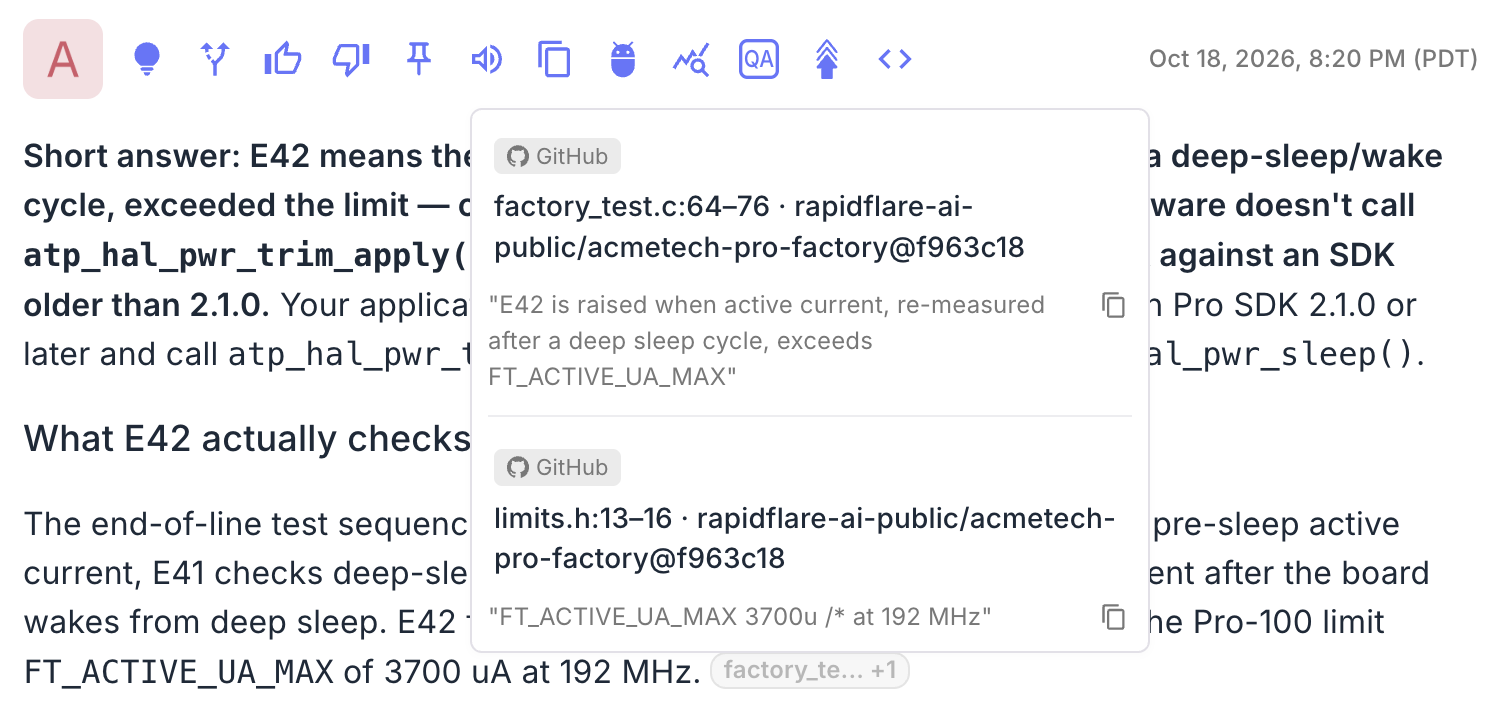
Each fact from the code ends with a citation chip. Hover over it to see the source:
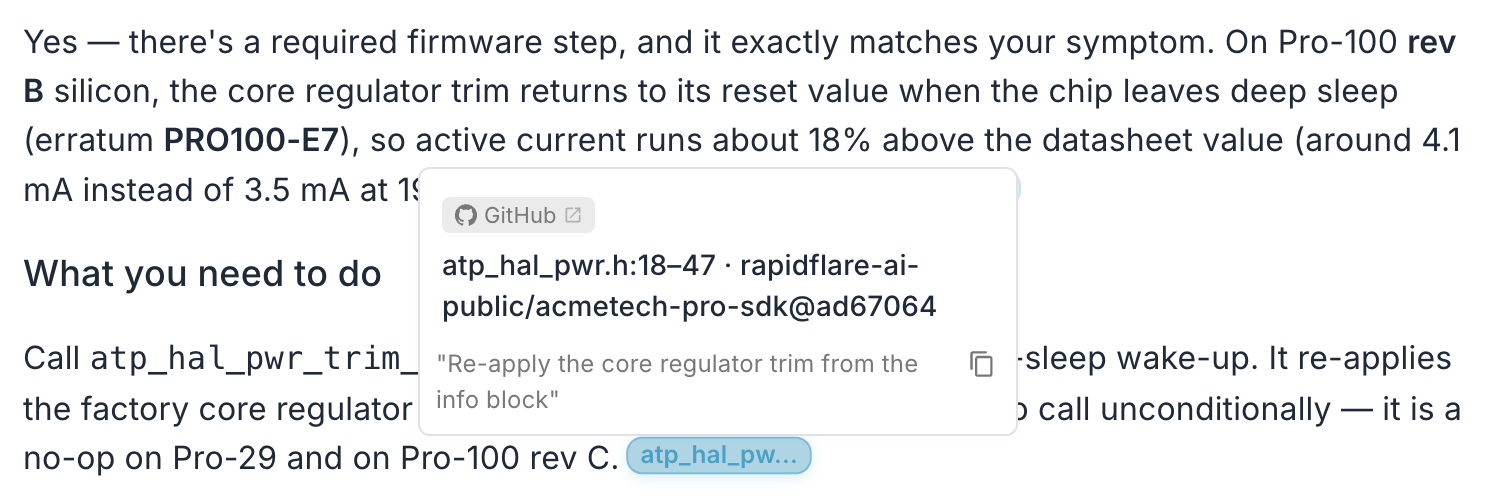
A citation shows:
- a GitHub badge, so you know the fact came from code rather than a document,
- the file and line range, such as
atp_hal_pwr.h:18–47, - the repository and commit the snapshot was taken from, such as
acmetech-pro-sdk@ad67064, - a summary of what those lines show, with a button to copy it.
A chip such as atp_hal_i2... +3 groups several citations. Hover over it to see each one.
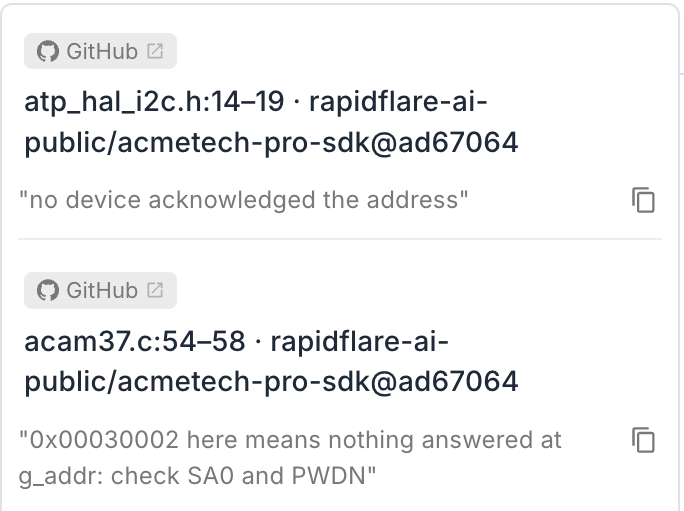
For a public repository, click a citation to open those exact lines on GitHub, at the commit the agent read, in a new tab. For a private repository, the citation shows the file, lines and commit without a link, so your code stays inside your GitHub organization.
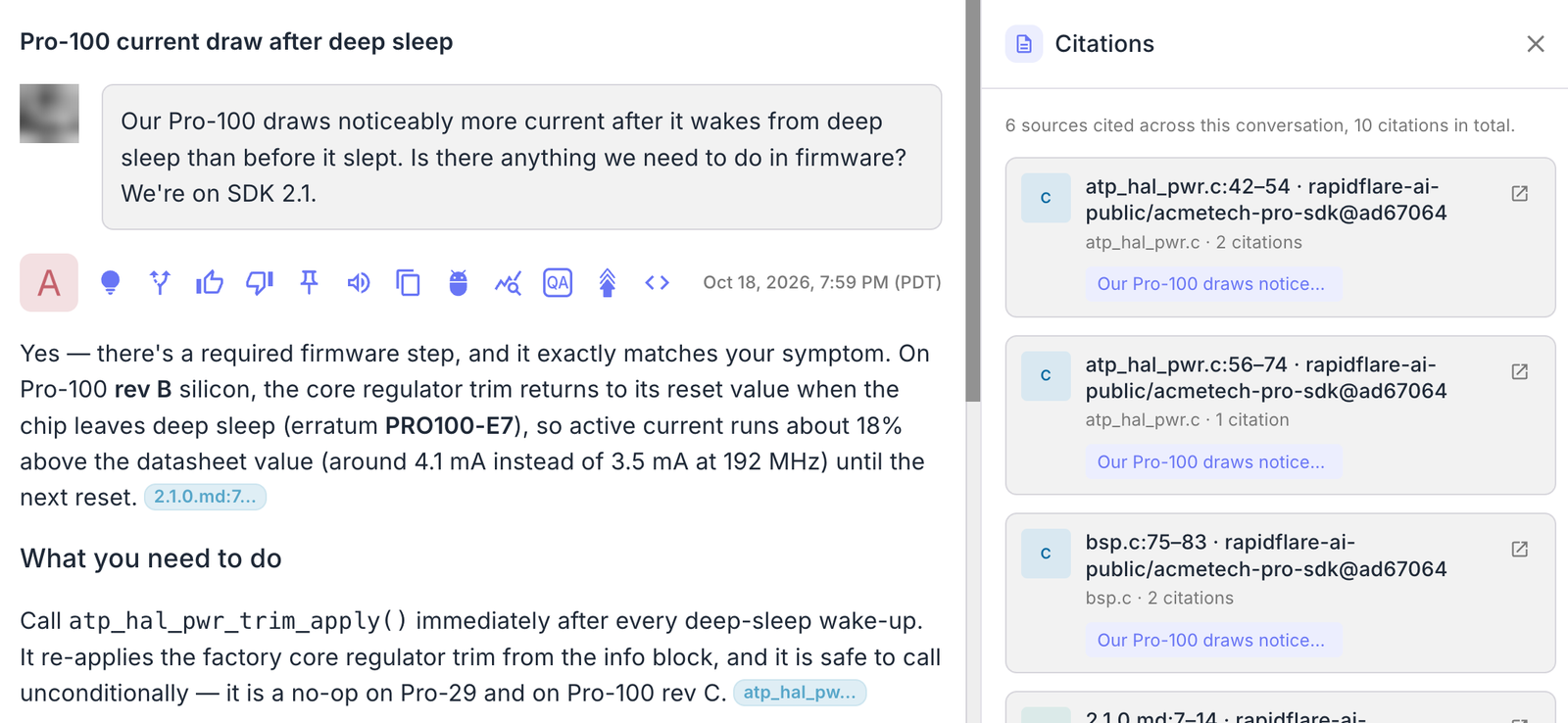
Citations panel
Click the Citations icon on the right edge of the conversation to list every file cited so far, with its line range, repository and commit, and how many times it was cited.
Search timeline
Click the light-bulb icon above an answer to see how the agent found it: each search, folder listing and file it read, in order, with timestamps. Repeated steps are folded, for example Searched rapidflare-ai-public/acmetech-pro-sdk ×2.
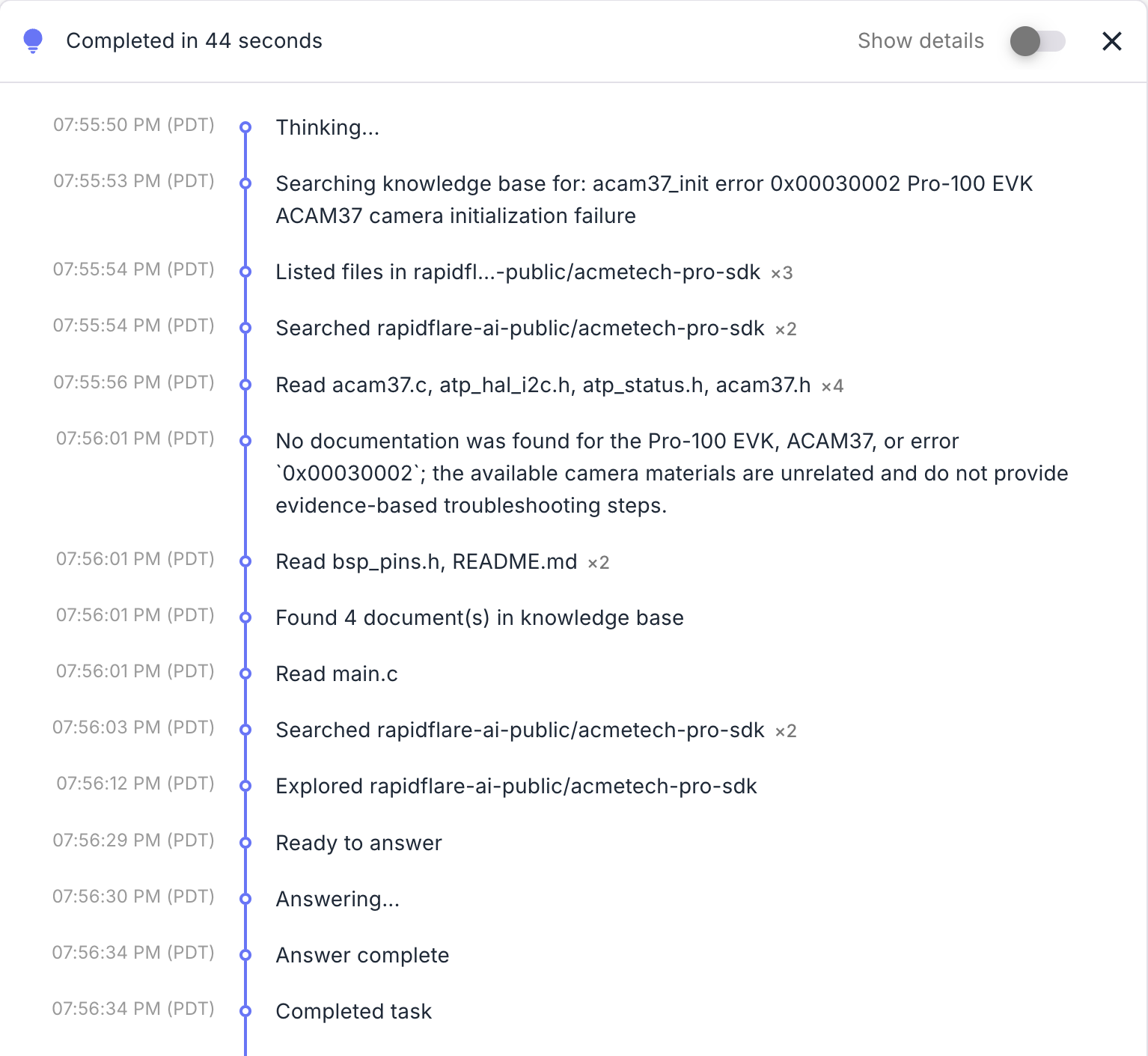
The timeline is the quickest way to tell why an answer looks off: whether the agent searched the right repository, which files it read, and whether it searched code at all.
When an answer looks off
| What you see | What it means | What to do |
|---|---|---|
| The answer says the code couldn't be checked | No GitHub source is connected and current for this hub | Check the source is enabled, connected to the hub, and has an approved snapshot |
| The timeline shows no code search | The agent answered from documents alone | Ask again and name the repository, product or exact function |
| The answer describes a different version or product | The right branch or repository isn't connected, or the question didn't say which | Connect the missing branch as its own source, or name the version in the question |
| The answer says a search stopped early | The question needed more searching than one answer allows | Ask a narrower question about one product, version or function |
| The answer contradicts the code | A real miss | Use the thumbs-down button and tell us what the code says |
Limitations
- GitHub repositories only. Issues, pull requests and discussions aren't searched yet.
- One branch per source. Add a source for each branch you want the agent to compare.
- Single Front Door hubs only.
- Private-repository citations don't link to GitHub. They show the file, lines and commit instead.
- The dashboard doesn't show a repository's files. Use the source's Repo map and Overview tabs to see what's in the snapshot.