
Product Overview
User Guide
Here's how to use the Rapidflare AI Agent.
Introduction
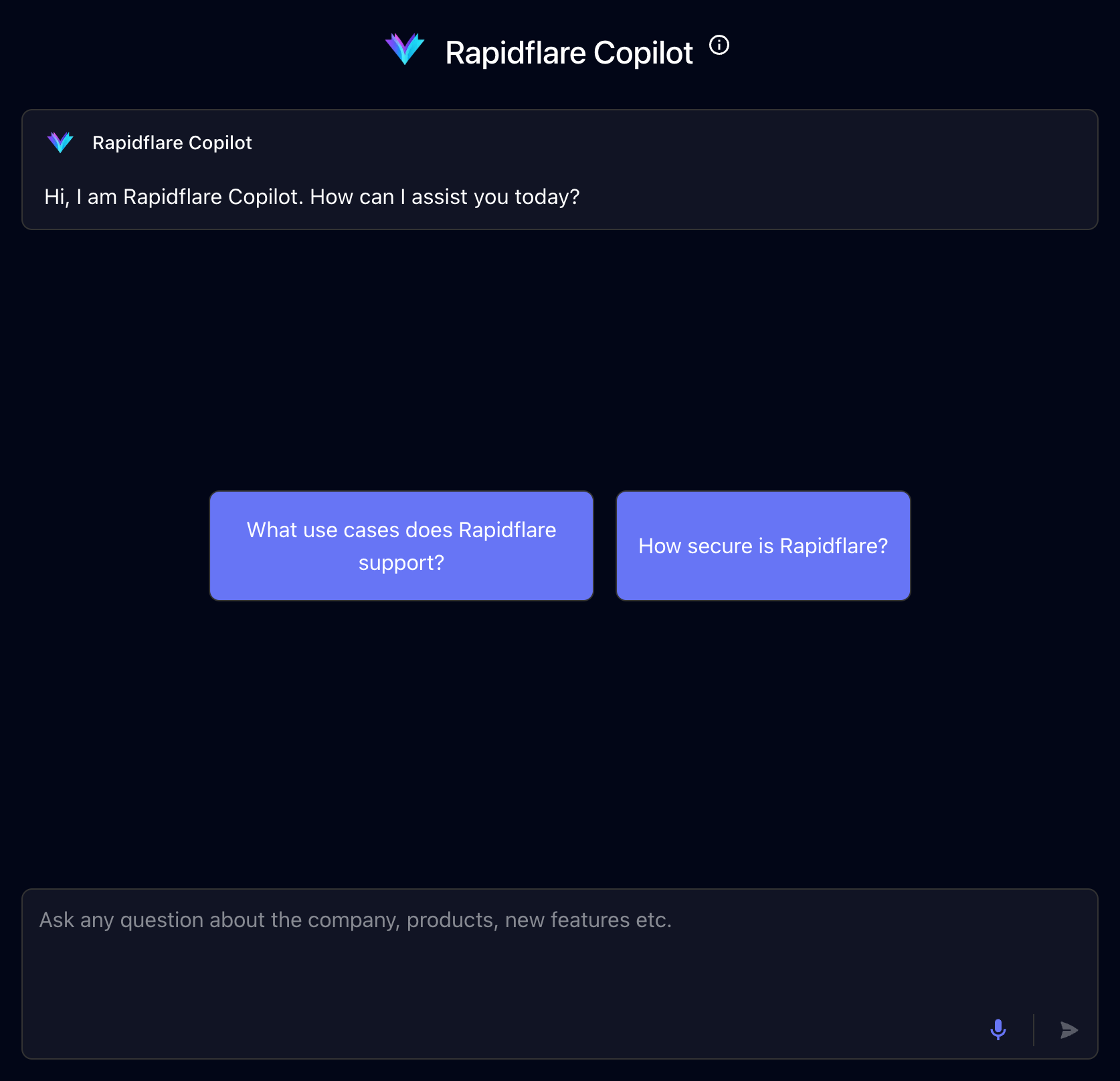
When you bring up the AI Agent, you should see a conversational chat window similar to the screenshot below:
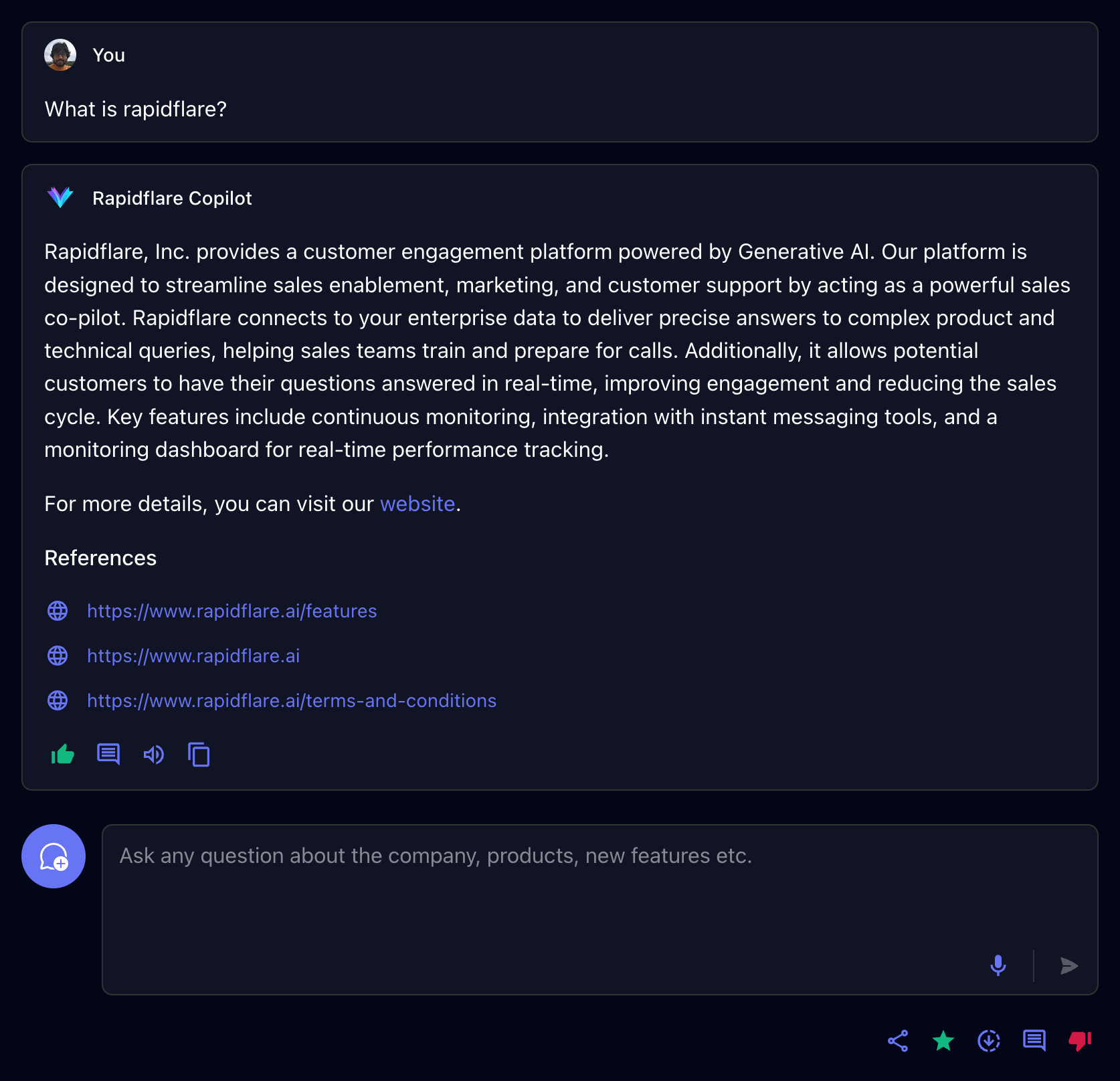
When you ask a question to the AI Agent, you should see a response similar to the screenshot below:
Conversations
You interact with the Rapidflare AI Agent via Conversations.
To start a new conversation with the AI Agent, you can either click one of our starter prompts or start typing a question or a message in the input box and press send. The AI Agent will interpret your question, search for articles from the information sources it is connected to, and provide a response in natural language.
Starter prompts are prompts that you are Rapidflare Admin has created for you to make it easy to ask common questions, or simply to help you get to know how to interact with the AI Agent. See the example below:
Continuing a conversation
You can continue typing questions in the same conversation thread. The AI Agent uses the previous messages exchanged as context to interpret your new question. This is referred to as a Conversation. Each individual chat interaction is referred to as a Message. See the example below, where we build upon a previous question about security.
Starting a new conversation
If you want to start a new topic or ask a question unrelated to the current conversation, you should start a new conversation. Click the icon. Don't worry, all your past conversations are stored in Rapidflare's history and you can always go back to them.
Starring a conversation
You can star a conversation by clicking on the icon. They help you earmark interesting or useful conversations for reference. Starred conversations will be available for easy future access.
Copying messages
You will often find yourself wanting to use the AI Agent's responses in emails, or documents or in responding to customers. You can click on the clipboard icon to copy the text of a particular message's response as well as the references.
Downloading full conversations
To get the full transcript of a conversation you had with the AI Agent, you can click on the which downloads a JSON file containing all the messages of the conversation as well as other metadata.
Providing Feedback
You can provide feedback on individual Messages within a conversation. Providing feedback is an important way in which we work with your Rapidflare Admin to improve the AI Agent's responses. Periodically we review both positive and negative feedback. Positive feedback helps us know where we are doing well, so we can do more of that. Negative feedback allows you to tell us where a response is not useful enough, or misleading or incorrect. This may point to improvements we can make in our AI Agent's AI, or in the quality of the technical documentation we ingest, or how we process your messages to the AI Agent.
When you provide feedback, you can add a textual comment to indicate why you gave the feedback. While this is optional, knowing the reason why helps us act to improve the impact of the AI Agent. So please do provide comments!
Here's a video illustration of providing both positive and negative feedback.
QA Panel
The QA Panel is an internal diagnostic and review tool that allows users to assess the quality, accuracy, and relevance of AI responses. It provides a structured way to rate responses, classify user queries, add internal notes for follow-up, and maintain a complete audit trail of all review actions. Each evaluation contributes to improving the reliability and effectiveness of the AI agent over time.
To access the QA Panel, a reviewer must first locate an AI-generated response within the chat interface of the conversational agent dashboard. Beneath each AI response, there is a QA icon. Selecting this icon opens the QA Panel, which slides in from the right side of the screen and displays all review-related options for that specific response.
The Evaluation section of the QA Panel is the primary area where reviewers assess the AI’s performance. In this section, the reviewer rates the overall quality of the response as Good, Average, or Bad based on correctness, clarity, and usefulness. The quality of reference field is used to evaluate the reliability and appropriateness of the source material or knowledge used by the AI to generate the response. The quality of related content field measures how relevant any additional or supporting information was in relation to the user’s original query. Reviewers are also required to classify the query type, such as product specifications, troubleshooting, or agent capability, to help categorize the interaction for analysis. The status field indicates the current state of the evaluation, including options such as Open, In Progress, Pending, or Customer. Contributing factors are selected to explain the evaluation outcome and may include tags such as bad reasoning, internal error, or incorrect classification.
In addition to structured evaluations, the QA Panel provides a Notes section for adding internal comments or guidance. This section allows reviewers to capture additional context, explain issues in more detail, or provide instructions for development or QA teams. Notes are entered as free text and saved directly within the panel. Once a note is successfully saved, a confirmation message appears at the bottom of the screen indicating that the note has been added. These notes are for internal use only and are not visible to end users.
The Activity Log section of the QA Panel displays a chronological record of all actions taken on the selected AI response. This log includes information about who performed each action, what changes were made—such as status updates, rating changes, or notes added—and when each action occurred. The activity log ensures transparency, accountability, and traceability throughout the evaluation process.
After completing the evaluation and adding any necessary notes, the reviewer finalizes the review by saving the evaluation. Once the save action is performed, the system confirms the submission with a success notification. At this point, the evaluation is officially recorded and becomes part of the ongoing quality tracking for the AI agent.
Inline Citations
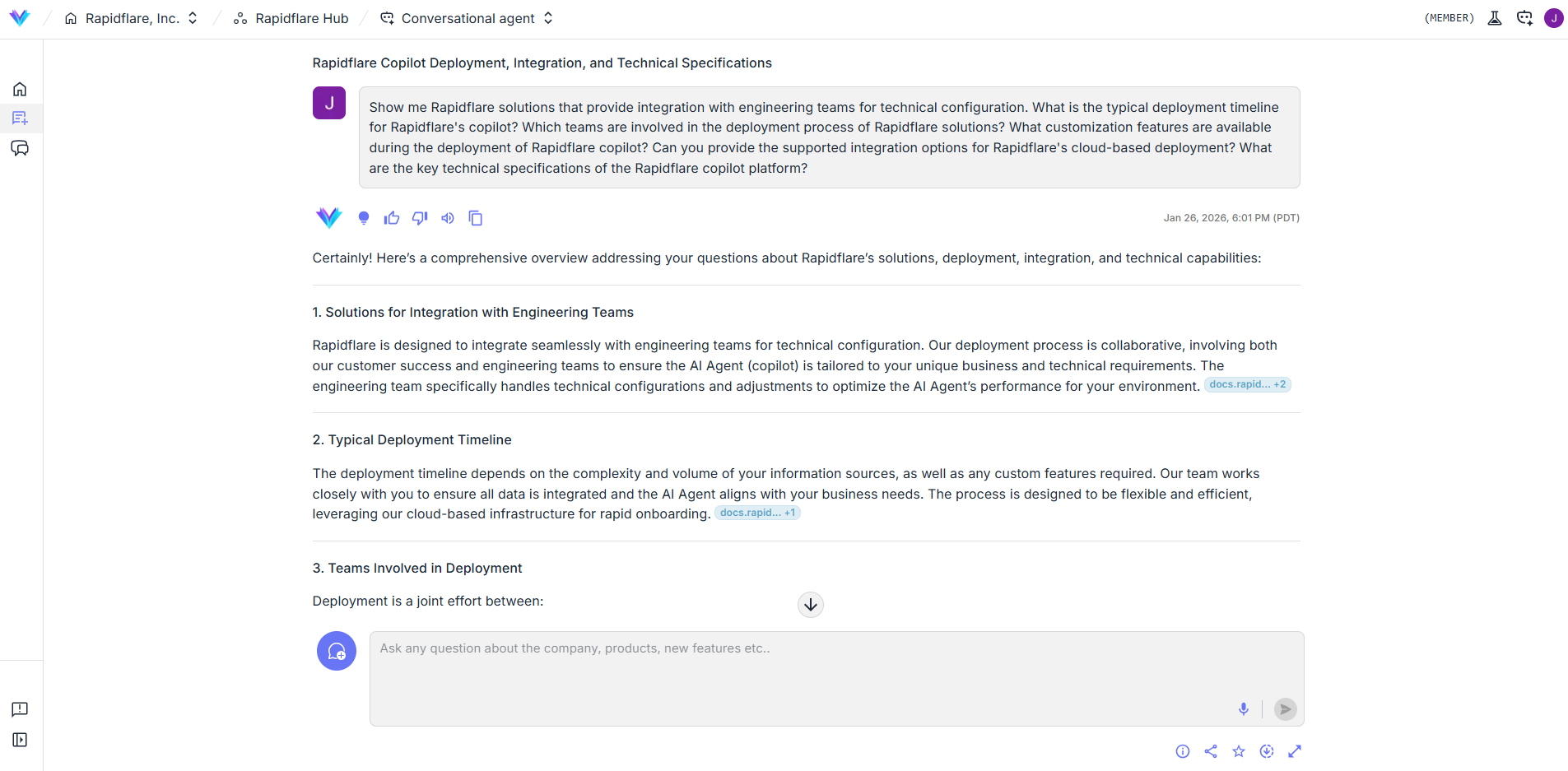
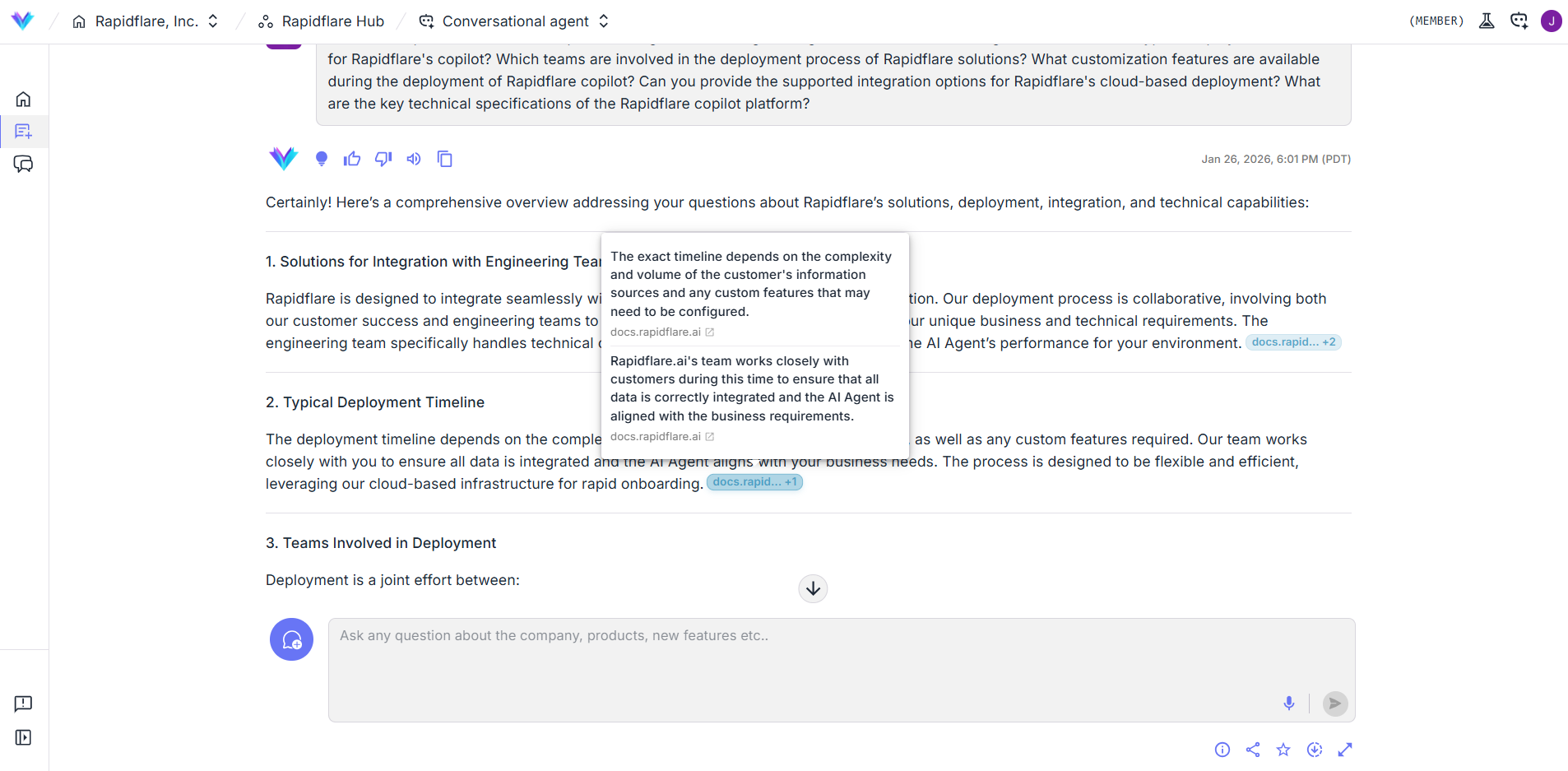
When the AI Agent references information from your connected sources, it may include citation badges at the end of sentences. These badges let you quickly verify where the information came from.
Reading Citation Badges
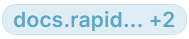
Citation badges display the source domain name, such as docs.company.com. If the domain name is long, it will be truncated with ... — hover over the badge to see the full source title.
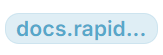
When multiple sources support the same statement, they are grouped together. A badge like docs.company.com +2 means there are 3 total sources.
Hover and Click to Verify
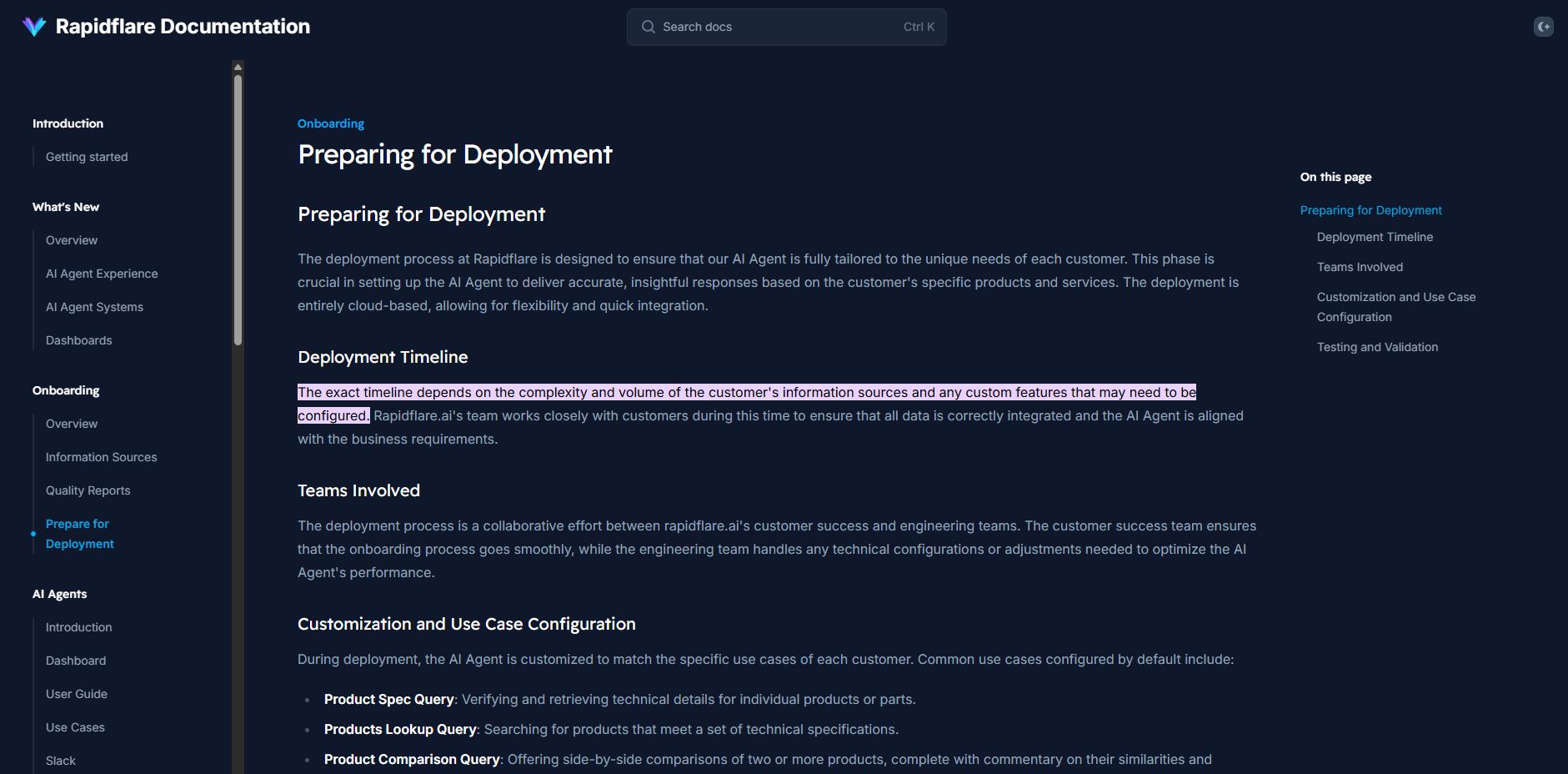
Hover over any citation badge to see the full title of the source document. Click the badge to open the source in a new tab — your browser will automatically scroll to and highlight the exact passage that was cited.
Diagrams and Visuals
Some answers are easier to understand as a visual than as a paragraph. When a question is about a process, a hierarchy, or how a set of parts fit together, our agents can visualize the answer instead of describing it.
There are two kinds of visuals we support: diagrams and interactive visuals, and the agent picks the right one based on what the conversation needs.
They are rendered differently:
- System block diagrams (SBDs) show how the parts of a system fit together and connect. Ask for a system overview, then zoom in to explore the connections.
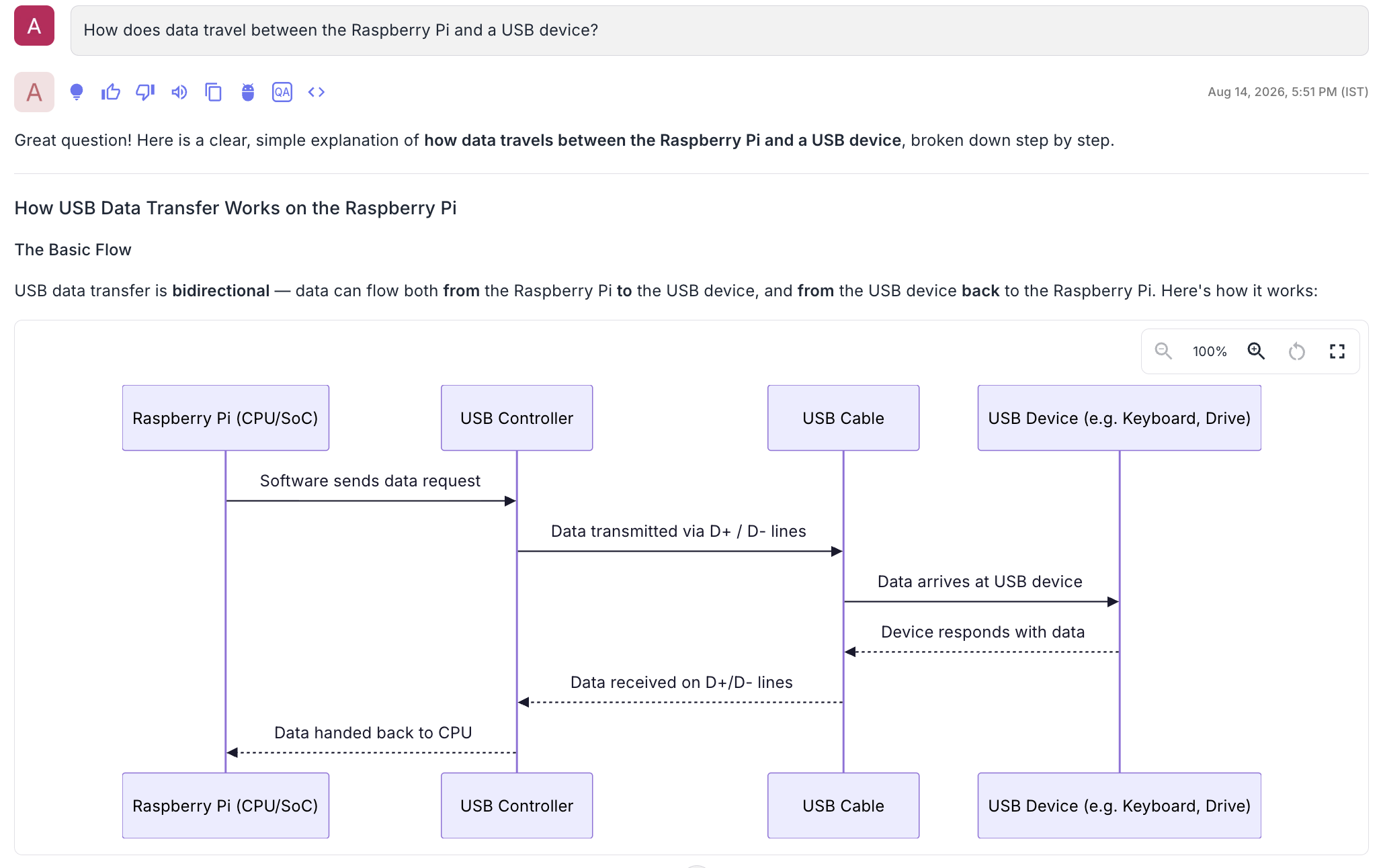
- Mermaid diagrams appear inline in the reply.
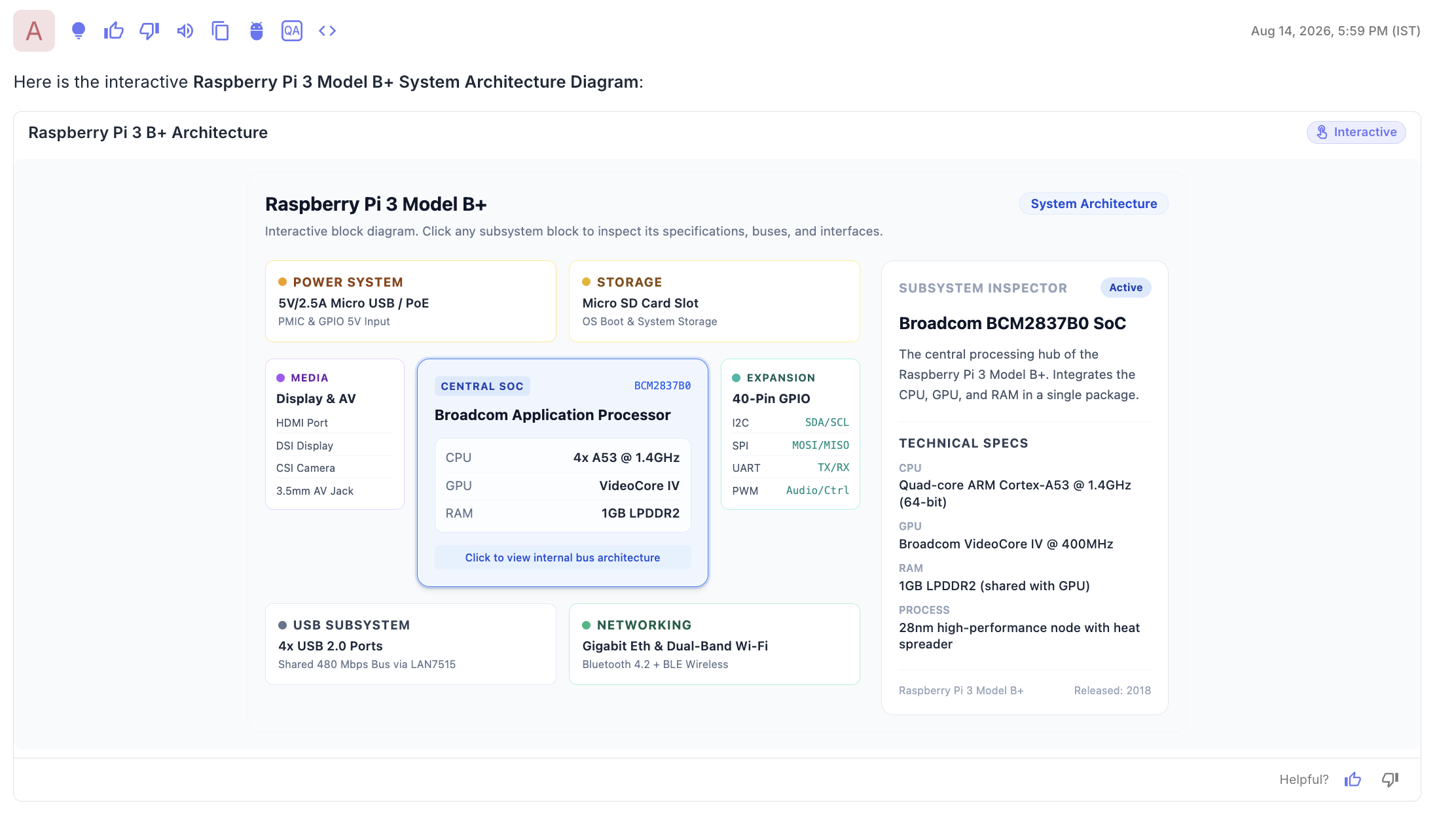
- Interactive visuals are offered as a Visualize this button which users can click to build the visual.
You can ask for a visual directly as a query, or the agent will add one on its own when the answer would benefit: either drawing it inline or offering the Visualize this button.
Exploring a Diagram
Each diagram includes a toolbar to zoom, reset the view, or open it fullscreen.
Interactive Visuals
When the agent offers an interactive visual, it shows a Visualize this button with a short caption.

Click it and the visual is built and shown in place. An Interactive chip in the title row means you can click and hover the visual to reveal more detail, in the example below, selecting a subsystem opens its specifications alongside the diagram.
Rating a Visual
Every diagram and interactive visual has its own Helpful? rating, separate from the feedback on the answer around it. Use or to tell us whether the visual helped.