
AI Agents
How Rapidflare ingests a GitHub repository
When Rapidflare syncs a repository, it takes a snapshot of the branch at its latest commit, keeps the files that can answer questions, and writes a short guide to the repository's layout. The agent searches that snapshot directly; code isn't split into chunks or rewritten.
What happens during a sync
A sync takes a minute or two for a typical repository. Each one:
- Reads the branch at its latest commit. The snapshot is tied to that commit, so every answer can say exactly which version of the code it came from.
- Keeps what can answer questions. Source code, headers, examples, scripts, READMEs, release notes and other text files are kept. Build outputs, compiled binaries, IDE folders, images, PDFs, generated API documentation and very large files are left out.
- Writes a repo map. A short guide to the repository: what each top-level folder holds, which files are the source of truth for what, where the examples are, and what the repository covers, such as the products, boards or versions it supports. The agent reads the repo map first, so it goes straight to the right folder instead of exploring.
- Waits for approval, then goes live. The new snapshot replaces the current one once it's approved (see Approve new snapshots). Until then, the agent keeps using the previous snapshot.
If nothing changed since the last sync, Rapidflare reuses the existing snapshot.
Check the current snapshot
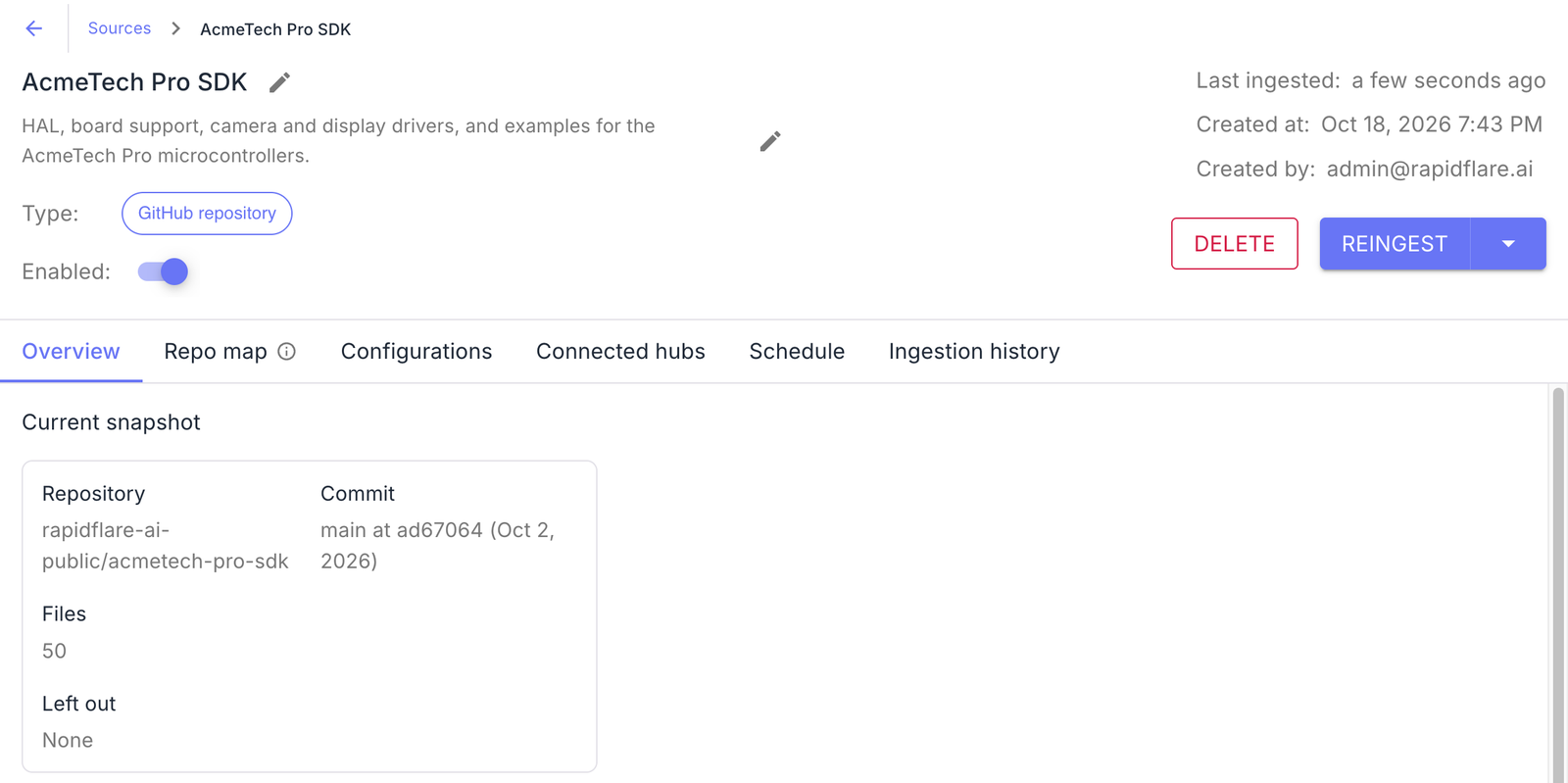
The source's Overview tab shows the snapshot the agent is using: the repository, the commit it was taken from, how many files it holds, and how many were left out.
Read the repo map
The Repo map tab shows the guide Rapidflare wrote for the current snapshot. Its first line names the repository and what it covers. That line is also how the agent picks the right repository when a hub has several.
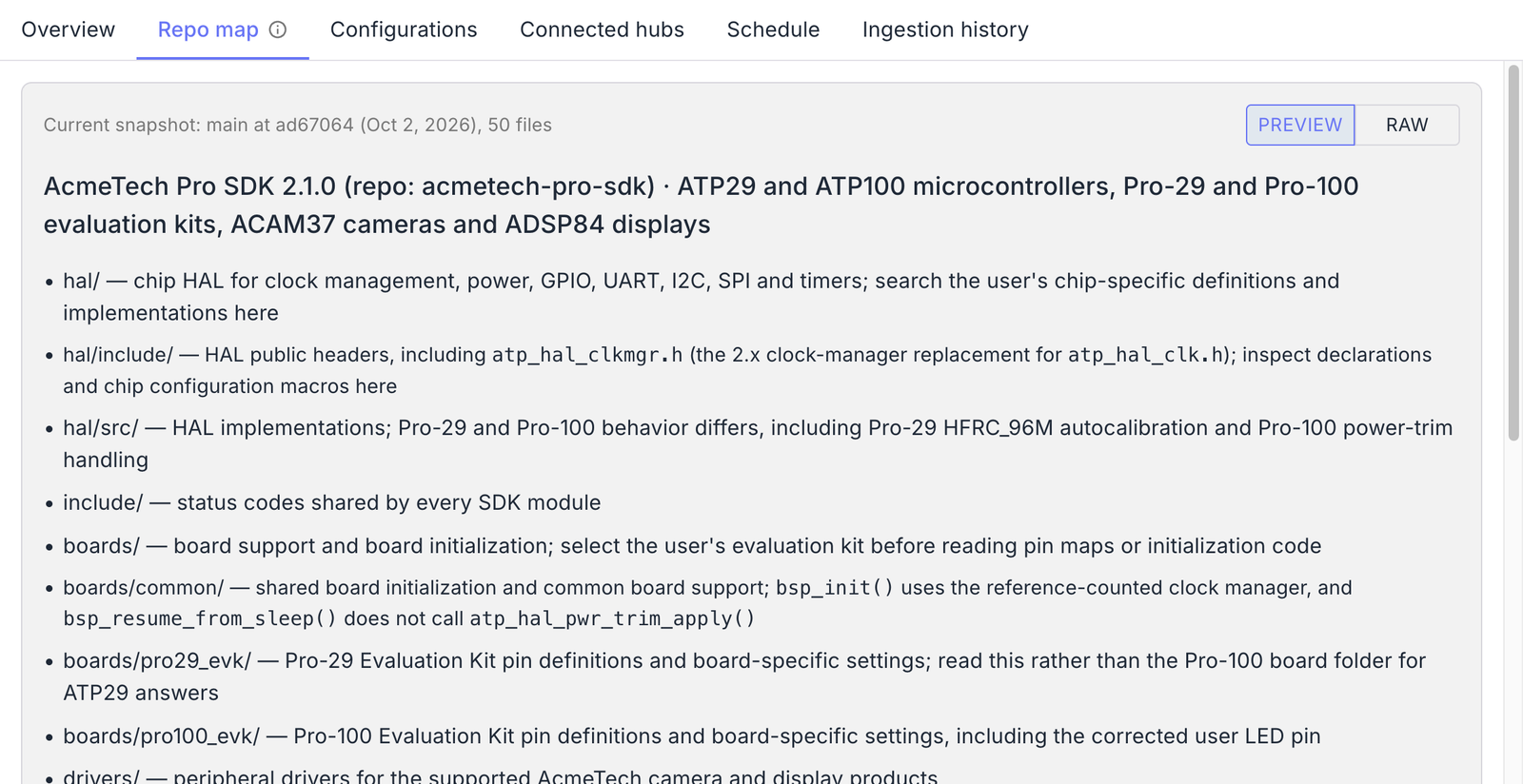
Read the repo map after the first sync. If it misses an important folder or describes the repository's coverage poorly, a short, accurate README at the root of the repository usually fixes it on the next sync.
Approve new snapshots
By default, each new snapshot waits for someone on your team to approve it before the agent uses it. The source page shows Awaiting manual approval with Approve and Reject buttons.
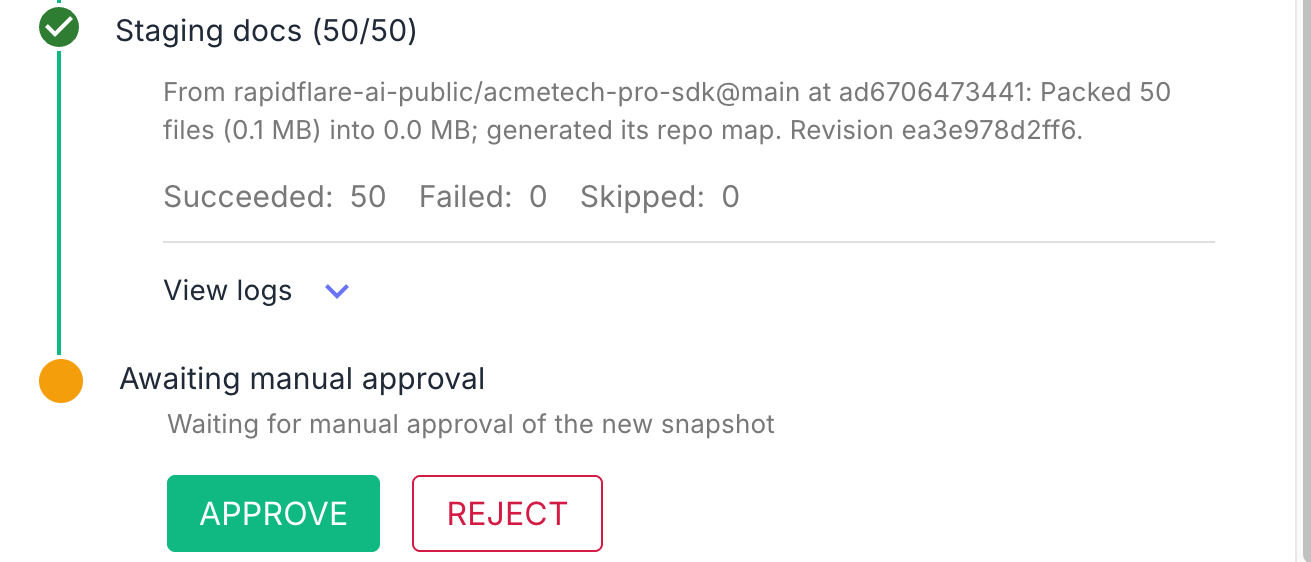
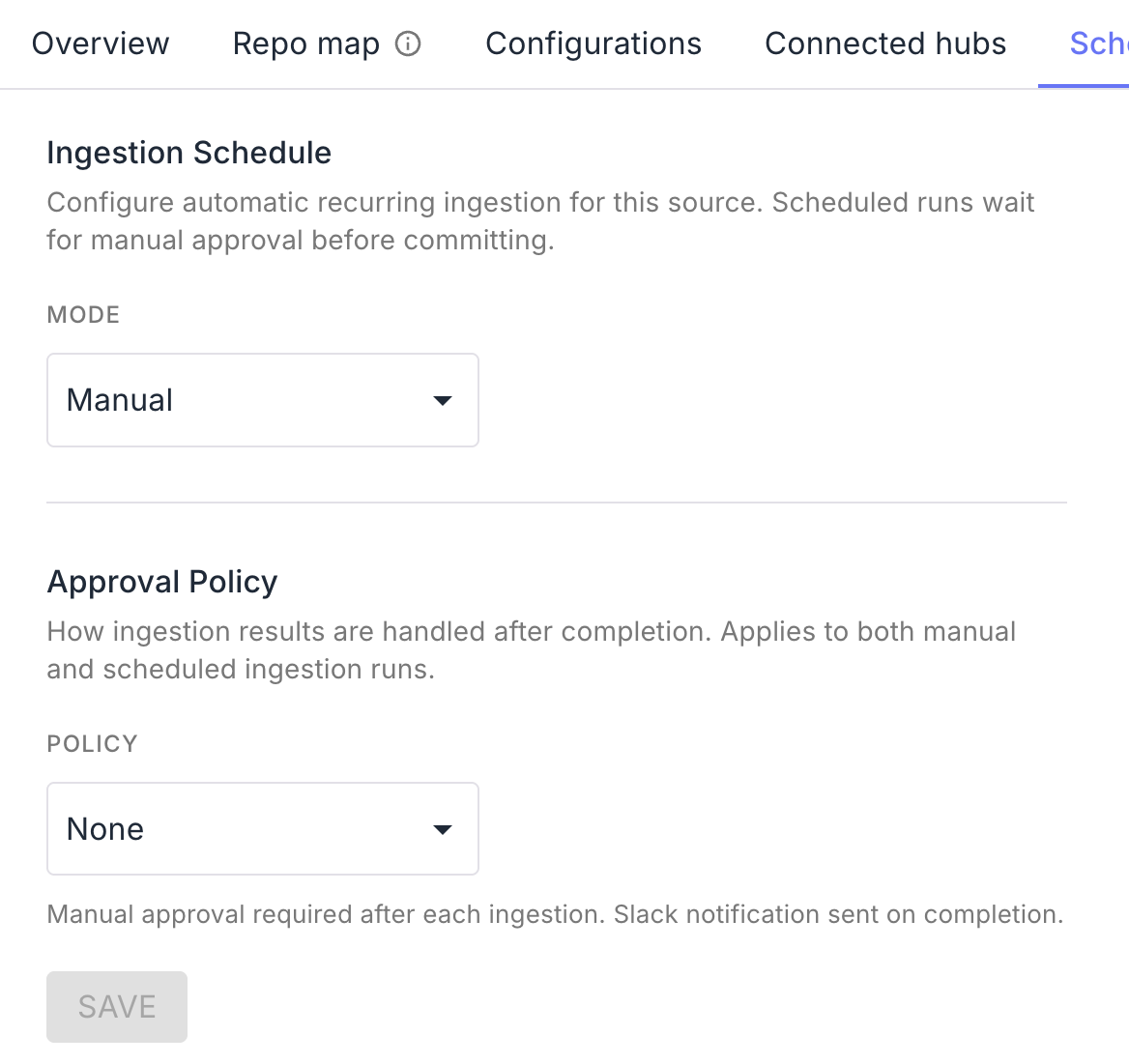
Reject discards the new snapshot and keeps the current one. To have new snapshots go live without review, change the source's Approval policy on its Schedule tab.
Keep the source current
Syncs run when you click Ingest (or Reingest) on the source page. To sync on a schedule instead, set Mode to Automatic on the Schedule tab.
Where your code is kept
Snapshots are stored privately for your organization. The agent reads a source only for hubs it's connected to, and only while the source is enabled. Turn off Enabled on the source page to stop the agent using it right away.