
AI Agents
Add GitHub repositories to a hub
You add a GitHub repository the same way as any other source: from Sources, with Add source. A public repository needs only its name. A private repository needs your organization's GitHub App integration turned on first.
Public or private
| Public repository | Private repository | |
|---|---|---|
| What you need | Nothing beyond the repository's name or link | The GitHub App integration turned on and connected for your organization |
| Which repositories you can pick | Any public repository on GitHub | The repositories your GitHub App installation can read |
| Citations in answers | Open the exact lines on GitHub | Show the file and line range, without a link |
Add a public repository
Go to Sources and click Add source.
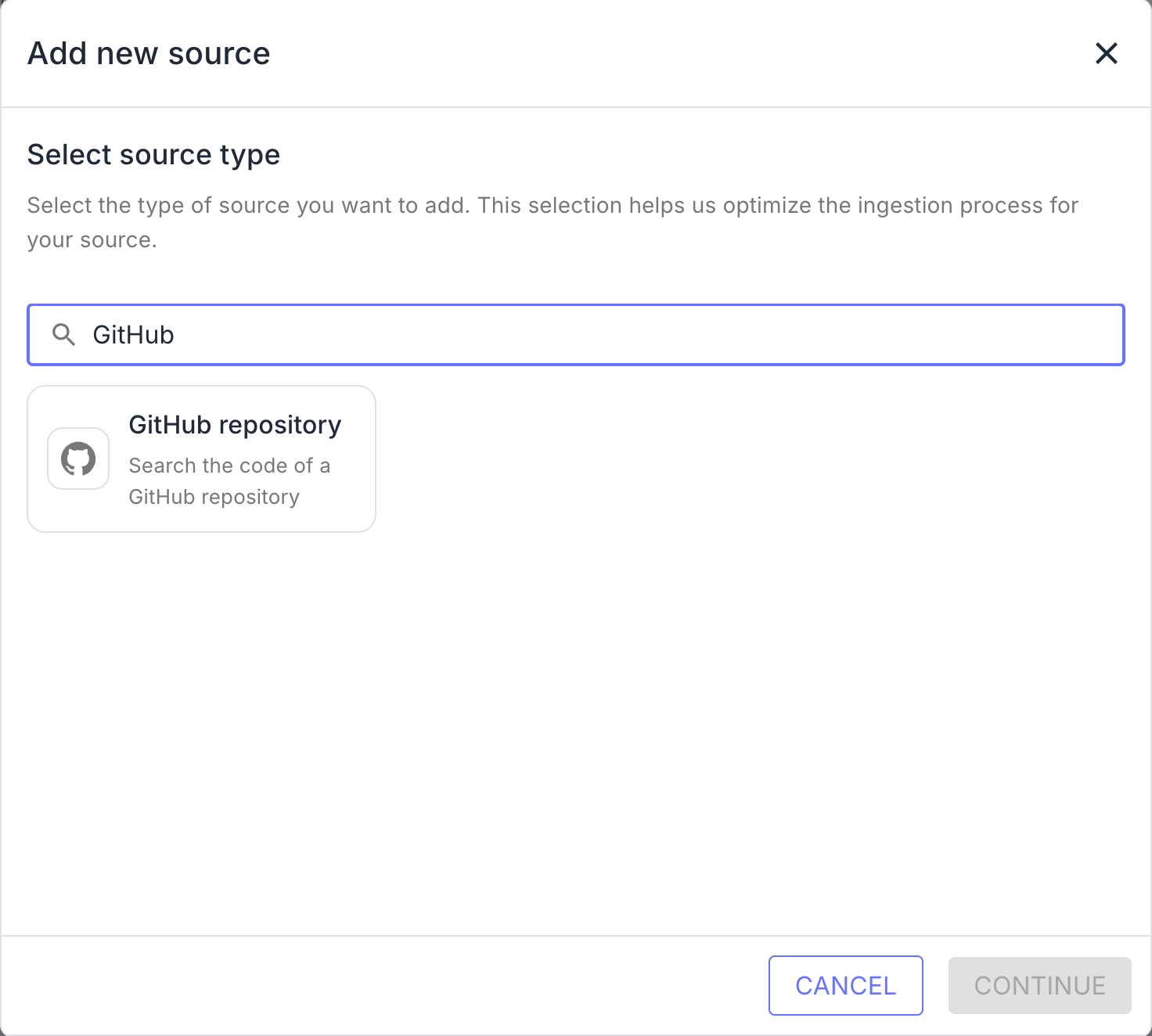
Search for GitHub and choose GitHub repository.
Leave Read on Public repository. In Repository, search GitHub, or paste the repository as
owner/nameor as its GitHub link. A green check confirms the repository was found.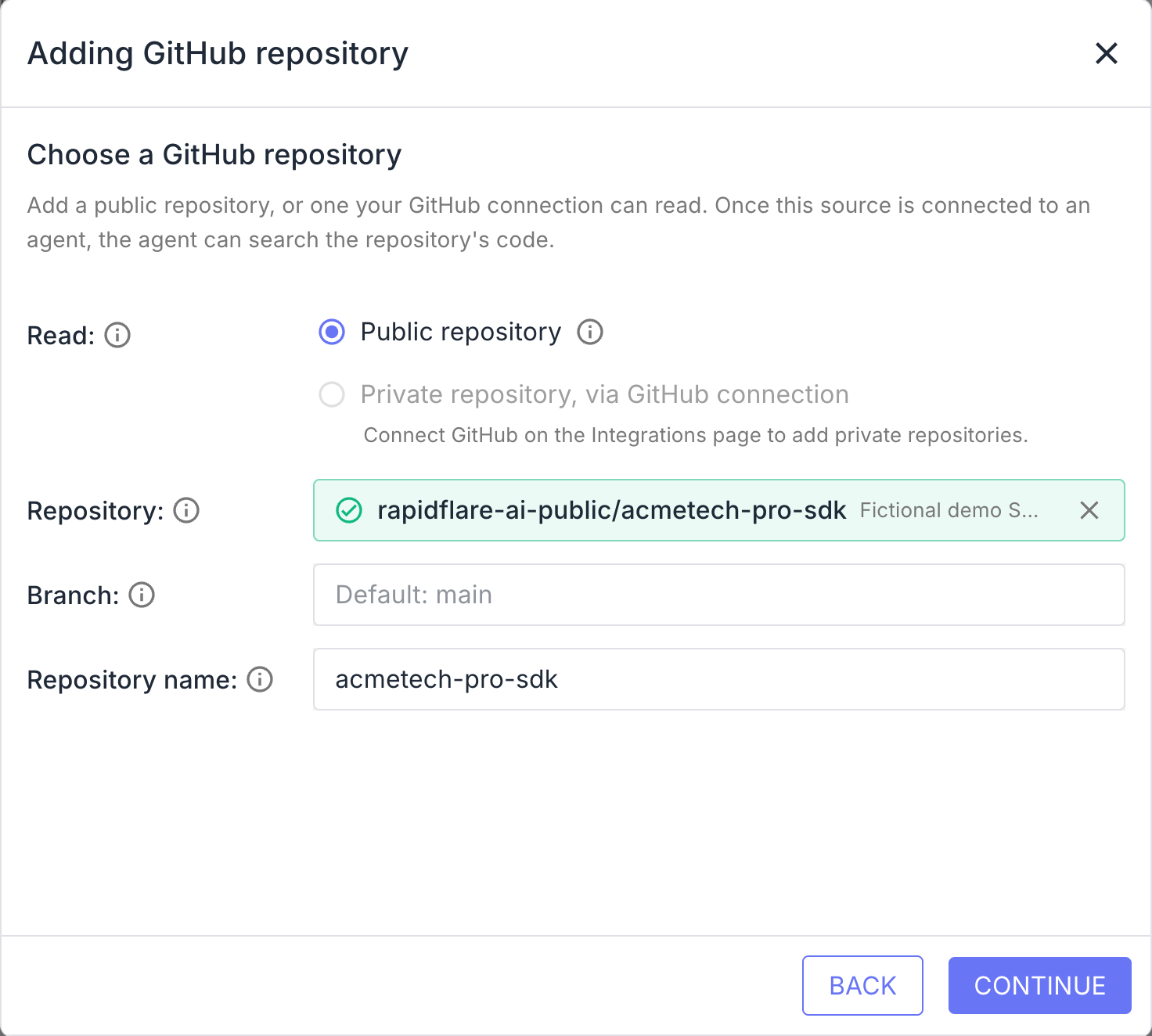
Optionally fill in the other two fields:
- Branch — the branch to read. It defaults to the repository's default branch.
- Repository name — the short name the agent uses for this repository. It's filled in for you.
Click Continue. Give the source a name and a description, select the hubs that should use it, and click Finish.
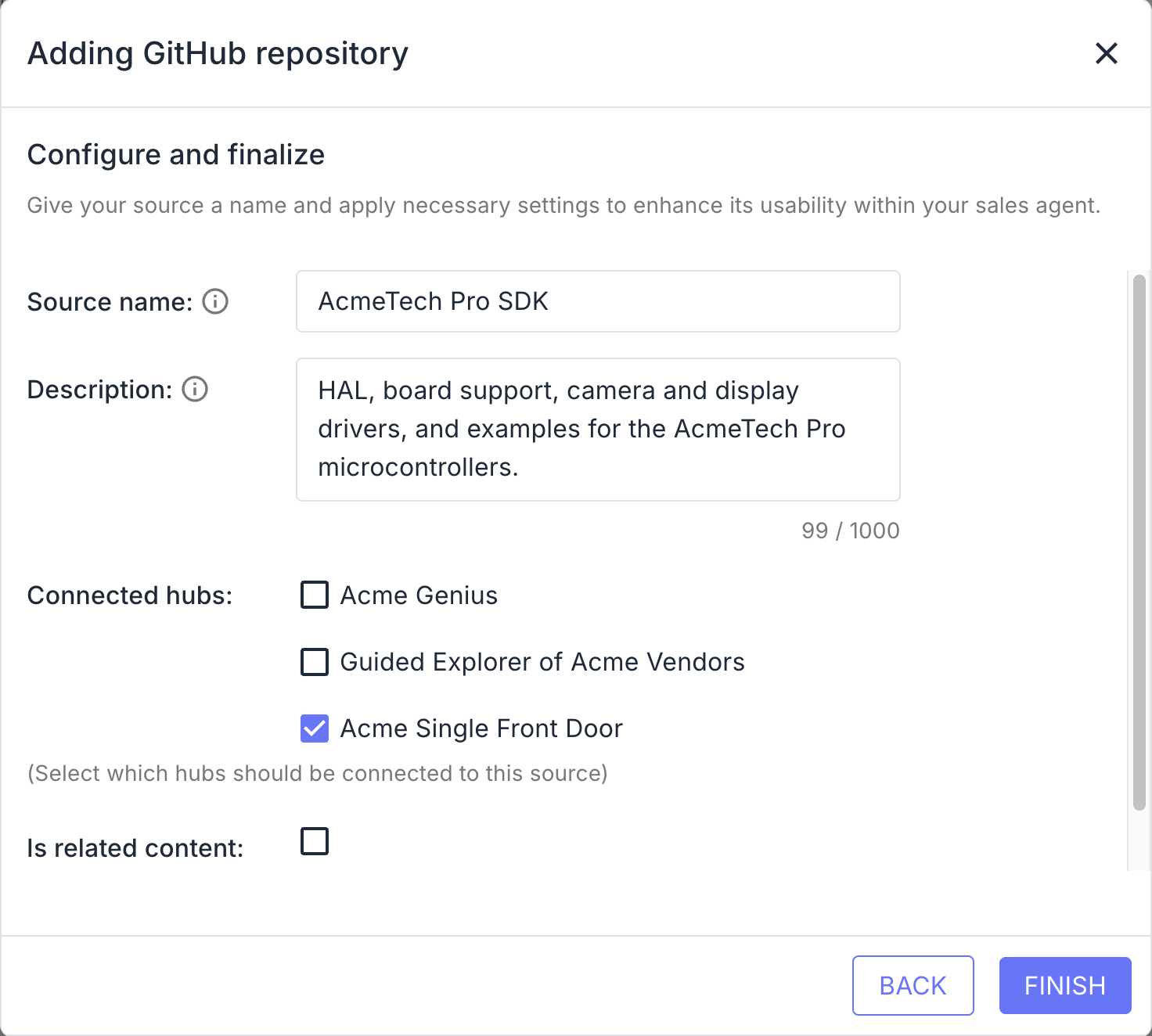
On the new source's page, click Ingest to take the first snapshot. See How Rapidflare ingests a repository for what happens next.
The description is worth a sentence or two. It tells your team what the repository holds, such as "SDK, drivers and examples for our microcontrollers".
Add a private repository
Private repositories are read through Rapidflare's GitHub App. Your organization needs the GitHub App integration turned on, and someone with access to your GitHub organization installs the app and chooses which repositories it may read. Contact Rapidflare Support to turn it on. See GitHub integration for what the app can access.
Once the connection shows as Active under Integrations, add the repository:
Go to Sources, click Add source, and choose GitHub repository.
Set Read to Private repository, via GitHub connection.
Open Repository and pick from the repositories your GitHub App installation can read.
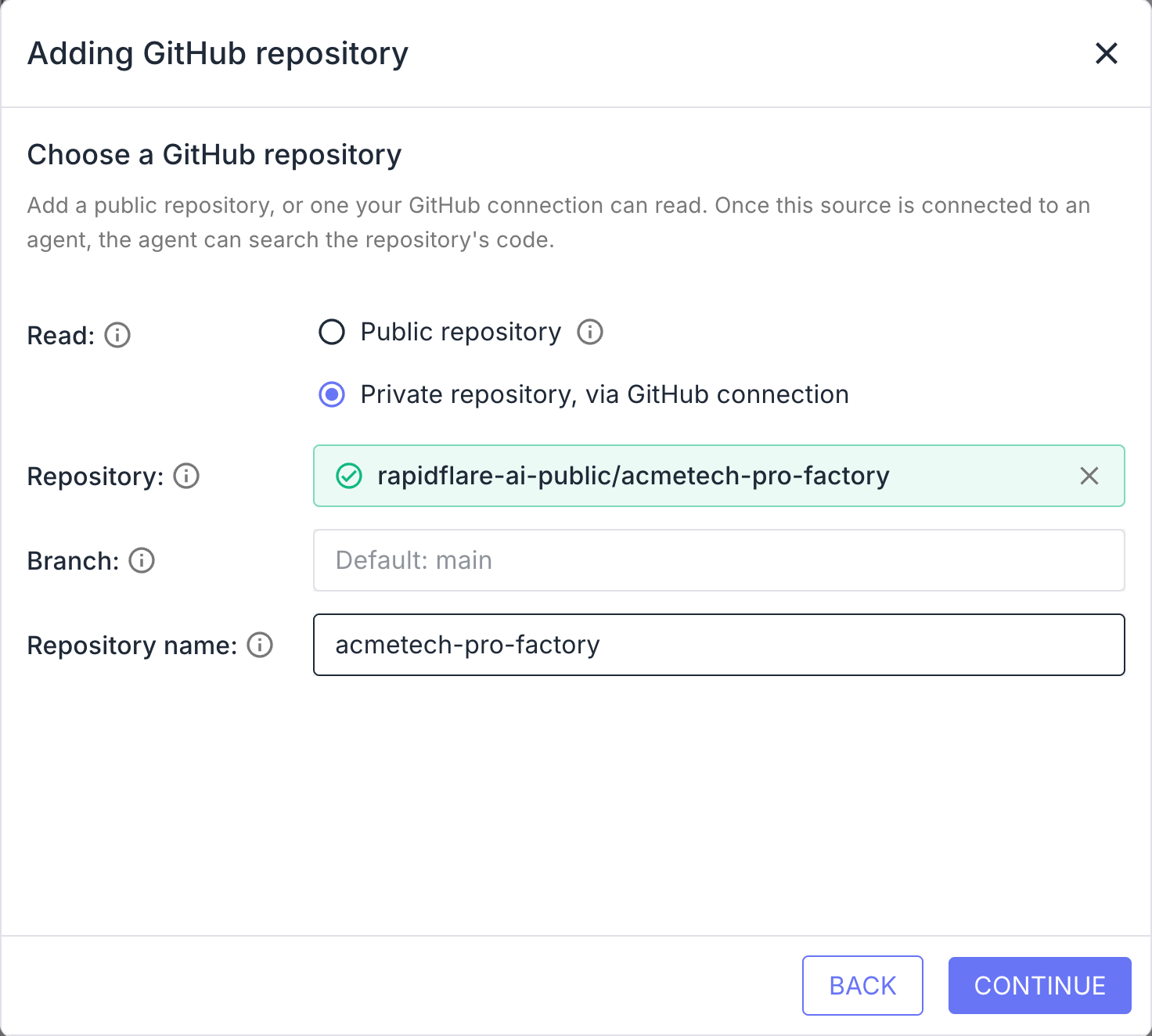
Continue as for a public repository: name the source, connect it to hubs, click Finish, then Ingest.
The app reads only the repositories you allowed when you installed it. To add or remove repositories later, change the installation's repository access in your GitHub organization settings.
One source per branch
Each source reads one branch. To let the agent compare versions, for example a current release branch and a maintenance branch, add the repository once for each branch and give each source a name that says which version it holds.
Turn on code search for the hub
Adding the source makes the code available. The agent searches it only on hubs where the Software knowledge type is on. See Turn on code search for a hub.