
Integration Guide
Integrating Rapidflare with your Discord server
This guide will help you learn how to integrate Rapidflare into your Discord server. This is an admin flow.
Prerequisites
- Discord server administrator permissions
- Access to the Rapidflare Admin Dashboard
Option A: Using Rapidflare Bot (Recommended)
Coming Soon
This feature is currently being implemented. Please use Option B (Custom Bot) for now.
This will be the simplest way to get started. You'll use Rapidflare's Discord bot without needing to create your own Discord application.
Option B: Using Your Own Bot (Custom Bot)
If you prefer to use your own Discord application with custom branding, follow these steps.
Step 1: Create Discord Application
- Go to the Discord Developer Portal
- Click New Application
- Enter your application name (e.g., "Your Company Copilot")
- Click Create
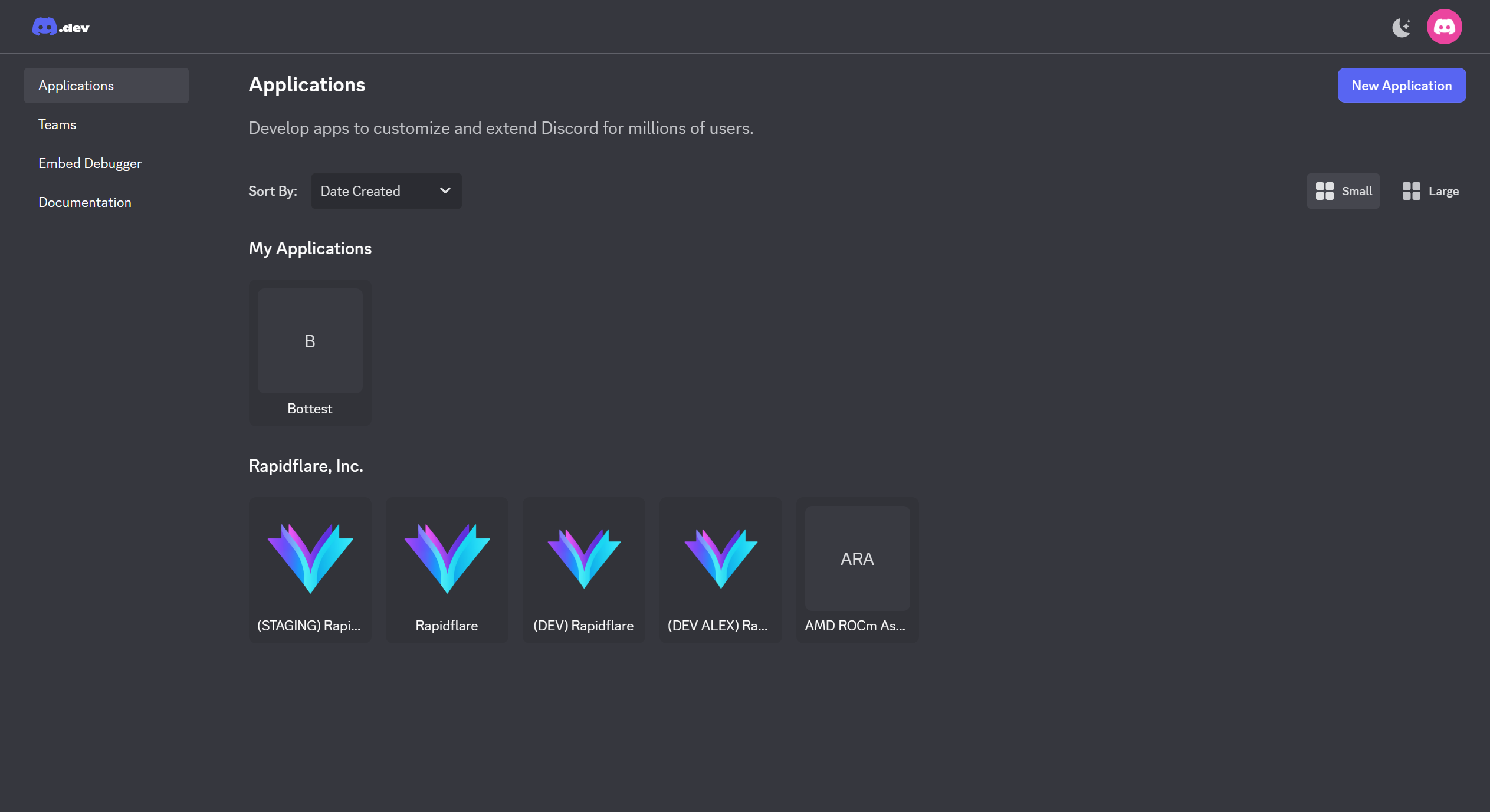
Step 2: Get Credentials
- In the left sidebar, click Applications and select the bot you just created.
- Click Bot and then click Reset Token to copy the Bot Token (save this securely!)
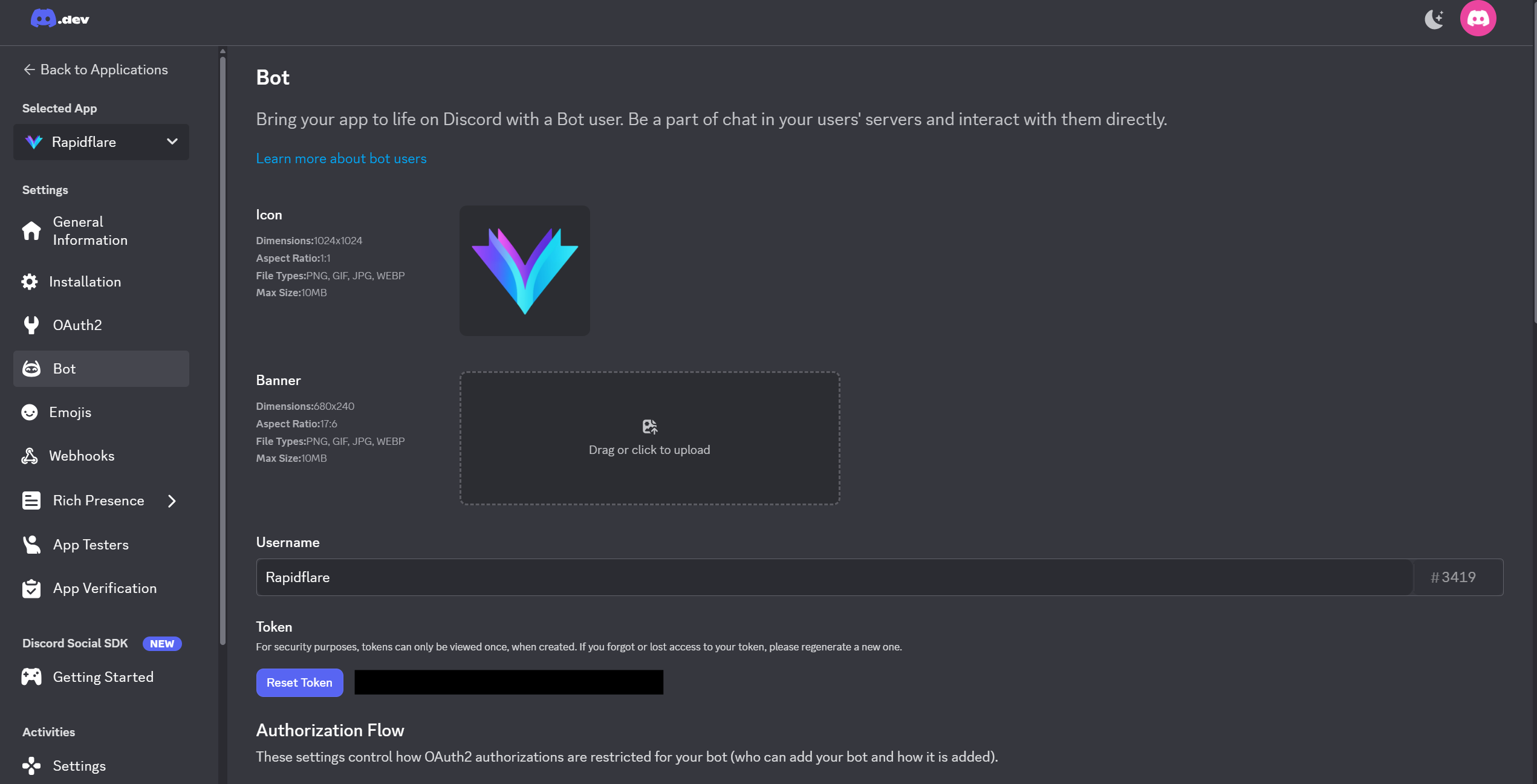
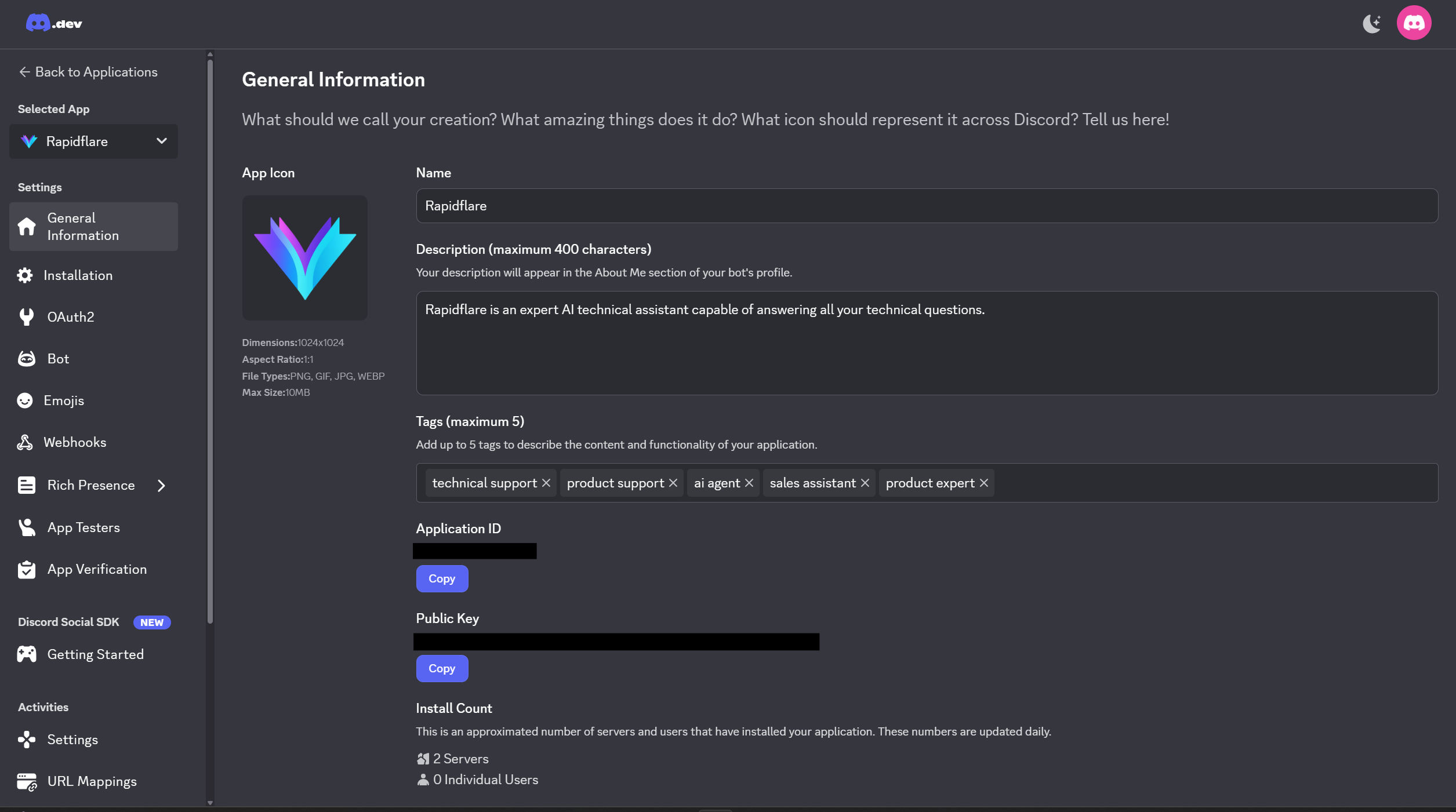
- Go to General Information:
- Copy the Application ID
- Copy the Public Key
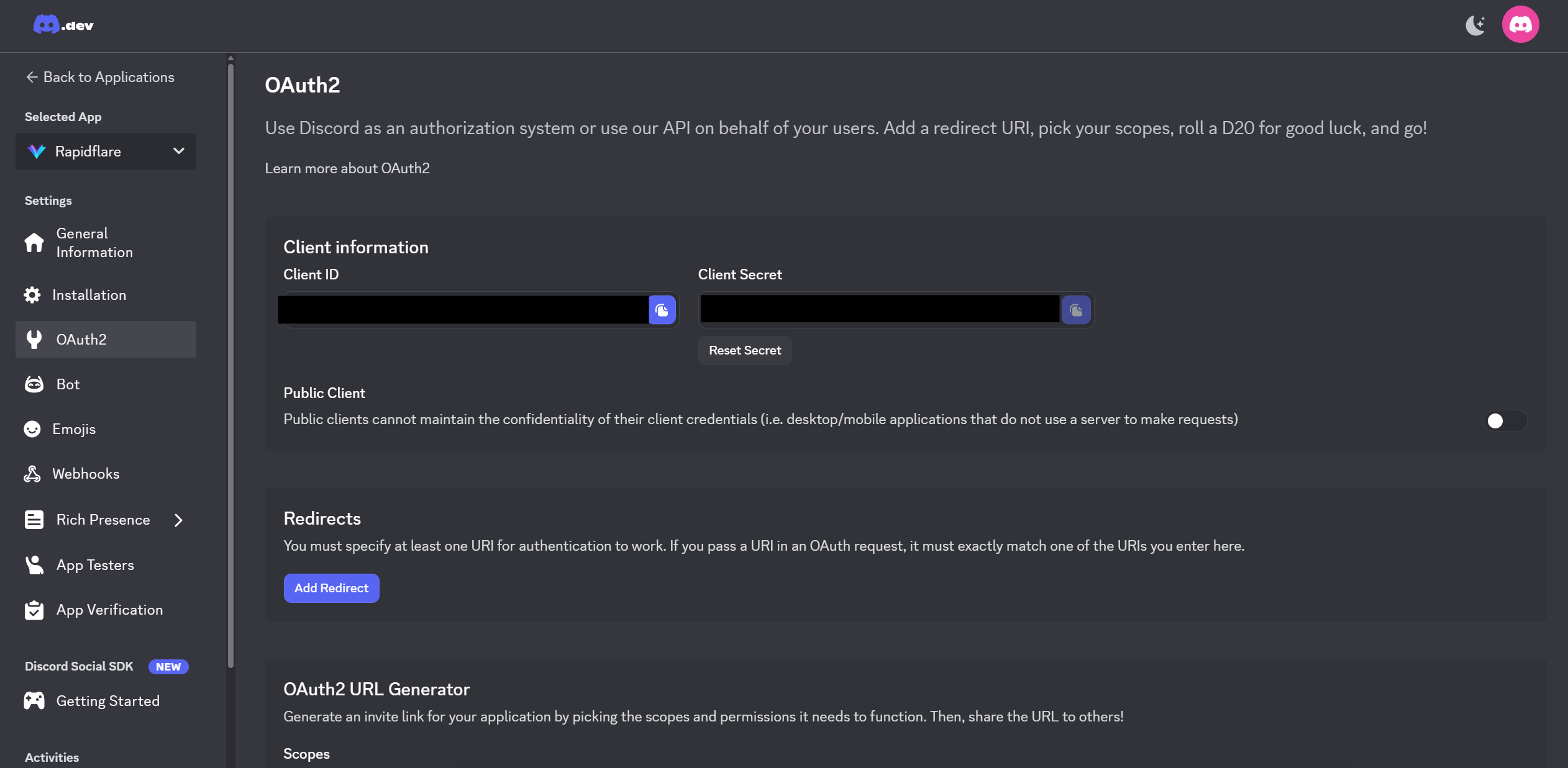
- Go to OAuth2:
- Copy the Client Secret
Step 3: Configure in Rapidflare Dashboard
- Go to your admin dashboard's Deployments page
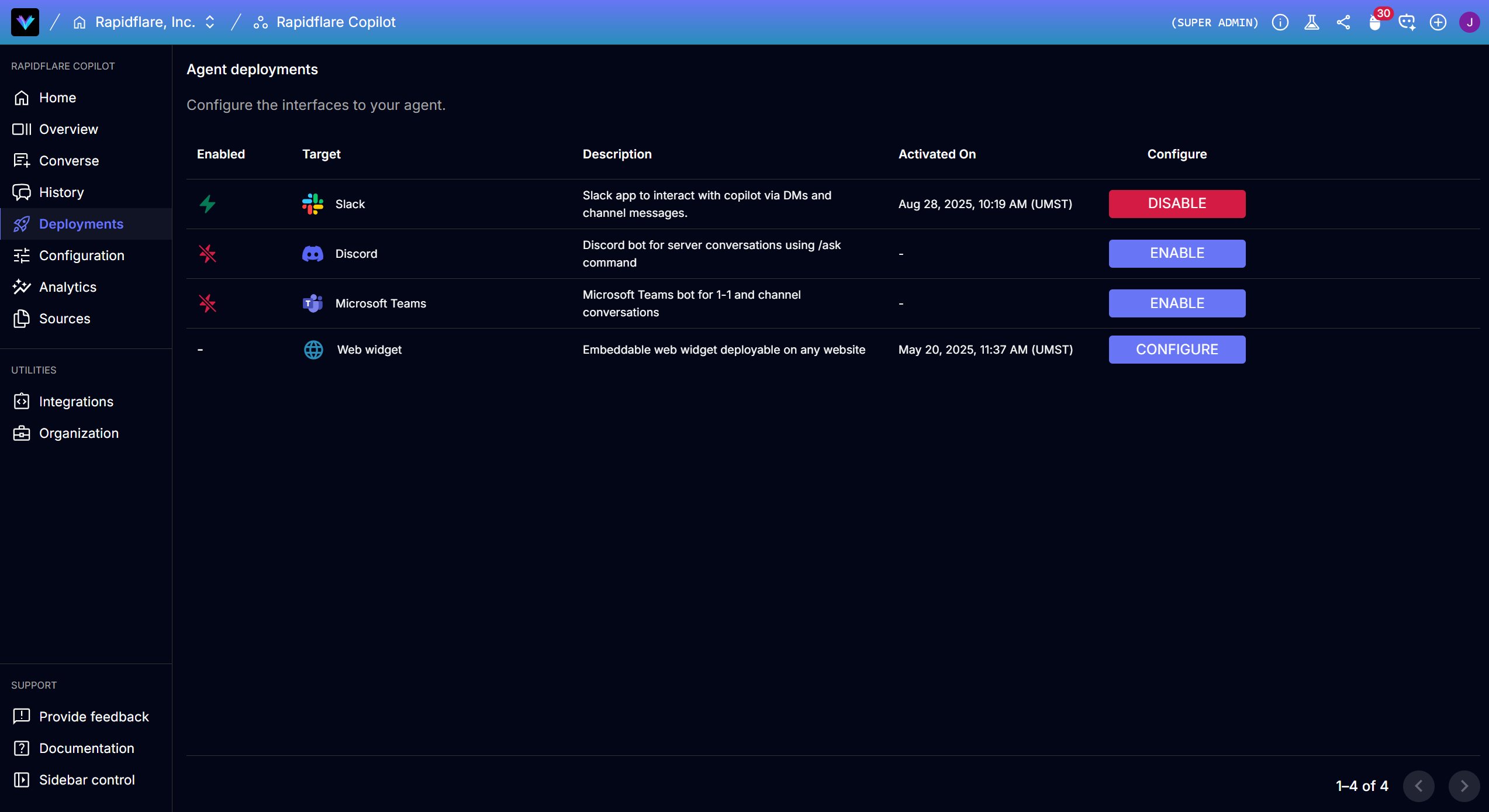
- Click on Discord and select Use Custom Bot option
- Enter the credentials you collected:
- Bot Token
- Application ID
- Public Key
- Client Secret
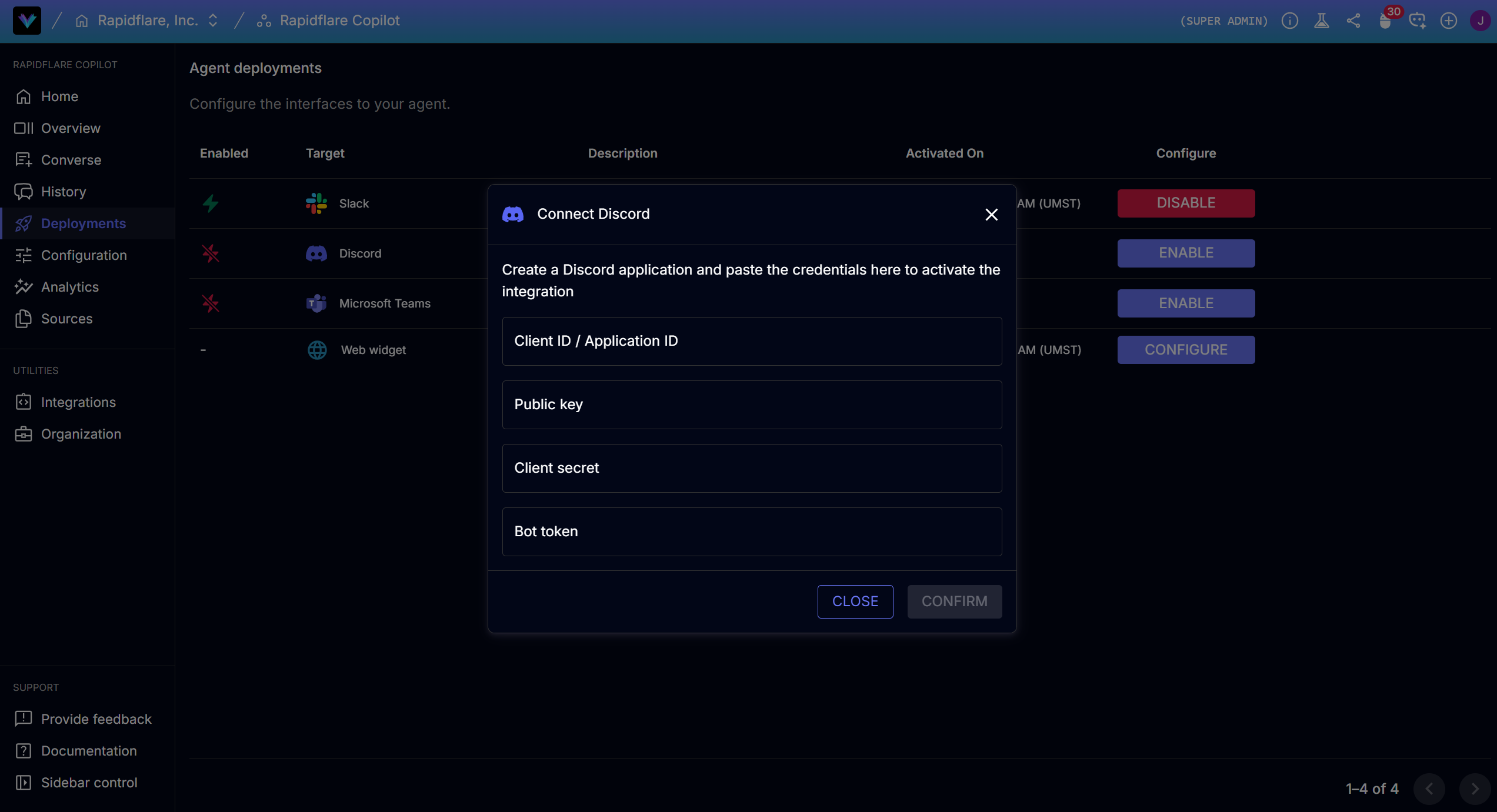
- Click Confirm. Rapidflare will generate the Interactions Endpoint URL and OAuth Redirect URL.
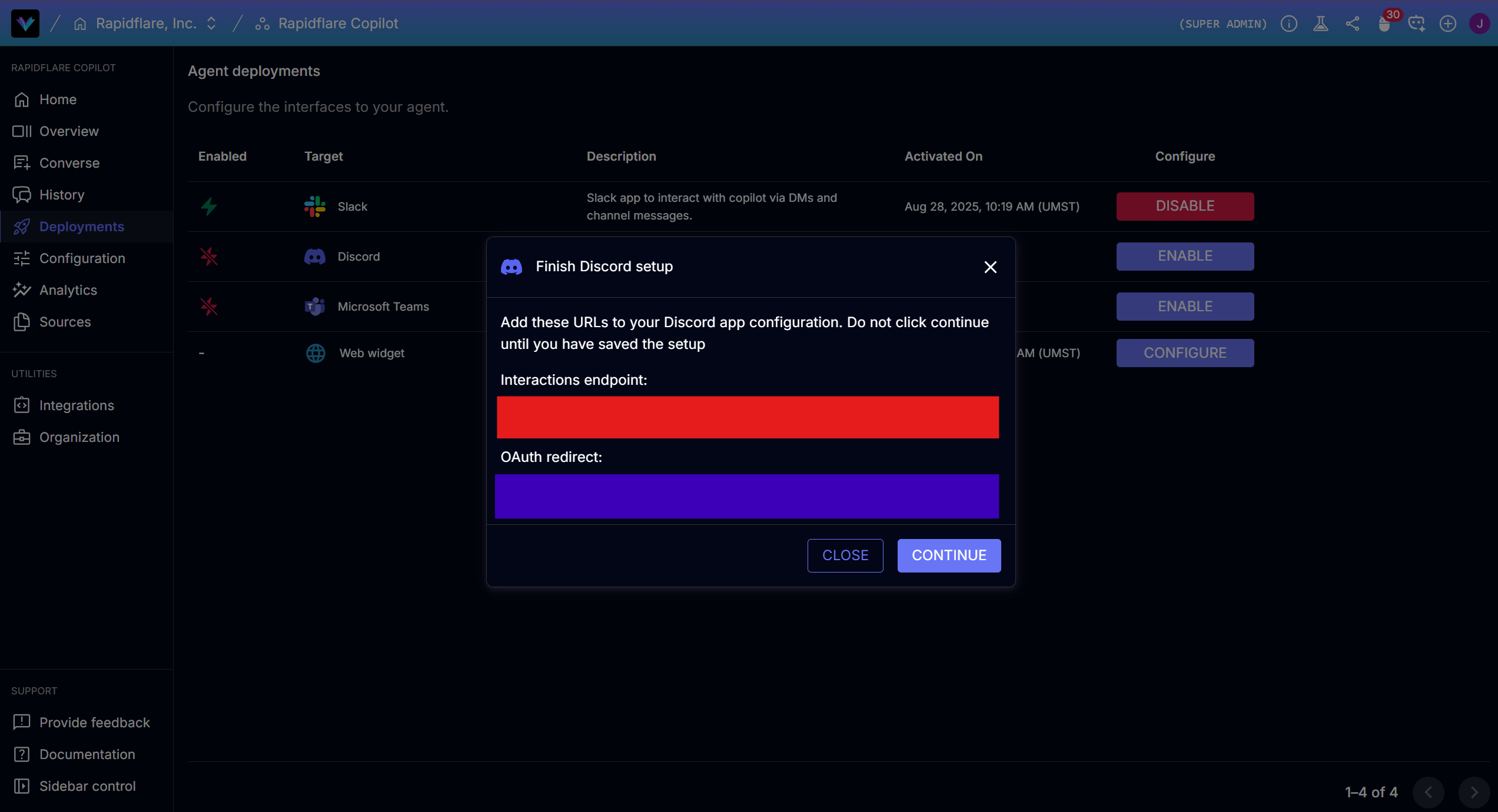
Do NOT click Continue yet!
You must configure the generated URLs in Discord Developer Portal first before proceeding.
Step 4: Set Redirect URLs in Discord Developer Portal
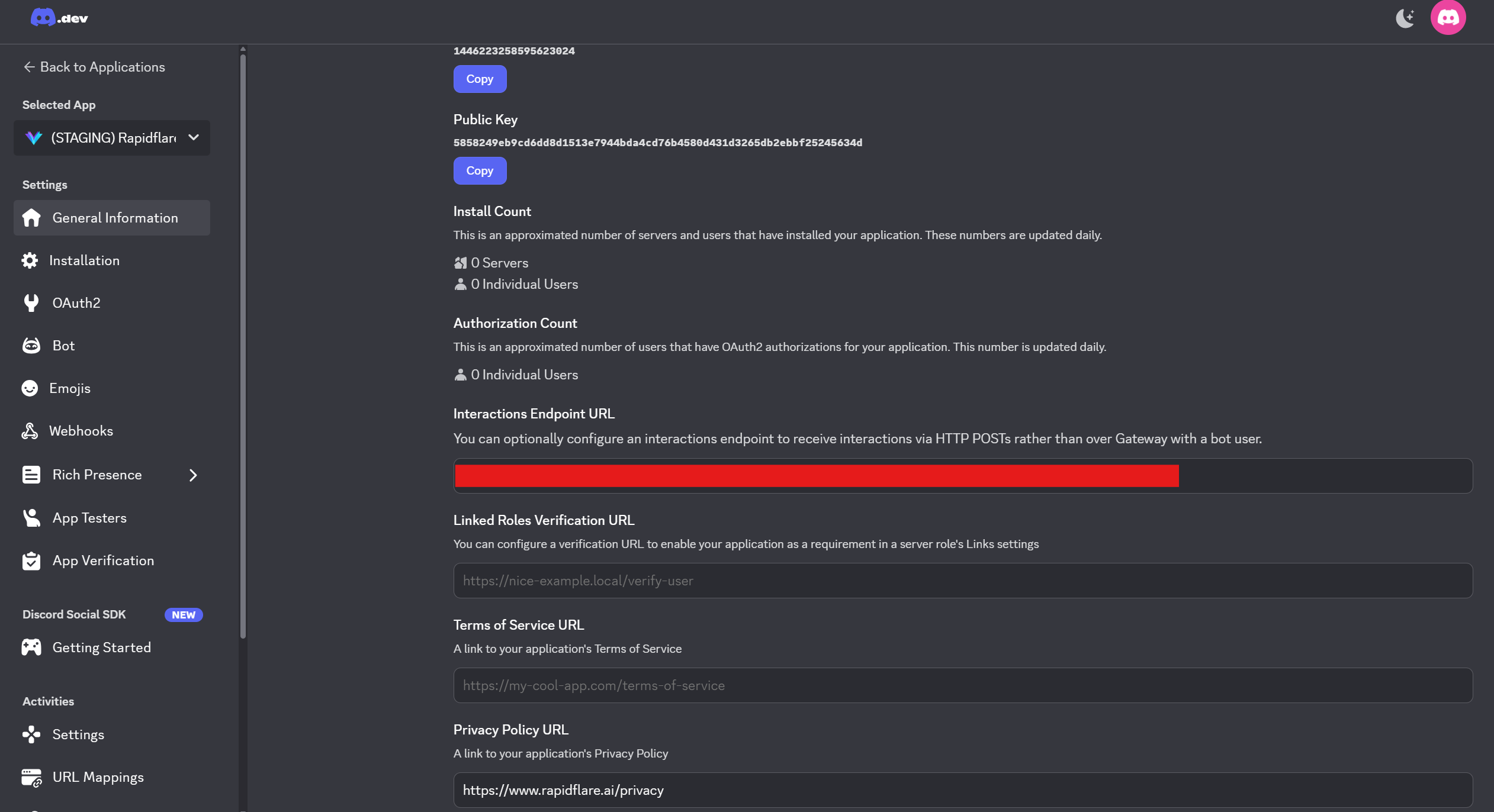
Go back to the Discord Developer Portal and configure these URLs. You can copy both URLs directly from the Rapidflare dashboard.
General Information → Interactions Endpoint URL:
Copy the Interactions Endpoint URL from the Rapidflare dashboard and paste it here.
OAuth2 → Redirects:
Copy the OAuth Redirect URL from the Rapidflare dashboard and paste it here.
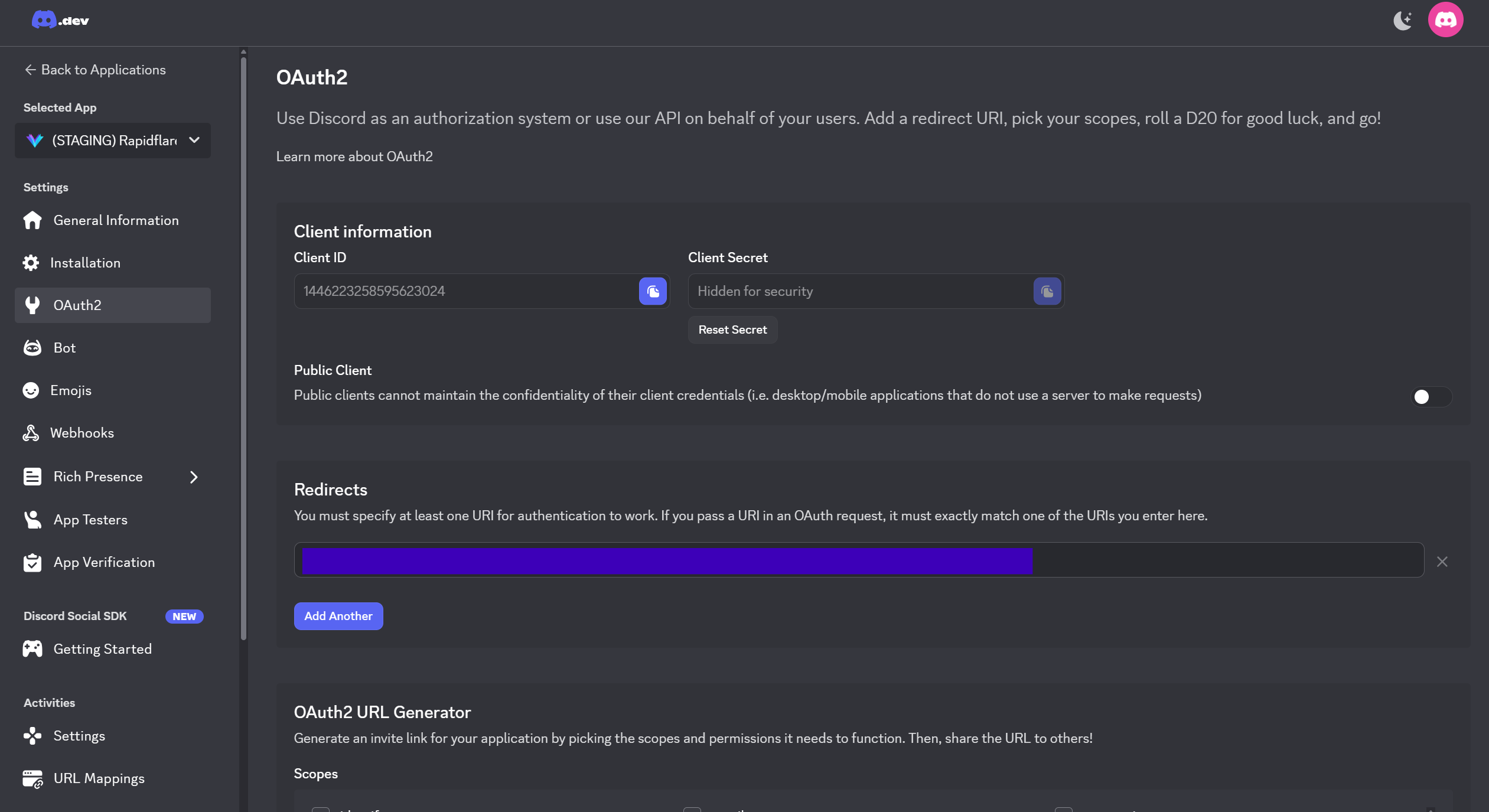
- After configuring the URLs in Discord, go back to the Rapidflare dashboard and click Continue.
Step 5: Invite Bot to Server
- Select your Discord server
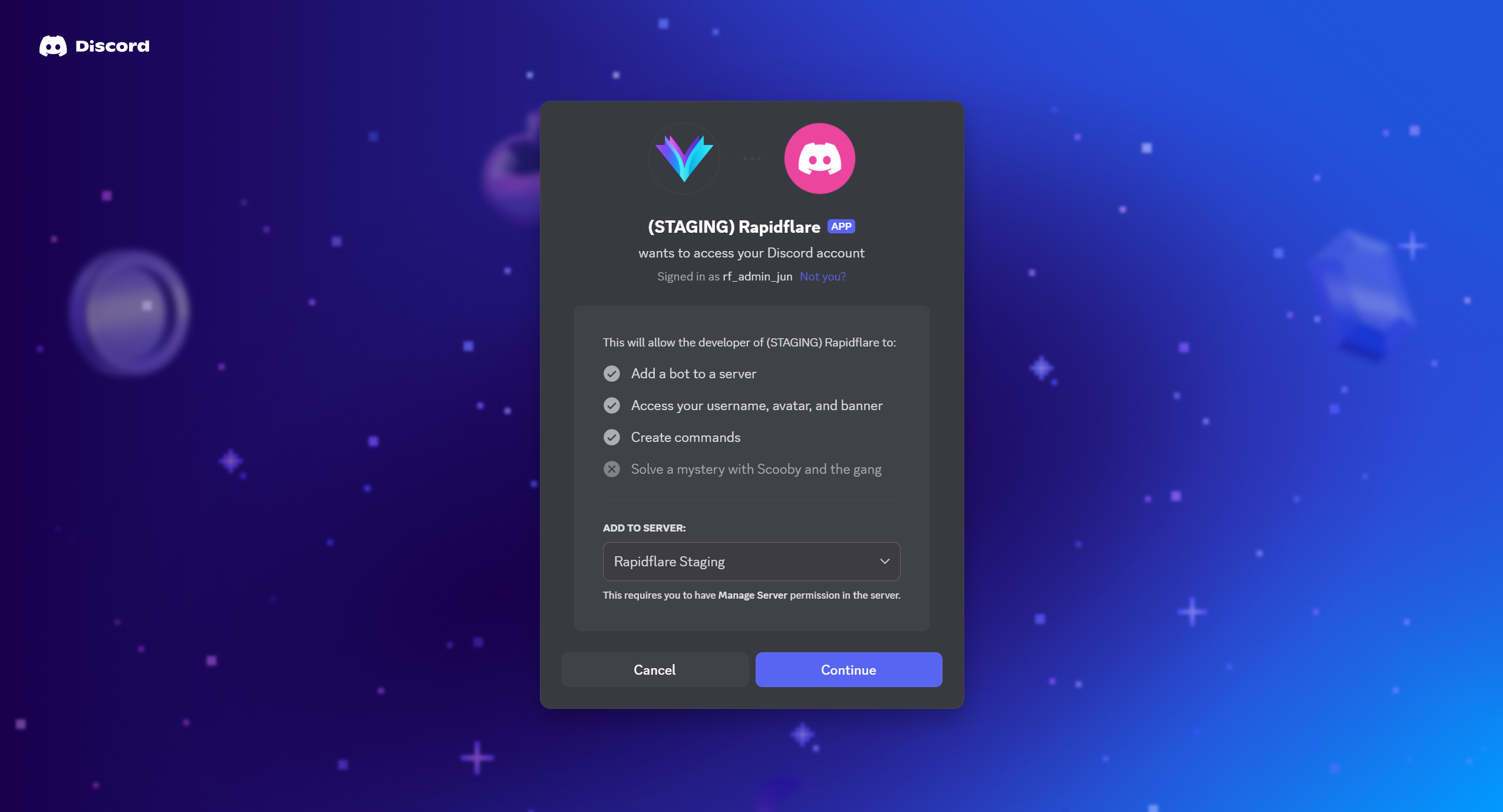
- Authorize the required permissions
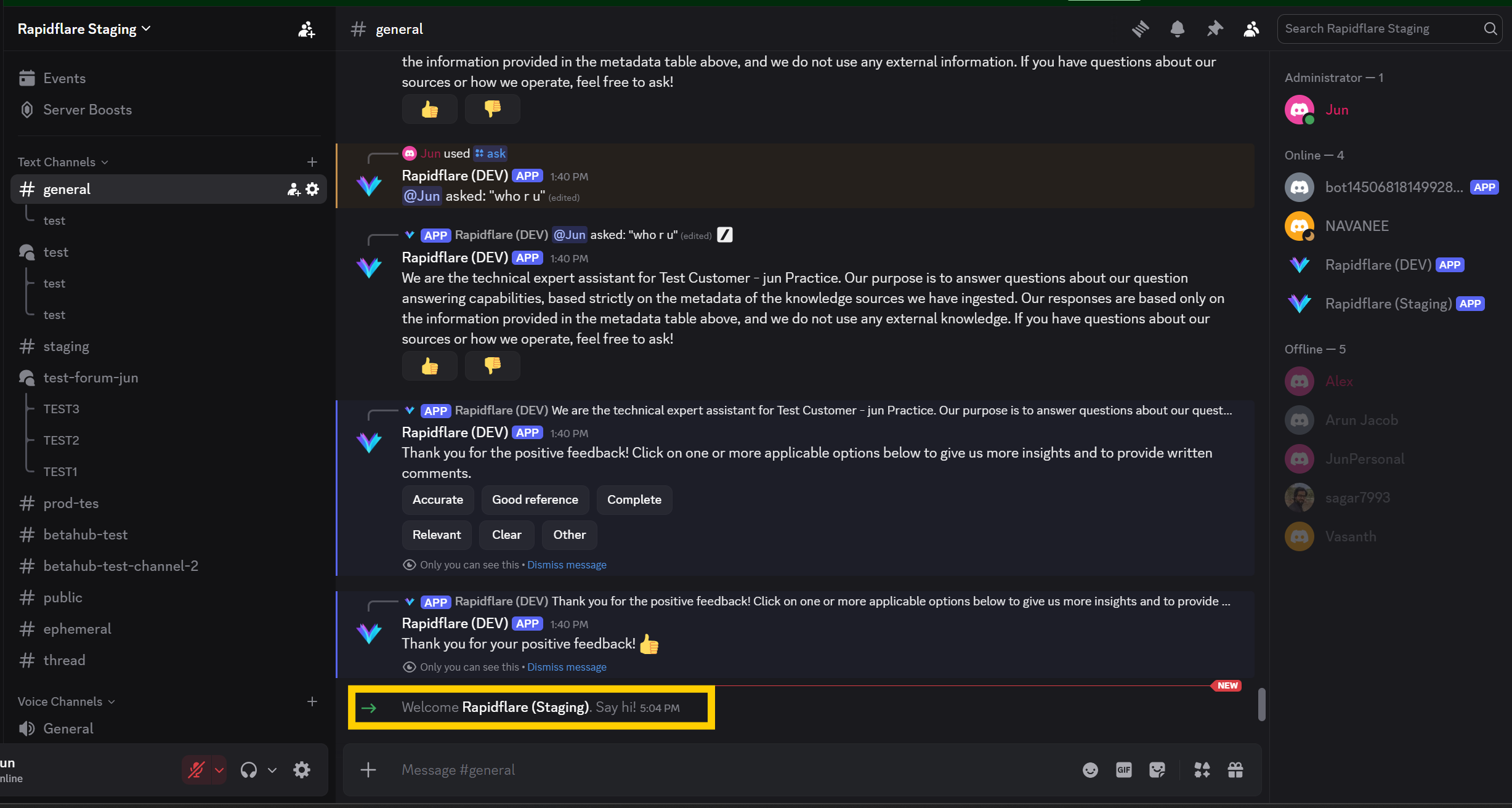
- The bot will appear in your server
Customizing Bot Appearance
Good to know!
Unlike Slack, Discord allows full customization of bot name and avatar. You can change the bot's nickname per-server through Server Settings → Integrations → select your bot → Edit.
Next Steps
Congratulations! Your Discord bot is now connected to Rapidflare Copilot.
To start using the bot, you need to activate it in specific channels using the /install command. See the Discord User Guide for:
- How to use
/installand/uninstallcommands - Using the
/askcommand to interact with the Copilot - Managing installed channels
- Providing feedback on responses
For additional support, contact us at support@rapidflare.ai.