
Copilots
Discord User Guide
Here's how to use the Rapidflare Copilot via Discord.
Introduction
After enabling Discord, you will see a bot added to your Discord server. The bot responds to slash commands in channels where it has been installed.
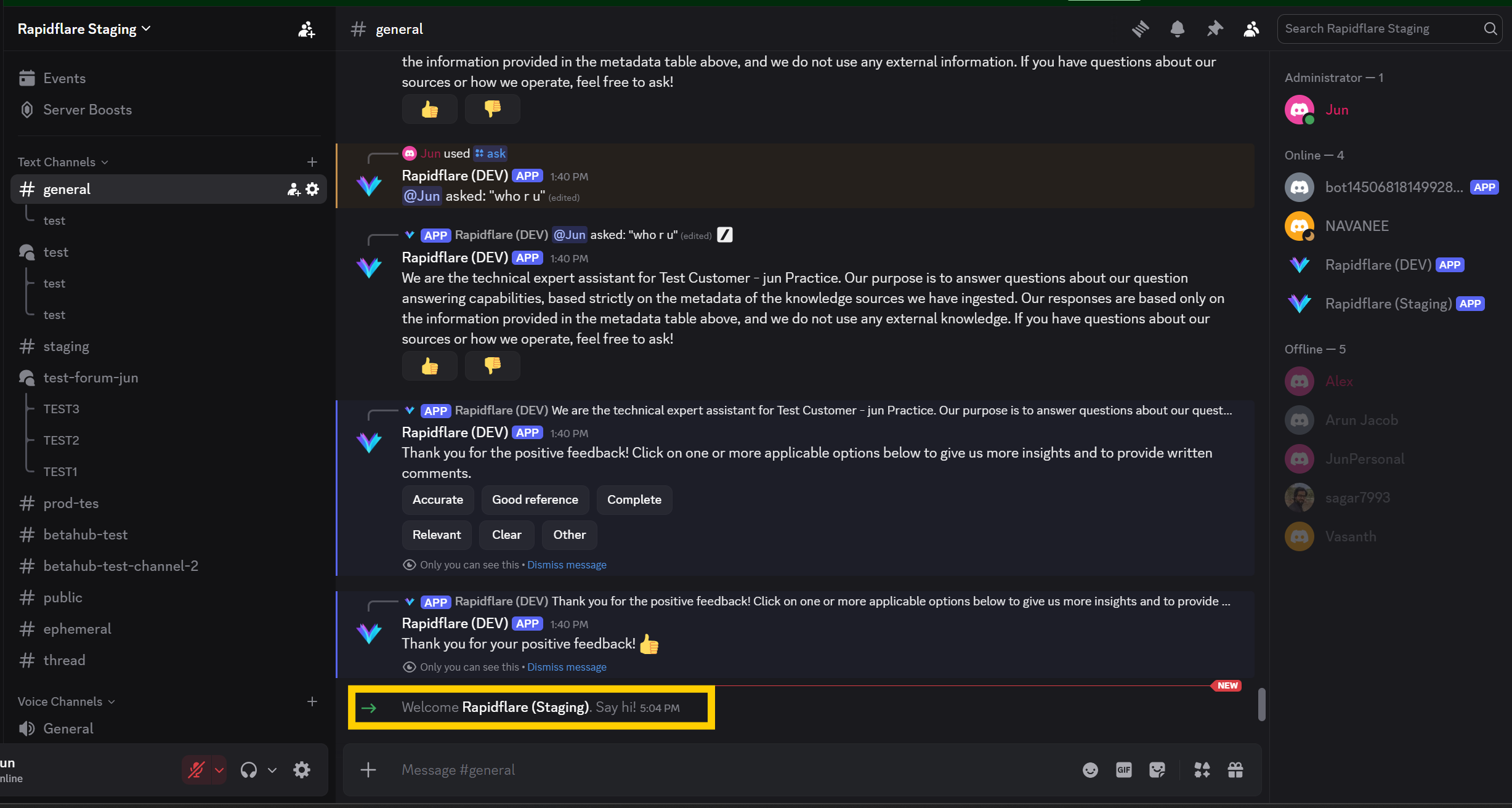
Commands Overview
| Command | Description | Permission |
|---|---|---|
/install | Activate the bot in a channel | Manage Channels |
/uninstall | Deactivate the bot from a channel | Manage Channels |
/ask | Ask questions to the Copilot | All users |
Slash Commands
There are three slash commands available:
1. /install command
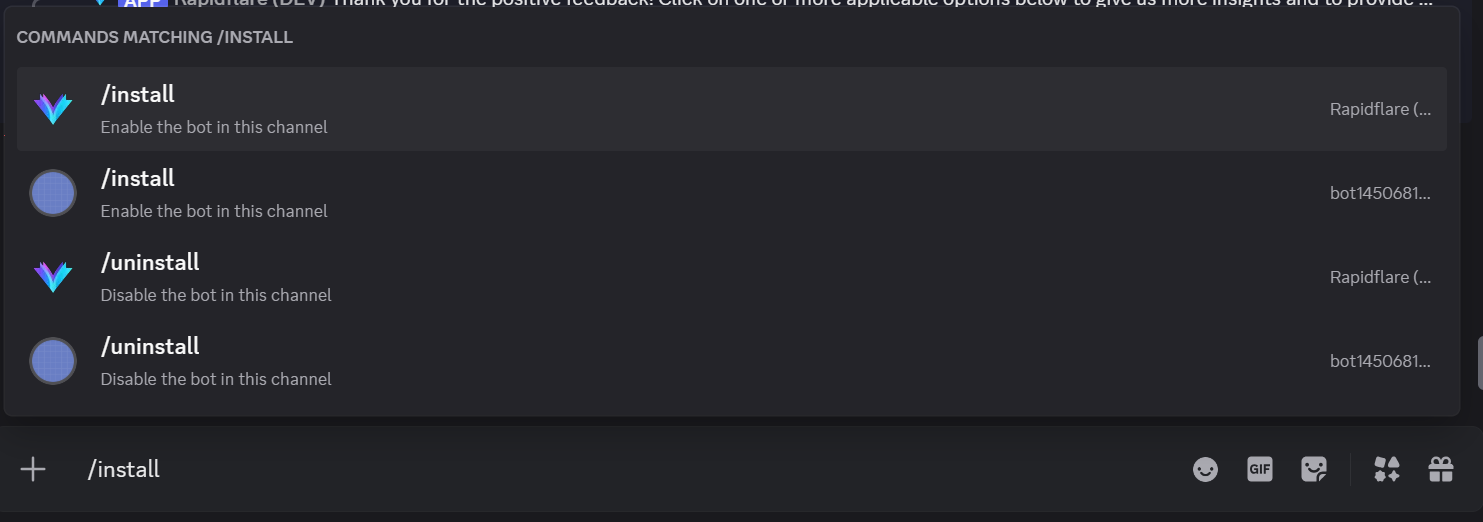
Use the /install command to activate the bot in a specific channel. This is the first step after adding the bot to your server.
Usage: /install
This command requires Manage Channels permission. Once installed, users can use the /ask command in that channel.
Once installed, you'll see a success message:

Thread & Forum Support
When you install the bot in a channel, all threads created in that channel will also have access to the bot. For forum channels, installing in the forum enables the bot in all forum posts.
2. /uninstall command
Use the /uninstall command to deactivate the bot from the current channel.
Usage: /uninstall
This command also requires Manage Channels permission.
3. /ask command
Use the /ask command to ask questions to the Rapidflare Copilot.
Usage: /ask <your question>
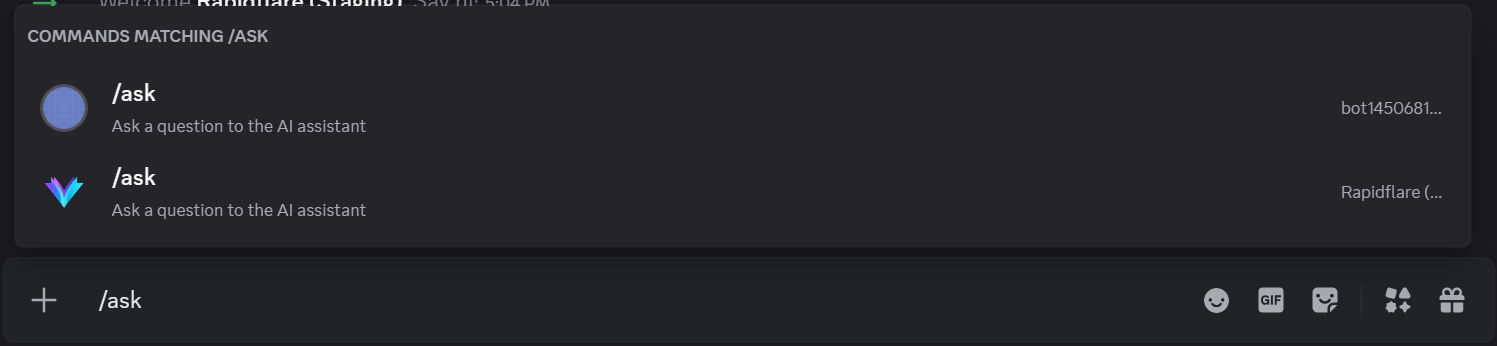

When you submit a question, you'll see real-time progress indicators:
- 🔍 Searching for relevant information...
- 🧠 Analyzing your question...
- ✨ Generating response...
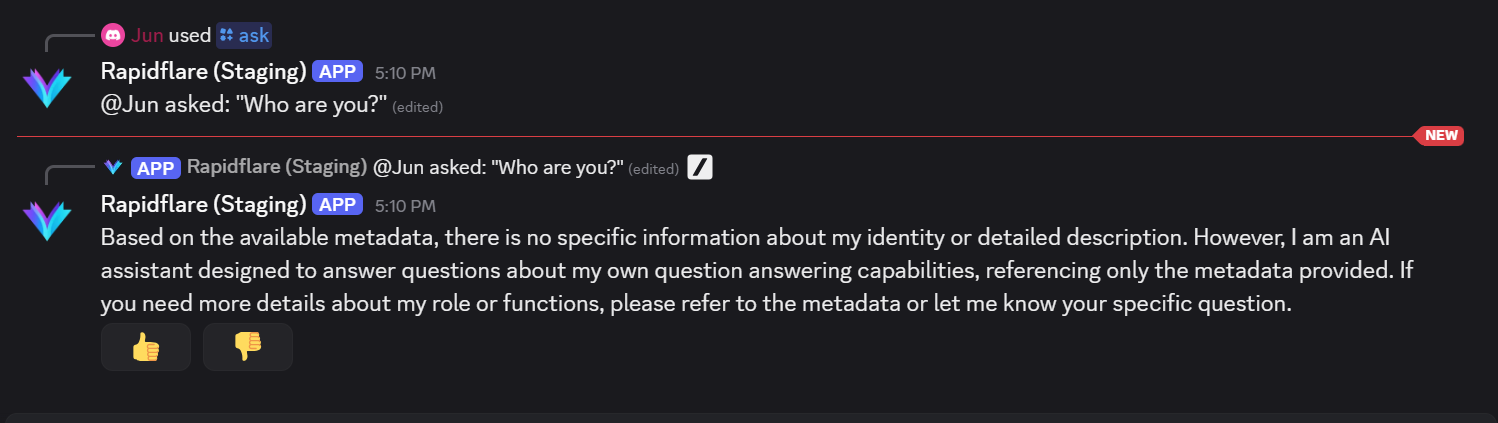
The bot will then provide an answer with relevant references.
Note
Discord has a 2,000 character limit per message. If the response is longer, it will automatically be split into multiple messages labeled as "Message 1/2", "Message 2/2", etc.
Providing Feedback
After receiving a response, you'll see feedback buttons at the bottom of the message:
- 👍 Good - The response was helpful
- 👎 Bad - The response needs improvement
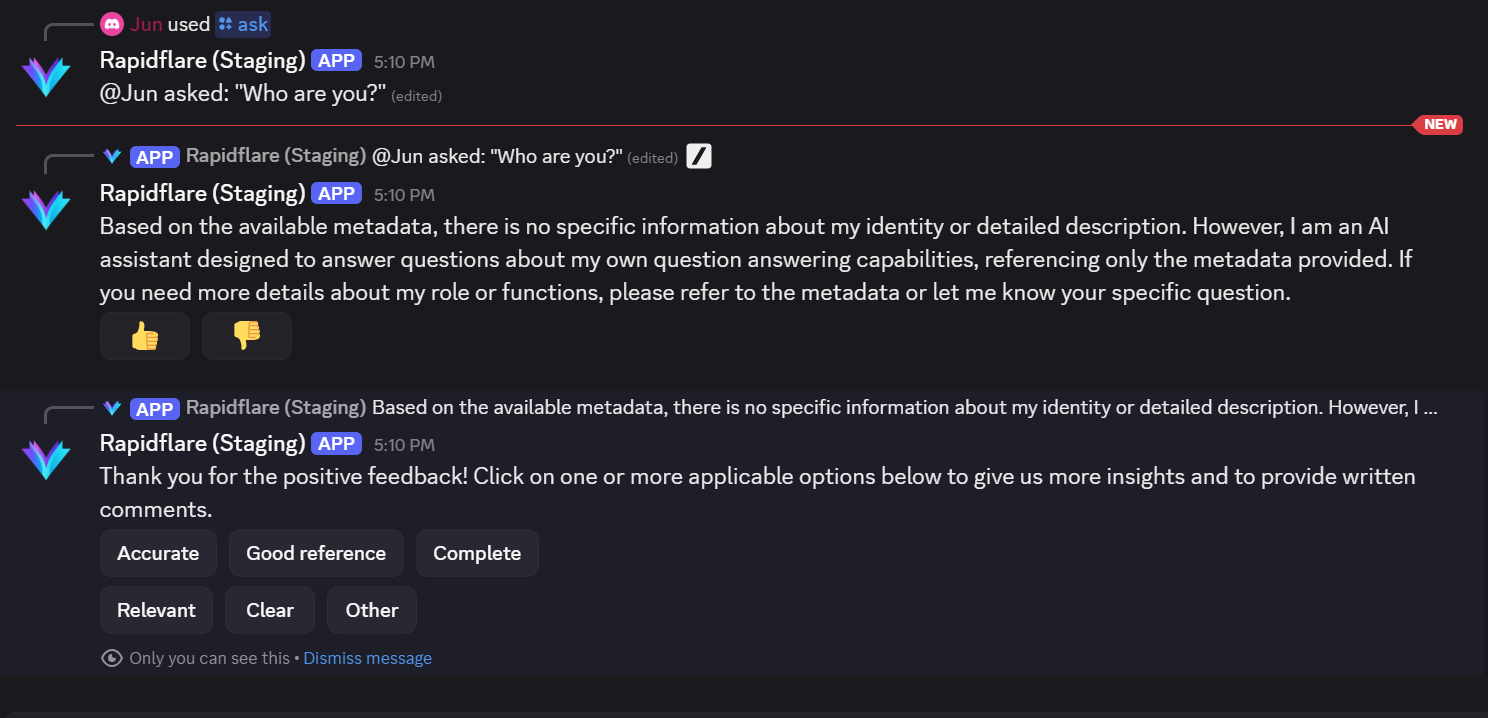
When you click a feedback button:
- You'll be asked to select a tag describing your feedback (e.g., "Accurate", "Incomplete", "Irrelevant")
- Optionally, you can provide additional comments via a popup modal
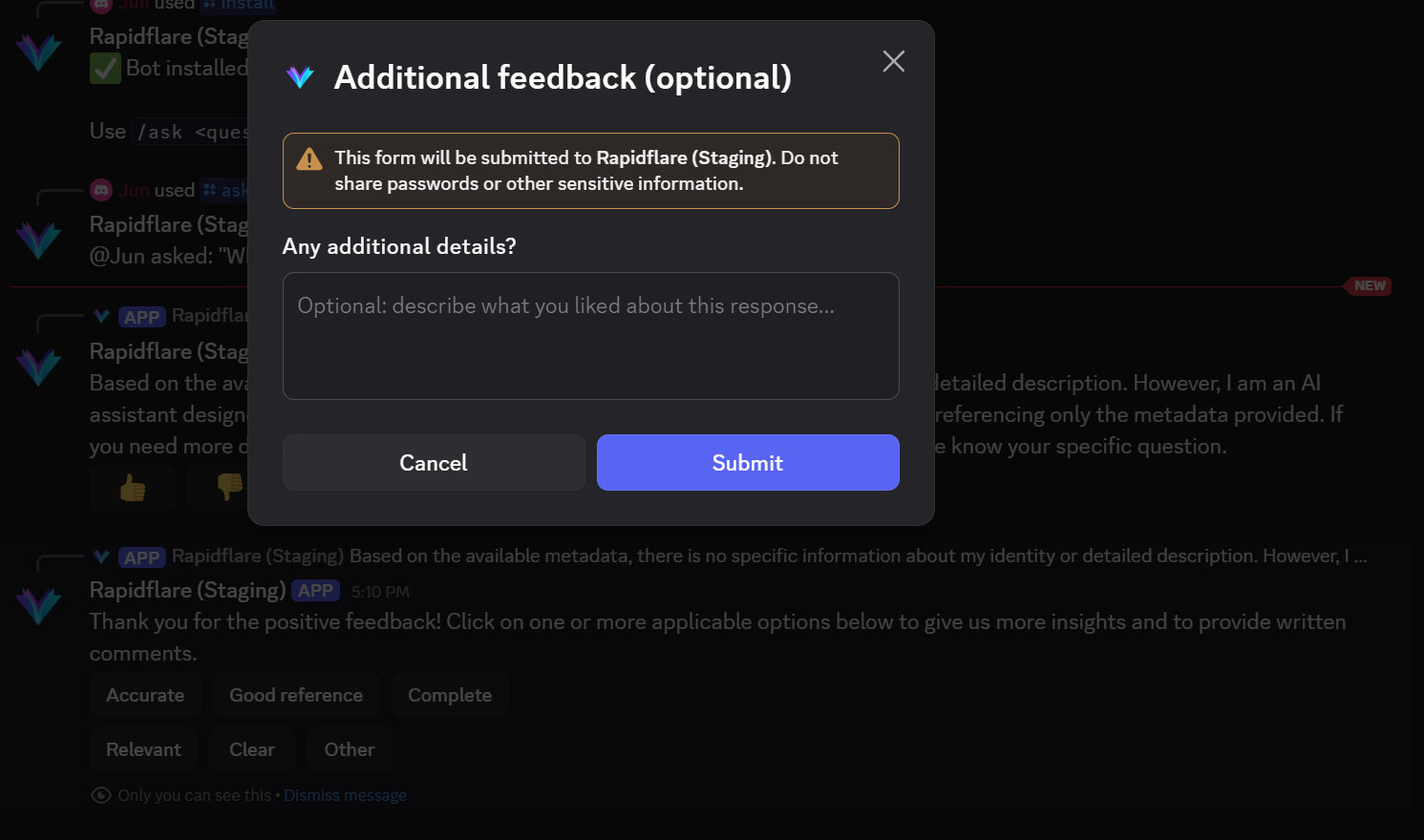
- Your feedback is saved and helps us improve the Copilot
Good to know!
Only the person who asked the original question can provide feedback on that response. This ensures feedback is relevant and accurate.
Managing Installed Channels
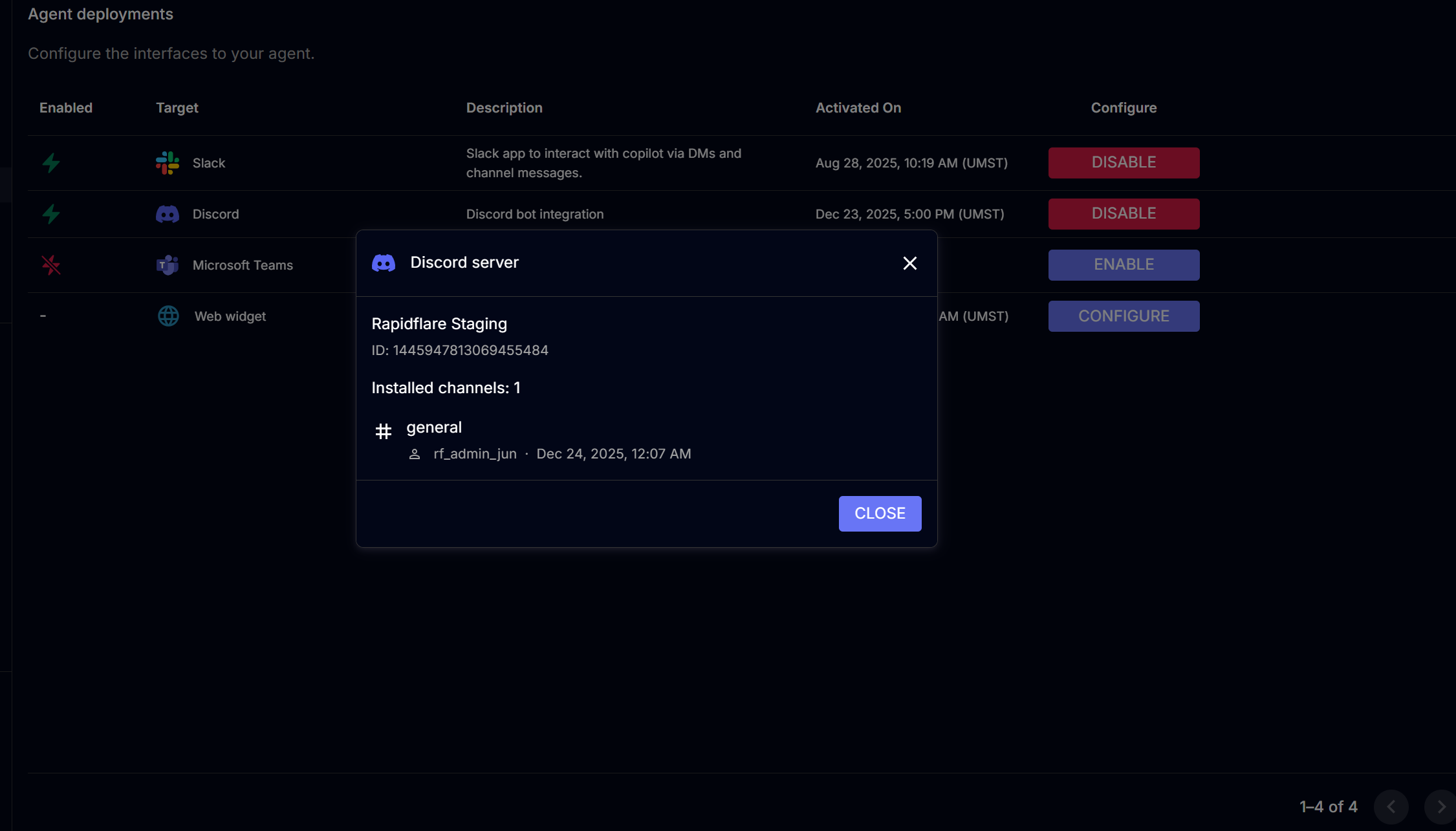
You can view which channels have the bot installed from your admin dashboard:
- Navigate to Deployments → Discord → Installed Channels
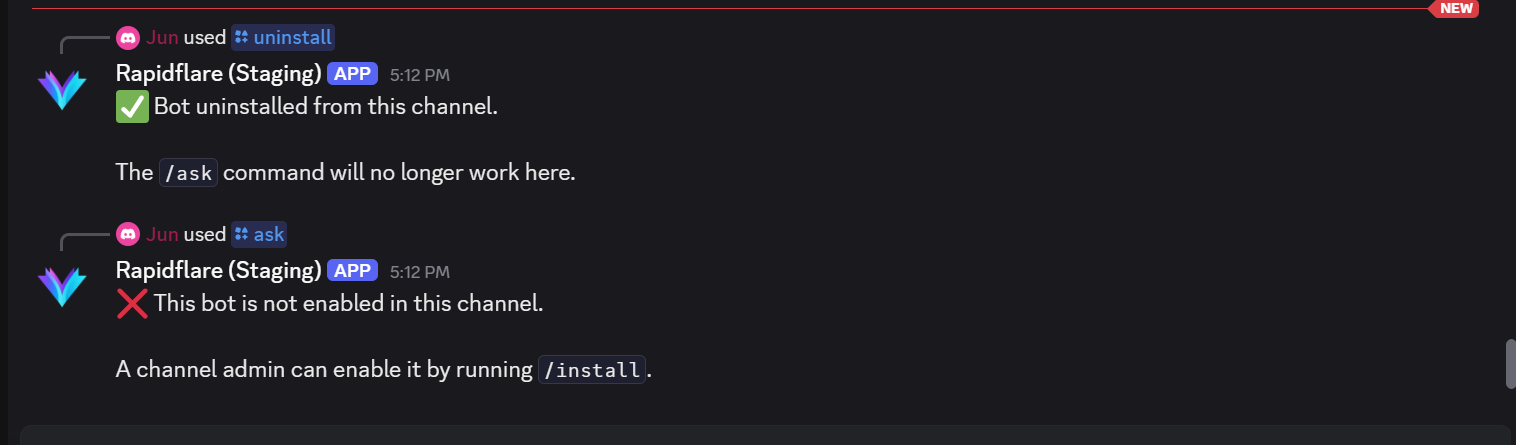
When you uninstall the bot from a channel, users will see the following message:
Disabling Discord Integration
You can disable Discord integration using one of these methods:
Method 1: From Rapidflare Dashboard
- Go to your admin dashboard's Deployments page
- Click Disable on the Discord row
This will disconnect the bot from your server.
Method 2: From Discord
- Go to your Discord server
- Open Server Settings → Integrations
- Find the Rapidflare bot (or your custom bot)
- Click Remove Integration
Note
Removing the bot directly from Discord doesn't notify Rapidflare of the disconnection. We recommend using Method 1 for cleaner tracking.
Troubleshooting
Bot not responding to /ask
- Run
/installin the channel first
Bot not appearing in server
- Check if OAuth authorization was completed
/install command not working
- Ensure you have Manage Channels permission
"Server not connected" error
- Re-enable Discord from the dashboard
For additional support, contact us at support@rapidflare.ai.