# Rapidflare Docs — full corpus
> Concatenation of every Markdoc page on https://docs.rapidflare.ai, generated at build time for LLM consumption. See llms.txt for a structured index.
Source site: https://docs.rapidflare.ai
Generated: 2026-05-19T23:46:16.909Z
---
# https://docs.rapidflare.ai/admin/analytics
You can view analytics for conversations for a given time range from the `Analytics` navigation link.
Admins can access detailed analytics on the new revamped Analytics page. Admins can select a time range for which key usage statistics (conversation, message, user counts and averages), daily trends (for users, conversations, messages), breakdowns (feedback, references for AI Agent answers) and leaderboards (top conversationalists) can be found. Clicking on various elements in the charts, links back to the conversation history page where admins can review the actual conversations that contributed to those analytics.
Reports can also be emailed to admins as PDF files. To enable this feature, please contact [support@rapidflare.ai](mailto:support@rapidflare.ai).
Here's a video demo illustrating analytics:
{% loomvideo
url="https://www.loom.com/embed/edb287498b544c889ce1c93711b36f9c?sid=9cebc9c8-12f0-4f34-a63d-6a568ddb74c9"
thumbnail_url="https://cdn.loom.com/sessions/thumbnails/edb287498b544c889ce1c93711b36f9c-with-play.gif"
text="Conversation and message analytics"
/%}
---
# https://docs.rapidflare.ai/admin
Your enterprise will typically have a Rapidflare Admin who connects sources, runs or monitors knowledge ingestion, deploys AI Agents, partners with Rapidflare to monitor relevancy and accuracy of AI Agent responses.
## Admin Dashboard
Rapidflare admins will have access to the `Admin Dashboard` at [https://dashboard.rapidflare.ai](https://dashboard.rapidflare.ai). See the user guide below for information on how to use the dashboard.
{% quick-links %}
{% quick-link title="Admin User Guide" icon="presets" href="/admin/user-guide" description="Learn about how to use the admin dashboard to manage your Rapidflare deployment." /%}
---
# https://docs.rapidflare.ai/admin/user-guide
## Admin Features
This section is a guide for Rapidflare Admins. Rapidflare Admins help manage your Rapidflare account, train and deploy AI Agents and overall help get the best out of Rapidflare. Rapidflare Admins get access to the Rapidflare Dashboard, where they can do administrative tasks, configuration and tuning of AI Agents, or get access to conversations, analytics and more!
### Conversation History
You can access the history of all conversations your enterprise had with the AI Agent via the `Home` > `History` navigation link. You can view the history for a given time range. Various time range filters are available to help you zoom in or out to a time range.
You can page through the list of conversations, filter by feedback, user ID, and other attributes. You can sort and filter by various columns such as timestamp, user ID, feedback and number of messages.
You can click on the `Title` column to bring up a past conversation from history.
#### Reviewing Feedback
In the history view, you can easily review feedback provided by users. Since feedback is at an individual message level, we roll up individual message feedback up to each conversation, and visualize the summary in the table. Here are some scenarios
- If a conversation has 1 or more messages with thumbs-up feedback, we summarize the conversation's feedback as "Good".
- If a conversation has 1 or more messages with thumbs-down feedback, we summarize the conversation's feedback as "Bad".
- If a conversation has 1 or more messages with thumbs-down feedback and 1 or more messages with thumbs-up feedback, we summarize the conversation's feedback as "Mixed".
- If a conversation has no messages with thumbs-up or thumbs-down feedback, we summarize the conversation's feedback as "None".
You can also quickly review comments provided with the feedback ratings by hovering over the icon presented representing one of the scenarios above. You will see a bulleted list of comments provided, if any.
#### Exporting history
You can export history by clicking on the `Export` button and choose the format preferred. We currently support exporting conversation history in Excel, JSON, Markdown and HTML formats. If you would like other history export in other formats, please get in touch with us at [support@rapidflare.ai](mailto:support@rapidflare.ai).
#### Demo
Here's a video demo illustrating conversation history and history export.
{% loomvideo
url="https://www.loom.com/embed/c017ed076bc64f87a5f2c17e6e0c535e?sid=b0720f65-2c66-49e5-bd03-29f86f93396c"
thumbnail_url="https://cdn.loom.com/sessions/thumbnails/c017ed076bc64f87a5f2c17e6e0c535e-5e7450d21b5a4596-full-play.gif"
text="Conversation history features"
/%}
### Sharing a conversation
You can share a conversation by clicking on the Share {% heroicon icon="ShareIcon" /%} icon. This creates a link that can be shared. There are 4 modes of sharing a conversation:
- **Share via URL**: You can always share the conversation with others within your enterprise, by sharing this link (or just grab it off of the browser bar when you are in the `Converse` view). Only authenticated users into the dashboard will be able to view and interact with the AI Agent using this link.
- **Share via Email**: This option lets you share the conversation with specific email addresses, sending them a notification that includes the conversation link and your custom message. Only authenticated users into the dashboard will be able to access and interact with the conversation through this method as well. Note: The conversation link shared via this method will expire 30 days after being generated.
- **Share via Hubspot**: This option lets you share the conversation by plugging in the URL in your CRM like Hubspot. Using this you can add more qeury paramters like email, firstname and lastname to share personalized links. All users that the link is shared with will be able to view the conversation. Authenticated is not required. Therefore this should be used with caution. Note: The conversation link shared via this method will expire 30 days after being generated.
- **Share with anyone**: This option lets you share the conversation with anyone who has access to the link. Authenticated is not required. Therefore this should be used with caution. Note: The conversation link shared via this method will expire 30 days after being generated.
{% loomvideo
url="https://www.loom.com/embed/147ccac9a2d04a769eb8483cf61d72db?sid=19a9ee57-7fe0-4779-8564-4ab716a3e9fd"
thumbnail_url="https://cdn.loom.com/sessions/thumbnails/147ccac9a2d04a769eb8483cf61d72db-with-play.gif"
text="Conversation sharing"
/%}
### Configuration
You can configure how your AI Agent experience looks like by setting name, description, placeholder text, and logo image of your choice. You can also change colors such as background, accent color and text color to match your brand's theme, using the `Configure` navigation link.
Here's a video demo illustrating AI Agent configuration:
{% loomvideo
url="https://www.loom.com/embed/079789fa9035411e823937ee4cdfd993?sid=0cf02044-d3c9-46ab-baa4-ca80fd4e06c6"
thumbnail_url="https://cdn.loom.com/sessions/thumbnails/079789fa9035411e823937ee4cdfd993-with-play.gif"
text="Conversation and message analytics"
/%}
### Starter prompts
You can choose to show custom starter prompts to your users. You can group starter prompt questions by their category names and also provide a simple icon and a help description per category which will be shown to users on hover.
Here's a video demo illustrating starter prompts configuration:
{% loomvideo
url="https://www.loom.com/embed/836016aa12b74ade8646c618b95122ee?sid=bf8849e3-1282-4acf-a10c-ec3a4277fc7b"
thumbnail_url="https://cdn.loom.com/sessions/thumbnails/836016aa12b74ade8646c618b95122ee-with-play.gif"
text="Starter prompts configuration"
/%}
You can also auto-generate these prompts using the AI Agent, here's a video demo of auto generating starter prompts:
{% loomvideo
url="https://www.loom.com/embed/fe185b989e3f4dddbb031fc7c69417b6?sid=e9985656-32a7-4a18-adbe-11f8b6a80e86"
thumbnail_url="https://cdn.loom.com/sessions/thumbnails/fe185b989e3f4dddbb031fc7c69417b6-e1f8f942dd8cf404-full-play.gif"
text="Auto-generate starter prompts"
/%}
### API keys
You can manage your API keys from [Hubs » Configure » Security](https://dashboard.rapidflare.ai/copilots). You can create new API keys, disable existing ones, and set expiry dates for them.
Your API key is designed to be publishable and can be safely included in your website or application code. Our backend automatically protects your API key from abuse, spam, and bots, so you do not need to worry about exposing it publicly.
For additional security, you can specify a list of allowed domains when creating your API key. Adding one or more domains ensures that your publishable API key works only on the domains you choose to allow, and any requests not coming from one of your allow-listed domains will be blocked.
You can add up to 250 domains. Do not include protocol such as `http://` or `https://`, slashes, port numbers, query parameters etc. If your website is `https://www.example.com`, just add `example.com` as an allowed domain. All sub domains will be automatically included such as `www.example.com` or `child.example.com`
**Not recommended:** Leave empty to allow all domains
| Specified domain | Website domain | Will API Key work? |
|-------------------------|--------------------------------|----------------------|
| yoursite.com | yoursite.com | Yes ✅ |
| | www.yoursite.com | Yes ✅ |
| | subdomain.yoursite.com | Yes ✅ |
| | subdomain.yoursite.com:8080 | Yes ✅ |
| | some-other-website.com | No ❌ |
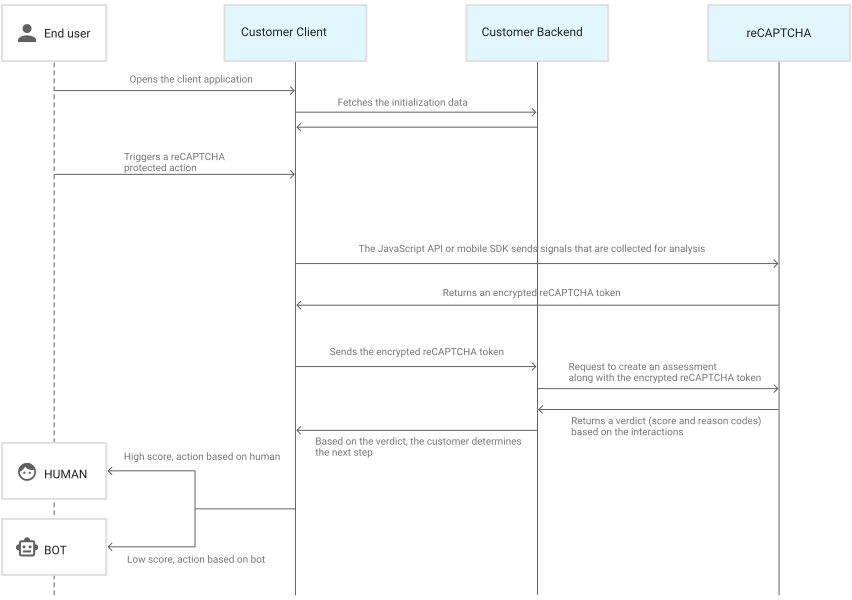
The API keys you create here can be used to initialize your AI Agent widget as described [here](/deploying/web#web-widget-recommended). This feature is powered by [Google reCAPTCHA Enterprise](https://cloud.google.com/recaptcha/docs). Google's [terms of service](https://policies.google.com/terms) and [privacy policy](https://policies.google.com/privacy) apply. Here's a sequence diagram to understand how Google's reCAPTCHA system works under the hood.
Here's a video demo illustrating creating/updating/deleting your own API keys.
{% loomvideo
url="https://www.loom.com/embed/458757c729e1442a9357552a85bccb35?sid=2920294c-b850-46c9-8dc8-1ed142eb9b23"
thumbnail_url="https://cdn.loom.com/sessions/thumbnails/458757c729e1442a9357552a85bccb35-with-play.gif"
text="User generated API keys"
/%}
---
# https://docs.rapidflare.ai/ai-agents
Rapidflare provides a suite of specialized AI Agents, each designed to excel at specific enterprise tasks. These agents work together to provide comprehensive support across your organization's knowledge management needs.
{% quick-links %}
{% quick-link title="Rapid Support" icon="lightbulb" href="/ai-agents/rapid-support" description="Technical support and troubleshooting assistance." /%}
{% quick-link title="Rapid Recommendations" icon="presets" href="/ai-agents/rapid-recommendations" description="Product recommendations and guidance." /%}
{% quick-link title="Rapid Proposals" icon="plugins" href="/ai-agents/rapid-proposals" description="RFP and proposal generation assistance." /%}
{% quick-link title="Rapid Learning" icon="theming" href="/ai-agents/rapid-learning" description="Training and knowledge acquisition." /%}
{% quick-link title="Rapid Cross Reference" icon="installation" href="/ai-agents/rapid-cross-reference" description="Competitive intelligence and product comparison." /%}
{% /quick-links %}
---
# https://docs.rapidflare.ai/ai-agents/rapid-cross-reference
Rapid Cross Reference is an AI Agent specialized in competitive intelligence. It scours the web to gather competitor product information from public sources, organizes it into an internal competitive catalog, and helps users compare, contrast, and understand how your enterprise's products relate to or stack up against competitor offerings in real-time.
## Key Capabilities
- **Competitive Data Collection**: Automatically gathers competitor product information from public sources across the web.
- **Competitive Catalog Management**: Organizes competitor data into a structured, searchable internal catalog.
- **Product Comparison**: Provides side-by-side comparisons between your products and competitor offerings.
- **Migration Guidance**: Helps users transitioning from competitor products identify equivalent features and products.
## Use Cases
- **Sales Competitive Positioning**: Equip sales teams with instant access to competitive differentiators and talking points.
- **Competitive Displacement**: Answer questions like "I am using Product X from Competitor Y, what products are comparable and how do they compare?"
- **Market Analysis**: Understand where your products stand relative to the competitive landscape.
- **Win/Loss Analysis**: Provide context on competitor strengths and weaknesses during deal reviews.
## Example Questions
- "I'm currently using Product X from Competitor Y. What comparable products do we offer?"
- "How does our solution compare to Competitor Z's offering?"
- "What are the key differentiators between our product and the competition?"
- "A prospect is evaluating us against Competitor A. What should I highlight?"
## How It Works
Rapid Cross Reference continuously monitors public sources to build and maintain a competitive intelligence catalog. When users ask comparison questions, the agent cross-references competitor product information with your internal product catalog, identifies equivalent or superior offerings, and presents a clear comparison highlighting key differentiators, feature gaps, and competitive advantages.
---
# https://docs.rapidflare.ai/ai-agents/rapid-learning
Rapid Learning is an AI Agent specialized in training and knowledge acquisition. It serves as an always-available training resource that helps employees learn about products, processes, and industry topics through interactive conversations.
## Key Capabilities
- **On-Demand Training**: Provides instant answers to training-related questions at any time.
- **Concept Explanation**: Breaks down complex topics into understandable explanations with examples.
- **Knowledge Assessment**: Helps users validate their understanding through Q&A sessions.
- **Learning Path Guidance**: Suggests related topics and resources for deeper learning.
## Use Cases
- **New Employee Onboarding**: Accelerate onboarding by giving new hires instant access to product and process knowledge.
- **Sales Training**: Keep field sales teams informed about product updates, features, and industry trends.
- **Partner Enablement**: Train distribution and reseller partners on your products without scheduling live sessions.
- **Continuous Learning**: Support ongoing professional development with easy access to learning materials.
## How It Works
Rapid Learning connects to your training materials, product documentation, and internal knowledge bases. When users ask questions, the agent provides educational responses that explain concepts, provide context, and reference relevant learning resources. It adapts its explanations based on follow-up questions to ensure understanding.
---
# https://docs.rapidflare.ai/ai-agents/rapid-proposals
Rapid Proposals is an AI Agent specialized in assisting with RFP responses and proposal creation. It accelerates the proposal process by leveraging your organization's historical responses, product documentation, and competitive positioning.
## Key Capabilities
- **RFP Response Generation**: Drafts responses to RFP questions using your historical responses and product documentation.
- **Content Library Access**: Instantly retrieves relevant content from previous proposals and marketing materials.
- **Consistency Checking**: Ensures responses align with current product capabilities and messaging.
- **Gap Analysis**: Identifies questions that require new content or subject matter expert input.
## Use Cases
- **RFP Response Teams**: Accelerate response creation by auto-generating first drafts from existing content.
- **Sales Proposals**: Create customized proposals with accurate product information and positioning.
- **Bid Management**: Streamline the bid process with quick access to standard response content.
## How It Works
Rapid Proposals indexes your previous RFP responses, proposal templates, and product documentation. When responding to new RFP questions, the agent searches for relevant historical responses, adapts them to the current context, and ensures accuracy against current product capabilities. It flags questions that may need fresh content or expert review.
---
# https://docs.rapidflare.ai/ai-agents/rapid-recommendations
Rapid Recommendations is an AI Agent specialized in providing product recommendations and guidance. It helps sales teams, partners, and customers identify the right products and solutions based on specific requirements and use cases.
## Key Capabilities
- **Product Matching**: Analyzes requirements and recommends the most suitable products from your catalog.
- **Feature Comparison**: Compares features across products to help users make informed decisions.
- **Solution Design**: Suggests product combinations and configurations for complex use cases.
- **Upgrade Guidance**: Identifies opportunities for product upgrades or additions based on current usage.
## Use Cases
- **Sales Enablement**: Help sales representatives quickly identify the right products for customer needs.
- **Partner Support**: Enable distribution and reseller partners to recommend appropriate solutions.
- **Customer Self-Service**: Allow customers to explore products and find the best fit for their requirements.
## How It Works
Rapid Recommendations uses your product catalog, feature documentation, and use case information to understand your offerings. When a user describes their needs, the agent matches those requirements against your product portfolio and provides tailored recommendations with supporting rationale.
---
# https://docs.rapidflare.ai/ai-agents/rapid-support
Rapid Support is an AI Agent specialized in technical support for electronics and hardware products. It helps customer success teams and support engineers resolve issues quickly by leveraging your organization's technical documentation, product catalogs, and knowledge base.
## Supported Query Types
Rapid Support intelligently classifies and handles the following types of queries:
### Product Lookup
Get or summarize a list of products matching your query—whether by technical specifications, attributes, or product type. Ask questions like "Show me all products with 10Gbps throughput" or "List all RF amplifiers in the catalog."
### Product Specifications
Verify, understand, or look up technical information about specific products by ID, SKU, or part number. Ask questions like "What are the specs for part number ABC-123?" or "What is the operating temperature range for product XYZ?"
### Product Comparison
Understand similarities and differences between two or more products. Ask questions like "Compare product A and product B" or "What's the difference between these three amplifiers?"
### Products by Use Case
Find matching products given a specific use case or application. Ask questions like "What products work best for 5G infrastructure?" or "Which components are suitable for automotive applications?"
### Products Assembly
Understand how to assemble disparate products together to make up a larger system. Ask questions like "What components do I need to build a complete RF front-end?" or "How do these modules connect together?"
### Troubleshooting
Troubleshoot installation, assembly, or usage of products. Ask questions like "My device isn't powering on, what should I check?" or "How do I resolve error code E-101?"
### FAQ
Get answers to frequently asked questions about the company, products, or services. Ask questions like "What is your warranty policy?" or "How do I contact support?"
### Keyword Search
Search by keywords when your query doesn't fit the other categories or is very short (3 words or less). Simply enter terms like "antenna datasheet" or "power specs."
### General Questions
Ask general questions about the company or products that don't fit the other categories.
## Use Cases
- **Customer Support**: Empower support agents to resolve tickets faster with instant access to technical solutions and product information.
- **Self-Service Support**: Enable customers to find answers to technical questions, compare products, and troubleshoot issues without waiting for support.
- **Field Engineering**: Provide field teams with quick access to specifications, assembly guides, and troubleshooting steps.
- **Partner Enablement**: Help distribution and reseller partners quickly find product information and answer technical questions.
## How It Works
Rapid Support analyzes the user's question, automatically classifies it into the appropriate query type, searches through your connected technical documentation, product catalogs, and knowledge bases, then synthesizes a comprehensive answer with relevant references. It maintains conversation context to handle follow-up questions and clarifications.
---
# https://docs.rapidflare.ai/deploying/discord
This guide will help you learn how to integrate Rapidflare into your Discord server. This is an admin flow.
## Prerequisites
- Discord server administrator permissions
- Access to the Rapidflare Admin Dashboard
## Option A: Using Rapidflare AI Agent (Recommended)
{% callout title="Coming Soon" type="warning" %}
This feature is currently being implemented. Please use Option B (Custom Agent) for now.
{% /callout %}
This will be the simplest way to get started. You'll use Rapidflare's Discord agent without needing to create your own Discord application.
## Option B: Using Your Own Agent (Custom Agent)
If you prefer to use your own Discord application with custom branding, follow these steps.
### Step 1: Create Discord Application
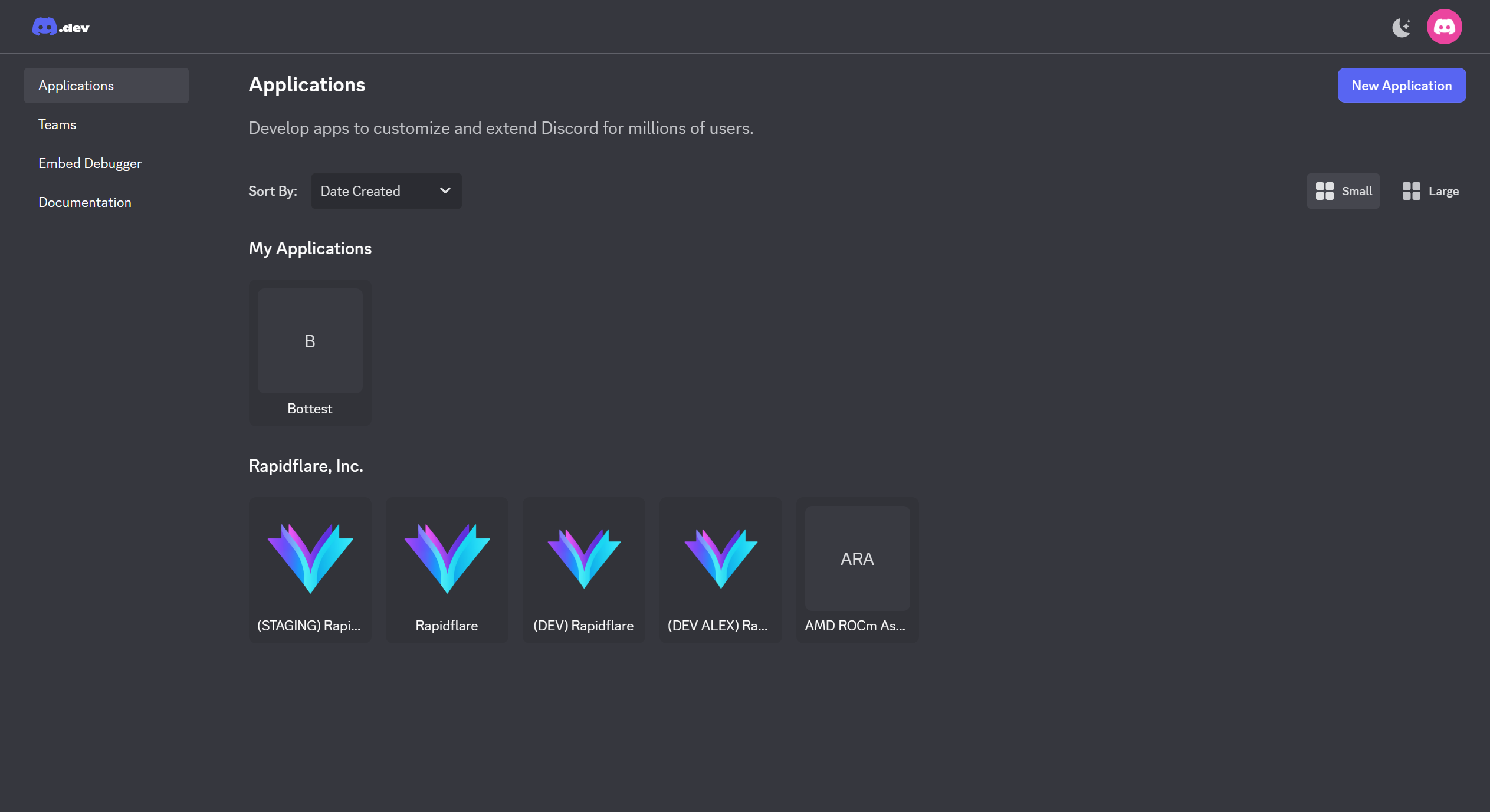
1. Go to the [Discord Developer Portal](https://discord.com/developers/applications)
2. Click **New Application**
3. Enter your application name (e.g., "Your Company Agent")
4. Click **Create**
### Step 2: Get Credentials
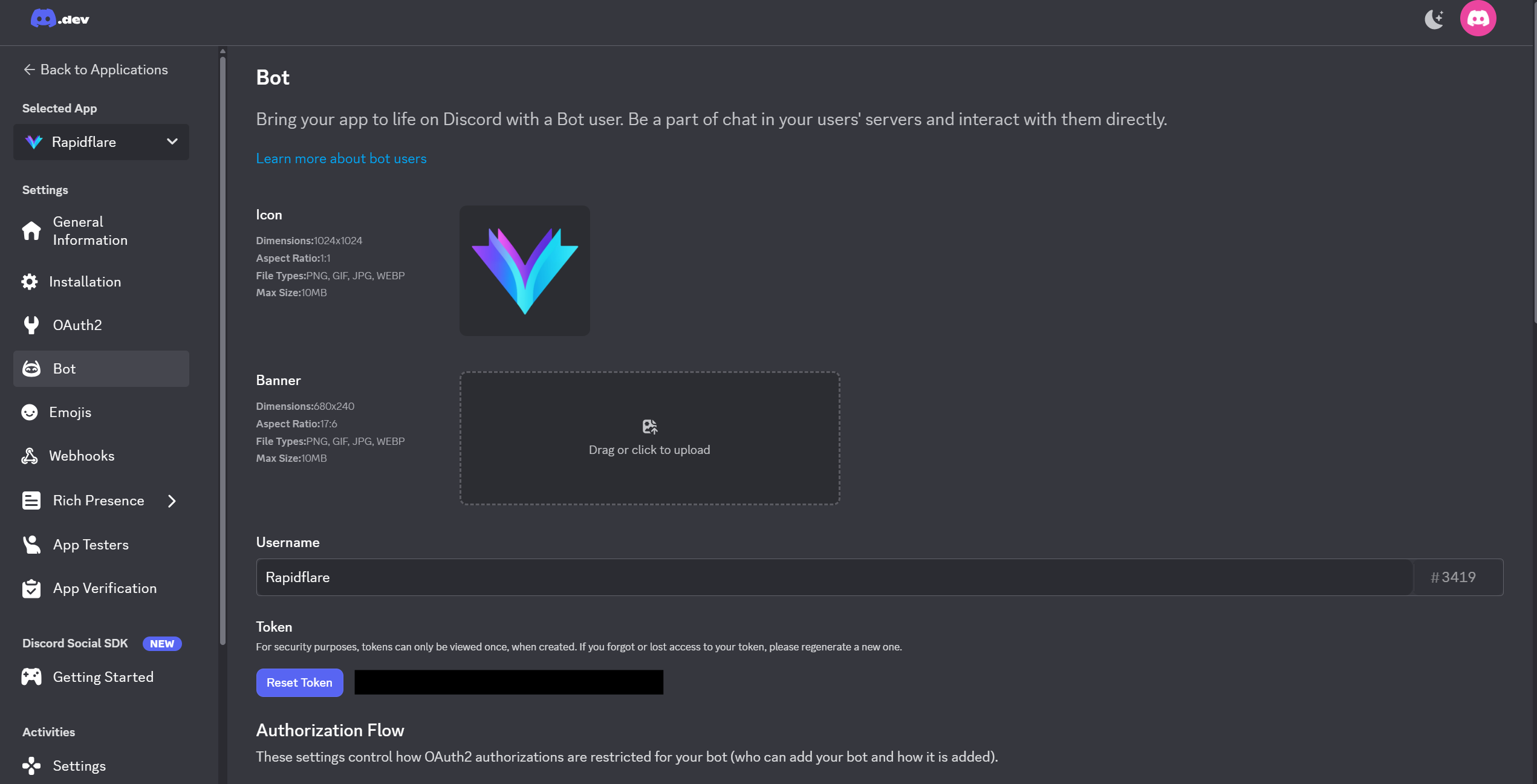
1. In the left sidebar, click **Applications** and select the application you just created.
2. Click **Bot** and then click **Reset Token** to copy the **Bot Token** (save this securely!)
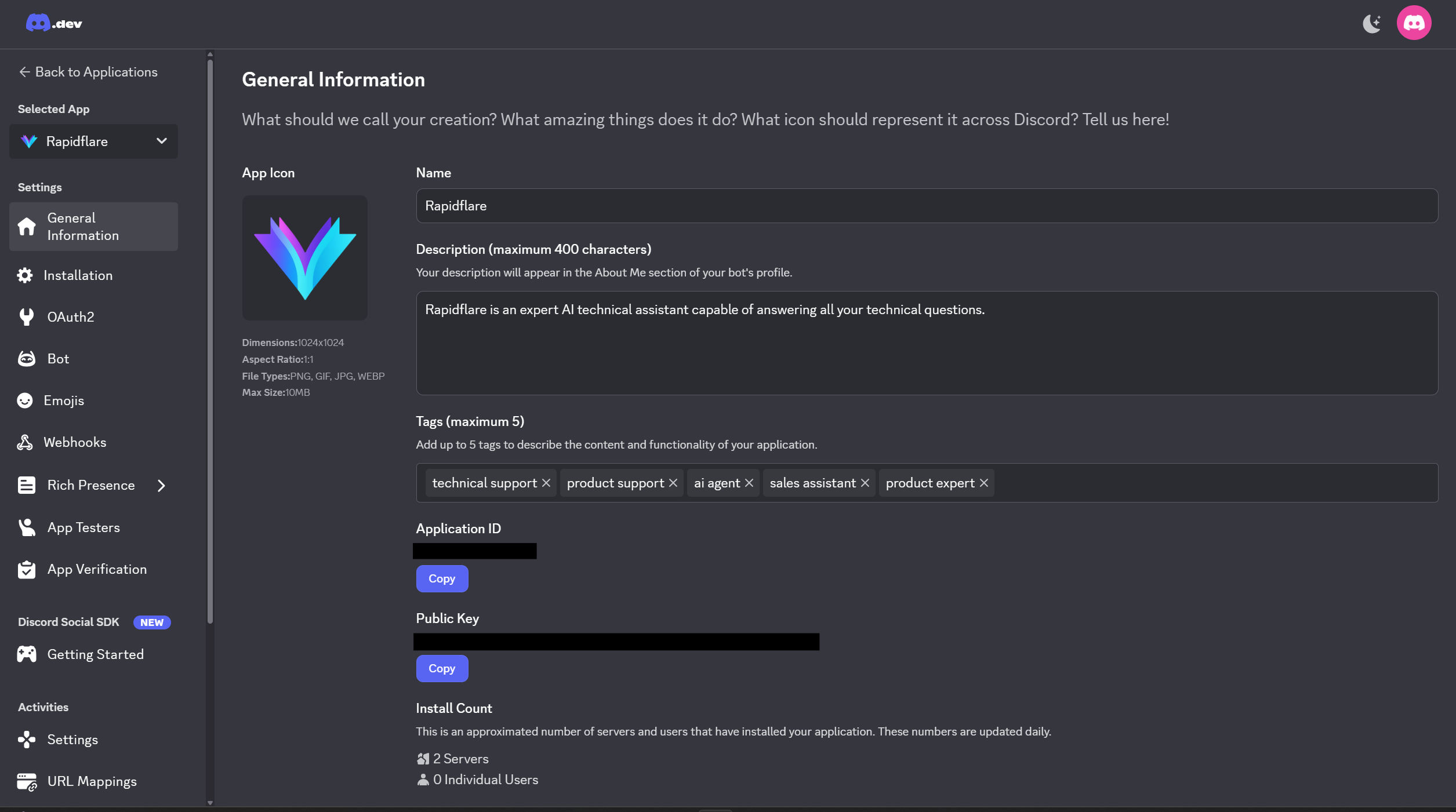
3. Go to **General Information**:
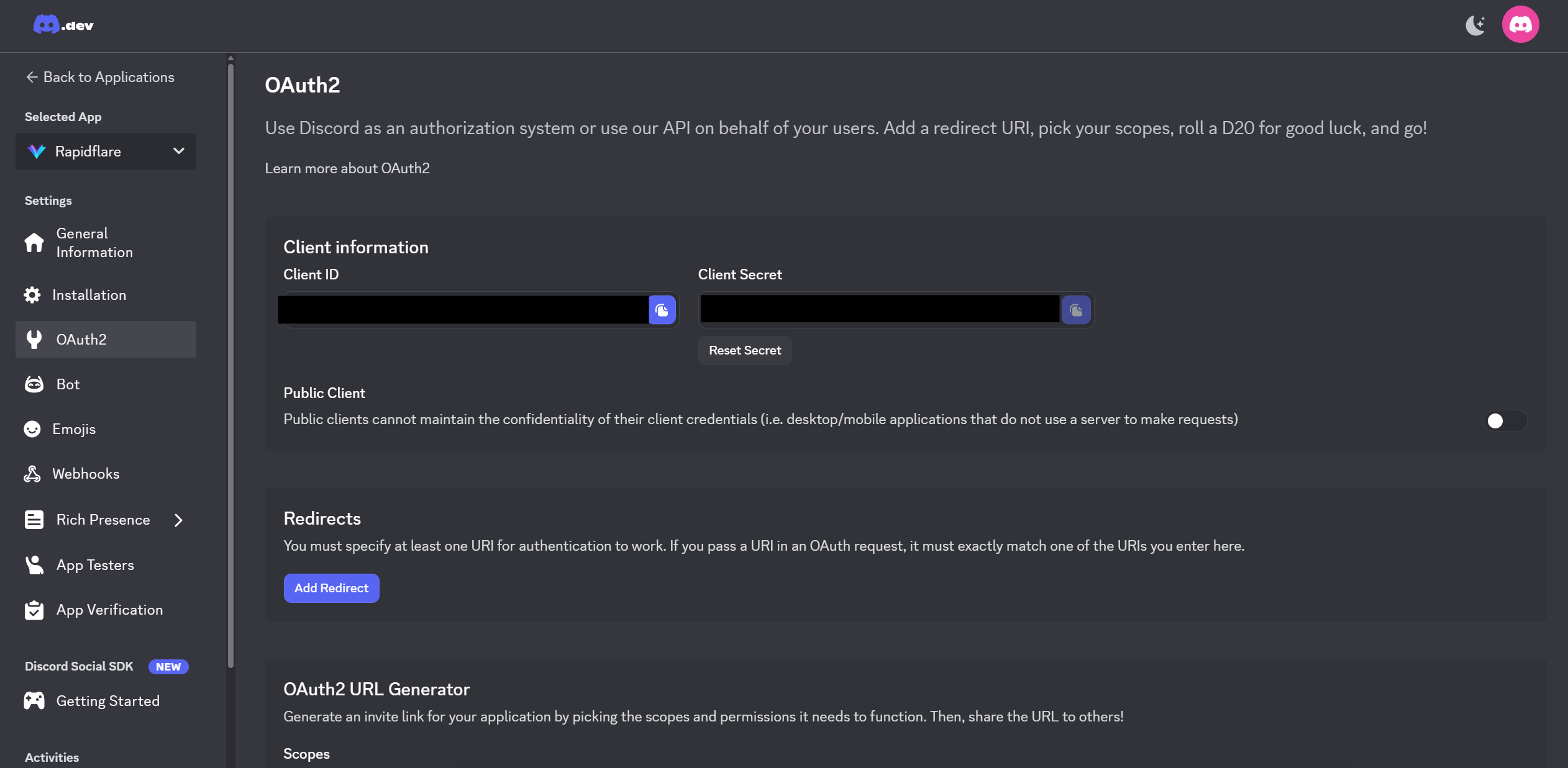
- Copy the **Application ID**
- Copy the **Public Key**
4. Go to **OAuth2**:
- Copy the **Client Secret**
### Step 2.5: Enable Privileged Gateway Intents
{% callout title="Required for Forum Auto Reply" type="warning" %}
This step is **required** if you want to use the Forum Auto Reply feature. Without this setting, the bot cannot read message content and will fail to connect.
{% /callout %}
To enable Forum Auto Reply (automatic AI responses to new forum posts), you must enable **Privileged Gateway Intents** in the Discord Developer Portal:
1. In the Discord Developer Portal, go to your application
2. Click **Bot** in the left sidebar
3. Scroll down to the **Privileged Gateway Intents** section
4. Enable **MESSAGE CONTENT INTENT** (toggle it ON)
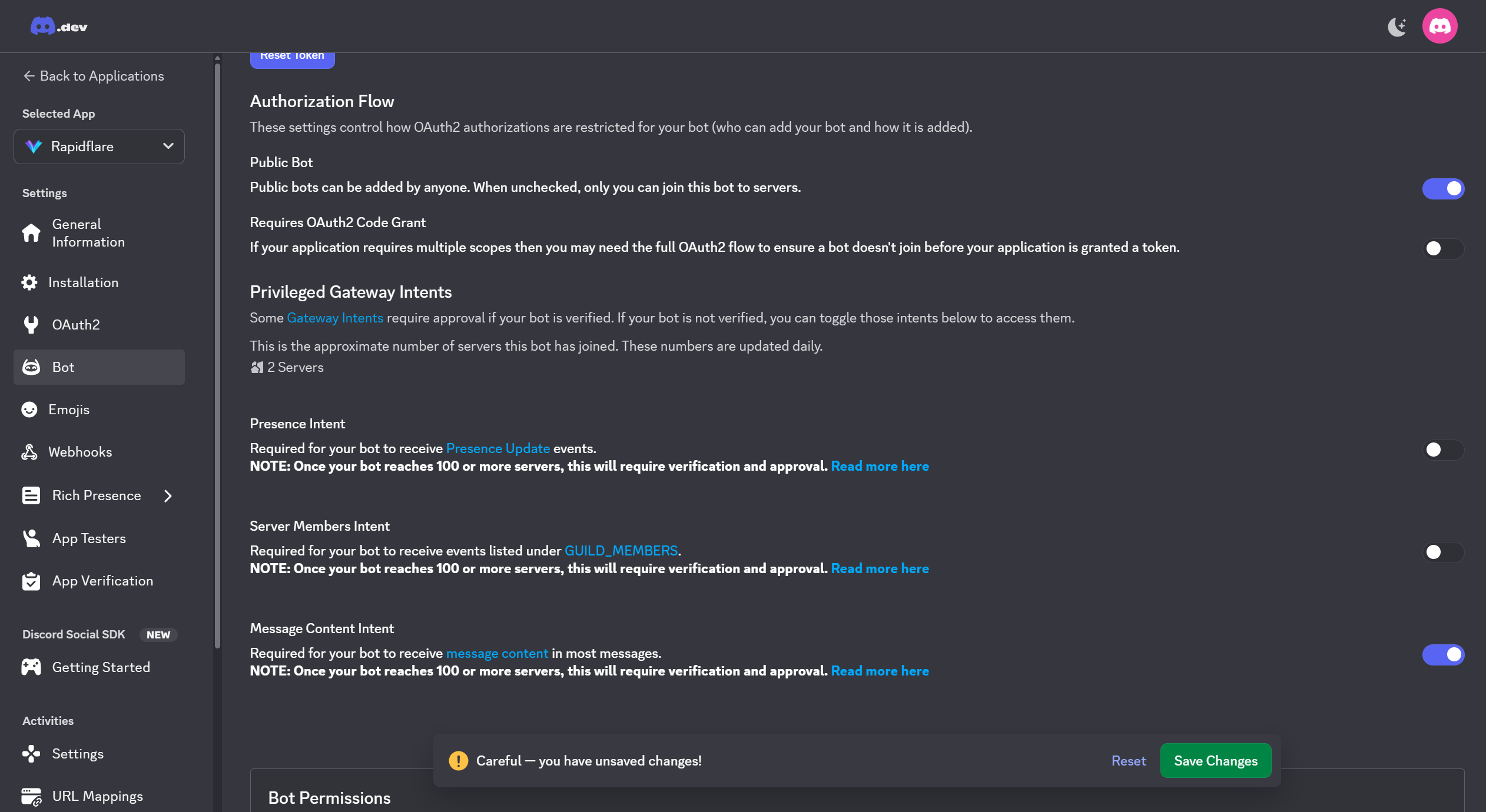
| Intent | Required | Description |
|--------|----------|-------------|
| Presence Intent | No | Not required for Rapidflare |
| Server Members Intent | No | Not required for Rapidflare |
| **Message Content Intent** | **Yes** | Required for Forum Auto Reply |
5. **Click "Save Changes"** at the bottom of the page
{% callout title="Don't forget to Save!" type="warning" %}
After toggling the intent ON, you **must** click the "Save Changes" button at the bottom of the page. The setting will not be applied until you save.
{% /callout %}
If you skip this step, you may see the following error in the logs:
```
Discord PrivilegedIntentsRequired - enable intents in Developer Portal. Giving up.
```
### Step 3: Configure in Rapidflare Dashboard
1. Go to your admin dashboard's **Deployments** page
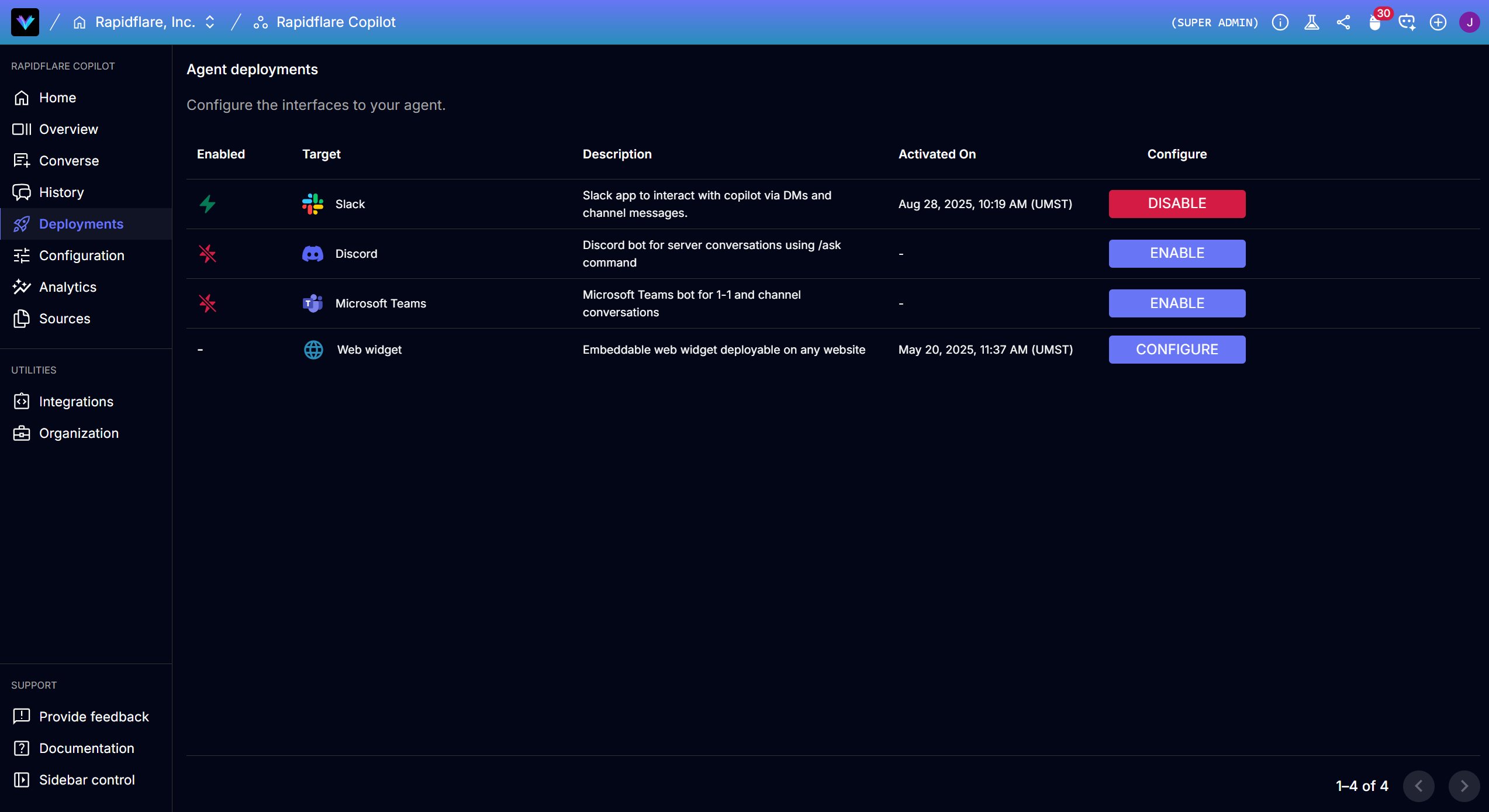
2. Click on **Discord** and select **Use Custom Agent** option
3. Enter the credentials you collected:
- Bot Token
- Application ID
- Public Key
- Client Secret
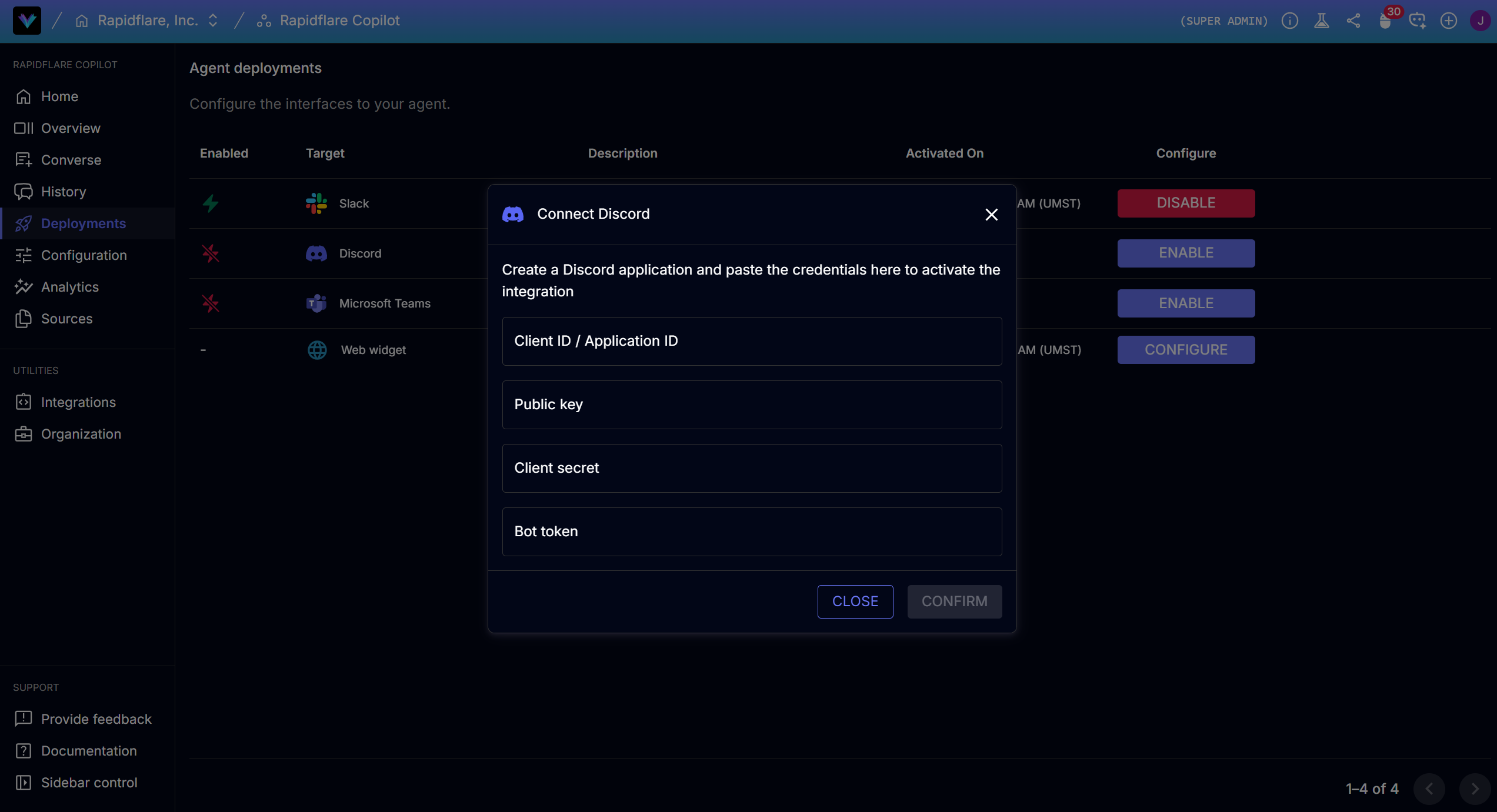
4. Click **Confirm**. Rapidflare will generate the **Interactions Endpoint URL** and **OAuth Redirect URL**.
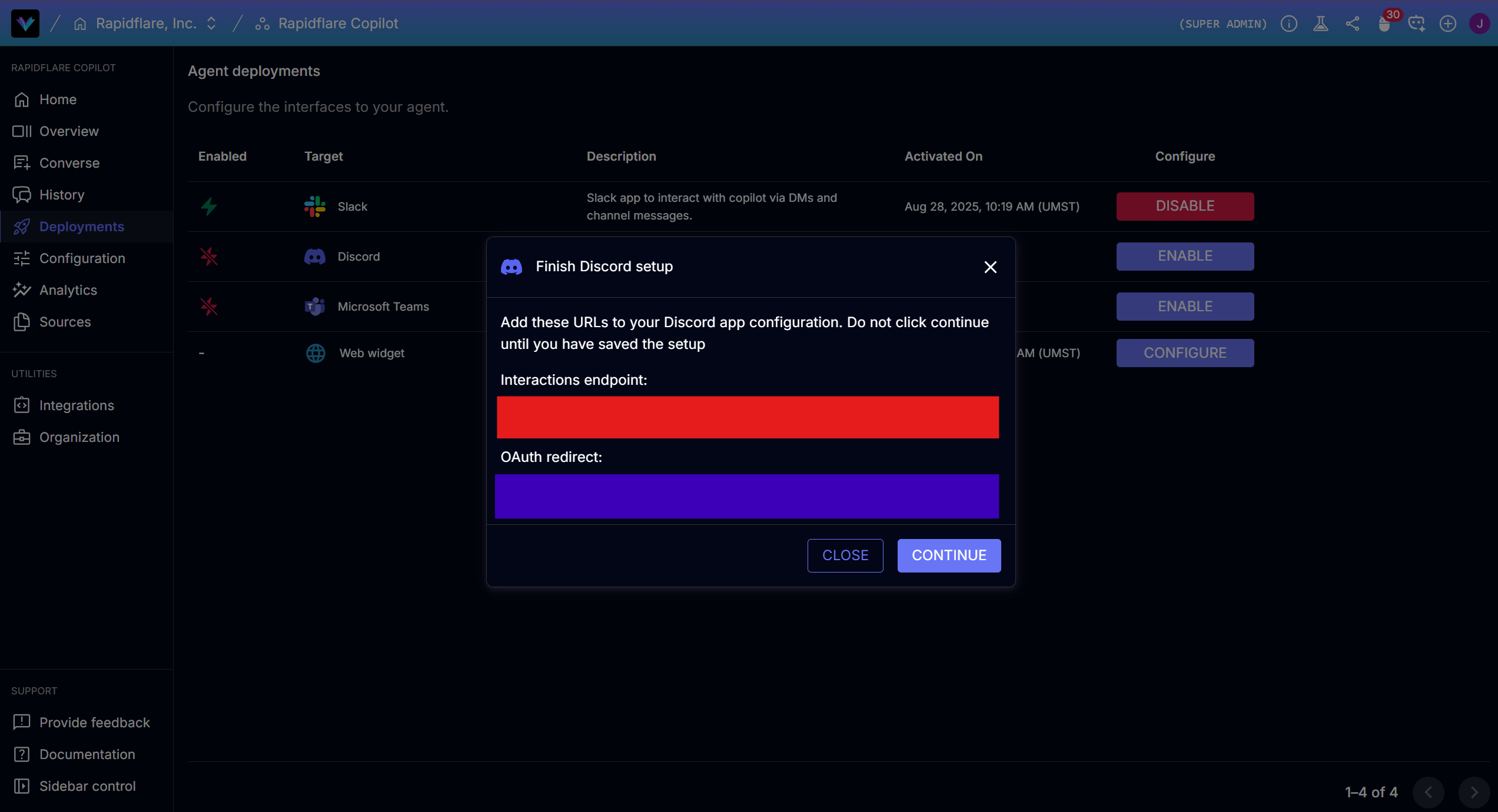
{% callout title="Do NOT click Continue yet!" type="warning" %}
You must configure the generated URLs in Discord Developer Portal first before proceeding.
{% /callout %}
### Step 4: Set Redirect URLs in Discord Developer Portal
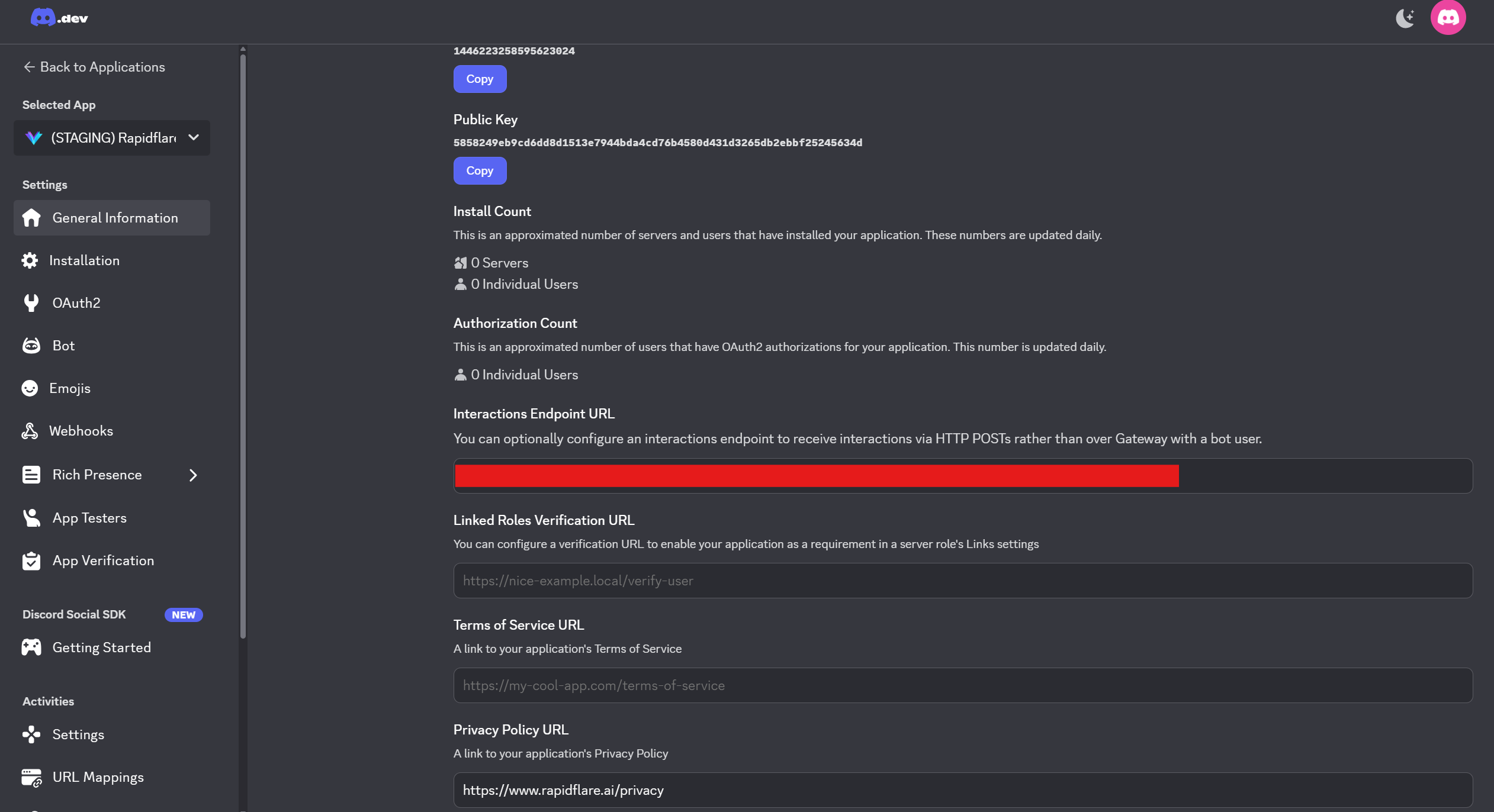
Go back to the Discord Developer Portal and configure these URLs. You can copy both URLs directly from the Rapidflare dashboard.
**General Information → Interactions Endpoint URL:**
Copy the **Interactions Endpoint URL** from the Rapidflare dashboard and paste it here.
**OAuth2 → Redirects:**
Copy the **OAuth Redirect URL** from the Rapidflare dashboard and paste it here.
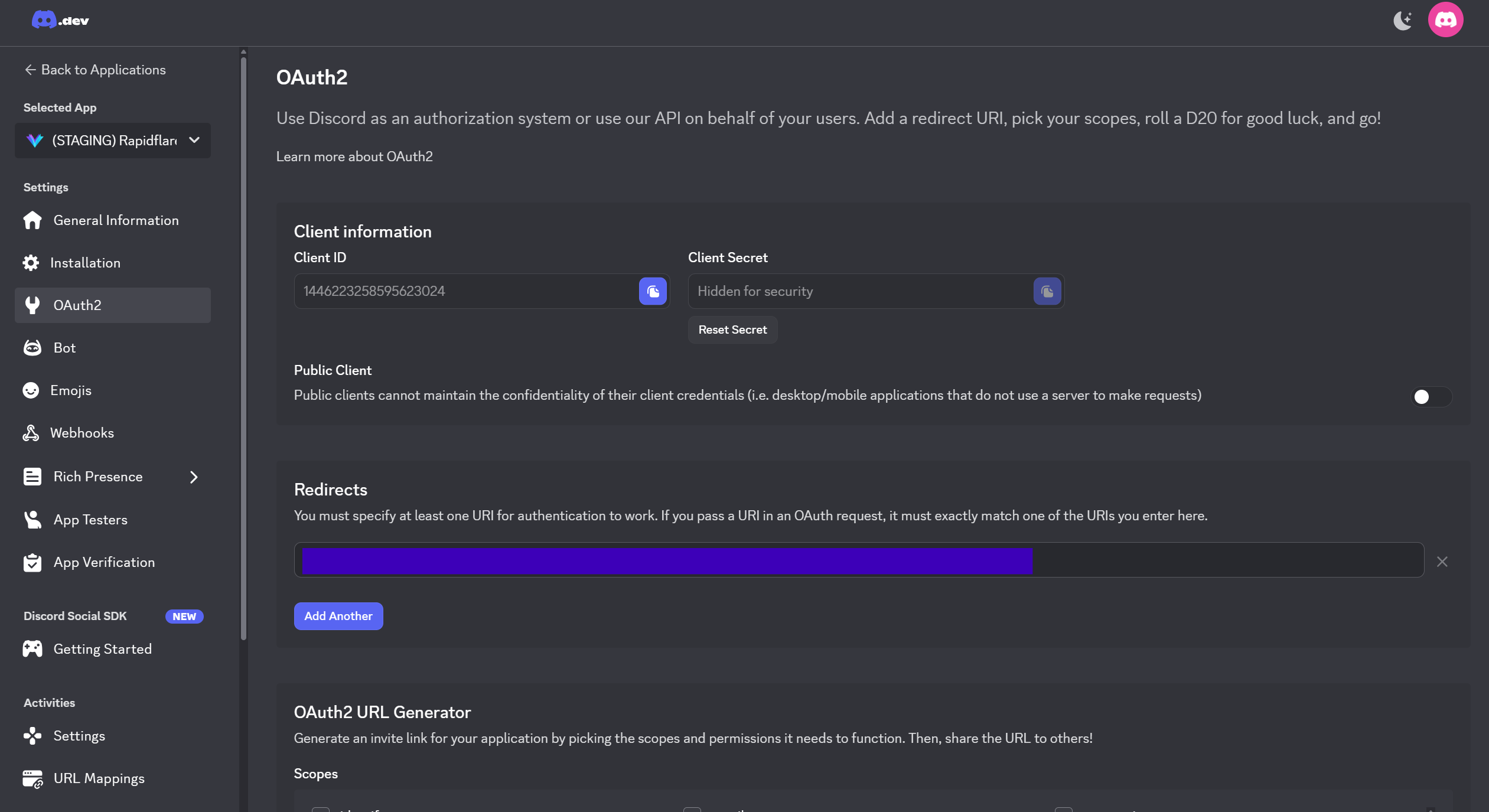
5. After configuring the URLs in Discord, go back to the Rapidflare dashboard and click **Continue**.
### Step 5: Invite Agent to Server
1. Select your Discord server
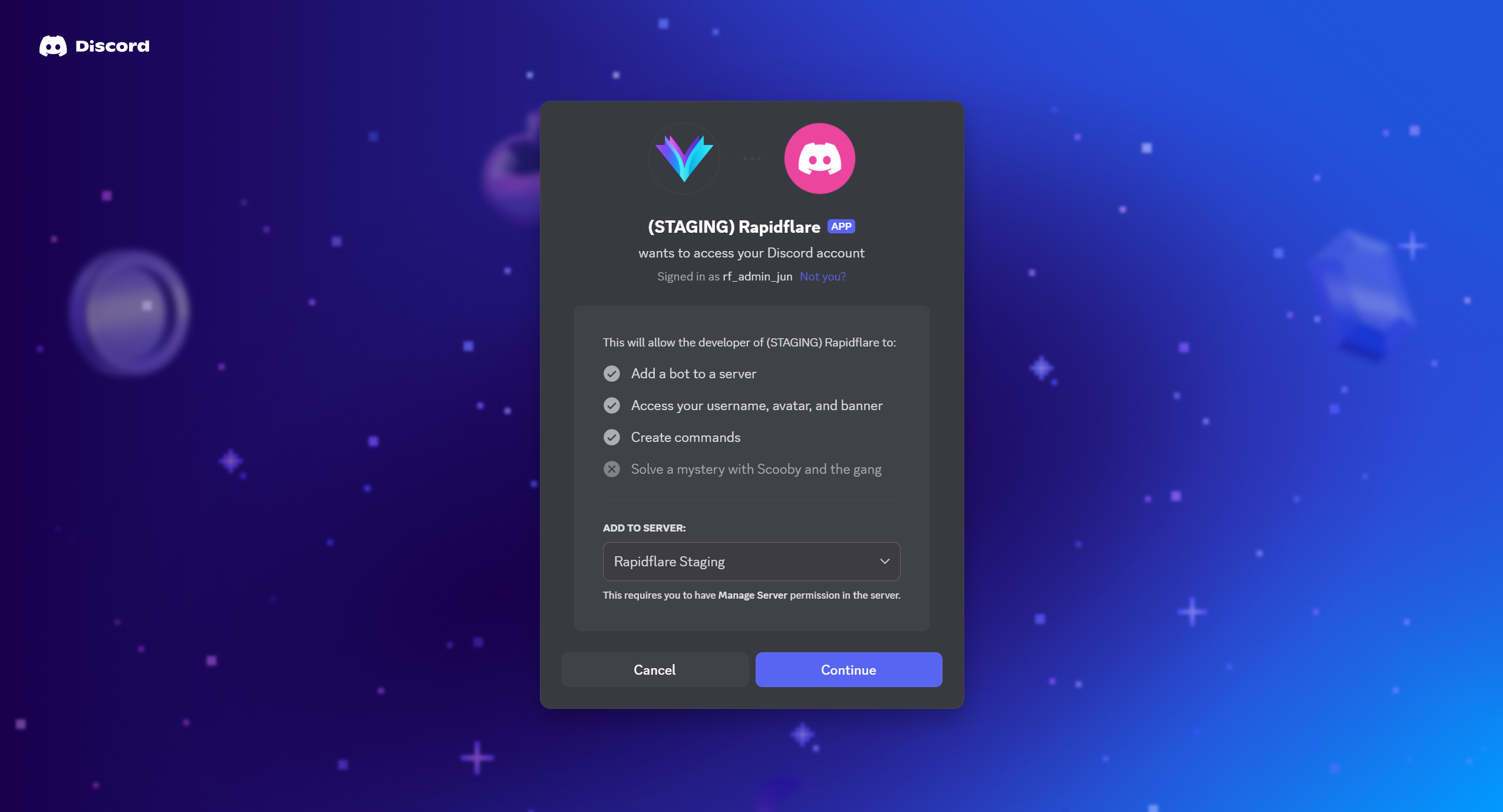
2. Authorize the required permissions
3. The agent will appear in your server
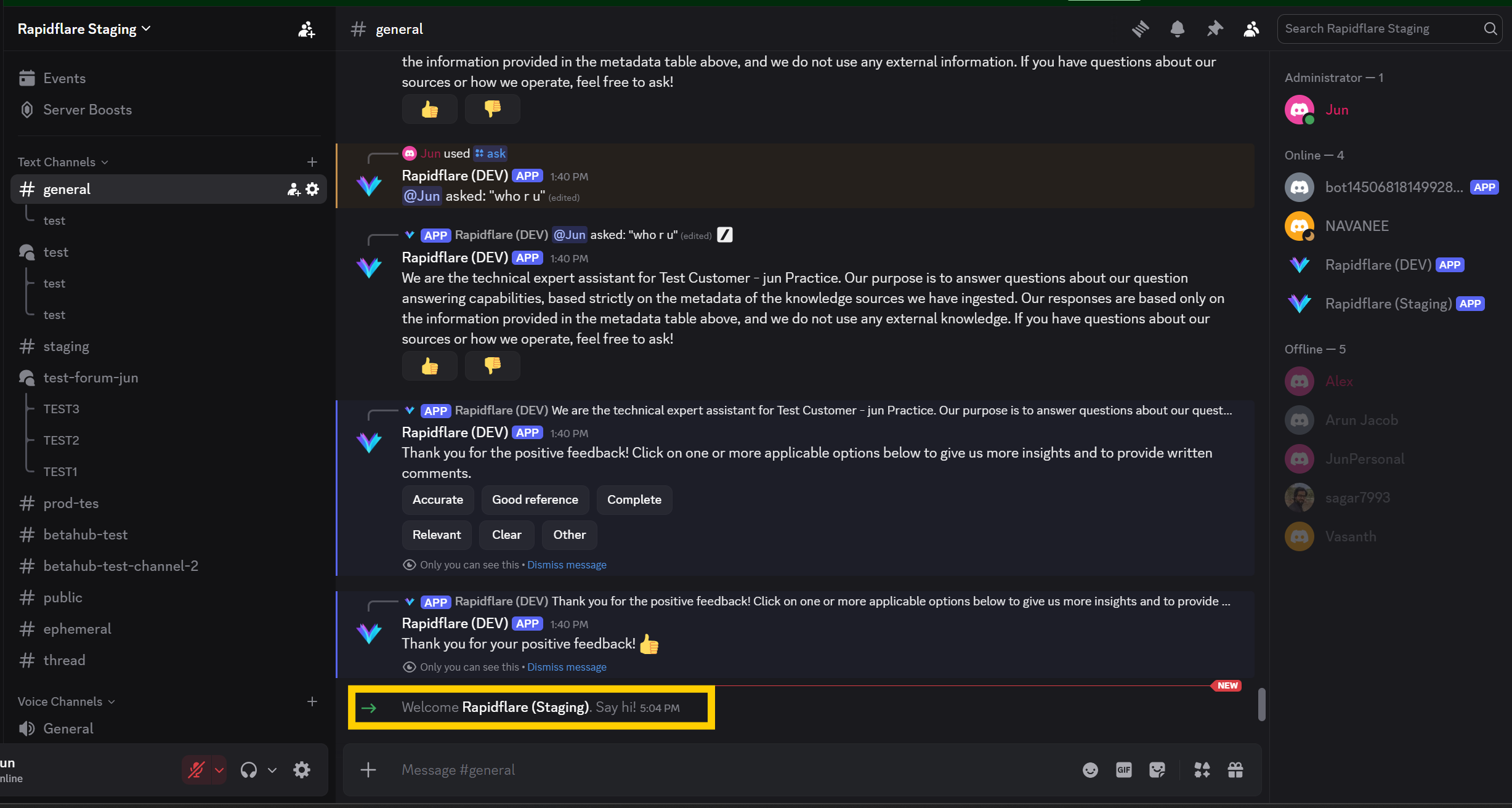
## Customizing Agent Appearance
{% callout title="Good to know!" %}
Unlike Slack, Discord allows full customization of agent name and avatar. You can change the agent's nickname per-server through Server Settings → Integrations → select your agent → Edit.
{% /callout %}
## Next Steps
Congratulations! Your Discord agent is now connected to Rapidflare AI Agent.
To start using the agent, you need to activate it in specific channels using the `/install` command. See the [Discord User Guide](/product-overview/surfaces/discord) for:
- How to use `/install` and `/uninstall` commands
- Using the `/ask` command to interact with the AI Agent
- Managing installed channels
- Providing feedback on responses
For additional support, contact us at [support@rapidflare.ai](mailto:support@rapidflare.ai).
---
# https://docs.rapidflare.ai/deploying
Deploy Rapidflare AI Agents into your apps and channels — embed on your website, use a white-label domain, or add Slack or Discord.
{% quick-links %}
{% quick-link title="Showcase" icon="showcase" href="/showcase" external="true" description="Explore and preview deployment options — floating launcher, search bar, full page, whitelabel, AI overview, Slack, Discord." /%}
{% quick-link title="Web" icon="webWidget" href="/deploying/web" description="Floating Launcher, Search Bar, Full Page Widget, Whitelabel Domain, and AI Overview — all the ways to integrate Rapidflare on the web." /%}
{% quick-link title="Slack" icon="slack" href="/deploying/slack" description="Deploy the AI Agent as a Slack app in your workspace." /%}
{% quick-link title="Discord" icon="discord" href="/deploying/discord" description="Deploy the AI Agent as a Discord bot in your server." /%}
{% /quick-links %}
---
# https://docs.rapidflare.ai/deploying/slack
This guide will help you learn how to integrate Rapidflare into your other Slack workspace. This is an admin flow.
## Add to Slack
1. Go to your admin dashboard's [AI Agents landing page](https://dashboard.rapidflare.ai/copilots)
2. In the left navigation bar, click on the **Converse** link to bring up your active AI Agent
3. In the left navigation bar, click on the **Deployments** link
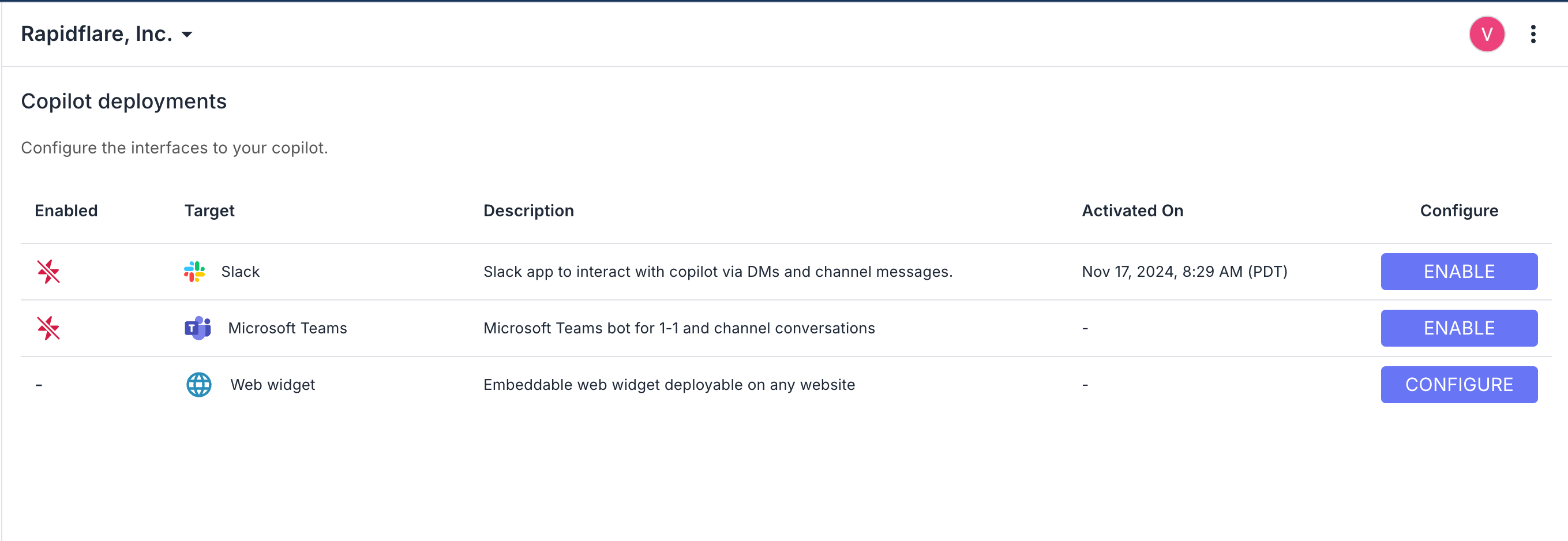
4. In the table of options, click on **Enable** on the row for the Slack option.
5. This will open up a new browser window with information and confirmation screens from Slack.
6. Follow the prompts to authorize the Rapidflare Slack App to access your workspace.
7. Once authorized, you will be returned back to the Rapidflare dashboard, where you will see a confirmation message indicating that the AI Agent has been successfully added to your Slack workspace.
## Customize AI Agent Name
If you prefer, you can have Rapidflare available via a different user name within your slack workspace.
1. `Cmd + T` or `Ctrl+T` in Slack and locate `@rapidflare`
2. Click on **About** > **Configuration**
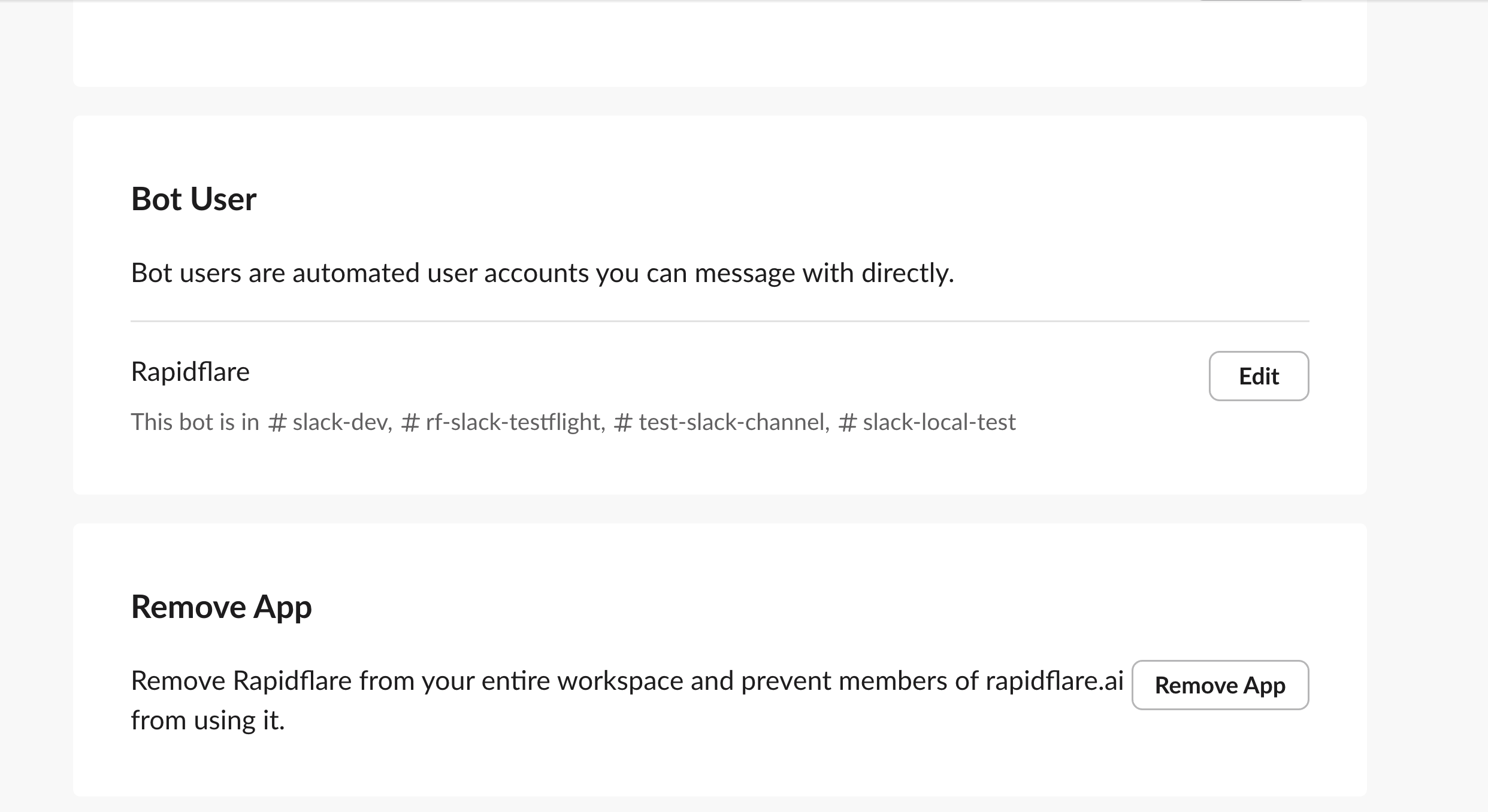
3. Scroll down to the **Bot User** section.
4. Click on **Edit**
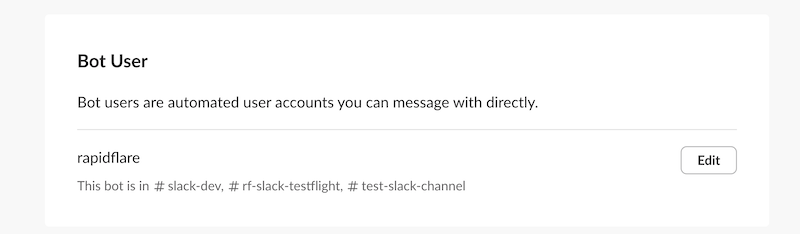
5. In the **Edit Bot Name** window that appears, change the name of the AI Agent as you prefer. **Tip**: We find most of our customers rename it to something in the format of `{Customer Short Name} Agent` or `{Customer Short Name} Genius`
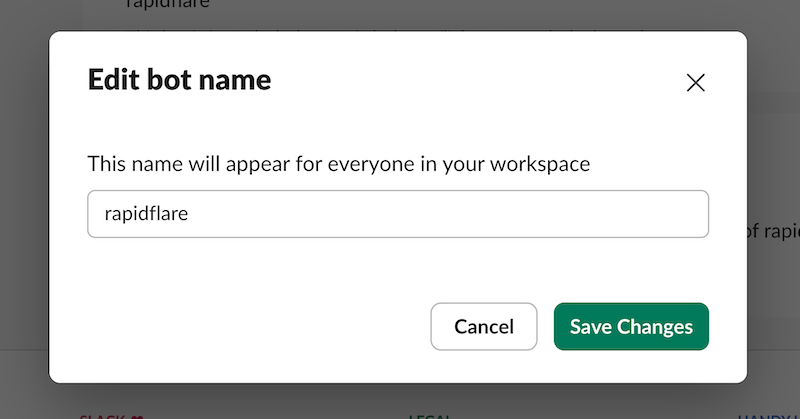
Your slack users can now interact with Rapidflare, via the **@mention** name you've set.
{% callout title="Good to know!" %}
Slack Apps do not allow full customization of app icon and app name. Though you are able to set the name to a custom one via the previous steps, you will notice that the app itself continues to appear as **Rapidflare** in your slack app directory, and in the **Apps** section of Slack.
If you'd like to whitelabel Rapidflare's Slack AI Agent, please contact us at [support@rapidflare.ai](mailto:support@rapidflare.ai).
{% /callout %}
## Disabling / Deactivating Slack AI Agent
You can deactivate Rapidflare's slack with one of the following two methods:
### Disable from within Rapidflare's Admin Dashboard
1. Go to your admin dashboard's [AI Agents landing page](https://dashboard.rapidflare.ai/copilots)
2. In the left navigation bar, click on the **Converse** link to bring up your active AI Agent
3. In the left navigation bar, click on the **Deployments** link
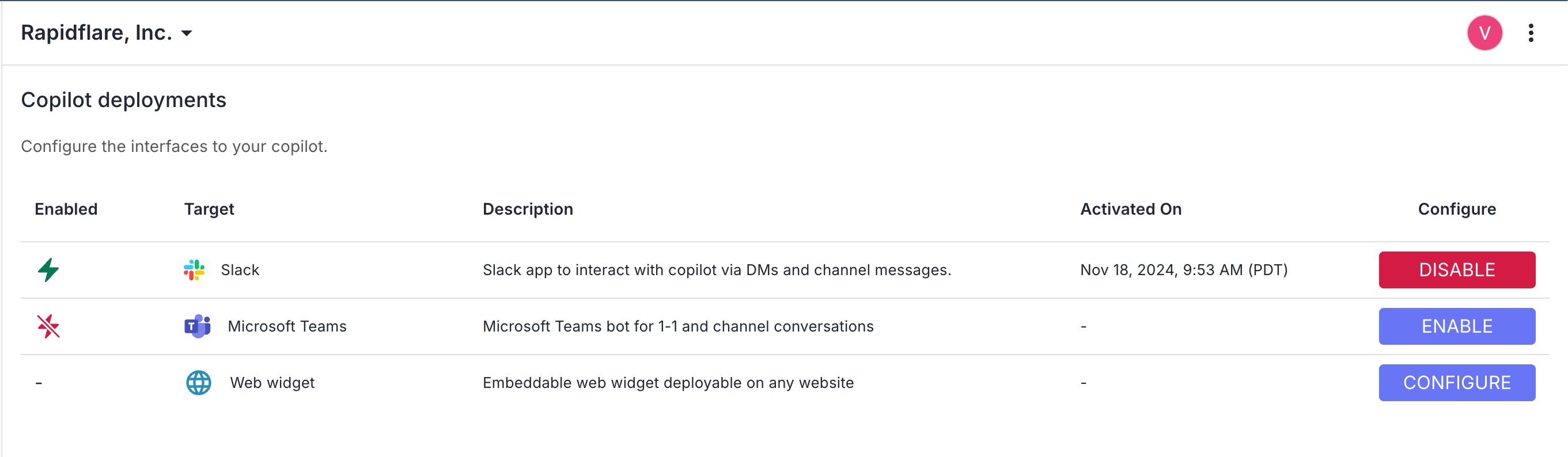
4. In the table of options, click on **Disable** on the row for the Slack option.
5. This will disable Slack both in Rapidflare's deployments, as well as in your slack workspace.
### Disable directly within Slack
1. You can deactivate the slack app from within Slack, though this method doesn't provide a way for Rapidflare to track that the AI Agent has been deactivated. So we recommend the first method.
2. Find your app in the left navigation bar in Slack, click on it. This brings up the app's home page. Click on **Configuration** in the **About** tab.
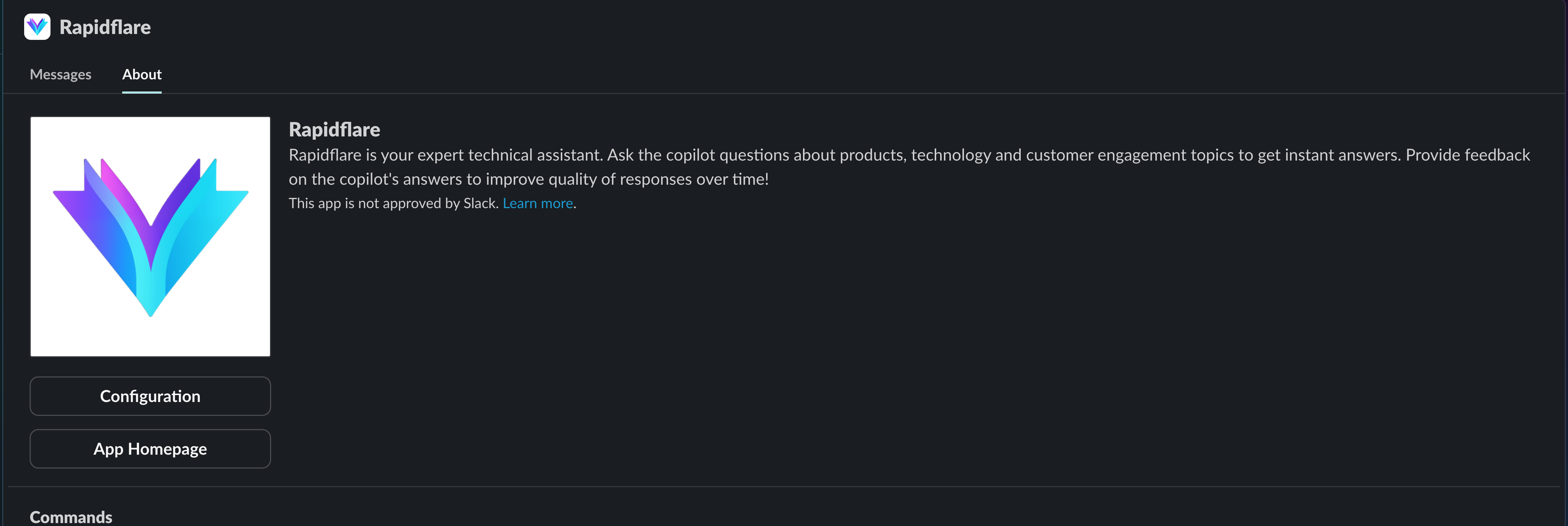
3. Scroll to the bottom of the page that opens, and click on **Remove App**
## Coming Soon
1. AI Assistant Mode support (enables chatting with a split pane, and handy access at the top right corner of your workspace)
2. Support for Artifacts, content tiles, explainability events and more.
---
# https://docs.rapidflare.ai/deploying/web/legacy
## Legacy widget {% #legacy-widget %}
{% callout title="Deprecated" type="warning" %}
The legacy widget is deprecated and will not receive future updates. Use the [Embed SDK](/deploying/web#web-widget-recommended) for new deployments.
{% /callout %}
The legacy option shows a floating button that opens the agent in a popup. To use the legacy widget, add one of the code snippets below to the `` of your page:
### Option 1 (recommended)
```html {% class="deploying-web-code-block" %}
```
### Option 2
```html {% class="deploying-web-code-block" %}
```
### Legacy widget position {% #widget-position %}
Choose where the launcher icon appears: `bottom-right`, `bottom-left`, `top-right`, or `top-left`. If you don't set `position`, it defaults to bottom-right and users can drag it to any corner.
{% loomvideo
url="https://www.loom.com/embed/0877057bd854424289a1502b14088ac4?sid=48a2c50f-7ba7-4091-8424-01d860a94714"
thumbnail_url="https://cdn.loom.com/sessions/thumbnails/0877057bd854424289a1502b14088ac4-with-play.gif"
text="Starter prompts"
/%}
### Legacy widget configuration {% #widget-configuration %}
| Parameter | Required? | Default | Description |
| --- | --- | --- | --- |
| `apiKey` | Yes | - | Connects your AI Agent to Rapidflare. Do not share outside your enterprise. |
| `theme` | Optional | - | Set to `light` or `dark` to match your site's color theme. |
| `userId` | Optional | - | We recommend setting `userId` to the current user's email for usage tracking and feedback. |
| `position` | Optional | - | Initial position of the widget: `bottom-right`, `bottom-left`, `top-right`, `top-left`. Defaults to `bottom-right`; users can drag to any corner. |
| `widgetTriggerSelector` | Optional | - | CSS selector for the element that opens the floating launcher (e.g. your own button). If omitted, the default launcher is shown. |
| `agent` | Optional | - | Which agent to render: `qa` or `product-selection`. Defaults to `qa`. |
| `onLoad` | Optional | - | Called when the agent widget is loaded and ready. |
| `onOpen` | Optional | - | Called when the agent widget is opened. |
| `onClose` | Optional | - | Called when the agent widget is closed. |
### Legacy widget versioning
Use this script URL: [https://cloud.rapidflare.ai/storage/v1/object/public/rapidflare-copilot-widget/latest/script.js](https://cloud.rapidflare.ai/storage/v1/object/public/rapidflare-copilot-widget/latest/script.js). We recommend **latest** so you get updates automatically. To pin to a specific version:
| Method | Version | URL |
| --- | --- | --- |
| Pin to major, receive additive improvements and bug fixes | `3.x` | [https://cloud.rapidflare.ai/storage/v1/object/public/rapidflare-copilot-widget/3.x/script.js](https://cloud.rapidflare.ai/storage/v1/object/public/rapidflare-copilot-widget/3.x/script.js) |
| Pin to minor, receive only bug fixes | `3.0.x` | [https://cloud.rapidflare.ai/storage/v1/object/public/rapidflare-copilot-widget/3.0.x/script.js](https://cloud.rapidflare.ai/storage/v1/object/public/rapidflare-copilot-widget/3.0.x/script.js) |
| Pin to specific version | `3.0.4` | [https://cloud.rapidflare.ai/storage/v1/object/public/rapidflare-copilot-widget/3.0.4/script.js](https://cloud.rapidflare.ai/storage/v1/object/public/rapidflare-copilot-widget/3.0.4/script.js) |
| Pin to latest | `latest` | [https://cloud.rapidflare.ai/storage/v1/object/public/rapidflare-copilot-widget/latest/script.js](https://cloud.rapidflare.ai/storage/v1/object/public/rapidflare-copilot-widget/latest/script.js) |
The current latest version is `3.0.4`.
{% callout title="Good to know!" %}
The API keys we provide control authentication to Rapidflare. Please do not distribute these keys outside your enterprise.
{% /callout %}
{% callout title="What does versioning control?" type="warning"%}
The script version only affects how the widget is loaded and shown on your page. The AI Agent inside the widget keeps getting updates from us regardless of which script version you use. Your branding stays the same. If you pin to a specific version, you may miss new features. We recommend using **latest**.
{% /callout %}
---
[← Back to Web deployment](/deploying/web)
---
# https://docs.rapidflare.ai/deploying/web
## Overview
Rapidflare offers several ways to run the AI agent on your web properties. They fall into two groups:
- **[Rapidflare Embed SDK](/deploying/web#web-widget-recommended)** — one loader script from our CDN powers **four** experiences on your own pages: [Floating Launcher](/deploying/web#floating-launcher), [Full Page Widget](/deploying/web#full-page-widget), [Search Bar](/deploying/web#search-bar), and [AI Overview](/deploying/web#ai-overview). You choose the mode in `rapidflare.init()`; the script URL is the same for all four.
- **[Whitelabel domain](/deploying/web#whitelabel-domain)** — a hosted agent at a **URL you control** (full-page in the browser, or an `
```
#### Optional: `prompt`, `autoSubmit`, `userId`, and `theme` on iframe `src` {% #other-query-parameters %}
You can append query parameters to the whitelabel URL used as the iframe `src` so the embedded agent opens with starter text, optional auto-submit, an optional signed-in user identity, and optional light or dark appearance.
| Query parameter | Required? | Type | Description |
| --- | --- | --- | --- |
| `prompt` | Optional | string | Initial message or question for the agent. Must be **URL-encoded** when used in `src`. |
| `autoSubmit` | Optional | boolean | If `true`, the agent submits the `prompt` when the iframe loads. Use the string `true` or `false` in the query string. |
| `userId` | Optional | string | A unique ID for the user (we recommend email for usage tracking and feedback—same as [Embed SDK `userId`](/deploying/web#web-widget-configuration-options)). Must be **URL-encoded** when used in `src`. |
| `theme` | Optional | string | `light` or `dark` to match your page (same as the [Embed SDK `theme`](/deploying/web#web-widget-configuration-options)). Invalid values are ignored. |
**Static `src`:** build the query string yourself (encode `prompt` and `userId`).
```html {% class="deploying-web-code-block" %}
```
**Building the URL in JavaScript:** use `URL` + `URLSearchParams` so encoding is handled correctly, then set the iframe `src` (or render it in your app shell).
```html {% class="deploying-web-code-block" %}
```
---
## Security {% #security %}
You use an API key to connect the widget to Rapidflare. We recommend restricting it to specific domains in your dashboard so only your sites can use it. Domain allow-listing is optional but recommended.
We use [Google reCAPTCHA Enterprise](https://cloud.google.com/recaptcha/docs) to help protect your key. Google's [terms of service](https://policies.google.com/terms) and [privacy policy](https://policies.google.com/privacy) apply.
 {% class="deploying-web-image-block" %}
| Scenario | Will API key work? |
| --- | --- |
| Request coming from spam / bot / known bad IP address | No ❌ |
| Request coming from non allow-listed domain | No ❌ |
| Request not from a real browser | No ❌ |
| Request initiated by a human and coming from allow-listed domain | Yes ✅ |
{% loomvideo
url="https://www.loom.com/embed/458757c729e1442a9357552a85bccb35?sid=2920294c-b850-46c9-8dc8-1ed142eb9b23"
thumbnail_url="https://cdn.loom.com/sessions/thumbnails/458757c729e1442a9357552a85bccb35-with-play.gif"
text="User generated API keys"
/%}
---
## Legacy widget {% #legacy-widget %}
{% callout title="Deprecated" type="warning" %}
The legacy widget is deprecated and will not receive future updates. Use the **[Embed SDK](/deploying/web#web-widget-recommended)** for new deployments.
{% /callout %}
Full reference for existing integrations—code snippets, launcher position, configuration, and script versioning—is on **[Legacy widget](/deploying/web/legacy)**. It is not listed in the sidebar so the main Web guide stays focused on the Embed SDK.
---
# https://docs.rapidflare.ai/integrations/coming-soon
# Documentation Coming Soon
We're working on detailed documentation for this integration. Stay tuned!
In the meantime, if you have questions about this integration or would like to get early access, please contact us at [support@rapidflare.ai](mailto:support@rapidflare.ai).
[Back to Integrations Overview](/integrations)
---
# https://docs.rapidflare.ai/integrations/confluence
Connect Atlassian Confluence to Rapidflare to ingest wiki pages and documentation from your team's knowledge base, enabling your AI Agent to answer questions using your internal documentation.
## Overview
The Confluence integration allows you to:
- **Sync spaces** - Connect one or more Confluence spaces
- **Preserve hierarchy** - Maintain page parent-child relationships
- **Include attachments** - Optionally ingest attached files
- **Track versions** - Detect updated pages automatically
## Supported Content
| Content Type | Support | Notes |
|--------------|---------|-------|
| Pages | Full | Full content with formatting |
| Blog Posts | Full | Treated as regular pages |
| Attachments | Full | PDFs, documents, images with text |
| Comments | Partial | Can be included optionally |
| Page Labels | Full | Used as metadata for filtering |
## Setting Up Confluence
### Step 1: Add a New Source
1. Navigate to **Sources** in your admin dashboard
2. Click **Add Source**
3. Select **Confluence**
### Step 2: Authenticate
For **Confluence Cloud**:
1. Click **Connect to Confluence**
2. Sign in with your Atlassian account
3. Grant Rapidflare read-only access
4. Select your Confluence site if you have multiple
For **Confluence Data Center/Server**:
1. Generate an API token from your Confluence admin settings
2. Enter your Confluence URL and API token
3. Test the connection
### Step 3: Configure Spaces
- **Space Selection** - Choose which spaces to include
- **Page Filters** - Optionally filter by labels or parent pages
- **Include Attachments** - Toggle attachment ingestion
- **Exclude Patterns** - Skip pages matching certain titles or labels
### Step 4: Initial Ingestion
Rapidflare will:
1. Connect to your Confluence instance
2. Enumerate pages in selected spaces
3. Download page content and attachments
4. Extract and index all content
## Content Processing
### Page Content
Confluence pages are processed with:
- Full HTML content extraction
- Table formatting preservation
- Macro expansion where possible
- Internal link tracking
### Attachments
Attached files are processed based on type:
- **PDFs** - Full text extraction
- **Office Documents** - Content and tables extracted
- **Images** - Stored for display in responses
### Metadata
Each page includes metadata for context:
- Page title and URL
- Space name and key
- Labels and categories
- Last modified date
- Author information
## Best Practices
### Space Organization
- Create dedicated spaces for AI-ready content
- Use labels consistently to categorize content
- Archive outdated pages rather than leaving them active
### Content Quality
- Keep pages focused on single topics
- Use clear, descriptive titles
- Update pages regularly to maintain accuracy
- Add labels to help with categorization
### Access Control
- Ensure the authenticating account has access to target spaces
- Consider using a service account for stable access
- Review space permissions periodically
## Troubleshooting
### Pages Not Appearing
- Verify the page is in a connected space
- Check that your account can view the page
- Ensure the page isn't restricted or in a personal space
- Look for exclusion patterns that might match
### Authentication Issues
- For Cloud: Re-authenticate through the Atlassian OAuth flow
- For Server: Verify your API token is valid and hasn't expired
- Check that your account hasn't been deactivated
### Attachment Errors
- Very large attachments may timeout during extraction
- Some file formats may not be supported
- Check the ingestion logs for specific error messages
### Stale Content
- Trigger a manual refresh from the source settings
- Check if the page was updated in Confluence
- Verify the sync schedule is active
---
# https://docs.rapidflare.ai/integrations/fluid-topics
Connect Fluid Topics to Rapidflare to ingest structured technical documentation with version control, enabling your AI Agent to answer questions from your product knowledge platform.
## Overview
Fluid Topics is an enterprise product knowledge platform that centralizes technical documentation from multiple sources. The Rapidflare integration allows you to:
- **Ingest documents and maps** - Support for both standalone documents and structured multi-topic documentation
- **Automatic version selection** - Intelligently select the best version when multiple exist
- **Preserve structure** - Maintain topic hierarchy and relationships
- **Handle rich content** - Process embedded images and resources
## Key Concepts
Understanding Fluid Topics terminology helps configure the integration effectively:
| Concept | Description |
|---------|-------------|
| **Document** | A single file (PDF, HTML, DOCX) stored in Fluid Topics |
| **Map** | A structured, multi-topic documentation collection (like a book with chapters) |
| **Topic** | Individual sections within a Map—the actual content chunks |
| **Cluster** | Groups different versions of the same document/map together |
## Setting Up Fluid Topics
### Step 1: Add a New Source
1. Navigate to **Sources** in your admin dashboard
2. Click **Add Source**
3. Select **Fluid Topics**
### Step 2: Configure Connection
1. Enter your Fluid Topics **base URL** (e.g., `https://docs.yourcompany.com`)
2. Provide your **API token** (Bearer token for authentication)
3. Test the connection
### Step 3: Define Content Scope
You can specify content in two ways:
**Filter URLs** - URLs that return multiple documents matching criteria:
```text
https://docs.yourcompany.com/search/documents?value-filters=Product~"ProductName"&content-lang=en-US
```
Use filter URLs when:
- Ingesting many documents matching criteria
- You want automatic discovery of new matching docs
- Filters are stable and well-defined
**Direct URLs** - Specific document or map URLs:
```text
https://docs.yourcompany.com/v/u/en-US/specific-document
```
Use direct URLs when:
- Specific critical documents must always be included
- Documents don't match filter criteria
- Testing or debugging specific content
### Step 4: Configure Options
- **Cache by Last Modified** - Enable version-aware caching to skip unchanged documents (recommended)
- **Locale Preference** - Prefer specific language versions (e.g., en-US)
## Version Handling
When multiple versions of the same document exist, Rapidflare automatically selects the best one using these priority rules:
1. **File type** - Supported formats only (PDF, HTML, DOCX)
2. **Latest flag** - Prefer items marked as the latest version
3. **Locale** - Prefer your configured locale (default: en-US)
4. **Content type** - Prefer Maps over Documents (more structured)
5. **Publication date** - Most recently published wins
This ensures you don't get duplicate content from multiple versions or translations of the same document.
## Content Processing
### Documents
Standalone documents are processed as:
1. Download the binary content
2. Extract text based on file type (PDF, HTML, DOCX)
3. Create searchable document with metadata
### Maps (Structured Documentation)
Maps are processed topic-by-topic:
1. Fetch the table of contents hierarchy
2. Download each topic as HTML
3. Replace embedded images with accessible URLs
4. Create individual documents for each topic with unique URLs
This granular approach ensures precise retrieval—the AI can reference specific sections rather than entire manuals.
## Best Practices
### Filter URL Design
- Use specific filters to avoid ingesting irrelevant content
- Combine multiple filter URLs for different product lines
- Test filter URLs in Fluid Topics search first
### Direct URL Usage
- Include critical documents that might not match filters
- Add newly published documents before they appear in filters
- Use for testing specific content ingestion
### Version Management
- Enable **cache by last modified** to avoid reprocessing unchanged docs
- Set appropriate locale preferences for your audience
- Monitor the ingestion logs for version selection decisions
## Troubleshooting
### Documents Not Found
- Verify the filter URL returns results in Fluid Topics
- Check that direct URLs are accessible
- Ensure your API token has read access
### Wrong Version Selected
- Review the version selection logic in ingestion logs
- Adjust locale preferences if wrong language is selected
- Use direct URLs for critical documents to guarantee inclusion
### Missing Topics from Maps
- Check if topics are published and accessible
- Verify the API token has access to all topics
- Look for errors in the topic extraction logs
### Images Not Displaying
- Rapidflare converts embedded images to direct URLs
- Ensure images are published and accessible
- Check that resource URLs are not behind additional authentication
---
# https://docs.rapidflare.ai/integrations/google-drive
Connect Google Drive shared folders to Rapidflare to automatically ingest documents, spreadsheets, presentations, and PDFs into your AI Agent's knowledge base.
## Overview
The Google Drive integration allows you to:
- **Sync shared folders** - Connect one or more shared Drive folders
- **Support multiple formats** - Google Docs, Sheets, Slides, PDFs, and more
- **Automatic updates** - Detect new and modified files automatically
- **Preserve structure** - Maintain folder hierarchy in document metadata
## Supported File Types
| File Type | Extension | Notes |
|-----------|-----------|-------|
| Google Docs | Native | Exported as HTML for processing |
| Google Sheets | Native | Exported with formatting preserved |
| Google Slides | Native | Exported with speaker notes |
| PDF | `.pdf` | Full text extraction with layout preservation |
| Word Documents | `.docx` | Full text and table extraction |
| PowerPoint | `.pptx` | Slides and speaker notes |
| Plain Text | `.txt`, `.md` | Direct ingestion |
## Setting Up Google Drive
### Step 1: Add a New Source
1. Navigate to **Sources** in your admin dashboard
2. Click **Add Source**
3. Select **Google Drive Shared Folder**
### Step 2: Authenticate
1. Click **Connect to Google Drive**
2. Sign in with your Google account
3. Grant Rapidflare read-only access to your Drive files
4. Select the shared folder(s) you want to sync
### Step 3: Configure Sync Settings
- **Folder Selection** - Choose which shared folders to include
- **File Types** - Optionally filter by file type
- **Exclude Patterns** - Skip files matching certain patterns (e.g., drafts, archives)
### Step 4: Initial Ingestion
After saving your configuration, Rapidflare will begin the initial ingestion:
1. Discover all files in the selected folders
2. Download and extract content from each file
3. Index the content for retrieval
You can monitor progress from the source details page.
## Best Practices
### Organize Content Effectively
- Group related documents in folders by topic or product
- Use consistent naming conventions
- Keep a clean folder structure—the AI Agent inherits this context
### Manage Access
- Use shared folders rather than individual file shares
- Ensure the authenticating account has stable, long-term access
- Consider using a service account for production deployments
### Monitor Sync Status
- Check the source details page regularly for sync errors
- Review ingestion logs if documents aren't appearing
- Re-authenticate if you see permission errors
## Troubleshooting
### Files Not Appearing
- Verify the file is in a connected shared folder
- Check that the file type is supported
- Ensure the authenticating account has access
- Wait for the next sync cycle or trigger a manual refresh
### Permission Errors
- Re-authenticate with Google Drive from the source settings
- Verify the shared folder permissions haven't changed
- Check that the folder is still shared with your account
### Large Files
- Very large files (>50MB) may take longer to process
- Consider splitting large documents into smaller sections
- PDF files with many images will take longer to extract
---
# https://docs.rapidflare.ai/integrations/jira
Connect Atlassian Jira to Rapidflare to sync issues (tickets) from your projects. Your AI agent can then answer questions using your team’s issue-tracking and support context.
## Overview
With the Jira integration you can:
- **Sync tickets** — Pull issues from one or more Jira projects into Rapidflare
- **Ingest key fields** — Include summary, description, status, assignee, reporter, and other configured fields
## Supported Content
| Content Type | Support | Notes |
|--------------|---------|-------|
| Issues / Tickets | Full | Summary, description, and key fields |
## Setting Up Jira
### Step 1: Add a New Source
1. In your admin dashboard, go to **Sources**
2. Click **Add Custom JSON Source**
3. Add **JIRA Configuration** in JSON format
### Step 2: Configure Projects
- **Project selection** — Configure which Jira projects to fetch issues from in the source configuration under `resource` key.
- **Field selection** — Configure which issue fields to ingest from the supported list below
**Supported fields**
- summary
- description
- project
- issuetype
- status
- created
- updated
- reporter
- assignee
- labels
### Step 3: Ingestion
Rapidflare will:
1. Connect to your Jira instance
2. Fetch issues that match your configuration
3. Extract ticket content and metadata
4. Index the content for retrieval by your agent
## Content Processing
### Issue Content
Issues are processed using only the fields configured in the source. These fields are extracted, normalized, and indexed so your agent can search and reason over them. If no specific fields are configured, all supported fields will be ingested.
## Troubleshooting
### Tickets Not Appearing
- Confirm the issue belongs to a project that is connected in the integration
- Ensure your Jira account has permission to view the issue
### Authentication Issues
- Confirm your API token is valid and not expired
- Check that your Jira account is active and not deactivated
---
# https://docs.rapidflare.ai/integrations
Rapidflare can connect to your existing content sources and documentation platforms, automatically ingesting and synchronizing content to keep your AI Agent's knowledge base up-to-date.
## How Integrations Work
When you connect an integration, Rapidflare:
1. **Authenticates** securely with your content platform using OAuth or API tokens
2. **Discovers** available content based on your configuration (folders, spaces, filters)
3. **Extracts** text and metadata from documents, preserving structure and relationships
4. **Synchronizes** changes automatically, detecting new, updated, or removed content
5. **Indexes** the content for fast, accurate retrieval during conversations
## Available Integrations
### Cloud Storage
{% quick-links %}
{% quick-link title="Google Drive" icon="presets" href="/integrations/google-drive" description="Connect shared Google Drive folders to automatically ingest documents, spreadsheets, and presentations." /%}
{% quick-link title="SharePoint" icon="presets" href="/integrations/sharepoint" description="Integrate with Microsoft SharePoint to access documents from your organization's document libraries." /%}
{% quick-link title="OneDrive" icon="presets" href="/integrations/coming-soon" description="Connect Microsoft OneDrive to sync personal and shared files." /%}
{% quick-link title="Dropbox" icon="presets" href="/integrations/coming-soon" description="Integrate with Dropbox to access files and folders from your team's shared storage." /%}
{% quick-link title="Box" icon="presets" href="/integrations/coming-soon" description="Connect Box to ingest documents from your enterprise content management platform." /%}
{% /quick-links %}
### Knowledge Bases & Documentation
{% quick-links %}
{% quick-link title="Confluence" icon="presets" href="/integrations/confluence" description="Connect to Atlassian Confluence to ingest wiki pages and documentation from your team's knowledge base." /%}
{% quick-link title="Notion" icon="presets" href="/integrations/coming-soon" description="Integrate with Notion to sync pages and databases from your team workspace." /%}
{% quick-link title="Fluid Topics" icon="presets" href="/integrations/fluid-topics" description="Integrate with Fluid Topics to ingest structured technical documentation with version control." /%}
{% quick-link title="Read the Docs" icon="presets" href="/integrations/coming-soon" description="Connect Read the Docs to ingest your project's technical documentation." /%}
{% quick-link title="Document360" icon="presets" href="/integrations/coming-soon" description="Integrate with Document360 to sync your knowledge base articles." /%}
{% /quick-links %}
### CMS & Content Platforms
{% quick-links %}
{% quick-link title="WordPress" icon="presets" href="/integrations/coming-soon" description="Connect WordPress to ingest posts, pages, and content from your website." /%}
{% quick-link title="Contentful" icon="presets" href="/integrations/coming-soon" description="Integrate with Contentful to sync content from your headless CMS." /%}
{% /quick-links %}
### CRM & Sales
{% quick-links %}
{% quick-link title="HubSpot" icon="presets" href="/integrations/coming-soon" description="Connect HubSpot to sync knowledge base articles and documentation." /%}
{% quick-link title="Salesforce" icon="presets" href="/integrations/coming-soon" description="Integrate with Salesforce Knowledge to access your support articles and documentation." /%}
{% quick-link title="Apollo" icon="presets" href="/integrations/coming-soon" description="Connect Apollo to sync sales enablement content and playbooks." /%}
{% /quick-links %}
### Support & Communication
{% quick-links %}
{% quick-link title="JIRA" icon="presets" href="/integrations/jira" description="Connect to Atlassian JIRA to pull tickets and issue data into your agent's knowledge base." /%}
{% quick-link title="Intercom" icon="presets" href="/integrations/coming-soon" description="Integrate with Intercom to sync help articles and support content." /%}
{% /quick-links %}
### Learning Management
{% quick-links %}
{% quick-link title="LearnUpon" icon="presets" href="/integrations/coming-soon" description="Connect LearnUpon to ingest training courses and learning content." /%}
{% /quick-links %}
## Setting Up an Integration
To set up an integration:
1. Navigate to **Sources** in your admin dashboard
2. Click **Add Source** and select your integration type
3. Follow the OAuth flow or enter your API credentials
4. Configure which content to sync (folders, spaces, filters)
5. Save and trigger an initial ingestion
Once configured, Rapidflare will automatically keep your content synchronized. You can monitor ingestion progress and view detailed logs from the source details page.
## Content Processing
Each integration handles content differently based on the source platform:
| Integration | Content Types | Versioning | Incremental Updates |
|-------------|---------------|------------|---------------------|
| Google Drive | Docs, Sheets, Slides, PDFs | Yes | Yes |
| SharePoint | Documents, Lists | Yes | Yes |
| Confluence | Pages, Attachments | Yes | Yes |
| Fluid Topics | Documents, Maps, Topics | Yes | Yes |
| JIRA | Issues, Tickets | Yes | Yes |
## Security
All integrations use industry-standard OAuth 2.0 or secure API tokens for authentication. Credentials are encrypted at rest and in transit. Rapidflare only requests the minimum permissions needed to read content—we never modify your source documents.
For more details on our security practices, see [Security](/security).
---
# https://docs.rapidflare.ai/integrations/sharepoint
Connect Microsoft SharePoint to Rapidflare to ingest documents from your organization's document libraries, keeping your AI Agent's knowledge synchronized with your enterprise content.
## Overview
The SharePoint integration allows you to:
- **Connect document libraries** - Access content from SharePoint Online sites
- **Sync automatically** - Detect new and updated documents
- **Preserve metadata** - Retain SharePoint properties and tags
- **Support enterprise auth** - Integrate with your organization's Microsoft 365 tenant
## Supported Content
| Content Type | Support | Notes |
|--------------|---------|-------|
| Documents | Full | Word, Excel, PowerPoint, PDF |
| Lists | Partial | Text content from list items |
| Pages | Full | SharePoint site pages |
| Attachments | Full | Files attached to list items |
## Setting Up SharePoint
### Step 1: Add a New Source
1. Navigate to **Sources** in your admin dashboard
2. Click **Add Source**
3. Select **SharePoint**
### Step 2: Authenticate
1. Click **Connect to SharePoint**
2. Sign in with your Microsoft 365 account
3. Grant Rapidflare read-only access to your SharePoint sites
4. Your admin may need to approve the app if your organization requires consent
### Step 3: Configure Sites and Libraries
- **Site Selection** - Choose which SharePoint sites to include
- **Document Libraries** - Select specific libraries within each site
- **Folder Filters** - Optionally limit to specific folders
### Step 4: Initial Ingestion
After configuration, Rapidflare will:
1. Connect to your selected SharePoint sites
2. Enumerate documents in the configured libraries
3. Download and extract content
4. Index for retrieval
## Authentication Options
### User Authentication (OAuth)
- Quick setup via browser-based sign-in
- Uses your personal permissions
- Best for testing and small deployments
### App-Only Authentication (Recommended for Production)
For production deployments, consider setting up app-only authentication:
1. Register an application in Azure AD
2. Grant SharePoint API permissions
3. Generate a client secret or certificate
4. Provide the credentials to Rapidflare
This approach:
- Doesn't depend on a user account
- Provides stable, long-term access
- Can be scoped to specific sites
Contact [support@rapidflare.ai](mailto:support@rapidflare.ai) for assistance with app-only setup.
## Best Practices
### Site Organization
- Connect sites that contain stable, published content
- Avoid syncing draft or work-in-progress libraries
- Consider creating a dedicated "AI Knowledge" library for curated content
### Permission Management
- Use the principle of least privilege
- Grant access only to sites and libraries needed
- Review permissions periodically
### Content Quality
- Ensure documents have meaningful titles
- Use consistent metadata across documents
- Keep content current—outdated documents affect answer quality
## Troubleshooting
### Authentication Failures
- Verify your Microsoft 365 credentials are valid
- Check if your organization requires admin consent
- Ensure your account has access to the selected sites
### Missing Documents
- Confirm the document is in a connected library
- Check file type is supported
- Verify your account has read access to the document
- Allow time for the sync cycle to complete
### Slow Ingestion
- Large document libraries take longer to process
- Consider filtering to specific folders
- Check for very large files that may slow extraction
---
# https://docs.rapidflare.ai/onboarding/information-sources
At Rapidflare, the effectiveness of our enterprise AI Agent depends on the quality and variety of the data it processes. During onboarding, we collaborate closely with customers to gather internal and publicly available information, ensuring the AI Agent is equipped to provide precise, contextually relevant responses.
## Types of Data
Our AI Agent draws from two main categories of data:
- **Primary Sources**: Key technical documents such as datasheets, product guides, application notes, case studies, and product catalogs form the foundation. These allow the AI Agent to handle specific, in-depth product-related queries.
- **Enriched Secondary Sources**: We enrich catalog data by inferring and generating more detailed information about product attributes. This enrichment equips our AI to handle complex queries, such as comparing CPU frequency or power requirements, and supports "needle in a haystack" searches. In cases where detailed product catalogs are not readily available, we curate data from multiple sources to ensure comprehensive coverage.
We also generate a glossary to help the AI Agent reason more effectively about technical terms, synonyms, and units of measurement. In addition, we collect visual materials and learning content related to the primary sources, allowing us to present this information alongside responses and deliver even greater value.
While we start by leveraging publicly available data like product datasheets and brochures, depending on the use case, internal documents could provide even more impact and value throughout the process.
## Customer Inputs
Customers provide data through file uploads or direct access to databases, often via their website domains. We support a variety of formats, including CSV, XML, and PDF, allowing for easy data integration.
For example, customers may offer detailed product catalogs, internal knowledge bases, links to YouTube channels, or learning guides. This ensures that the AI Agent is comprehensively informed and tailored to the business's unique needs.
## Data Privacy and Security
We prioritize data privacy. Each customer's database is private and exclusive to their AI Agent, and isolated from all other AI Agents and customers. We never share or publish customer data with third parties. This guarantees the confidentiality and security of all proprietary information.
## Data Updates
Our AI Agent's database is internally versioned, allowing updates to be made as new documents are provided and outdated versions removed. Updates occur whenever customers provide new information, ensuring the AI Agent remains current and accurate.
---
# https://docs.rapidflare.ai/onboarding
Learn how to onboard Rapidflare into your enterprise. As easy as 1-2-3-4!
{% quick-links %}
{% quick-link title="Information Sources" icon="presets" href="/onboarding/information-sources" description="Learn how to onboard some starter information sources." /%}
{% quick-link title="Quality Reports" icon="plugins" href="/onboarding/quality-reports" description="Learn how we work with you to create an initial quality report so you can rest assured about the impact of our AI Agent's responses." /%}
{% quick-link title="Prepare for Deployment" icon="lightbulb" href="/onboarding/prepare-deployment" description="Learn how to prepare and productize the AI Agent in your enterprise." /%}
---
# https://docs.rapidflare.ai/onboarding/prepare-deployment
The deployment process at Rapidflare is designed to ensure that our AI Agent is fully tailored to the unique needs of each customer. This phase is crucial in setting up the AI Agent to deliver accurate, insightful responses based on the customer's specific products and services. The deployment is entirely cloud-based, allowing for flexibility and quick integration.
## Deployment Timeline
The exact timeline depends on the complexity and volume of the customer's information sources and any custom features that may need to be configured. Rapidflare.ai's team works closely with customers during this time to ensure that all data is correctly integrated and the AI Agent is aligned with the business requirements.
## Teams Involved
The deployment process is a collaborative effort between rapidflare.ai's customer success and engineering teams. The customer success team ensures that the onboarding process goes smoothly, while the engineering team handles any technical configurations or adjustments needed to optimize the AI Agent's performance.
## Customization and Use Case Configuration
During deployment, the AI Agent is customized to match the specific use cases of each customer. Common use cases configured by default include:
- **Product Spec Query**: Verifying and retrieving technical details for individual products or parts.
- **Products Lookup Query**: Searching for products that meet a set of technical specifications.
- **Product Comparison Query**: Offering side-by-side comparisons of two or more products, complete with commentary on their similarities and differences.
- **Keywords Query**: Supporting general searches based on keywords or glossary terms, similar to traditional search engines.
In addition, the AI Agent can handle more complex queries such as competitive product comparisons, troubleshooting support, and features related to RFP (Request for Proposal) generation. If user inputs are unclear, the AI Agent is designed to ask follow-up questions or offer suggestions, enhancing the user experience. It can also use past conversation history to suggest autocomplete options or relevant questions.
## Testing and Validation
Once the AI Agent is configured, the customer success team conducts an initial round of quality assurance (QA). They run various queries through the AI Agent to ensure its performance meets expectations. If any gaps or issues are identified, they are addressed by the engineering team. After this internal testing, a detailed QA report is shared with the customer, showcasing the AI Agent's effectiveness and competitiveness in responding to the customer's unique needs.
This thorough process ensures that by the time the AI Agent is deployed, it is fully equipped to handle a range of queries with accuracy and depth, providing immediate value to the customer's business.
---
# https://docs.rapidflare.ai/onboarding/quality-reports
At rapidflare.ai, we are committed to maintaining the highest standards of performance and accuracy in our enterprise AI Agent. Our comprehensive quality reports provide valuable insights, enabling both our internal teams and customers to track performance and ensure continuous improvement.
## Types of Quality Reports
We offer two primary types of quality reports to assess and enhance the AI Agent's performance:
- **Initial QA Report**: Conducted during the onboarding phase by our customer success team, this report helps assess and fine-tune the AI Agent's responses before full deployment, ensuring it aligns with customer-specific needs.
- **Ongoing QA Report**: After deployment, this report captures, analyzes, and resolves customer feedback. It is essential for maintaining the AI Agent's accuracy and relevance over time. The ongoing QA report features a pie chart that highlights the percentage of issues across various "Issue RCA" (Root Cause Analysis) categories, including missing information, glossary gaps, analytical errors, and poor references.
## Key Performance Metrics
Our quality reports measure several key performance indicators (KPIs) to ensure the AI Agent's effectiveness:
- **Correctness of Answers**: Evaluating the accuracy of responses across various query categories.
- **Correctness of References**: Ensuring the right sources and references are used for each query.
- **Number of Conversations**: Tracking the volume of interactions to monitor overall engagement.
- **Customer Feedback**: Collecting both positive and negative feedback to drive improvements.
- **Issue RCA**: Categorizing issues into root causes such as missing information, glossary mismatches, analytical errors, and poor references. This analysis allows for targeted improvements to the AI Agent's responses.
Each instance of negative feedback is recorded in the report, with a status field indicating the progress of issue resolution, ensuring transparency and accountability in addressing customer concerns.
## Report Frequency
We provide quality reports on a weekly and monthly basis, allowing customers to regularly monitor the AI Agent's performance. Additional reports can be delivered on demand, ensuring flexibility and real-time updates.
## Report Format
Our reports are presented in Excel format, with organized data and visual elements. Pie charts are used to display key performance metrics, including the percentage of correct answers and a breakdown of issues based on **Issue RCA** categories. This visual representation offers customers a clear and quick overview of the AI Agent's performance trends.
## Actionable Insights
Both the initial and ongoing QA reports include actionable insights, with comments and queries from our customer success team. Customers are encouraged to engage with these insights, helping us resolve issues such as missing documentation or incorrect references. This collaborative feedback loop ensures that the AI Agent continues to evolve and meet the dynamic needs of the business.
---
# https://docs.rapidflare.ai/
## Guides
Learn how to get Rapidflare for your enterprise and see the benefits in under one hour. {% .lead %}
{% quick-links %}
{% quick-link title="Onboarding" icon="installation" href="/onboarding" description="Step-by-step guide to onboarding onto Rapidflare." /%}
{% quick-link title="Deploying Rapidflare" icon="theming" href="/showcase" external="true" description="Learn how to deploy our AI Agents into your enterprise through web, Slack, Discord, or custom domains." /%}
{% quick-link title="AI Agent Concepts" icon="plugins" href="/ai-agents" description="Understand how to get the best out of our GenAI AI Agents." /%}
{% /quick-links %}
Dive into one of the guides above to learn more.
---
## Getting help
Contact us at [Rapidflare Support](mailto:support@rapidflare.ai) for questions, clarifications and support with Rapidflare.
---
# https://docs.rapidflare.ai/product-overview/dashboard
The Rapidflare AI Agents dashboard is a means for you to access and leverage all the AI Agents your enterprise has deployed. It is your personal space with the Rapidflare AI Agents.
Here's a video illustration of the navigation within the AI Agents dashboard.
{% loomvideo
url="https://www.loom.com/embed/01034c9908d640ee96d18f0c64d0fe03?sid=d3c16cd6-b738-420e-b0e3-56041392011e"
thumbnail_url="https://cdn.loom.com/sessions/thumbnails/01034c9908d640ee96d18f0c64d0fe03-with-play.gif"
text="Conversation and message feedback"
/%}
## Converse
You interact with the Rapidflare AI Agent via the `Converse` navigation link. You can read more about how to use our AI Agents via the [AI Agents User Guide](/product-overview/user-guide)
## Conversations
You can go back to past conversations via the `Conversations` link. These are just your conversations with the AI Agent. You can go back to a past conversation and star, copy or export, provide feedback etc.
---
# https://docs.rapidflare.ai/product-overview
Rapidflare AI Agents are Gen AI powered enterprise knowledge experts. This guide will help you learn how to use them effectively and how to integrate them into your enterprise.
{% quick-links %}
{% quick-link title="Dashboard" icon="plugins" href="/product-overview/dashboard" description="Learn about the AI Agents dashboard." /%}
{% quick-link title="User Guide" icon="theming" href="/product-overview/user-guide" description="Learn how to use our AI Agent." /%}
{% quick-link title="Use Cases" icon="presets" href="/product-overview/use-cases" description="Learn about applicable enterprise use cases." /%}
{% quick-link title="Surfaces" icon="installation" href="/product-overview/surfaces/slack" description="Learn about Slack and Discord integrations." /%}
---
# https://docs.rapidflare.ai/product-overview/surfaces/discord
Here's how to use the Rapidflare AI Agent via Discord.
## Introduction
After [enabling Discord](/deploying/discord), you will see an agent added to your Discord server. The agent responds to slash commands in channels where it has been installed.

## Commands Overview
| Command | Description | Permission |
|---------|-------------|------------|
| `/install [reply_type]` | Activate the agent in a channel with response mode | Manage Channels |
| `/uninstall` | Deactivate the agent from a channel | Manage Channels |
| `/ask` | Ask questions to the AI Agent | All users |
## Slash Commands
There are three slash commands available:
### 1. /install command
Use the `/install` command to activate the agent in a specific channel. This is the first step after adding the agent to your server.
**Usage:** `/install [reply_type]`
This command requires **Manage Channels** permission. Once installed, users can use the `/ask` command in that channel.
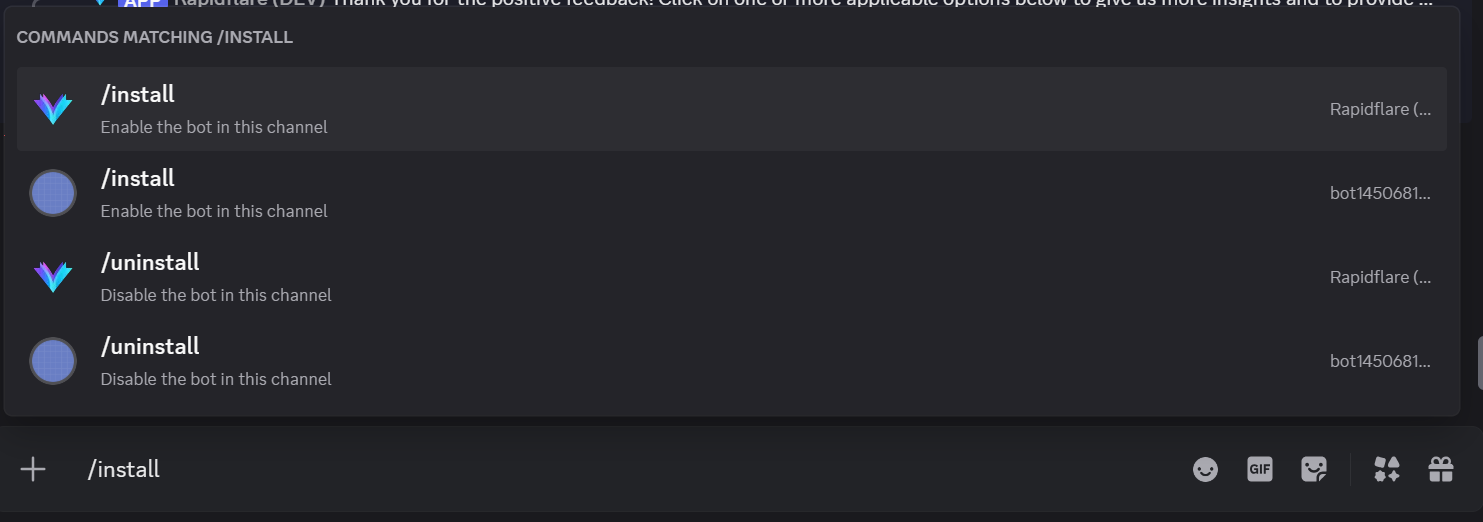
#### Reply Type Options
When running `/install`, you can choose how the agent responds to questions:
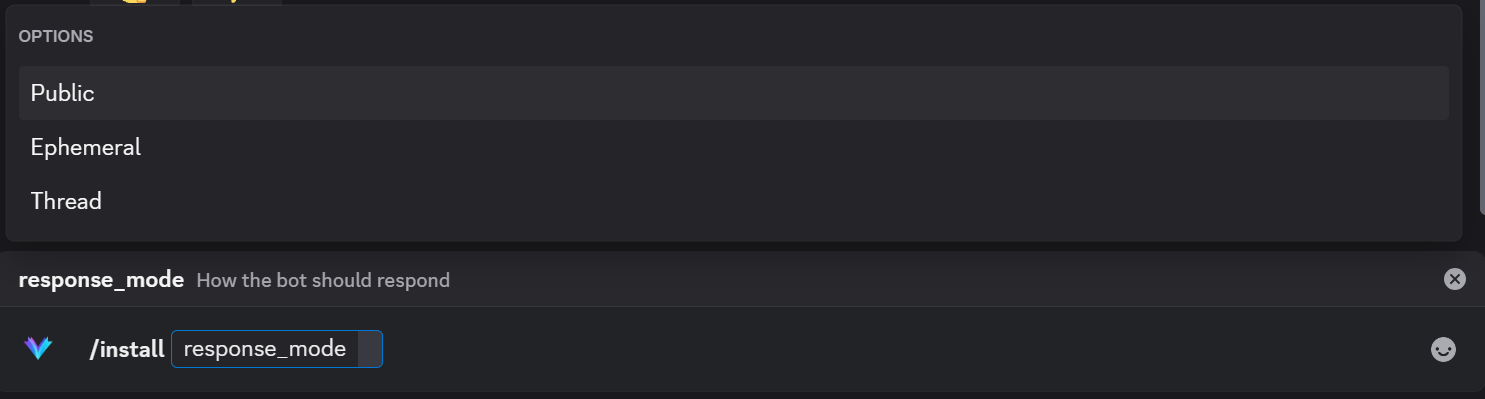
| Reply Type | Description |
|------------|-------------|
| **Public** | Agent responds publicly in the channel. Everyone can see the response. |
| **Ephemeral** | Agent responds with ephemeral messages. Only the person who asked can see the response. |
| **Thread** | Agent creates a new thread for each question and responds within that thread. |
#### Public Response
The default behavior. The agent's response is visible to everyone in the channel.

#### Ephemeral Response
Only the user who asked the question can see the response. This is useful for channels where you want to keep conversations private or reduce clutter.
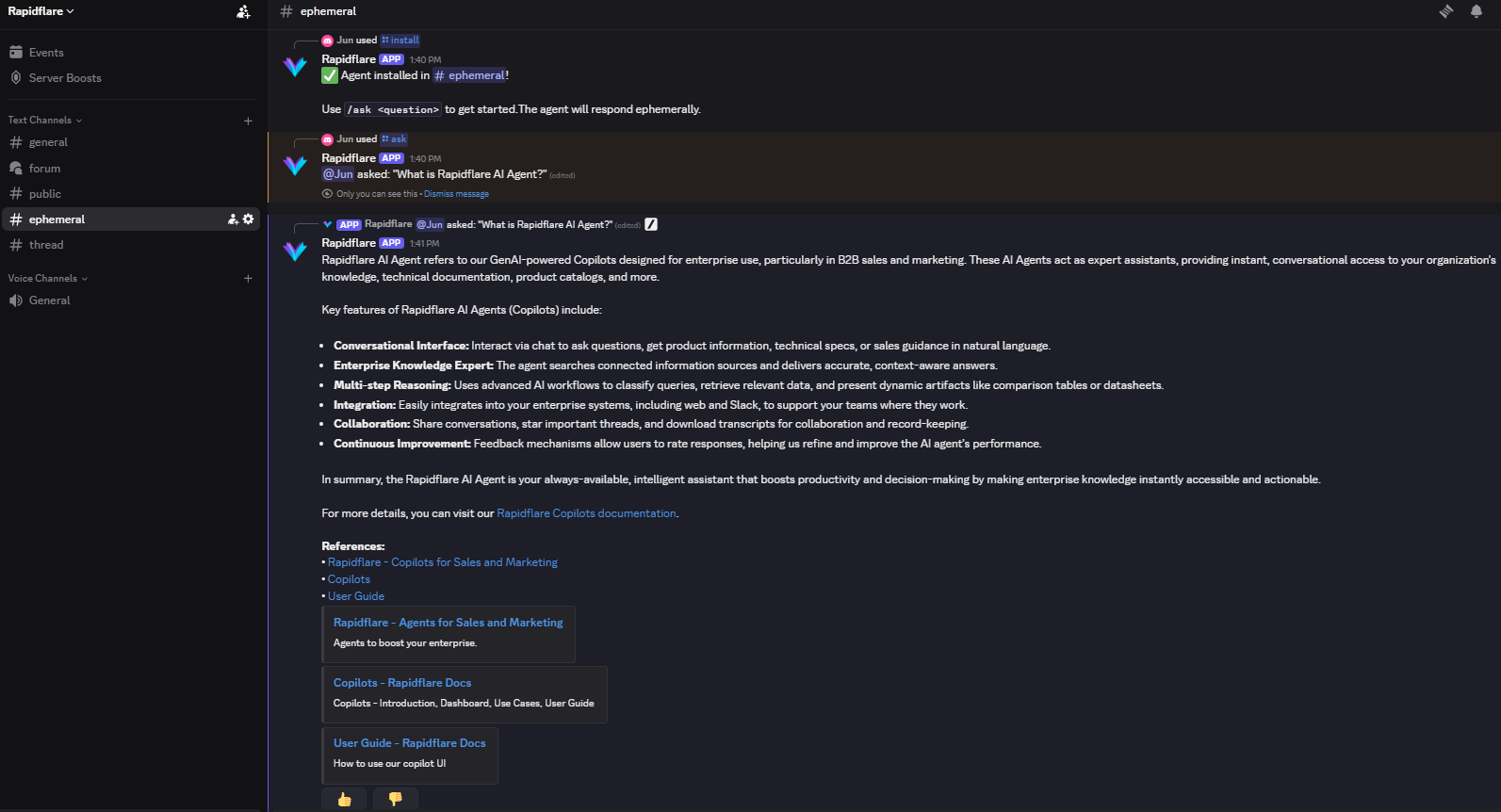
#### Thread Response
The agent automatically creates a new thread for each question. This helps organize conversations and keeps the main channel clean.

{% callout title="Thread & Forum Support" %}
When you install the agent in a channel, all threads created in that channel will also have access to the agent. For forum channels, installing in the forum enables the agent in all forum posts.
{% /callout %}
## Forum Auto Reply
Forum Auto Reply is a feature that automatically responds to new forum posts without requiring the `/ask` command.
### How It Works
1. When a user creates a new post in an installed Forum channel
2. The AI Agent automatically reads the post title and content
3. The agent generates and posts a helpful response as the first reply
This is useful for support forums where users expect quick responses to their questions.
### Requirements
{% callout title="Configuration Required" type="warning" %}
Forum Auto Reply requires **MESSAGE CONTENT INTENT** to be enabled in the Discord Developer Portal. See the [Integration Guide](/integration-guide/discord#step-25-enable-privileged-gateway-intents) for setup instructions.
{% /callout %}
### Enabling Forum Auto Reply
Forum Auto Reply is automatically enabled when you:
1. Install the agent in a Forum channel using `/install`
2. Have MESSAGE CONTENT INTENT enabled in Discord Developer Portal
New forum posts will then receive automatic AI responses.
Once installed, you'll see a success message:

### 2. /uninstall command
Use the `/uninstall` command to deactivate the agent from the current channel.
**Usage:** `/uninstall`
This command also requires **Manage Channels** permission.
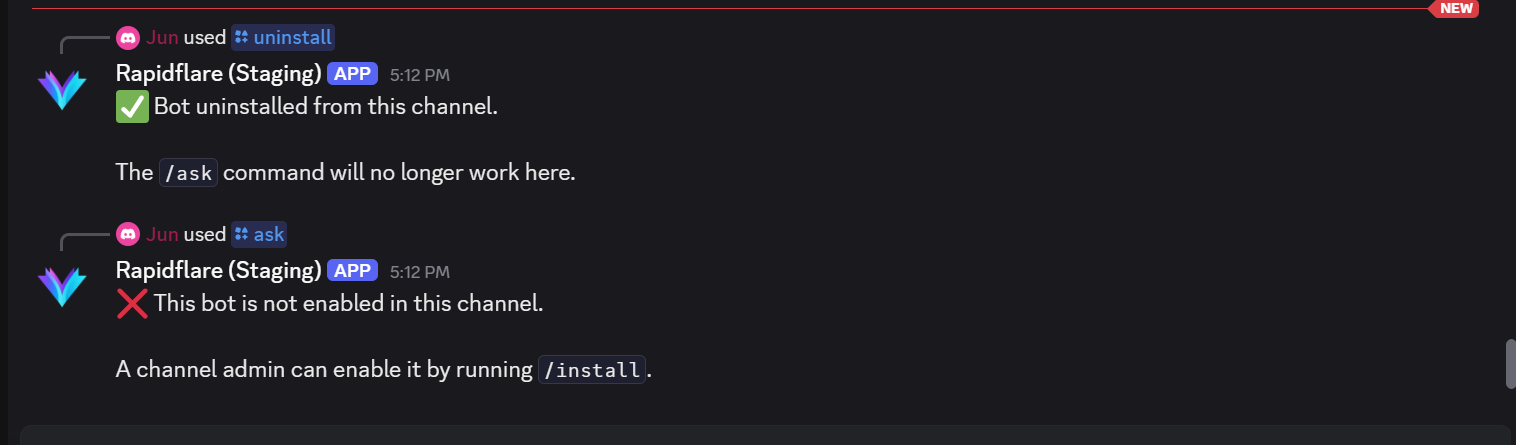
### 3. /ask command
Use the `/ask` command to ask questions to the Rapidflare AI Agent.
**Usage:** `/ask `
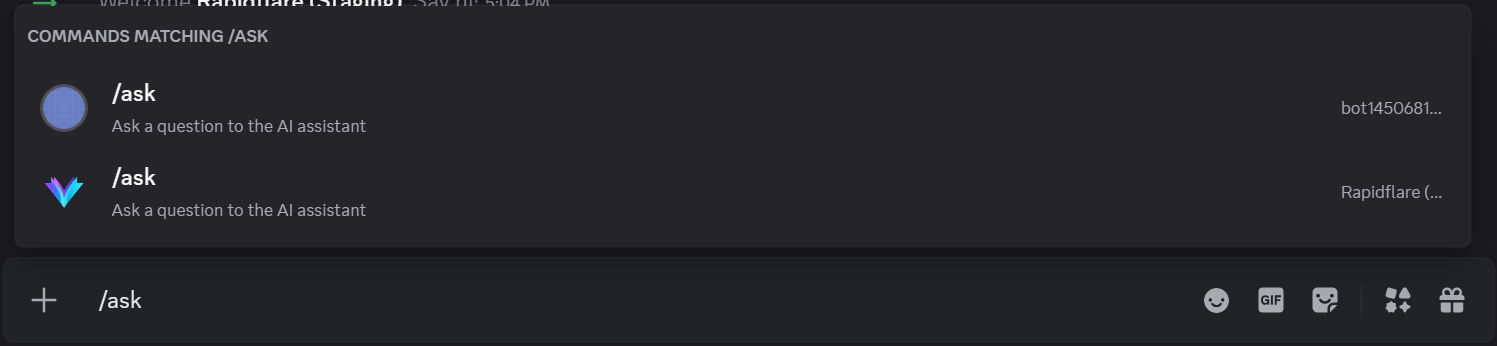

When you submit a question, you'll see real-time progress indicators:
- 🔍 Searching for relevant information...
- 🧠 Analyzing your question...
- ✨ Generating response...
The agent will then provide an answer with relevant references.
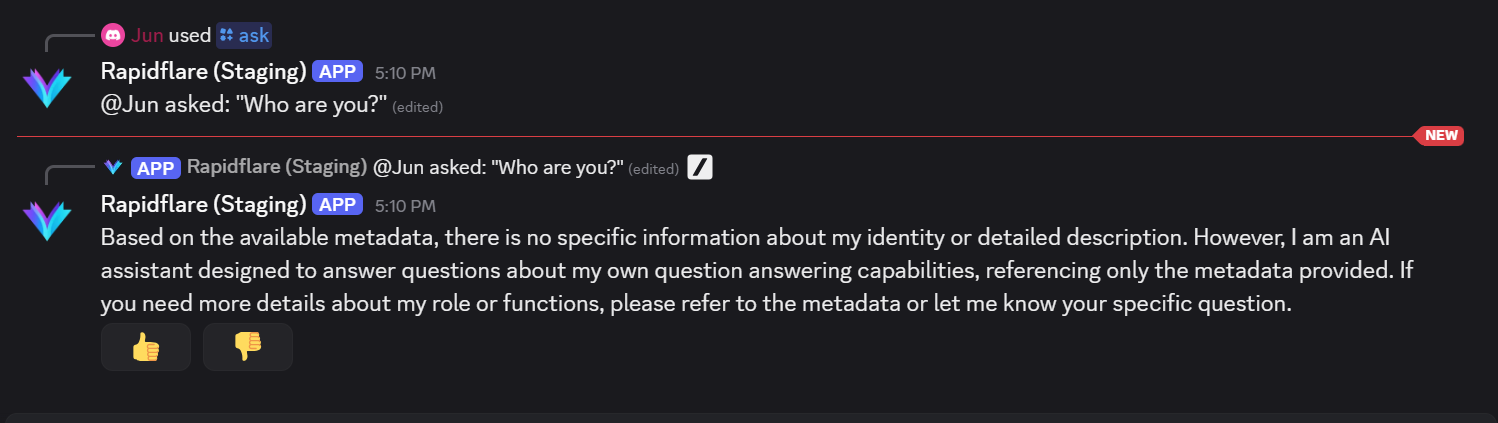
{% callout title="Note" %}
Discord has a 2,000 character limit per message. If the response is longer, it will automatically be split into multiple messages labeled as "Message 1/2", "Message 2/2", etc.
{% /callout %}
## Providing Feedback
After receiving a response, you'll see feedback buttons at the bottom of the message:
- 👍 **Good** - The response was helpful
- 👎 **Bad** - The response needs improvement
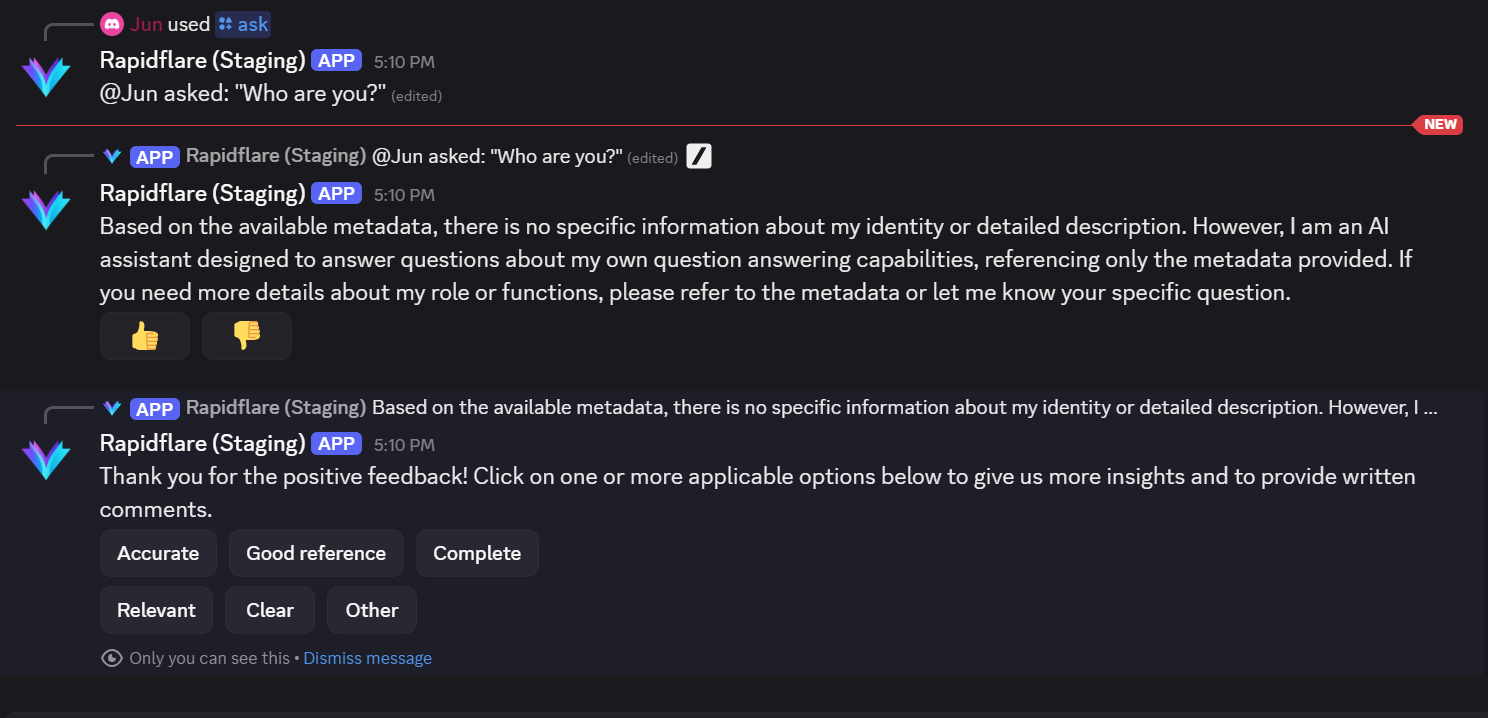
When you click a feedback button:
1. You'll be asked to select a tag describing your feedback (e.g., "Accurate", "Incomplete", "Irrelevant")
2. Optionally, you can provide additional comments via a popup modal
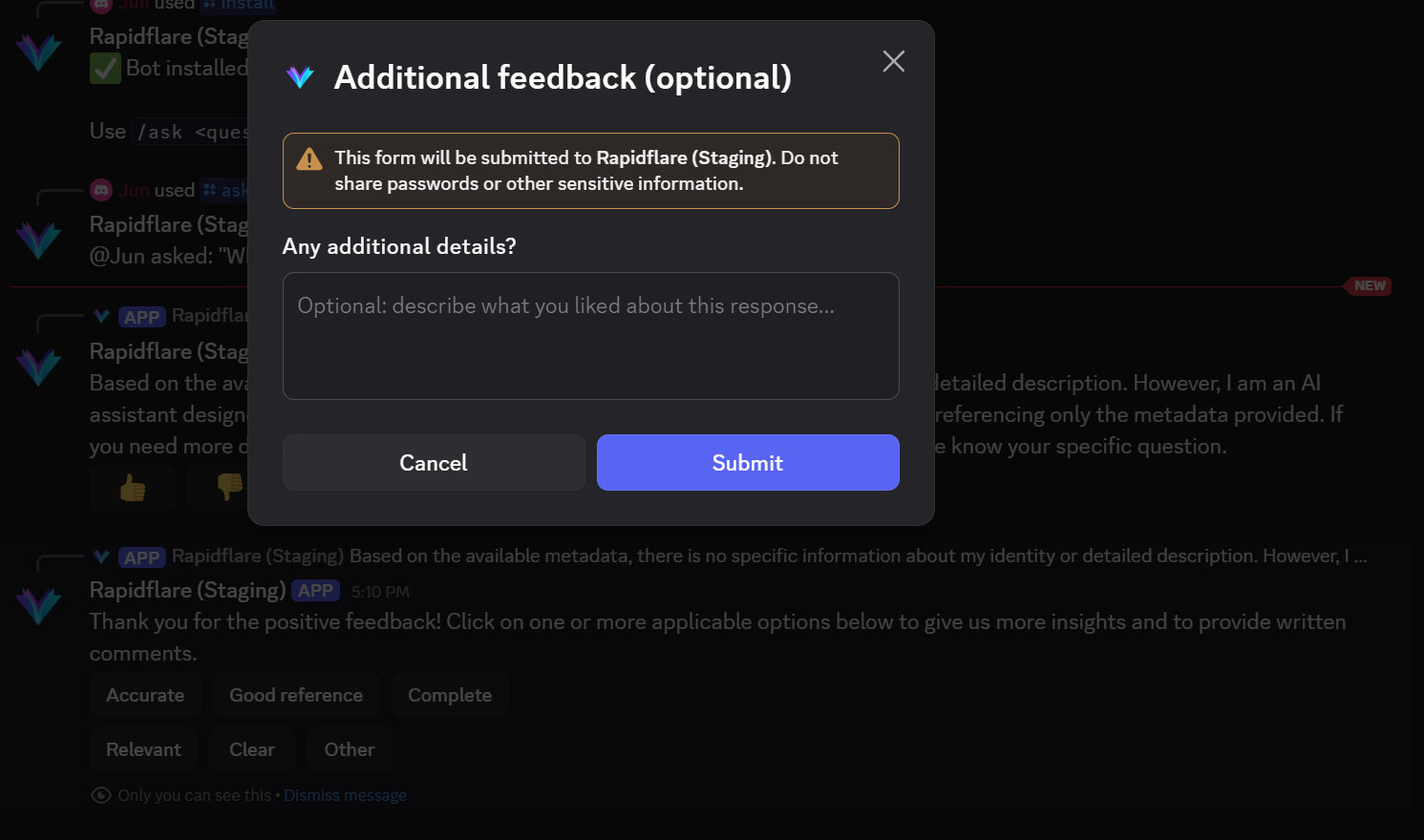
3. Your feedback is saved and helps us improve the AI Agent
{% callout title="Good to know!" %}
Only the person who asked the original question can provide feedback on that response. This ensures feedback is relevant and accurate.
{% /callout %}
## Managing Installed Channels
You can view which channels have the agent installed from your admin dashboard:
- Navigate to **Deployments** → **Discord** → **Installed Channels**
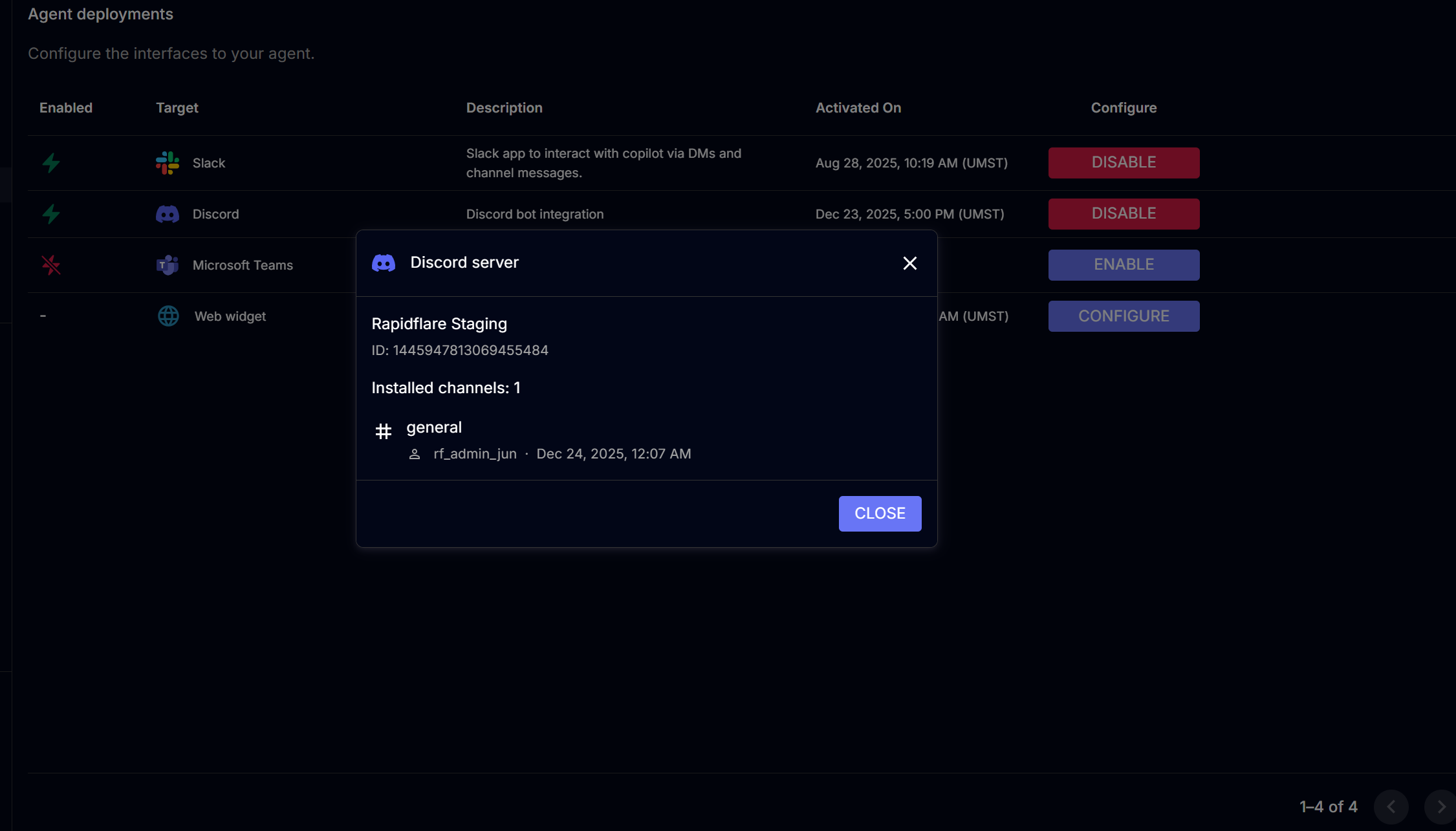
## Disabling Discord Integration
You can disable Discord integration using one of these methods:
### Method 1: From Rapidflare Dashboard
1. Go to your admin dashboard's **Deployments** page
2. Click **Disable** on the Discord row
This will disconnect the agent from your server.
### Method 2: From Discord
1. Go to your Discord server
2. Open **Server Settings** → **Integrations**
3. Find the Rapidflare agent (or your custom agent)
4. Click **Remove Integration**
{% callout title="Note" type="warning" %}
Removing the agent directly from Discord doesn't notify Rapidflare of the disconnection. We recommend using Method 1 for cleaner tracking.
{% /callout %}
## Troubleshooting
**Agent not responding to /ask**
- Run `/install` in the channel first
**Agent not appearing in server**
- Check if OAuth authorization was completed
**/install command not working**
- Ensure you have Manage Channels permission
**"Server not connected" error**
- Re-enable Discord from the dashboard
**Forum Auto Reply not working**
- Ensure MESSAGE CONTENT INTENT is enabled in Discord Developer Portal
- Make sure you clicked "Save Changes" after enabling the intent
- Run `/install` in the Forum channel
**"PrivilegedIntentsRequired" error**
- Go to [Discord Developer Portal](https://discord.com/developers/applications)
- Select your application → Bot → Privileged Gateway Intents
- Enable **MESSAGE CONTENT INTENT**
- **Click "Save Changes"** (this step is often missed!)
For additional support, contact us at [support@rapidflare.ai](mailto:support@rapidflare.ai).
---
# https://docs.rapidflare.ai/product-overview/surfaces
Rapidflare AI Agents can be deployed to various surfaces where your team already works. Currently, we support Slack and Discord integrations.
{% quick-links %}
{% quick-link title="Slack" icon="installation" href="/product-overview/surfaces/slack" description="Learn how to use Rapidflare AI Agent via Slack." /%}
{% quick-link title="Discord" icon="plugins" href="/product-overview/surfaces/discord" description="Learn how to use Rapidflare AI Agent via Discord." /%}
{% /quick-links %}
---
# https://docs.rapidflare.ai/product-overview/surfaces/slack
Here's how to use the Rapidflare AI Agent via Slack.
## Introduction
After [enabling Slack](/deploying/slack), you will see a bot user account show up in your Slack workspace.
## Interacting via Slack
There a three ways to interact with our slack app -
### 1. Direct message (DM)
You can click on the "Rapidflare" app to open its information page:
You can now click on "messages" and start a new conversation.

Our slack app will reply in a thread.
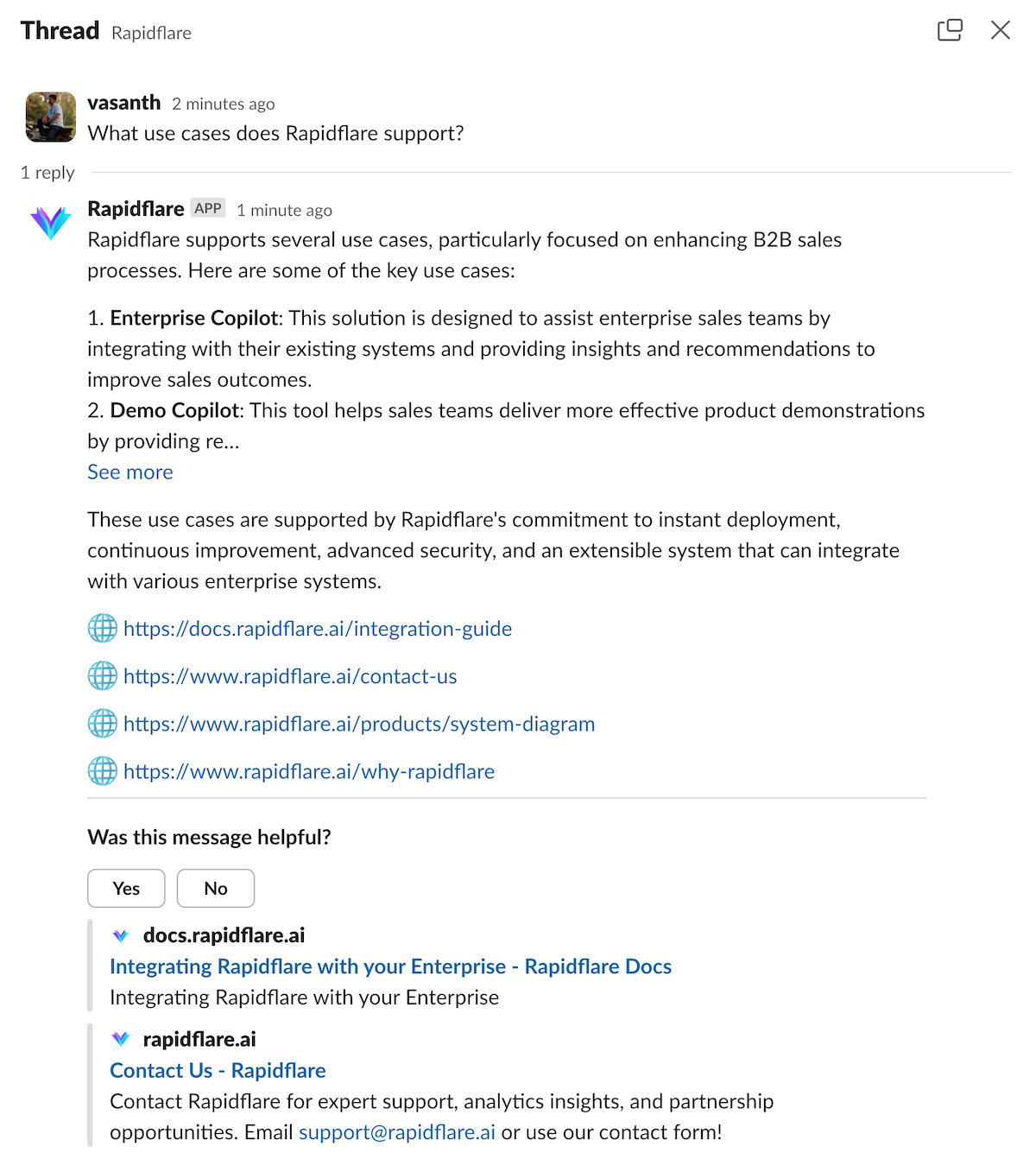
To ask a follow up question, you can asking more messages in the thread. Such follow up questions are treated
as part of a single "conversation", and our AI Agent will interpret your new question in the context of the previous
messages exchanged.
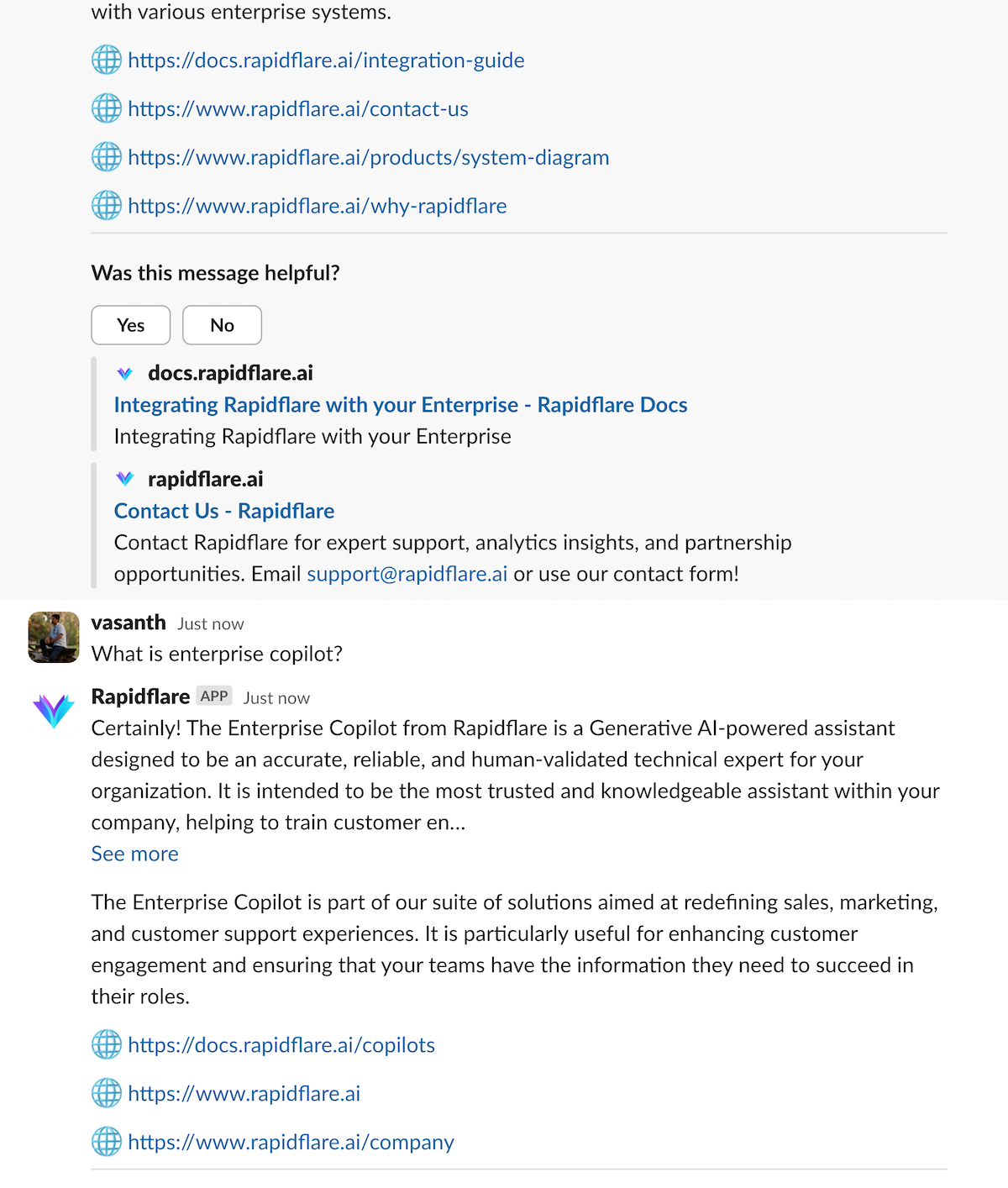
### 2. Group conversations in a channel
You can also interact with `Rapidflare` by "@" mentioning it in any group or channel.
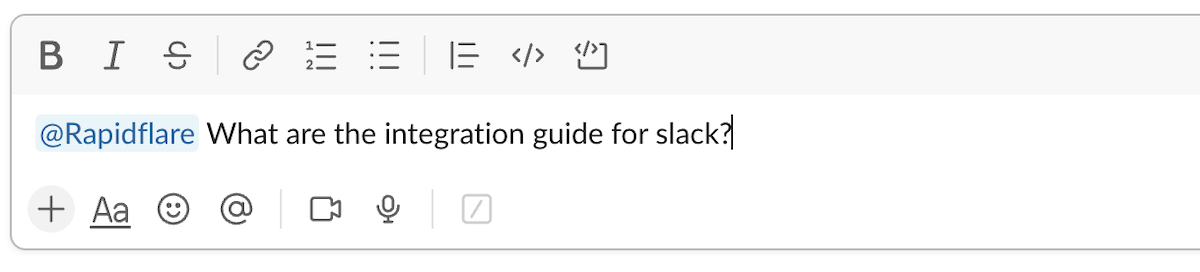
If our slack app is not yet in the channel where you do the "@" mention, Slack will ask if you'd like to Invite Rapidflare to the channel.
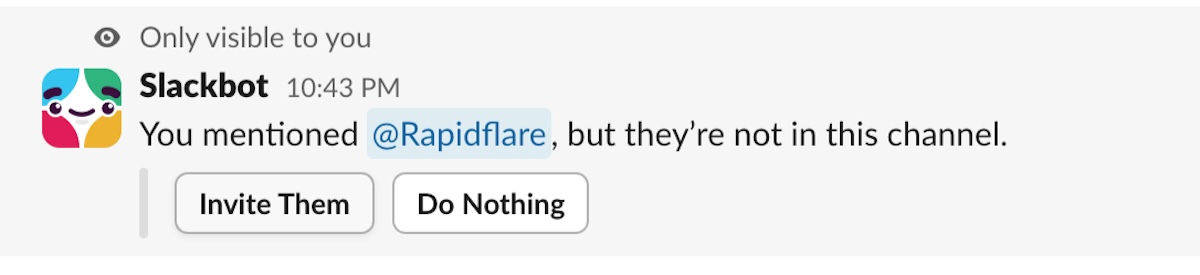
Conversations are again threaded so that you can have an ongoing dialogue focussed on a topic in the thread.
Note, that since Slack is a multi-party communication platform, there maybe more than one human user interacting in the
slack thread with other humans. Our slack app tries to be a graceful participant, by not responding unless "@" mentioned
explicitly again in the thread as a part of a follow up question.
### 3. Via an /rf command
You can use /rf to start a conversation with Rapidflare at anytime in a DM or a channel.

For follow up questions, use the "@" mention method again so Rapidflare knows when to respond to you.
## Providing Feedback
You can provide feedback on individual messages within a conversation. Providing feedback is an important way in which we work with an Admin from your company to improve the AI Agent's responses. Periodically we review both positive and negative feedback. Positive feedback helps us know where we are doing well, so we can do more of that. Negative feedback allows you to tell us where a response is not useful enough, or misleading or incorrect. This may point to improvements we can make in our AI Agent's AI, or in the quality of the technical documentation we ingest, or how we process your messages to the AI Agent.
When you provide feedback, you can add a comment that explains why you gave the feedback. While this is optional, knowing the rationale for the feedback helps us action on the feedback accurately. So please do provide comments with your feedback!
---
# https://docs.rapidflare.ai/product-overview/use-cases
Rapidflare AI Agent supports a wide range of use cases that enhance your sales enablement experience. Here are some of the key ways in which you can use our AI Agents:
## Sales Training
For your field sales team, our AI Agent serves as an immediate resource for queries regarding company information, product details, new features, or industry trends. It delivers concise answers, aiding in the swift dissemination of training content, product updates, and industry news, ensuring teams are well-informed.
## Handling Customer Questions
Your active customers will have questions about your products, or need support diagnosing or troubleshooting issues. Our AI Agent can be an expert technical support assistant and help your customer success teams handle these questions more thoroughly and rapidly.
## Preparing for Sales Calls
AI Agent helps you prepare for sales calls by providing key pain points in the industry, latest trends, and probe questions. It enables you to gather relevant information and insights in the shortest possible time, empowering you to have more effective and informed conversations with your customers.
## Empowering Distribution and Reseller Networks
By integrating Rapidflare AI Agent into your sales ecosystem, you can significantly enhance the capabilities of distribution and reseller partners. The AI Agent ensures that channel partners have a way to get instant access to answers for all their inquiries, thereby improving their proficiency and ability to sell your products.
## Proposal Creation
Ask the AI Agent yet to be answered questions from ongoing proposals. By integrating with previous RFP responses, the AI Agent helps you create high-quality, personalized proposals with the latest and most relevant information, giving you a head start to your proposal creation.
## Marketing
Marketers can ingest marketing collaterals and send the AI Agent along with an e-mail campaign or as a follow up to leads obtained at conferences. This accelerates lead closure by answering all the key questions of the customer rather than weeks going by with back and forth exchanges to answer questions on their mind. Most importantly sales and marketing teams can use the conversation history feature to track content usage and understand customer requirements better.
---
# https://docs.rapidflare.ai/product-overview/user-guide
Here's how to use the Rapidflare AI Agent.
## Introduction
When you bring up the AI Agent, you should see a conversational chat window similar to the screenshot below:
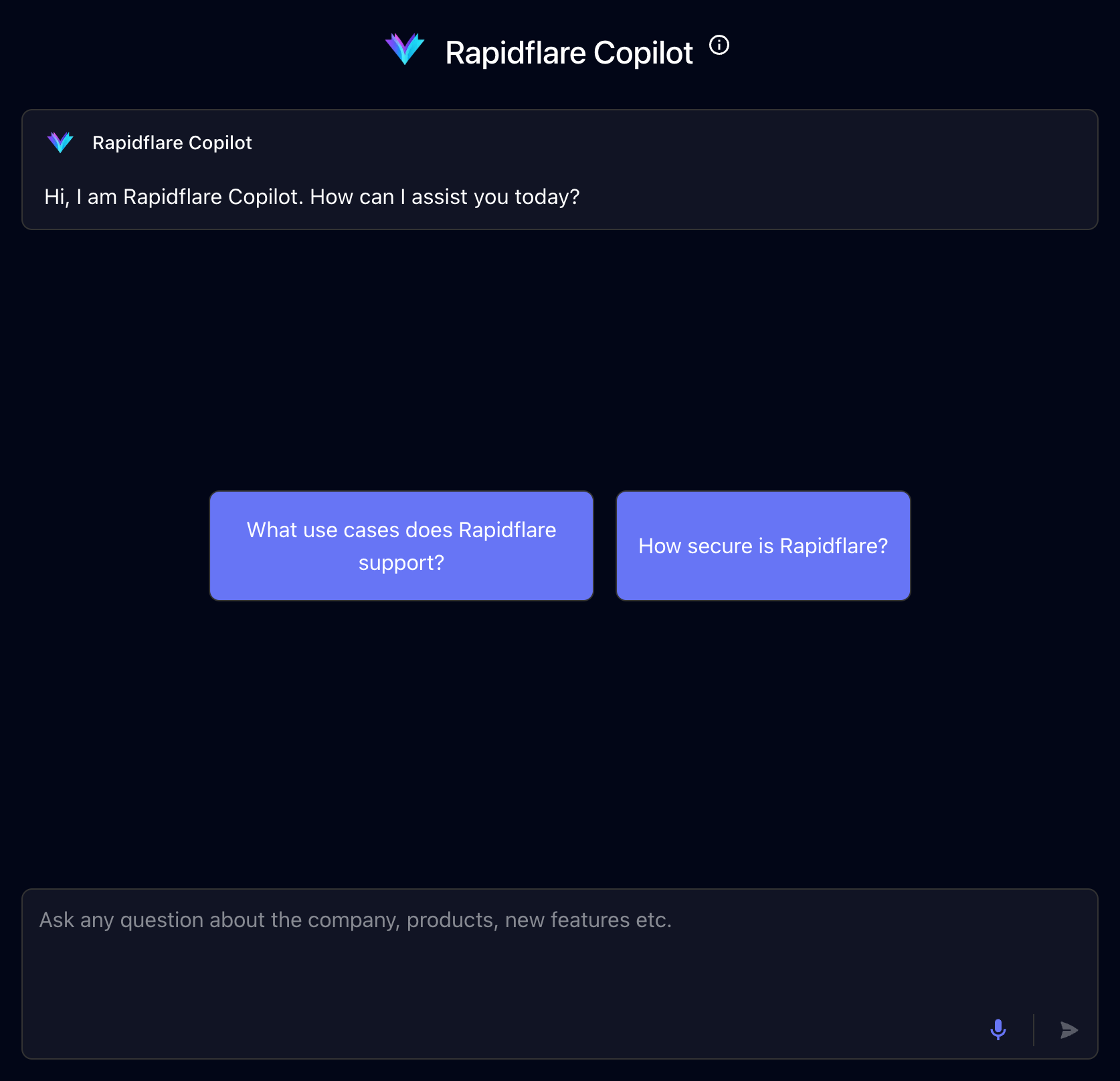
When you ask a question to the AI Agent, you should see a response similar to the screenshot below:
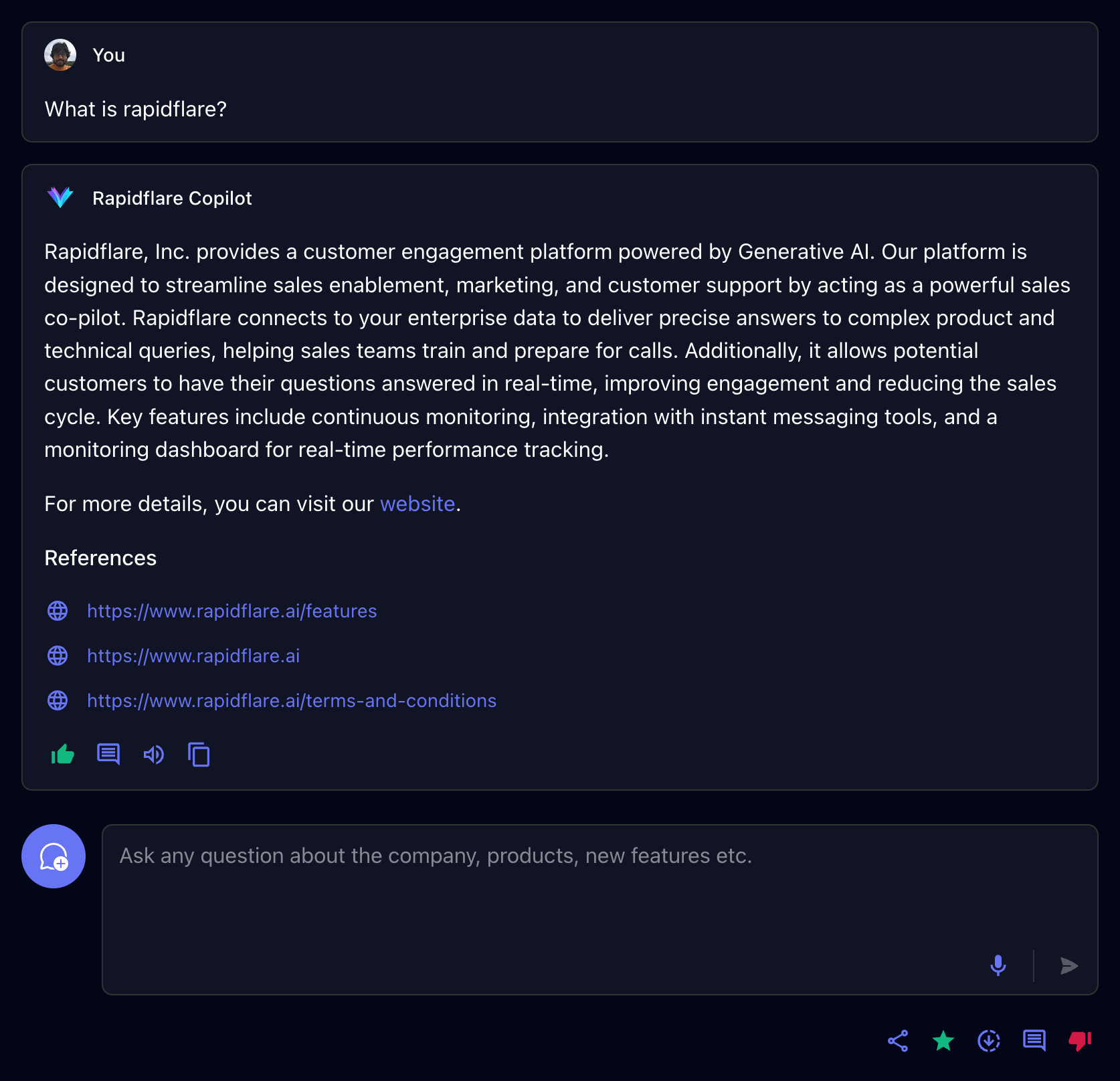
## Conversations
You interact with the Rapidflare AI Agent via `Conversations`.
To start a new conversation with the AI Agent, you can either click one of our starter prompts or start typing a question or a message in the input box and press send. The AI Agent will interpret your question, search for articles from the information sources it is connected to, and provide a response in natural language.
Starter prompts are prompts that you are Rapidflare Admin has created for you to make it easy to ask common questions, or simply to help you get to know how to interact with the AI Agent. See the example below:
{% loomvideo
url="https://www.loom.com/embed/95b158a9053c4704b22175bed658aa3c?sid=c4a9e96f-aa90-4cb8-a6e8-965754e11002"
thumbnail_url="https://cdn.loom.com/sessions/thumbnails/95b158a9053c4704b22175bed658aa3c-with-play.gif"
text="Starter prompts"
/%}
### Continuing a conversation
You can continue typing questions in the same conversation thread. The AI Agent uses the previous messages exchanged as context to interpret your new question. This is referred to as a `Conversation`. Each individual chat interaction is referred to as a `Message`. See the example below, where we build upon a previous question about security.
{% loomvideo
url="https://www.loom.com/embed/57ba0f3966744d058caa19541097bb13?sid=6f479de3-f1f0-4c98-b23b-52467dc0e9b6"
thumbnail_url="https://cdn.loom.com/sessions/thumbnails/57ba0f3966744d058caa19541097bb13-with-play.gif"
text="Continuing a conversation"
/%}
### Starting a new conversation
If you want to start a new topic or ask a question unrelated to the current conversation, you should start a new conversation. Click the {% heroicon icon="ArrowPathRoundedSquareIcon" /%} icon. Don't worry, all your past conversations are stored in Rapidflare's history and you can always go back to them.
{% loomvideo
url="https://www.loom.com/embed/740a6d68b5e1450b8707f28205df2e27?sid=cc06ae1e-e44c-4b9d-b98f-b99162a452ce"
thumbnail_url="https://cdn.loom.com/sessions/thumbnails/740a6d68b5e1450b8707f28205df2e27-00001.jpg"
text="Starting a new conversation"
/%}
### Starring a conversation
You can star a conversation by clicking on the {% heroicon icon="StarIcon" iconType="outline" /%} icon. They help you earmark interesting or useful conversations for reference. Starred conversations will be available for easy future access.
### Copying messages
You will often find yourself wanting to use the AI Agent's responses in emails, or documents or in responding to customers. You can click on the clipboard icon {% heroicon icon="ClipboardIcon" /%} to copy the text of a particular message's response as well as the references.
### Downloading full conversations
To get the full transcript of a conversation you had with the AI Agent, you can click on the {% heroicon icon="ArrowDownTrayIcon" /%} which downloads a `JSON` file containing all the messages of the conversation as well as other metadata.
## Providing Feedback
You can provide feedback on individual `Messages` within a conversation. Providing feedback is an important way in which we work with your Rapidflare Admin to improve the AI Agent's responses. Periodically we review both positive and negative feedback. Positive feedback helps us know where we are doing well, so we can do more of that. Negative feedback allows you to tell us where a response is not useful enough, or misleading or incorrect. This may point to improvements we can make in our AI Agent's AI, or in the quality of the technical documentation we ingest, or how we process your messages to the AI Agent.
When you provide feedback, you can add a textual comment to indicate why you gave the feedback. While this is optional, knowing the reason why helps us act to improve the impact of the AI Agent. So please do provide comments!
Here's a video illustration of providing both positive and negative feedback.
{% loomvideo
url="https://www.loom.com/embed/e4b4007f95ca404a96fb70124870c3e1?sid=f5989d90-6333-475c-995e-d9d146989a74"
thumbnail_url="https://cdn.loom.com/sessions/thumbnails/e4b4007f95ca404a96fb70124870c3e1-with-play.gif"
text="Conversation and message feedback"
/%}
## QA Panel
The QA Panel is an internal diagnostic and review tool that allows users to assess the quality, accuracy, and relevance of AI responses. It provides a structured way to rate responses, classify user queries, add internal notes for follow-up, and maintain a complete audit trail of all review actions. Each evaluation contributes to improving the reliability and effectiveness of the AI agent over time.
To access the QA Panel, a reviewer must first locate an AI-generated response within the chat interface of the conversational agent dashboard. Beneath each AI response, there is a QA icon. Selecting this icon opens the QA Panel, which slides in from the right side of the screen and displays all review-related options for that specific response.
The Evaluation section of the QA Panel is the primary area where reviewers assess the AI’s performance. In this section, the reviewer rates the overall quality of the response as Good, Average, or Bad based on correctness, clarity, and usefulness. The quality of reference field is used to evaluate the reliability and appropriateness of the source material or knowledge used by the AI to generate the response. The quality of related content field measures how relevant any additional or supporting information was in relation to the user’s original query. Reviewers are also required to classify the query type, such as product specifications, troubleshooting, or agent capability, to help categorize the interaction for analysis. The status field indicates the current state of the evaluation, including options such as Open, In Progress, Pending, or Customer. Contributing factors are selected to explain the evaluation outcome and may include tags such as bad reasoning, internal error, or incorrect classification.
In addition to structured evaluations, the QA Panel provides a Notes section for adding internal comments or guidance. This section allows reviewers to capture additional context, explain issues in more detail, or provide instructions for development or QA teams. Notes are entered as free text and saved directly within the panel. Once a note is successfully saved, a confirmation message appears at the bottom of the screen indicating that the note has been added. These notes are for internal use only and are not visible to end users.
The Activity Log section of the QA Panel displays a chronological record of all actions taken on the selected AI response. This log includes information about who performed each action, what changes were made—such as status updates, rating changes, or notes added—and when each action occurred. The activity log ensures transparency, accountability, and traceability throughout the evaluation process.
After completing the evaluation and adding any necessary notes, the reviewer finalizes the review by saving the evaluation. Once the save action is performed, the system confirms the submission with a success notification. At this point, the evaluation is officially recorded and becomes part of the ongoing quality tracking for the AI agent.
{% loomvideo
url="https://www.loom.com/embed/00b06eab1e0449f084f47f989eb54425"
thumbnail_url="https://cdn.loom.com/sessions/thumbnails/00b06eab1e0449f084f47f989eb54425-ca42508a3dede571-full-play.gif#t=0.1"
text="QA Panel"
/%}
## Inline Citations
When the AI Agent references information from your connected sources, it may include citation badges at the end of sentences. These badges let you quickly verify where the information came from.
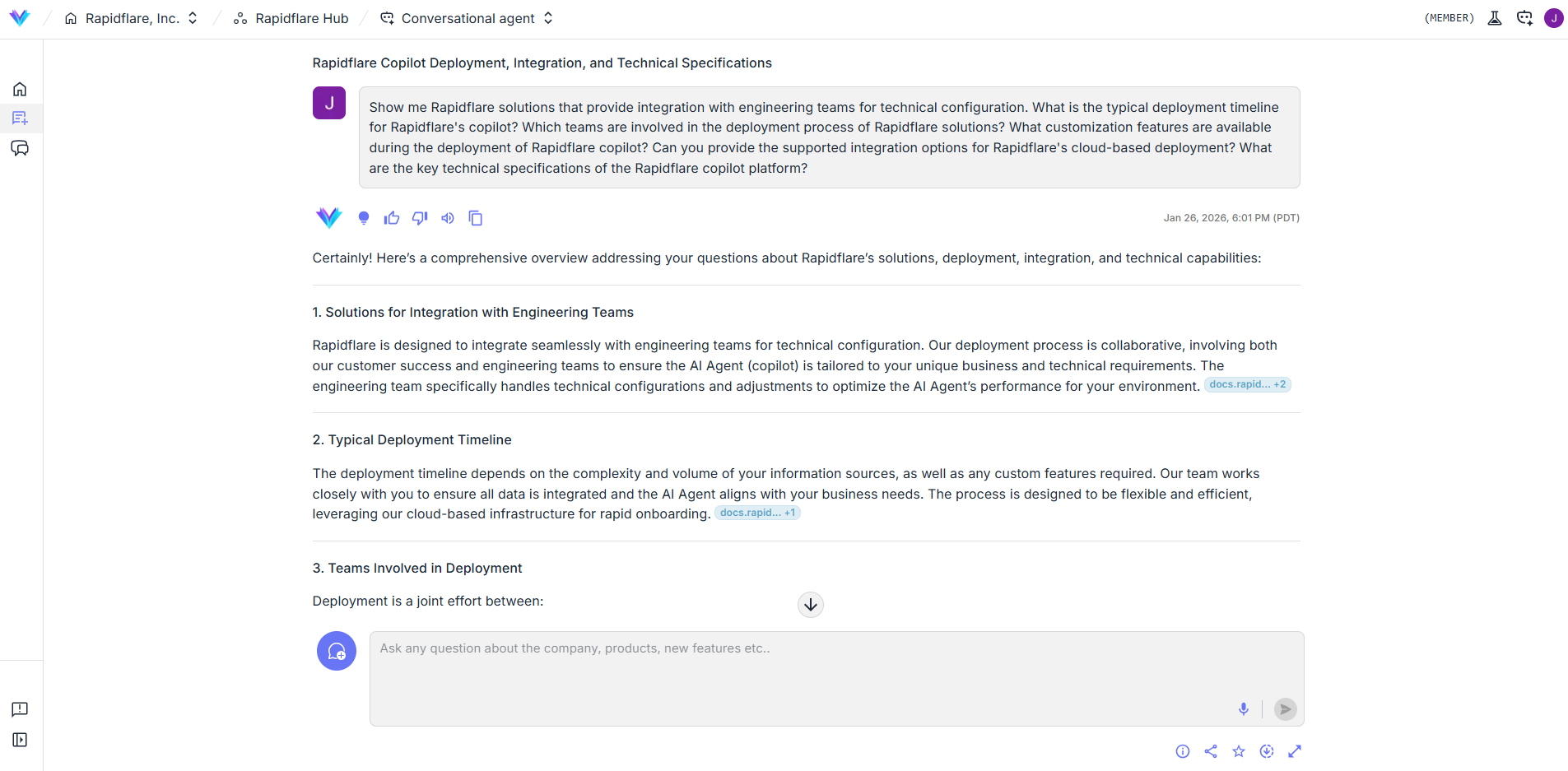
### Reading Citation Badges
Citation badges display the source domain name, such as `docs.company.com`. If the domain name is long, it will be truncated with `...` — hover over the badge to see the full source title.
When multiple sources support the same statement, they are grouped together. A badge like `docs.company.com +2` means there are 3 total sources.
### Hover and Click to Verify
Hover over any citation badge to see the full title of the source document. Click the badge to open the source in a new tab — your browser will automatically scroll to and highlight the exact passage that was cited.
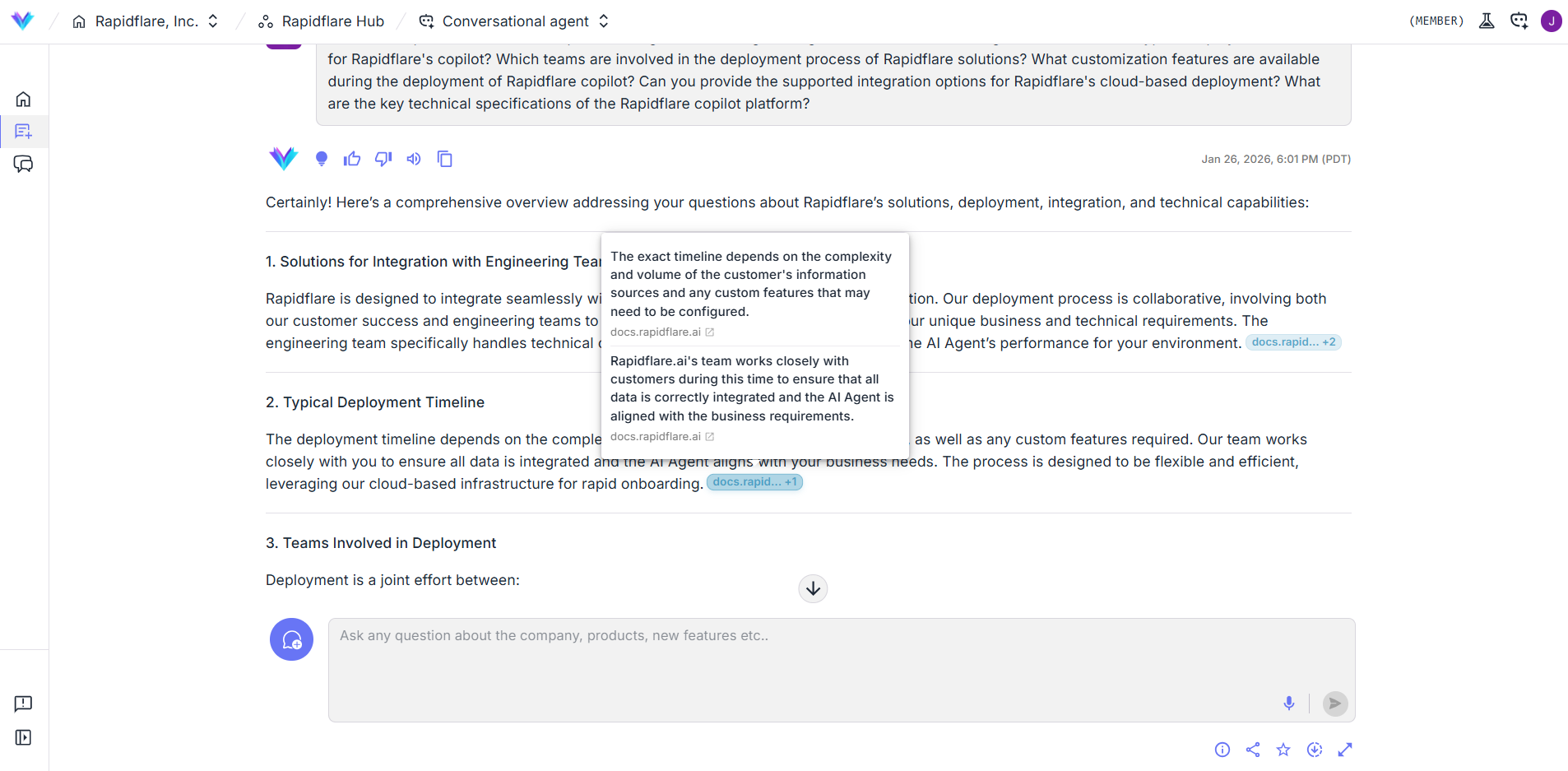
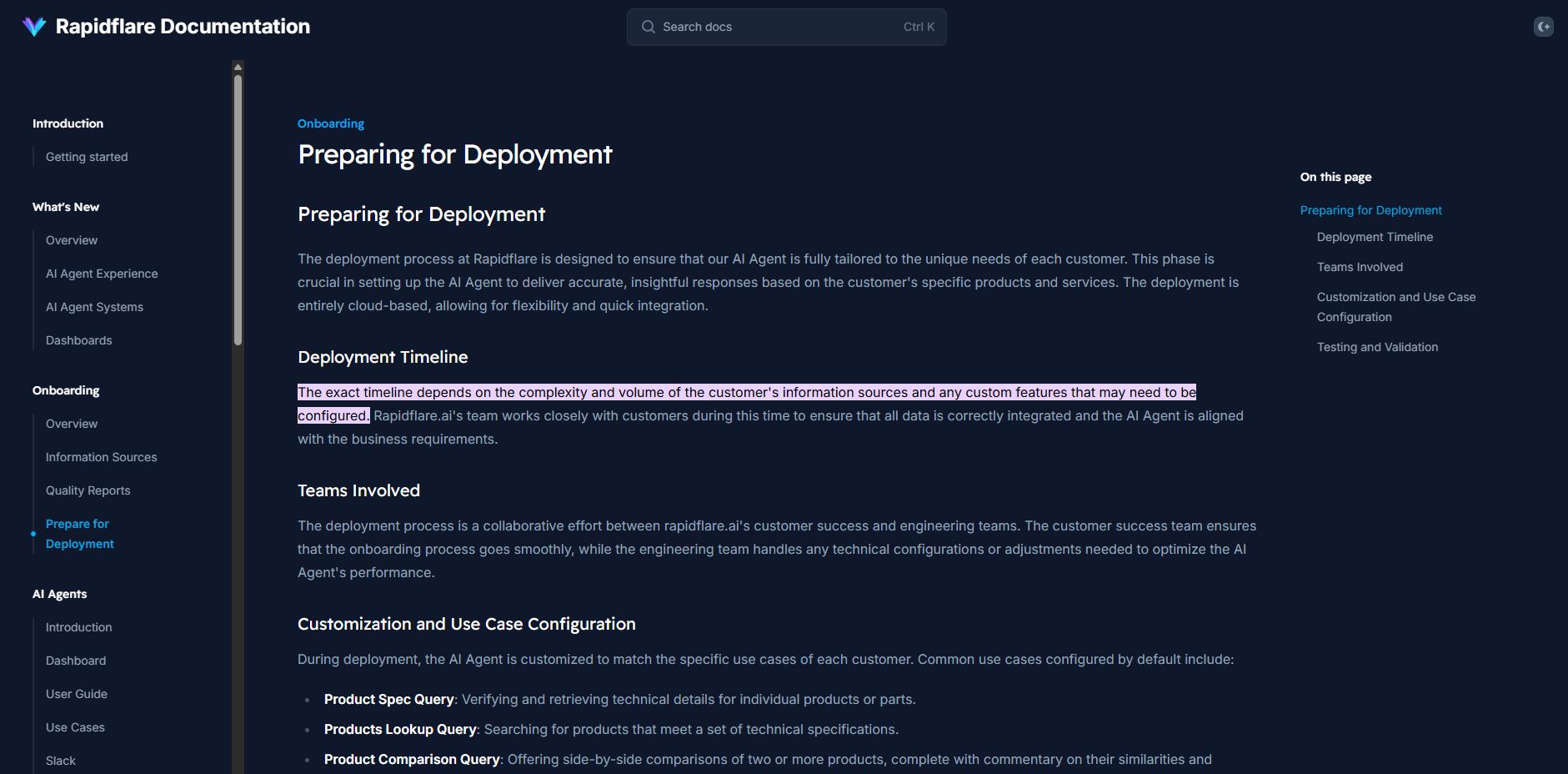
---
# https://docs.rapidflare.ai/security/auth
## Login
There are two distinct roles supported for your enterprise's users. Non-admin (`member`) roles have access to only their own conversations. Admin (`admin`) roles have access all conversations of all users in your enterprise, in addition to advanced features such as analytics, agent appearance configuration, API keys, etc.
We support various forms of authentication such as
- Google, Microsoft social auth
- Email and Password
- Single Sign on.
### Logging in via Single-Sign On (SSO)
We support Single Sign-On for enterprises that wish you use their identity provider (IdP) to authenticate and authorize users to Rapidflare. You must be on our enterprise plan to have SSO support.
Here is a [user guide for IT teams](/security/auth/sso) on how to enable Rapidflare as an application in your IdP.
---
# https://docs.rapidflare.ai/security/auth/sso
## Getting Started
The first step to enabling SSO is to create Rapidflare as an application in your IdP's systems. Once this is setup, for identities exchanged with Rapidflare, we need to set up an attribute mapping system.
### 1. Provisioning Rapidflare in your IdP Systems
We have two options for enabling SSO access to Rapidflare.
**1.1 Rapidflare initiated**
In this flow, your Rapidflare support team will provide your IT admins with an `SP Entity ID` and `ACS URL`. IT admins will then use it to create an application in their IDP for Rapidflare. As they set up Rapidflare's SAML 2.0 configuration in their IDP dashboard, they will generate an IdP Metadata URL. When this is provided back to Rapidflare,
we can complete the process and enable single-sign on.
**1.2 Customer Self Service**
We can also invite a customer IT admin to set things up directly in our authentication system [WorkOS](https://workos.com). We just need an email. An invitation goes out, and via the instructions in the email, an admin will have access to our self-service SSO management portal.
### 2. Attribute Mapping
Across both options, IT admins on the customer’s side have to setup a couple of other things:
1. First, they have to ensure metadata about users who sign in contain the minimum set of attributes Rapidflare needs to process their identity. This is done during the SAML setup on the IdP systems. Rapidflare requires the following attributes to support our full features in a personalized manner:
- email
- firstname
- lastname
- profile picture
2. IT admins can also optionally control, what internal teams or individual users have access to the app they created for Rapidflare in their IdP. This process will vary by the IdP systems.
## User Login Experience
When your users come to the Rapidflare dashboards to login, they will enter their email (e.g. me@acme.com) and request a sign in. Recognizing the user is from an enterprise on SSO, our authentication system will redirect you to login through your IDP system. Once validated, the IdP system sends back the user to our dashboard with the appropriate credentials.
Your user's can also start from your IdP dashboard, find Rapidflare as an application there and initiate a sign in process.
---
# https://docs.rapidflare.ai/security/data-privacy
This page summarizes Rapidflare's data privacy practices. For the complete legal policy, see our [full Privacy Policy](https://www.rapidflare.ai/privacy).
---
## What Information We Collect
We collect personal information that you voluntarily provide when using our Services:
- Names
- Email addresses
- Contact or authentication data
- Billing addresses
**We do not collect or process sensitive personal information.**
---
## How We Use Your Information
We process your information to:
- Provide, improve, and administer our Services
- Communicate with you
- Ensure security and prevent fraud
- Comply with legal obligations
We only process your information when we have a valid legal reason to do so, such as your consent, legal obligations, or legitimate business interests.
---
## Information Sharing
We may share your information in limited situations:
- **Business Transfers** — During mergers, acquisitions, or sale of company assets
- **Affiliates** — With companies under common control, who must honor this privacy notice
- **Business Partners** — To offer you certain products, services, or promotions
**We have not sold or shared any personal information to third parties for business or commercial purposes.**
---
## Data Retention
We keep your information only as long as necessary to fulfill the purposes outlined in our privacy notice, unless a longer retention period is required by law. When no longer needed, we delete or anonymize your information.
---
## Your Privacy Rights
Depending on your location, you may have rights to:
- Access and obtain a copy of your personal information
- Request correction or deletion of your data
- Restrict or object to processing
- Data portability
- Withdraw consent at any time
### Regional Rights
We comply with regional privacy laws including:
- **GDPR** (EU/UK residents)
- **CCPA** (California residents)
- **CPA** (Colorado residents)
- **CTDPA** (Connecticut residents)
- **UCPA** (Utah residents)
- **VCDPA** (Virginia residents)
- **Canadian privacy laws**
---
## Contact Us
To exercise your privacy rights or ask questions:
- **Email:** [support@rapidflare.ai](mailto:support@rapidflare.ai)
- **Address:** Rapidflare, Inc., 118 Place Oaks Ct, Los Gatos, CA 95032, United States
---
{% callout title="Full Privacy Policy" %}
This is a simplified summary. For complete details, please review our [full Privacy Policy](https://www.rapidflare.ai/privacy).
{% /callout %}
---
# https://docs.rapidflare.ai/security
Welcome to Rapidflare's user guide on security, authentication controls and privacy mechanisms
{% quick-links %}
{% quick-link title="Login" icon="installation" href="/security/auth" description="Logging into AI Agents and administrative dashboards" /%}
{% quick-link title="Data Privacy" icon="presets" href="/security/data-privacy" description="Our data privacy mechanisms and policies." /%}
{% quick-link title="Widget Security" icon="plugins" href="/security/widget" description="Security measures for web widget integration" /%}
---
# https://docs.rapidflare.ai/security/widget
[Rapidflare](https://rapidflare.ai) is built with **security at its core**. This document explains how the Rapidflare widget securely integrates into your public-facing web apps while ensuring protection against abuse, impersonation, and unauthorized access. From bot mitigation to publishable API key protection, we’ve implemented modern, multi-layered defenses to help you ship with confidence.
---
## Key Security Principles
We designed the Rapidflare widget with these core principles:
- **Secure by default:** Every integration point includes protections against tampering, misuse, and impersonation.
- **Invisible yet effective protection:** Invisible mechanisms like reCAPTCHA and AppCheck silently protect user sessions.
- **Granular access control:** Domain-restricted publishable API keys and tokenized authentication ensure tight boundaries.
- **Transparency and compliance:** Clear infrastructure and security practices ensure trustworthiness.
---
## How Authentication Works
Our authentication system uses **AppCheck**, and **domain-bound publishable API keys** to validate every interaction and prevent unauthorized access.
### 1. **AppCheck (Powered by reCAPTCHA service)**
AppCheck ensures the request comes from an authentic version of your site (not a spoofed or malicious clone). It uses:
- Cryptographic attestation of the client
- Add specific domains to an allow-list to lock publishable API keys to specific origins
- Backend enforcement of legitimacy
### 2. **Invisible reCAPTCHA**
reCAPTCHA v3 runs silently in the background, assigning a risk score (0.0–1.0) based on user behavior. It blocks known bots while preserving the user experience.
- **Invisible UX**: No interaction needed by the end user
- **Risk scoring**: Adaptive handling based on behavior
- **ML-powered**: Continuously evolving to catch new threats
### 3. **Short-Lived, One-Time Tokens**
Each request is signed with a single-use, short-lived token with replay protection. This ensures:
- No session hijacking
- Each request protected by single-use token
- Clear attribution for each action
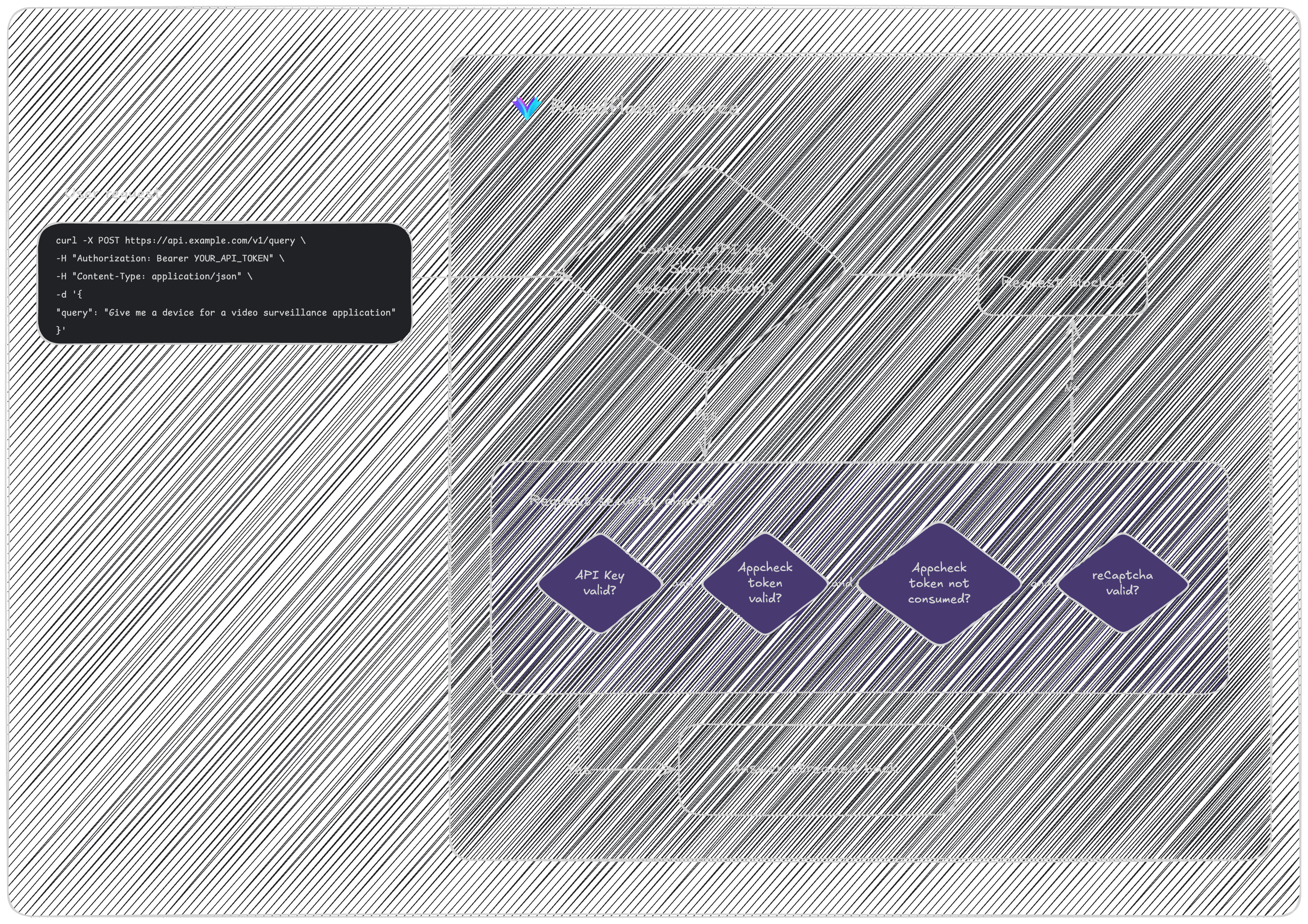
---
## Integration Options
Rapidflare securely supports multiple embed methods:
| Security Measures | `iframe` embedding | Embed SDK | White-labeled domains |
| ----------------------------------- | ------------------ | ----------------- | --------------------- |
| Content sandboxing | ✅ | ✅ | ✅ |
| Domain bound publishable API keys | ✅ | ✅ | ✅ |
| DDOS protection | ✅ | ✅ | ✅ |
| Spam/bot protection using reCAPTCHA | ✅ | ✅ | ✅ |
---
## Domain bound publishable API Keys
Before you can integrate AI Agents into your enterprise, you will need to grab your publishable API key from your dashboard. You can find it under [Hubs » Configure » Security](https://dashboard.rapidflare.ai/copilots).
At present users can generate publishable API keys by simply setting an expiry date timestamp. You will soon be able to associate one or more domains (includes wildcard domains too) - doing so will allow ONLY those requests coming from your allow-listed domains, and block requests from all other domains.
**Note:** This feature is still under active development, and will be made generally available over the next couple of weeks.
---
## Why This Matters: Key Benefits
| Benefit | Description |
| -------------------------- | ----------------------------------------------------------------------- |
| Zero-interruption security | All protection happens behind the scenes—no user friction. |
| Replay attack prevention | Fresh tokens for every request eliminate credential reuse. |
| Real domain lock-in | API keys are useless outside your configured domains. |
| Visibility & observability | Risk scoring + traffic filtering ensures clean, high-quality analytics. |
| Seamless developer UX | Minimal setup required, with strong defaults for secure integration. |
---
## Questions or Concerns?
Reach us at [support@rapidflare.ai](mailto:support@rapidflare.ai) for any questions, audits, or detailed integration support.
---
---
# https://docs.rapidflare.ai/sources/glossary
## Glossary
A glossary contains a list of terms and their definitions related to your enterprise, it's products and is a way of describing the commonly used vocabulary to us. This helps our AI Agent to handle topics that involve technical language or unfamiliar concepts and enhances the accuracy and relevance of responses.
To facilitate ingesting glossary information, we have a spreadsheet template where you can define your enterprise's terms and provide essential information about each one, such as its definitions, synonyms, related to terms.
1. To onboard a Glossary, go to the [sources page](https://dashboard.rapidflare.ai/sources) by `Home > Sources`, where you can see the `ADD SOURCE` button on the top-right. 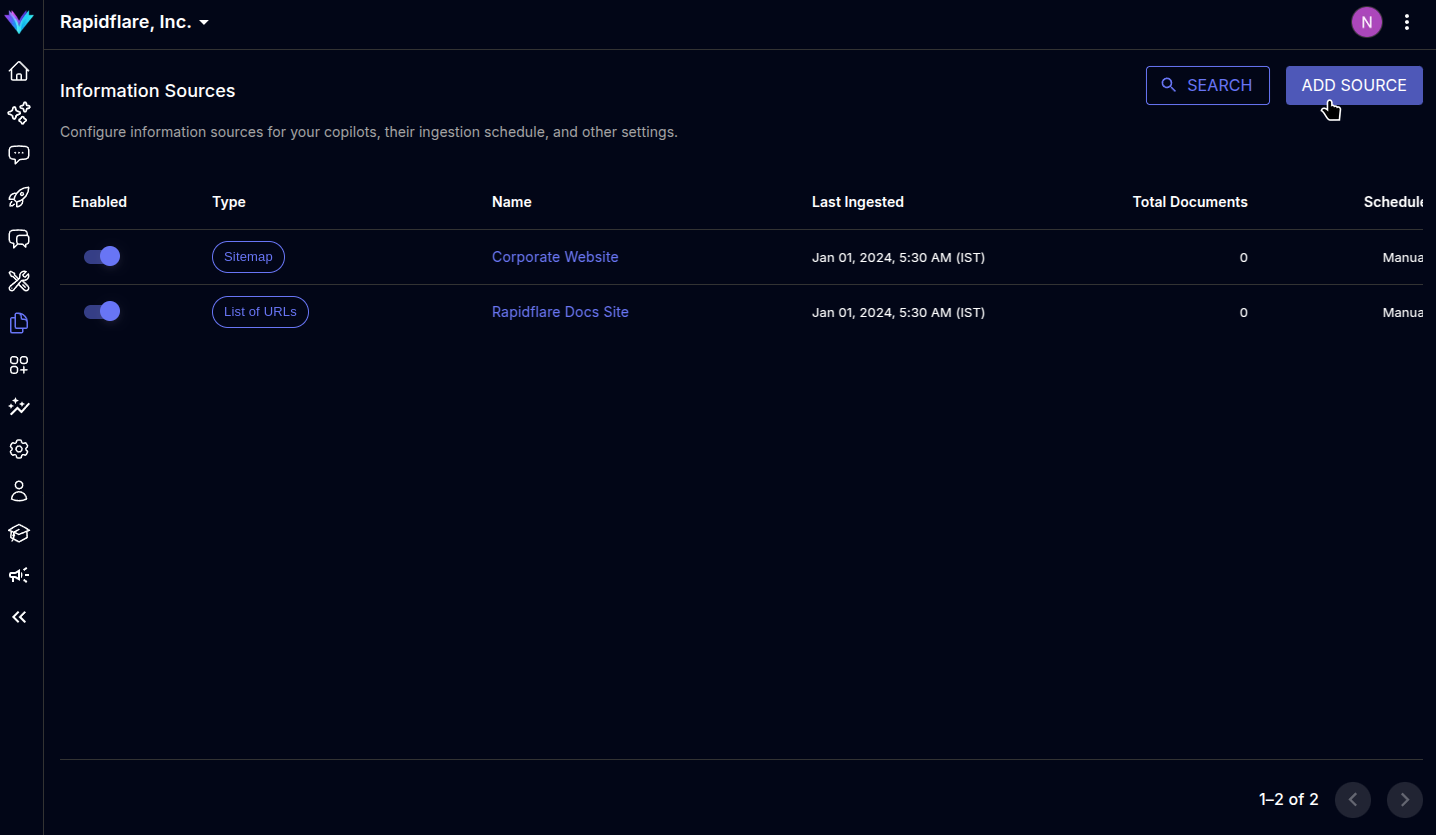
2. The modal prompts to select the type of source to ingest, select `Glossary` to move to next screen.
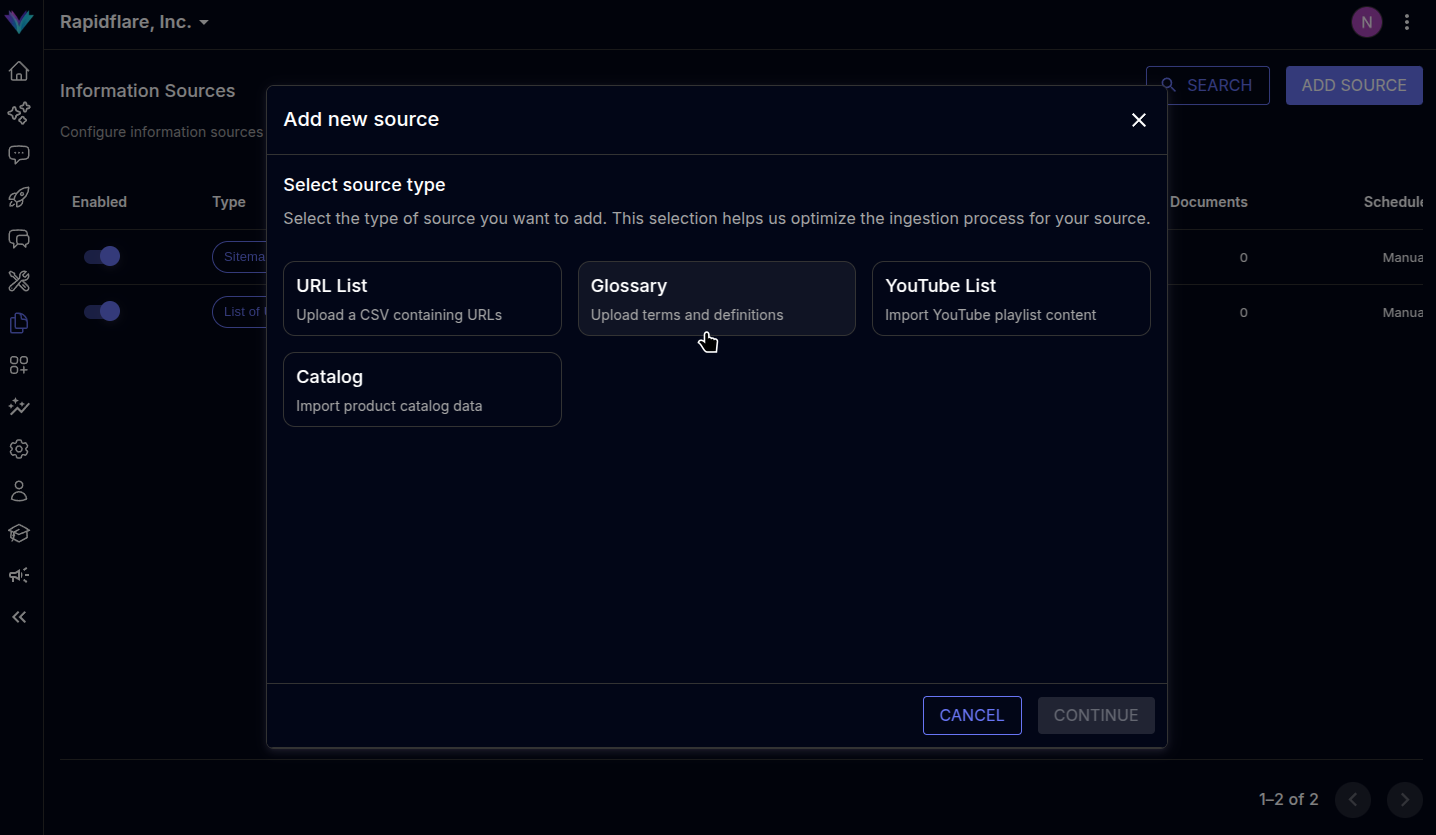
3. Enter the publicly available Google Sheets URL and names of sheets containing terms and definitions and hit next. Note: The google sheet must contain rows and columns in a specific format. Click [here](https://cloud.rapidflare.ai/storage/v1/object/public/rapidflare-assets/doc-templates/glossary-template.xlsx) to view the format. 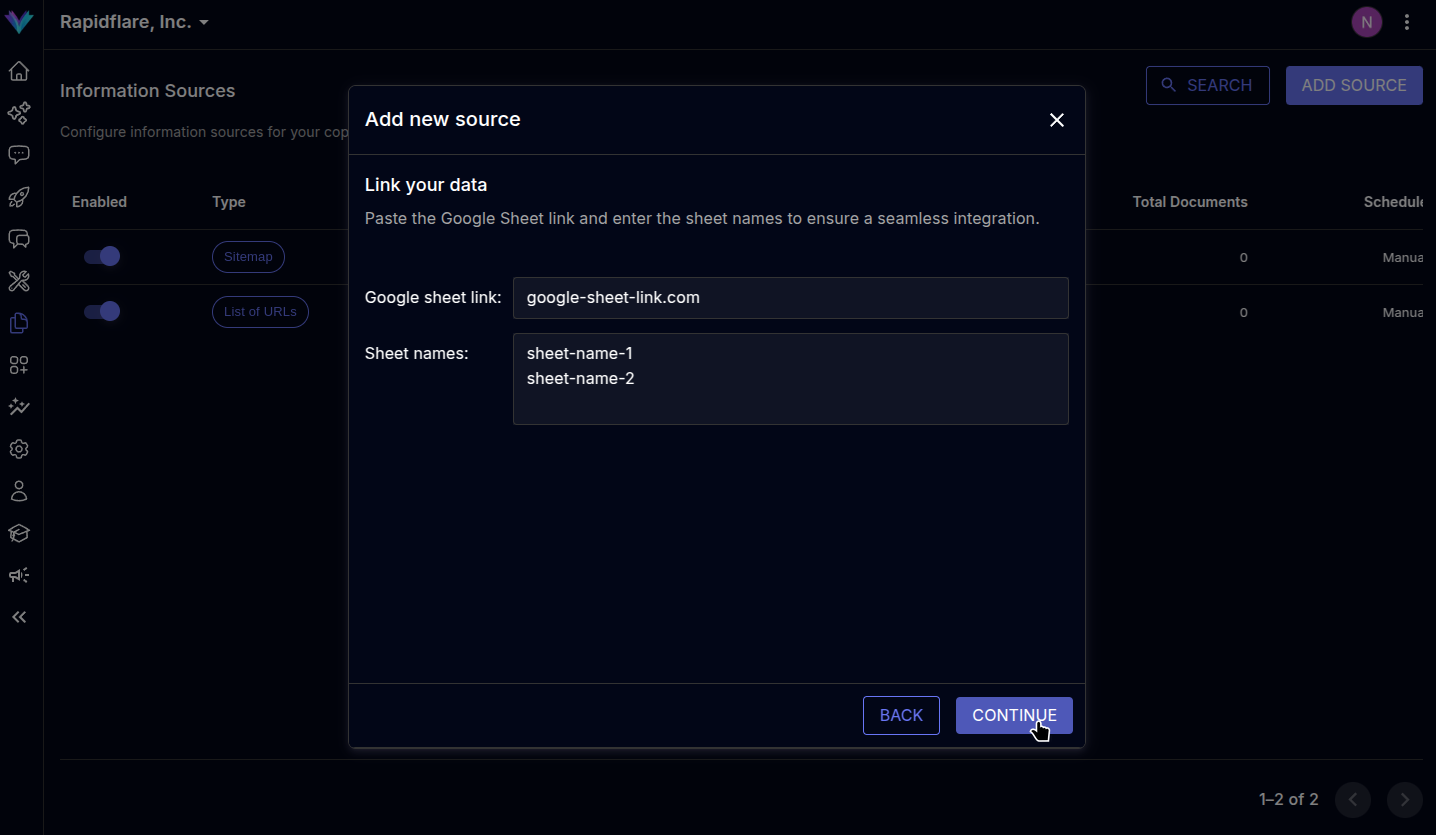
4. Specify a descriptive name for the source. You can optionally mark the source's contents as `related content`. When marked so, the AI Agent can also present the contents as related material when answering questions, helping your users learn adjacent topics and expand their understanding.
5. Click on `FINISH` to complete the process, page will be refreshed and the newly added source will be visible in the sources list.
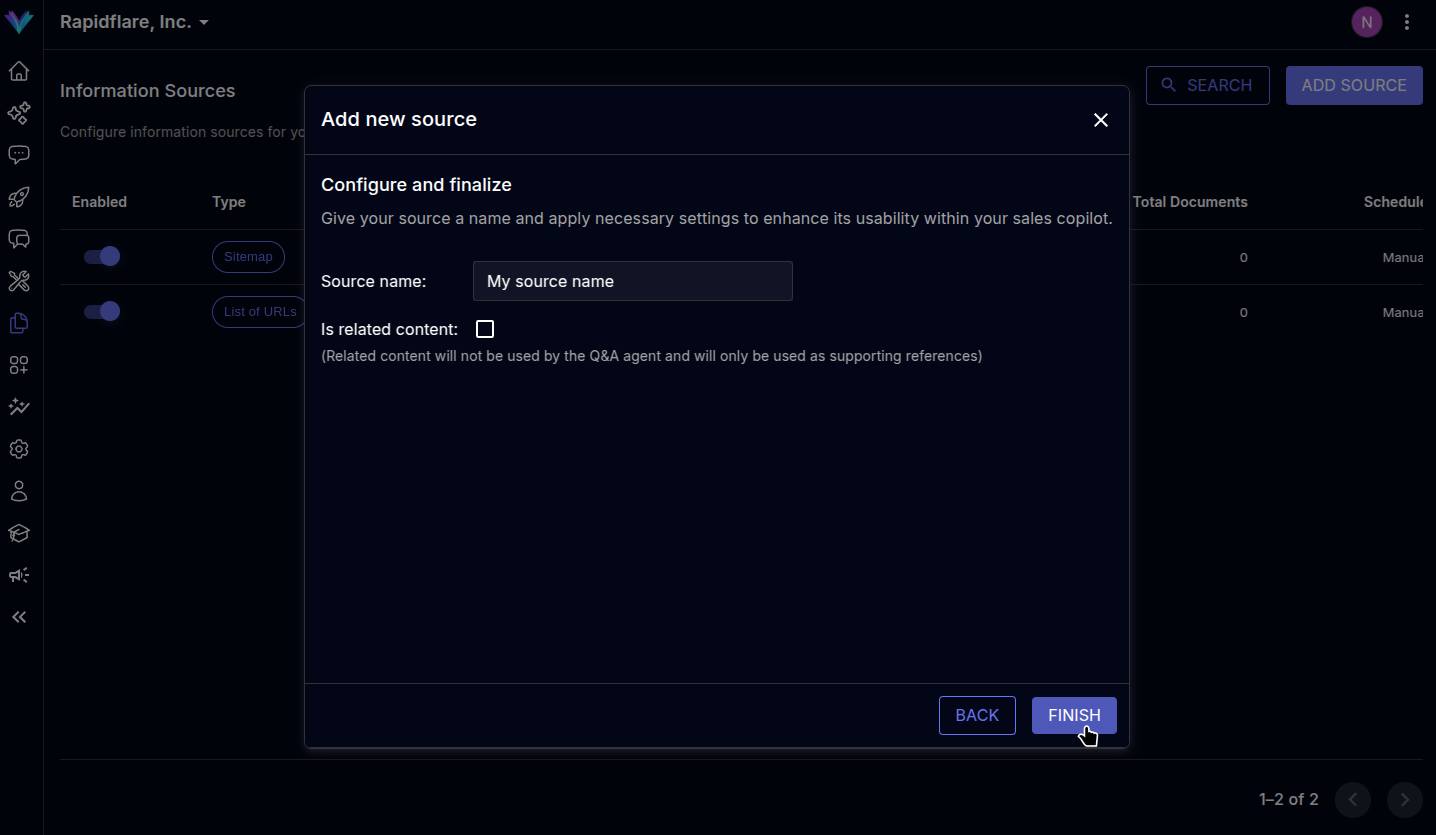
{% callout title="Good to know!" %}
Providing glossary information via such spreadsheets is just one method we have. We also have a workflow that infers glossary information automatically from your documents, and provides them to you for review. This feature will soon be available in the dashboard for self service. In the meantime, contact us at [support@rapidflare.ai](mailto:support@rapidflare.ai) for more information!
{% /callout %}
---
# https://docs.rapidflare.ai/sources
Here are various types of information sources we can ingest content from. The more content we ingest, the more empowered Rapidflare's AI Agents are in their
ability to answer questions, and provide rich synthesized information to your users.
{% quick-links %}
{% quick-link title="URL List" icon="urlList" href="/sources/url-list" description="Manually curated list of URLs to publicly accessible files or content" /%}
{% quick-link title="Product Catalog" icon="catalog" href="/sources/product-catalog" description="Curated catalog of product information" /%}
{% quick-link title="Glossary" icon="glossary" href="/sources/glossary" description="Product related terms and definitions." /%}
{% quick-link title="YouTube Playlists" icon="playlist" href="/sources/youtube-playlists" description="Videos, playlists or channels from YouTube" /%}
{% quick-link title="Sitemaps" icon="sitemap" href="/sources/sitemaps" description="Sitemap URLs of your company" /%}
---
# https://docs.rapidflare.ai/sources/product-catalog
## Product Catalog
You can add your company's product information to the AI Agent by ingesting product catalogs. To facilitate this, we have a spreadsheet template where you can define your products and provide essential information about each product, such as its product attributes. This serves as a comprehensive reference for the AI Agent to gain rich context and provide deep product specific answers to user questions.
1. To onboard a Product Catalog, go to the [sources page](https://dashboard.rapidflare.ai/sources) by `Home > sources`, where you can see the `Add source` button on the top-right. 
2. The modal prompts you to select the type of source to ingest, select `Product Catalog` to move to next screen.
3. Enter the publicly available Google Sheets URL and the names of sheets containing catalogs. Note: The product catalog google sheet must contain rows and columns in a specific format. Click [here](https://cloud.rapidflare.ai/storage/v1/object/public/rapidflare-assets/doc-templates/product-catalog-template.xlsx) to view the format.

4. Specify a descriptive name for the source. You can optionally mark the source's contents as `related content`. When marked so, the AI Agent can also present the contents as related material when answering questions, helping your users learn adjacent topics and expand their understanding.
5. Click on `FINISH` to complete the process, page will be refreshed and the newly added source will be visible in the sources list.

{% callout title="Good to know!" %}
Providing catalog information via such spreadsheets is just one method we have. If your enterprise has thousands of products, available in a Product Information Management system (PIM), or a database, or via APIs, or just PDF datasheets, we have integrations and workflows to extract extract product catalog information from such systems. They will be available in the dashboard for self service soon. In the meantime, contact us at [support@rapidflare.ai](mailto:support@rapidflare.ai) for more information!
{% /callout %}
---
# https://docs.rapidflare.ai/sources/search
## Finding ingested content
Source search helps to find ingested content across multiple sources, so that you can verify that the latest information exists in the AI Agent's context at all times. Search is available in the top left of [Sources page](https://dashboard.rapidflare.ai/sources) as well as an item in the sidenav.
Here is a video of an admin finding an ingested content using the search feature:
{% loomvideo
url="https://www.loom.com/embed/b00a26c721ba41b98fde8cfa0af68a0c?sid=4aedd153-9dea-48db-93c4-88bfacdfb875"
thumbnail_url="https://cdn.loom.com/sessions/thumbnails/b00a26c721ba41b98fde8cfa0af68a0c-e055ea6cfced24b2-full-play.gif"
text="Admin finding a content using search"
/%}
## Search page
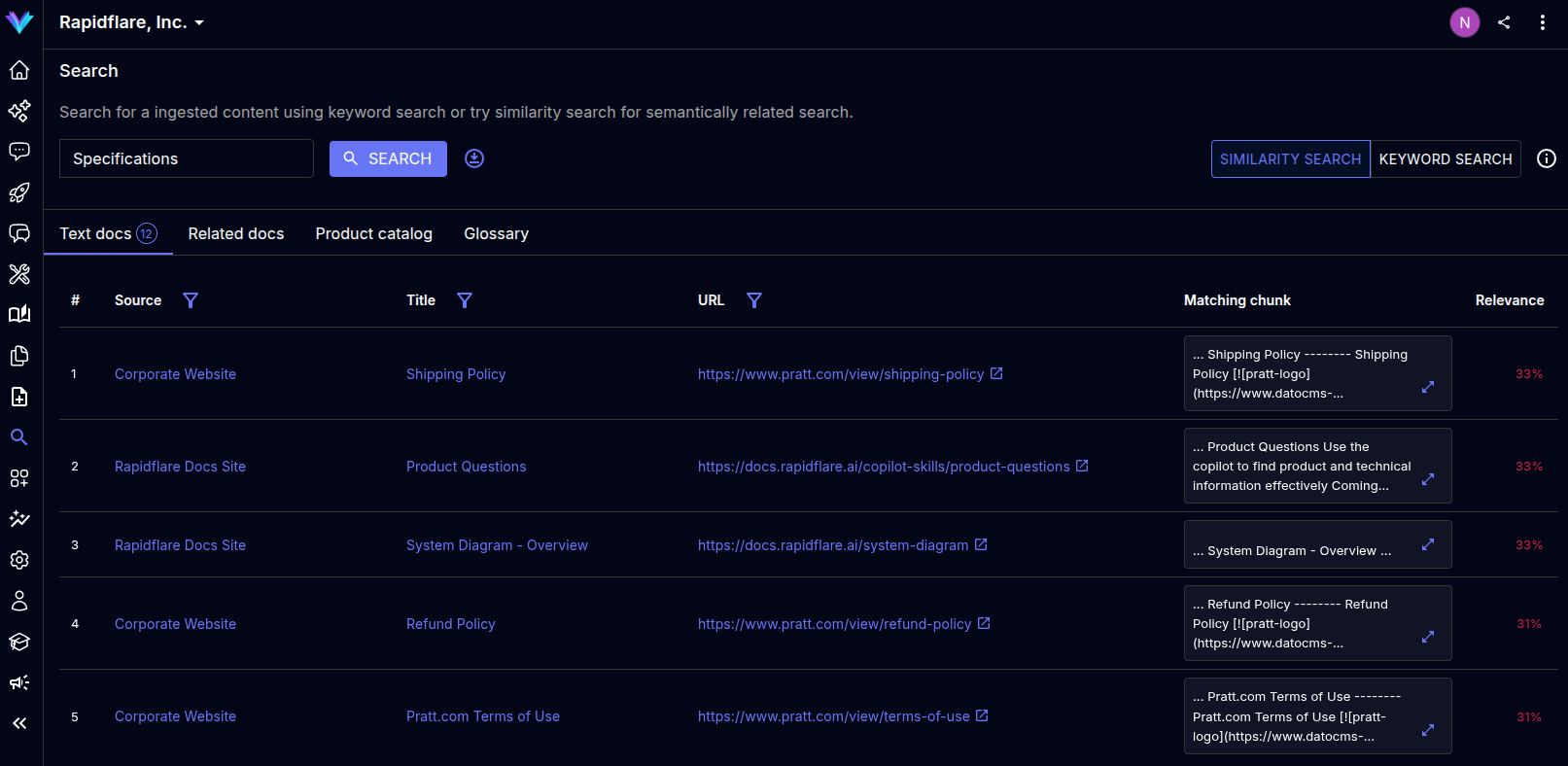
### Controls section
- Search has two modes `Similarity search` and `Keyword search`, which can be toggled using the mode selector at the top right of the page.
- Similarity search: Finds conceptually similar results, even without exact word matches.
- Keyword search: Finds results that exactly match your search terms.
- The download button right next to the `Search` helps you download the search results as a spreadsheet.
### Results section
Search results are categorised into 4 types for rapid and easier access. The number of results in each type are visible as badge count on each tab.
`Text docs`: Results from ingested text content.
`Related docs`: Results from sources marked as related document during ingestion.
`Product catalog`: Results from your catalog, click [here](/sources/catalog) to know more about catalog documents.
`Glossary`: Results from your glossary, click [here](/sources/glossary) to know more about glossary documents.
Results are organised into a table of 4 or 5 columns with the closest matched results as the first rows. For columns supporting filters, click on the filter icon and enter text to filter, the filtered results can then be shared to other admins by simply copying the URL.
- `Source`: Source name of the ingested doc, click on the source name to enter the source page.
- `Title`: Name of the ingested document, click to enter the document details page.
- `URL`: The source from where the document was ingested from, click to view the external source in a new tab.
- `Matching chunk`: Part of text in the document that matched your search. Click the expand icon to view the entire chunk and other related information about the result in a modal.
- `Relevance`: Score based on how close the search result was compared to the search keyword. (Only available for `Similarity Search`).
---
# https://docs.rapidflare.ai/sources/sitemaps
## Sitemaps
You can add your organisation's sitemaps to the AI Agent by ingesting sitemap URLs. This enables quick and accurate ingestion of all the content from your website listed in the sitemap.
1. To add sitemaps, go to the [sources page](https://dashboard.rapidflare.ai/sources) by `Home > sources`, where you can see the `Add source` button on the top-right. 
2. The modal prompts you to select the type of source to ingest, select `Sitemap` to move to next screen.

3. Enter your organisation's sitemap URL, if you have multiple domains - please enter one after the other. Note: sitemap URLs must be of the form https://domain.com/sitemap.xml. 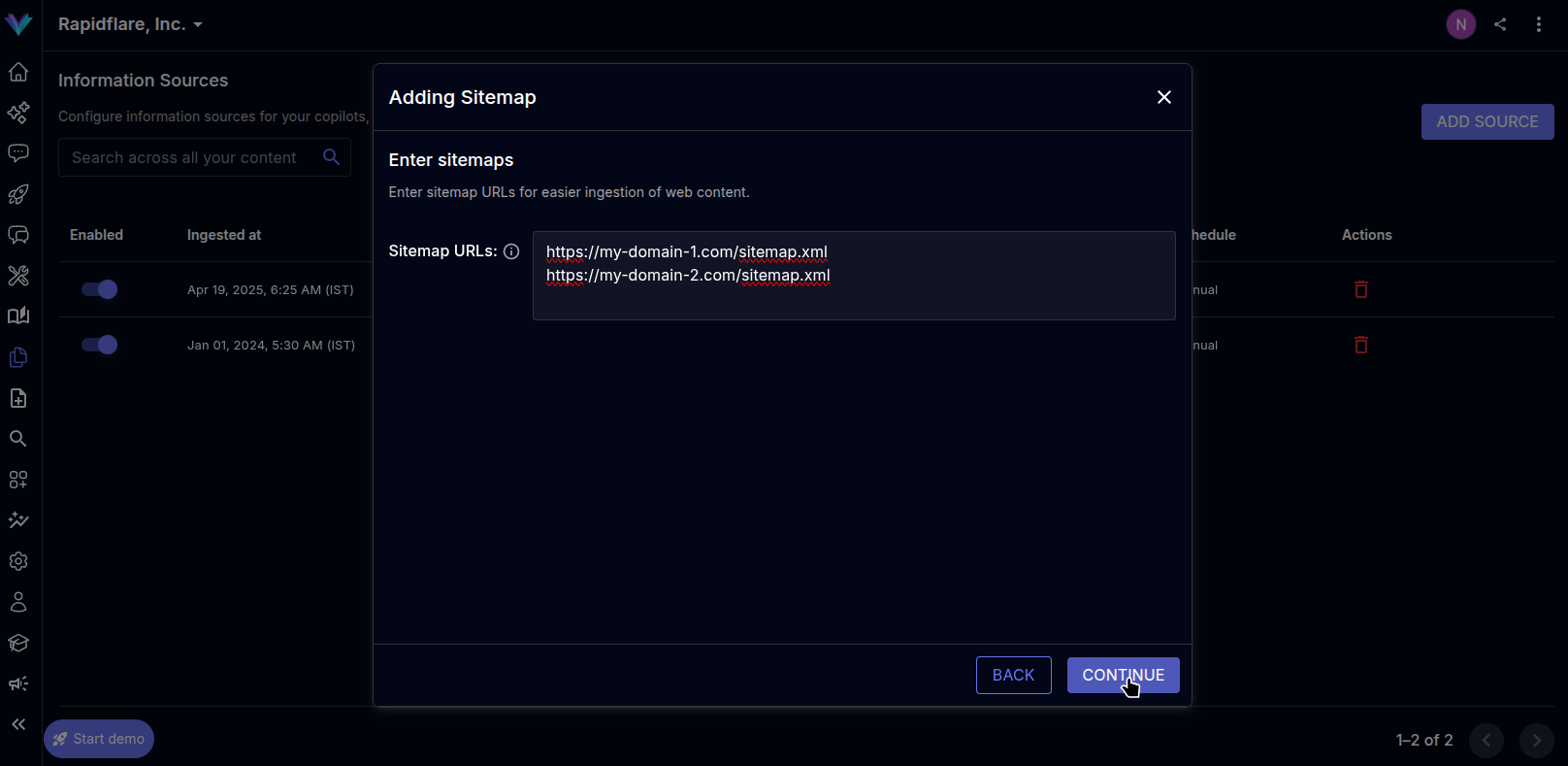
4. Specify a descriptive name for the source. You can optionally mark the source's contents as `related content`. When marked so, the AI Agent can also present the contents as related material when answering questions, helping your users learn adjacent topics and expand their understanding.
5. Click on `FINISH` to complete the process, page will be refreshed and the newly added source will be visible in the sources list.

---
# https://docs.rapidflare.ai/sources/url-list
## URL List
URL list are manually curated list of URLs to publicly accessible files or content. These can be a useful technique to ingest content that is not otherwise directly available via your public facing website's sitemap files.
1. To onboard a URL List source, go to the [sources page](https://dashboard.rapidflare.ai/sources) by `Home > Sources`, where you can see the `ADD SOURCE` button on the top-right. 
2. The modal prompts to select the type of source to ingest, select `URL List` to move to next screen.
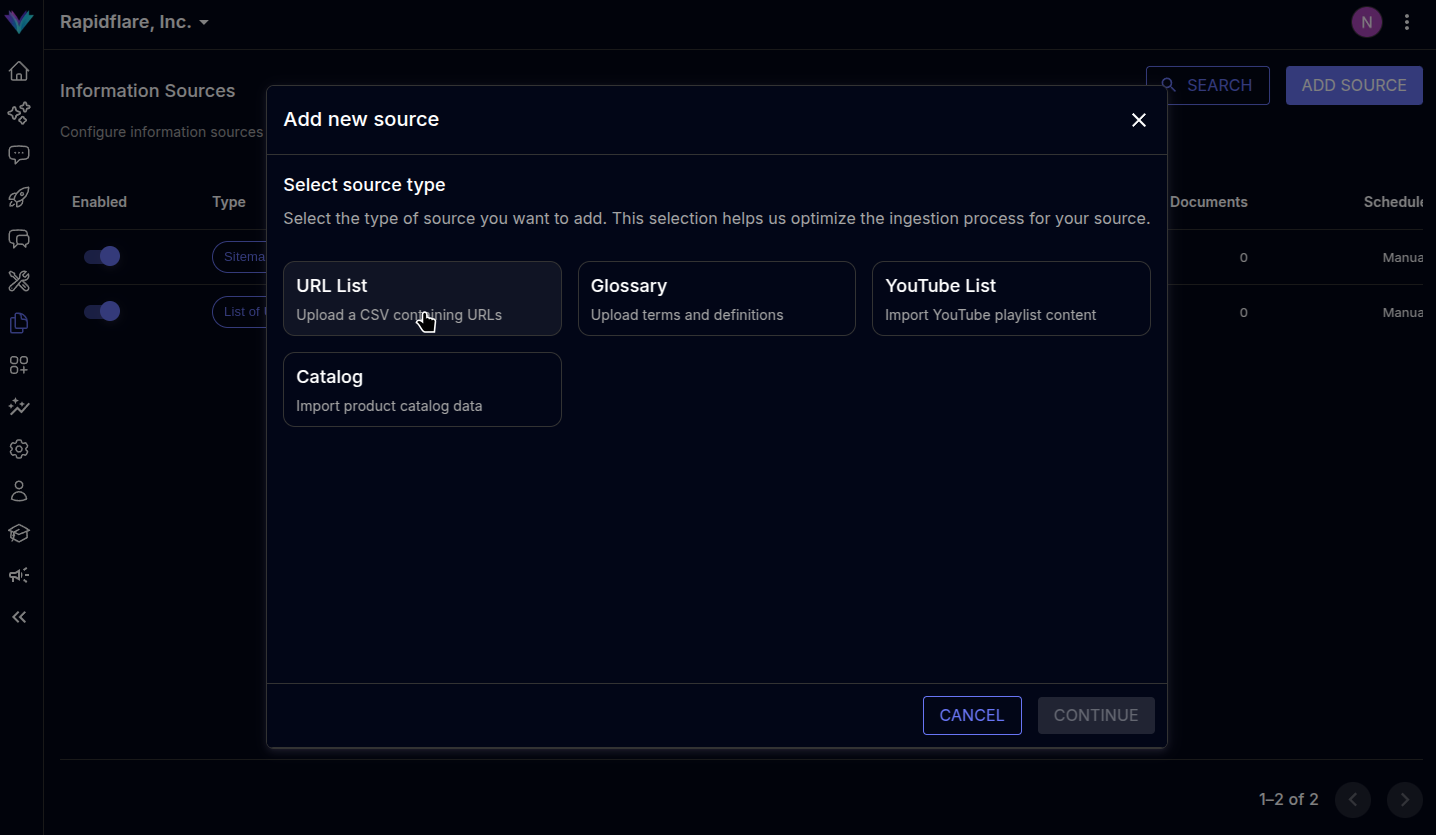
3. You can choose to upload your URLs via a CSV file in the specified format or manually paste in the list of URLs in the text box provided. You can also use both features simultaneously. 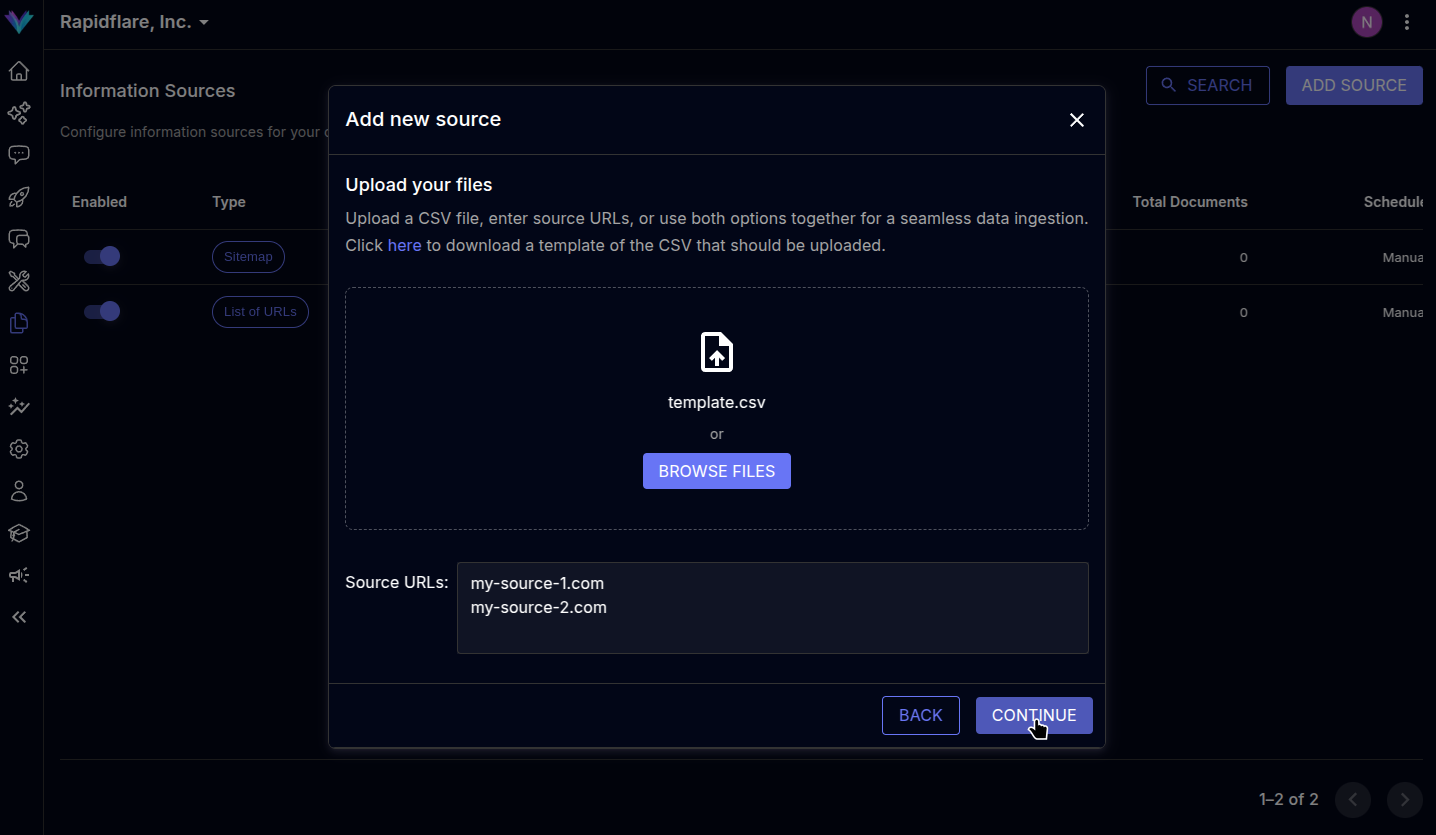
4. Specify a descriptive name for the source. You can optionally mark the source's contents as `related content`. When marked so, the AI Agent can also present the contents as related material when answering questions, helping your users learn adjacent topics and expand their understanding.
5. Click on `FINISH` to complete the process, page will be refreshed and the newly added source will be visible in the sources list.

---
# https://docs.rapidflare.ai/sources/youtube-playlists
## YouTube Playlists
YouTube playlists are collection of videos grouped together under a specific theme or topic. Playlists are great for curating content that covers a range of related topics, that can improve Rapidflare's ability to provide adjacent visual information on a particular subject. To learn more about Youtube playlists and how to create one, click [here](https://support.google.com/youtube/answer/57792?sjid=3209125890485446582-NC).
1. To onboard a Youtube playlist, go to the [sources page](https://dashboard.rapidflare.ai/sources) by `Home > Sources`, where you can see the `ADD SOURCE` button on the top-right.
2. The modal prompts to select the type of source to ingest, select Youtube playlist to move to next screen.
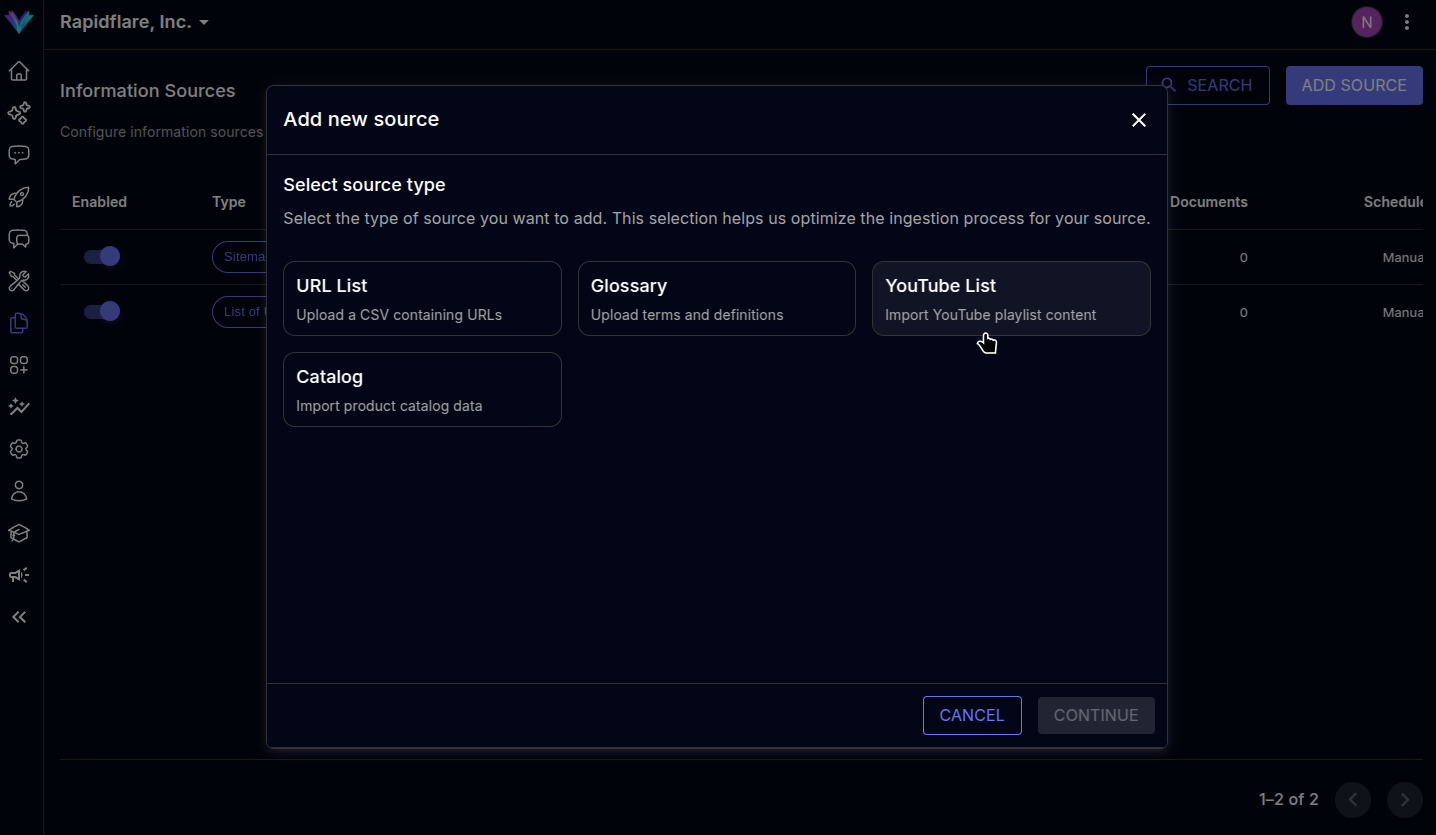
3. You can choose to upload a list of playlist URLs via a CSV file in the specified format or manually paste in the list of URLs in the text box provided. You can also use both features simultaneously. 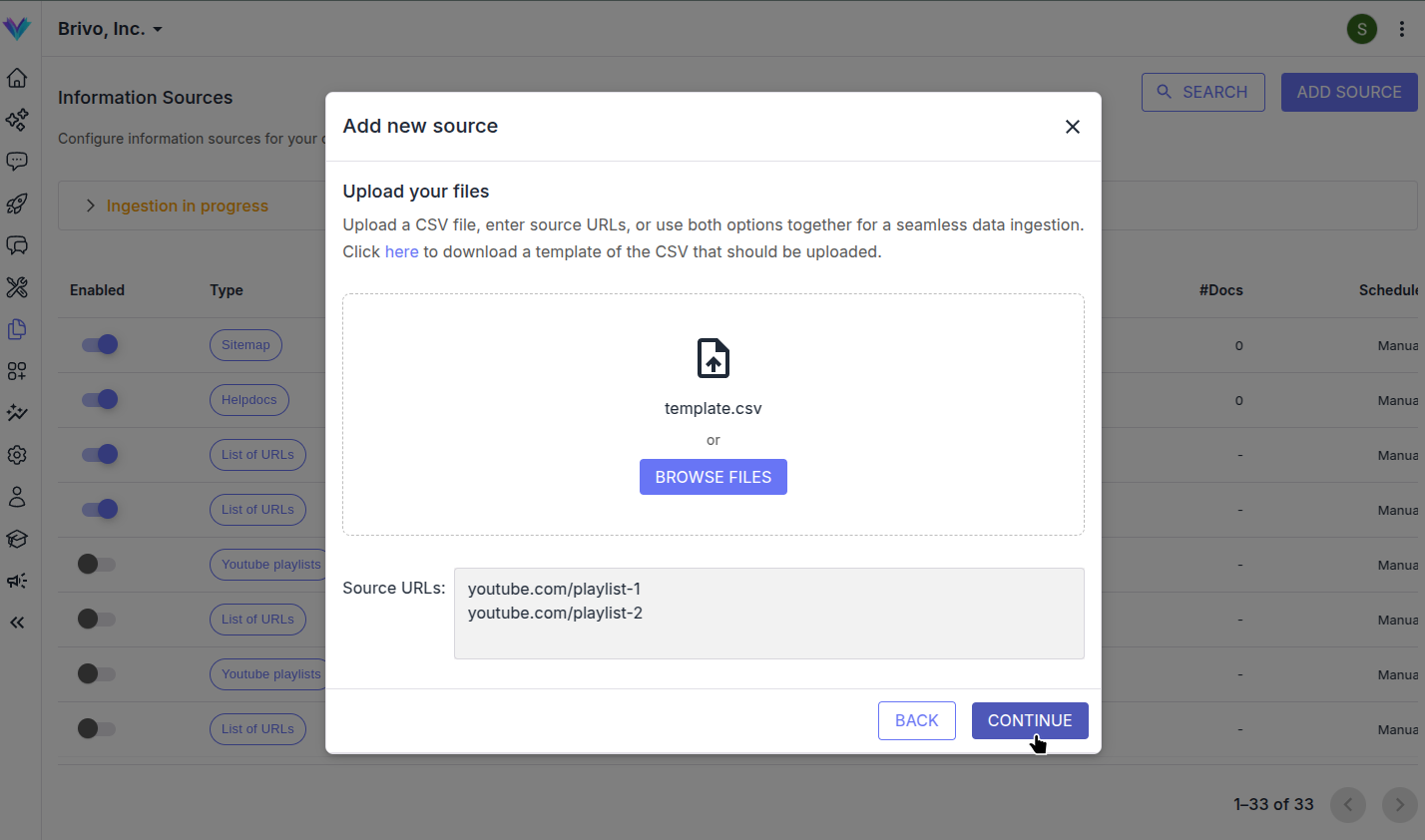
4. Specify a descriptive name for the source. You can optionally mark the source's contents as `related content`. When marked so, the AI Agent can also present the contents as related material when answering questions, helping your users learn adjacent topics and expand their understanding.
5. Click on finish to complete the process, page will be refreshed and the newly added source will be visible in the sources list.

---
# https://docs.rapidflare.ai/whats-new/agent-ai
## January, 2026
### New Features
- **[Discord Bot Integration](/deploying/discord)**: Full Discord integration allowing AI Agent to respond to questions directly in Discord channels with support for public replies, ephemeral messages, and threaded conversations.
- **[Discord Forum Auto Reply](/deploying/discord#step-2-5-enable-privileged-gateway-intents)**: The Discord bot now monitors forum channels and automatically responds to new posts using the AI Agent, without requiring users to invoke the `/ask` command. Requires the Message Content Intent to be enabled in the Discord Developer Portal.
- **[Inline Citations](/product-overview/user-guide#inline-citations)**: AI responses now include inline citations that reference source documents directly within the answer text, providing clearer attribution and easier verification of information sources.
- **Promoted Answers**: Configure specific responses for frequently asked questions that take precedence over AI-generated answers, ensuring consistent, fast and accurate responses for common queries. Promoted answers will also power our future organizationally visible, trending questions section, newsletters and so on.
- **Automatic QA Evaluation**: The system now automatically creates QA evaluations for runtime errors and bad feedback, helping teams identify and address quality issues proactively.
- **Salesforce Ticket Creation**: AI Agent can now create support tickets directly in Salesforce when human handoff is requested or when specific conditions are met.
### Improvements
- **Enhanced PDF Processing**: Significant improvements to PDF extraction, with support for persisting and describing the semantic content of images for use in later question answering and presentation.
- **Improved Citation Handling**: Citations now properly display URLs and support PDF references with better formatting.
---
## November, 2025
### New Features
- **Web Search Capability**: AI Agent can now search the web for real-time information when the indexed knowledge base doesn't contain the answer, providing more comprehensive responses.
- **Reasoning Transparency**: AI now streams its reasoning process ("thinking aloud") to users, showing the steps taken to formulate an answer for better transparency.
### Improvements
- **State-of-the-Art Model Support**: Added support for the latest frontier models with enhanced reasoning capabilities, enabling more accurate and reliable responses for complex, multi-step queries.
---
## September, 2025
### New Features
- **Text Database Upgrades** - We've moved on to a significantly more capable, performant and efficient chunk database. Allowing us to store even greater content, without sacrificing retrieval performance.
### Improvements
- **Upgraded Default Model**: Default AI model upgraded to the latest high-performance model for improved response quality and faster generation.
- **Enhanced Reranking**: Improved AI-based reranking for document relevance, resulting in more accurate search results and better answers.
- **Abuse Prevention**: Enhanced prompt engineering to prevent misuse and ensure AI Agent stays on-topic.
---
## July, 2025
### New Features
- **Rapid Sales Agent**: Our new AI agent - a guided product discovery experience that takes you through a series of clarifying questions to find the right products, iteratively exploring your product catalogs.
- **Search Improvements**: Significant improvements to search for improved retrieval accuracy, especially for technical terms, part numbers, and product codes.
### Improvements
- **Query Processing Improvements**: Enhanced query rephrasing with better handling of conversation history for more accurate multi-turn conversations.
- **Self Service Structured Reasoning Guidelines**: More granular control over AI behavior with component level guidelines.
---
## May, 2025
### New Features
- **Product Selection**: New AI capability for helping users select products based on their requirements, with support for:
- Use case-based product lookup
- Filter-based product search
- Product comparison capabilities
- Streaming responses for real-time feedback
- **Multi-Agent Support**: Organizations can now have multiple AI Agents with different configurations, knowledge bases, and behaviors tailored to different use cases.
- **Conversation Analytics Enhancements**: New analytics including breakdown by source URL, related documents by type, and improved trend analysis.
### Improvements
- **AI-Powered Reranker**: New document reranking that uses AI to improve the relevance of search results before generating answers, leading to higher quality responses.
- **Improved Error Handling**: Better error handling throughout the system, with automatic quality evaluation creation for issues to help identify and resolve problems faster.
---
## March, 2025
### New Features
- **Explainability Events**: AI Agent now emits detailed events explaining its reasoning process, which can be displayed to users or logged for analysis.
- Configurable per organization
- Shows query classification, retrieval steps, and answer generation process
- **Flagged Conversation Email Alerts**: Automatically receive email notifications when conversations are flagged or receive negative feedback.
- **Human Agent Handoff**: Support for transferring conversations to human support agents with configurable conditions and email notifications.
### Improvements
- **Multi-Provider AI Support**: New unified AI layer supporting multiple leading AI providers, allowing automatic selection of the best model for each task type.
- **Faster Response Times**: Improved caching for agent configurations and catalog data, resulting in noticeably faster response times.
- **Enhanced Security**: Added a comprehensive security layer to all API responses.
---
## Dec 6, 2024
### Improvements
- Numerous QoR (Quality of Results) improvements to the query type classification based question answering AI workflow.
- Better resiliency and retry mechanisms to allow for AI to recover from model communication issues.
- AI generated titles for conversations before completing them
- Query classification now covers a broader range of types and are stored as part of our ongoing analytics
- Coming Soon (Analytics dashboard access to this and more!)
- Improvements to accuracy of related content suggestions presented as part of the conversation
- Better history interpretation in a multi-turn conversation
## Oct 25, 2024
We are catching up on our August to October changes via this release note.
### Improvements
- New query type classification based, multi-step question answering flow
- New - Product Catalog and Product Glossary based query types for:
- Looking up technical specifications for one or more products
- Looking up products that match certain technical specifications
- Comparing two or more specific products
- Search by keywords
- General queries
- AI Explainability - now you can see clearly what steps our AI workflows took in order to present a result.
- Artifacts!
- The specialized query types above will now present artifacts such as comparison tables, data sheets allowing you to get an even more dynamic answer, plus you can download those artifacts as PDFs, share it with others etc.
Talk to us if you are interested in a product catalog powered expert assistant!
## Aug 9, 2024
We are catching up on our July release notes in this early August release notes update.
### Improvements
- We've improved our automated evaluation metrics for our proprietary RAG system.
- We've added initial query enrichment to improve answers for brief or terse queries (select customers)
- We have made significant improvements in automated ingestion systems, though we are still a few more weeks away
from productizing it and providing self service control.
- We have improved our conversation history document schema, and now can add more useful insights by analyzing
conversations after they are complete, and to provide richer, more useful analytics.
## June 21, 2024
### New Features
### Improvements
- Query type specific additional guidelines and prompts help us surgically handle edge cases for that type of question.
### Bug Fixes
- More robust error handling when conversation streams encounter errors. There's now feedback in the AI Agent UX about
the error and a rendering of the partial answer in case the error happened mid-flight in a conversation.
## June 7, 2024
### New Features
### Improvements
- For customers with product catalogs, we now also handle use case type questions. Given a use case, we can find matching products and answer specific attributes of the matching products.
- We've improved our internal tracing systems allowing us to track all steps involved in the agent's AI workflow to find issues and improve accuracy
- In addition to keyword and semantic search, we now support fuzzy search of product catalog terms
- Latency improvements for our advanced model. 90% of questions are now answered ~5-10 seconds faster.
### Bug Fixes
## May 24, 2024
### New Features
- Multi-step question answering with query classification, query rewriting, product catalog based retrieval
### Improvements
- Retriever improvements when retrieved information overflows context
### Bug Fixes
## May 24, 2024
### New Features
- AI Agent now retrieves related videos, learning modules for customers who provide those as sources.
- More advanced agentic retrieval and question answering system
- AI Agent now supports `Advanced` AI models.
- Our `Advanced` models follow instructions better, are more robust at answering questions and in general more powerful for a variety of tasks, with greater world knowledge.
- Contact us at [support@rapidflare.ai](mailto:support@rapidflare.ai) if you would like to set your enterprise to this more advanced model.
**Note**: These models will take longer to generate responses.
- Responses from the AI Agent will now be always streamed as they are being generated. Since advanced models take longer to complete this will enable humans to start processing the AI Agent's responses as they are being generated.
### Improvements
### Bug Fixes
---
# https://docs.rapidflare.ai/whats-new/agent-ux
## January, 2026
### New Features
- **[Inline Citations](/product-overview/user-guide#inline-citations)**: References and citations are now displayed inline within the AI's response text, making it easier to see the source of information directly in context rather than as a separate list at the end.
- **Promoted Answers**: AI Agent now supports promoted answers, allowing admins to configure specific responses for frequently asked questions that take precedence over AI-generated responses.
- **Notes on Conversations**: Admins can now add notes to conversations in the conversation history, enabling teams to annotate and track important context about customer interactions.
- **[Discord Forum Auto Reply](/product-overview/surfaces/discord#forum-auto-reply)**: AI Agent now automatically responds to new posts in Discord forum channels, providing instant answers without requiring the `/ask` command. Enable this feature by using `/install` with the `forum_auto_reply` option in any forum channel.
- **Enhanced Feedback Flow**: The feedback comment popover now opens automatically when users click thumbs up or thumbs down, encouraging more detailed feedback collection.
### Improvements
- **User Invitation System**: Admins can now invite users via email directly from the dashboard, streamlining team onboarding.
- **Conversation History Export Enhancements**: Exported conversation history reports now include improved formatting with centered text alignment and better Excel report structure.
- **Copy Message Improvements**: Copy-to-clipboard functionality now includes an option to copy formatted text as HTML for better pasting into documents like Google Docs.
---
## December, 2025
#### New Features
- **Discord Integration**: Rapidflare AI Agent is now available on Discord. You can interact with your AI Agent directly in Discord channels.
- `/install [reply_type]` - Activate the agent with your preferred response mode (public, ephemeral, or thread)
- `/uninstall` - Deactivate the agent from a channel
- `/ask` - Ask questions to the AI Agent
- Feedback buttons for thumbs up/down on responses
- See the [Discord User Guide](/product-overview/surfaces/discord) and [Discord Deployment Guide](/deploying/discord) for details.
#### Improvements
- Improved performance for repeat visits to the agent widget by introducing caching for certain API calls. This enhancement ensures that returning users experience faster load times and a more responsive interaction with the agent.
---
## October, 2025
### New Features
- **Thinking Aloud / Reasoning Display**: AI Agent now displays its reasoning process in real-time, showing users the steps the AI is taking to formulate an answer. This transparency helps users understand how conclusions are reached.
- **Web Search Integration**: AI Agent can now search the web for real-time information when needed, enabling responses that include current information beyond the indexed knowledge base.
### Improvements
- **Mobile Dashboard Responsiveness**: Significant improvements to dashboard responsiveness on mobile devices, ensuring a better experience across all screen sizes.
- **Product Comparison Tables**: Enhanced comparison table rendering with carousel support for multiple product images.
---
## September, 2025
We have introduced new breaking changes in a major version update to 3.0.0. This version contains several important security improvements and bugfixes.
### 3.0.0
#### Bug Fixes
- Fixed issue where in some slow network scenarios, customers would briefly see Rapidflare's logo in the launcher icon, which would then be replaced with the customer's icon shortly after.
#### Improvements
- In addition to our conversational agent experience, our widget now supports rendering our brand new product selection agent. To enable this feature, please contact [support@rapidflare.ai](mailto:support@rapidflare.ai) and we will work with your team and to create a product catalog for your agent.
- API Keys are now safe to embed in your user-visible frontend website code bundles. Our new API keys are protected by reCAPTCHA and you can configure it to work on only specific domains that you choose to allow-list. Adding domains is optional but highly recommended. You can read more about our updated API key management described [here](/admin/user-guide#api-keys)
- Existing API keys continue to work as before without any action needed on your end. However, we strongly recommend that you generate a new API key from our admin dashboard under [Hubs » Configure » Security](https://dashboard.rapidflare.ai/copilots) with your trusted domains, and update to the latest version of our JavaScript widget in your web app as described [here](/deploying/web#web-widget-recommended).
---
## July, 2025
### New Features
- **Rapid Sales Agent**: A new conversational experience for product discovery. Our newest agent asks clarifying questions to understand user requirements and guides them through finding the right products through an interactive multi-choice question flow.
- **Widget Lifecycle Events**: New event notifications when the embedded widget opens or closes, allowing your application to respond to widget state changes.
- **Widget Fullscreen/Resize Controls**: New maximize and minimize buttons on the embedded widget, giving users control over the widget size.
### Improvements
- **Starter Prompts Auto-Generation**: Admins can now auto-generate starter prompts customized to their products and product families directly from the configuration screen.
- **Copy Link to Message**: Users can now copy a direct link to a specific message within a conversation for easy sharing.
---
## May, 2025
### New Features
- **Human Agent Handoff**: Users can now request to be transferred to a human support agent during a conversation. When enabled, a "Talk to Human" option appears, allowing seamless handoff to live support.
- This feature is disabled by default. Contact [support@rapidflare.ai](mailto:support@rapidflare.ai) to enable it for your organization.
- **Whitelabel Domain Support**: AI Agent can now be deployed on your own custom domain, providing a fully branded experience for your users.
### Improvements
- **Reduced Font Sizes**: Improved readability with optimized font sizes across the chat interface based on customer feedback.
- **Scroll to Bottom Button**: A new button appears when users scroll up in a conversation, allowing them to quickly return to the latest messages.
---
## March, 2025
### New Features
- **Chrome Extension**: Rapidflare AI Agent is now available as a Chrome browser extension, allowing users to access the AI Agent from any webpage.
- **Interactive Quiz Module**: New quiz feature for training and assessment scenarios (available for select customers).
### Improvements
- **Safari Clipboard Support**: Fixed copy-to-clipboard functionality on Safari browsers.
- **Vimeo Video Support**: Related content now supports Vimeo videos in addition to YouTube.
---
## Dec 6, 2024
### New Features
- AI generated titles for conversations to better represent and access past interactions
- Categorized starter prompts configuration. Now you can group starter prompts by their category names and also provide a simple help description which will be shown to users on hover.
- Comparison tables and other artifacts provided by AI Agent as part of it's answer can be downloaded as PDFs. This allows you to share the artifact with your end customers, or use as part of other document collections and reports.
### Improvements
- For embedded AI Agents, we have even more options for customizing the launcher icon. Now you can provide your own HTML element as the launch trigger, and thus customize it's placement, styling. With this fine grained control, you can pretty much blend the Rapidflare AI Agent into your web apps such that it's no longer a standalone element, but rather an intrinsic pop up.
- When using our launcher, you can now pre-set the launcher's initial position to one of the four corners of the screen.
### Bug Fixes
- Browser URL updates when clicking on recent conversations in **Your Conversations**
## Oct 1, 2024
### 1.8.2
#### Bug Fixes
- Fix a bug that might trigger numerous retries to conversation stream API calls, causing API to reject new conversation requests.
## Sep 5, 2024
### New features
- You can now download a conversation as HTML, Markdown, PDF, JSON or Excel from the AI Agent conversation screen. This is similar to the admin dashboard conversation history export feature.
- New search field in the conversation history table in the `Filter by user` menu to search for specific conversations by one or more users.
- Conversation history table view now has a new `Mixed feedback` filter in addition to the `Good feedback`, `Bad feedback`, and `No feedback` filters. The `Mixed feedback` filter shows all conversations with a mix of both good and bad feedback.
## Aug 24, 2024
### New Features
- New sharing features for admins to enable users to share conversations.
- [**Sharing Conversations**](https://docs.rapidflare.ai/product-overview/user-guide#sharing-a-conversation): You can share a conversation through URL, email, HubSpot, or with anyone. Recipients of the shared link can view the conversation.
- Conversation history
- Now enables export to PDF. This allows viewing all the conversations, messages exchanged and feedback on conversations in PDF format.
## Aug 9, 2024
We are catching up on our July release notes in this early August release notes update.
### New Features
- New read out loud mode for AI Agent answers. Click on the loud speaker icon.
- Voice input method to have your questions transcribed in vs. typed in.
- Related content (videos, learning, etc.) now presented in a tab on the right side.
- Quick and handy access to your personal conversation history (see tab on the right side)
- Better typing + reading experience. Typing input box remains pinned to the bottom of the screen, while content scrolls
naturally in the content pane.
- Hovering on references provides inline previews if available (e.g. web links)
### Improvements
- All of these new experiences work in both full screen mode on non-mobile screens, or in a mobile responsive format.
- Overall UI performance improvements provide a more snappy AI Agent experience
## July, 2024
We are moving away from versioned AI Agent widgets to versioned AI Agent wrapper iframes. Release notes from this point onwards will be dated release notes for what's new in the content of our AI Agent widget, as well as any updates to versioned AI Agent wrapper releases.
### 2.0.0
- Embedded AI Agent is now wrapped by an iframe. Embedding through JavaScript works still the same.
- New features include ability to reposition chat bubble in any 4 corner of the screen, better responsive handling and better sandboxing.
## June 21, 2024
### 1.8.1
#### Bug Fixes
- Starring conversations via {% heroicon icon="StarIcon" iconType="outline" /%} now works reliably, fixing previous reliability issues.
### 1.8.0
#### Improvements
- New conversation icon changed to {% heroicon icon="ArrowPathRoundedSquareIcon" /%} to better represent a "refresh" or a "restart".
The previous {% heroicon icon="BoltIcon" /%} icon was confusing and unclear.
### 1.7.5
#### Improvements
- In `xs` responsive breakpoints, feedback comment modal is now relatively sized bettero and doesn't fill screen.
### 1.7.4
#### Bug Fixes
- In `xs` responsive breakpoints, fix control bar layout issues.
- Reference links are now truncated 40 characters or less to additionally handle layout issues in `xs` breakpoints.
## June 7, 2024
### 1.7.3
#### Bug Fixes
- Fixed issue where viewing a past conversation did not render related documents as it did during the live conversation.
### 1.7.2
#### Improvements
- Increase text size on `xs` breakpoints
### 1.7.1
#### Improvements
- Better layout for videos presented as related content
### 1.7.0
#### Improvements
- Better handling for `xs` (400px) responsive breakpoints.
- Reference links are now truncated 50 characters or less so they don't overflow xs breakpoints
- Remove unnecessary padding in frameless mode
## May 24, 2024
### 1.6.0
#### New Features
- Optional, frameless mode for embedding in mobile web views
#### Improvements
- Reduce font size of "version" string in title in the AI Agent header
### 1.5.4
#### Improvements
- Increase size of logo to in launcher icon to 24px in small responsive width (640px)
### 1.5.3
#### Bug Fixes
- Sandbox AI Agent's CSS to avoid impacting host site styles
## May 10, 2024
### 1.5.1
#### Bug Fixes
- More robust conversation link sharing behavior, taking into account embedded vs. AI Agent dashboard based sharing behaviors.
### 1.5.0
#### New Features
- AI Agent now presents related links (Videos, Learning modules)
- *Note*: This feature is enabled only for customers for whom we are ingesting such content.
### 1.4.2
#### Bug Fixes
- Fixed issue where message feedback existence was not being logged against conversations
### 1.4.1
#### New Features
- AI Agent now supports `Advanced` AI models.
- Our `Advanced` models follow instructions better, are more robust at answering questions and in general more powerful for a variety of tasks, with greater world knowledge.
- Contact us at [support@rapidflare.ai](mailto:support@rapidflare.ai) if you would like to set your enterprise to this more advanced model.
**Note**: These models will take longer to generate responses.
- Responses from the AI Agent will now be always streamed as they are being generated. Since advanced models take longer to complete this will enable humans to start processing the AI Agent's responses as they are being generated.
### 1.3.0
#### New Features
- You can type multiline messages to the AI Agent (press `Shift+Enter`) and the input box will resize to give you more room to type as well.
### 1.2.7
#### Improvements
- AI Agent now logs hostname from which conversations originate to facilitate better analytics.
## Apr 26, 2024
You can pin to major and minor release streams in addition to specific and latest versions. See the [documentation here](/deploying/web#:~:text=Pin%20to%20major%2C%20receive%20additve%20improvements%20and%20bug%20fixes).
### 1.2.6
#### New Features
- Copy support for messages
- Download support for conversations
- AI Agent now honors additional guidelines. Admins can configure additional guidelines in the AI Agent Configuration page.
- AI Agent can now be optionally powered by an advanced AI model that is better at following guidelines and produces even more accurate responses.
- Self service for this feature will be coming soon.
#### Improvements
- Web widget retains conversations when reopened after being minimized.
- More responsive and improved layout on mobile screens and small laptop screens.
- Conversation sharing (via dashboard links) now enabled
#### Bug Fixes
- Fix for internal errors in cases where feedback or references are empty
- Fix for message send button getting squished in narrower screen widths
---
# https://docs.rapidflare.ai/whats-new/dashboards
## February, 2026
### Improvements
- **Redesigned Notes Column in Conversation History**: The Notes column now shows note text when a conversation row is expanded. Clicking the text opens a popover with the notes and an Open message link, which navigates to the conversation page and opens the Notes tab in the QA panel.
- **Conversation History Column Persistence**: Selected columns in Conversation History now remain visible after page refreshes or when accessed via shared links.
- **Auto-Open Message Feedback Panel on Thumbs Up/Down**: The message feedback popover now opens automatically when a thumbs up or thumbs down is selected.
---
## January, 2026
### New Features
- **QA Mode for Admins**: A new quality assurance mode that provides enhanced evaluation tools for reviewing AI Agent responses. Admins and super admins can access additional columns and filters in the conversation history to evaluate response quality.
- **Promoted Answers Management**: Admins can now create, edit, and manage promoted answers directly from the dashboard. Configure specific responses for frequently asked questions to ensure consistent, accurate answers.
- **Conversation Notes**: Add notes to conversations in the history view. Notes help teams track context, flag issues, and collaborate on customer interactions.
- **User Management**: Comprehensive user management with the ability to:
- Invite users via email
- Add existing users to your organization
- Manage user roles and permissions
### Improvements
- **Enhanced Conversation Export**: Improved Excel export format with better alignment, additional columns, and conversation column for better analysis.
- **Analytics Drilldown**: Click through from analytics summaries to see the underlying conversations, making it easier to investigate trends and issues.
- **UI Support for Adding a Fluid Topics Source**: Users can now add a Fluid Topics source directly from the interface.
- **Support for Adding Multiple URLs in Source Configuration**: Users can now add multiple URLs at once from a Source’s Configuration tab using the ‘Add URLs’ button. This feature currently supports URL lists, YouTube playlists, and Sitemap source types.
- **Product Filter and Title Search in Conversation History**: Added product filtering and title search to help users quickly find and review relevant conversations.
- **Show Human Query in Expanded Conversation History**: The expanded view now displays the human query, providing better context and improving review clarity.
- **Trigger Ingestion UI Improvements**: The ingestion overview now auto-refreshes and shows errors even after a workflow is completed, improving visibility and monitoring.
---
## December, 2025
### Features
- New: Our admin dashboard, [https://dashboard.rapidflare.ai](https://dashboard.rapidflare.ai) and AI Agent users dashboard [https://copilots.rapidflare.ai](https://copilots.rapidflare.ai) for non-admin users have now been merged into just one single dashboard experience at [https://dashboard.rapidflare.ai](https://dashboard.rapidflare.ai). Users can login the same way as before. Admins will have access to all admin features, while non-admin users will still be able to interact with our agents and have access to just their own past conversations.
For backward compatibility, existing links to [https://copilots.rapidflare.ai](https://copilots.rapidflare.ai) will continue to work and redirect to the new unified dashboard experience.
### Improvements
- **Hyperlink Support in QA Panel Notes**: Notes in the QA panel now support hyperlinks, allowing users to add clickable references, resources, or documentation.
- **Add Description Field for Source**: A description field has been added to source configuration to provide context and improve understanding of each source.
- **Enhanced Ingestion Progress Details**: The ingestion progress view now includes Triggered By, Triggered At, and Workflow ID for better tracking and visibility.
- **Export Functionality in Sources Dashboard**: Users can now export all ingested sources directly from the Sources Dashboard for reporting and analysis.
- **Google Drive Shared Folder as Source**: Support for Google Drive shared folders has been added, enabling ingestion and management of content directly from shared folders.
---
## October, 2025
### New Features
- **Agent Model Selector**: Administrators can now select which AI model powers the agent, choosing between different AI providers and configurations for optimal performance based on your specific needs.
- **Integration Management Page**: New integrations page showing all connected services (Discord, Slack, etc.) with easy configuration and status monitoring.
### Improvements
- **Redesigned Dashboard Navigation**: Updated information architecture with improved header, context-aware side navigation, and copilot landing pages for easier navigation.
- **Source Description Filters**: Filter sources by description text in addition to URL and title, making it easier to find specific content.
- **Clickable Links in Ingestion Summary**: Links in the ingestion summary are now clickable, enabling users to quickly access related sources or content for faster verification and navigation.
- **Search Users in Conversation History**: Users are now searchable within the conversation history page for faster filtering and review.
---
## September, 2025
### New Features
- **QA Panel**
- Introduced a QA panel in the conversational interface that provides detailed evaluation for each query. You can read more about QA Panel described [here](/product-overview/user-guide#qa-panel).
### Improvements
- **Improved Security for your API Keys**
- The API key management experience has been greatly improved. All new API keys you generate are now publishable and can be safely included in your website or application code. Our backend automatically protects your API key from abuse, spam, and bots, so you do not need to worry about exposing it publicly.
- You can specify a list of allowed domains when creating your API key. Our backend systems will only allow requests coming from domains you choose to allow-list. Specifying domains is optional but highly recommended. You can read more about our updated API key management described [here](/admin/user-guide#api-keys)
- Existing API keys continue to work as before without any action needed on your end. However, we strongly recommend that you generate a new API key from our admin dashboard under [Hubs » Configure » Security](https://dashboard.rapidflare.ai/copilots) with your trusted domains, and update to the latest version of our Embed SDK in your web app as described [here](/deploying/web#web-widget-recommended).
- **Persistent Sort & Filter in Conversation History**: Sort and filter settings in conversation history now persist even after navigating away, ensuring users can maintain their preferred view and easily track relevant conversations without reapplying filters.
## July, 2025
### Improvements
- **Improved Search Experience**
- The search experience have been improved enabling rapid locating of documents across sources.
- The search results can now be further sorted and filtered helping you locate the content you were looking for more effectively,these results can be shared to other admins as well by simply copying the URL, reducing time to spot specific content.
- The search results can be downloaded as spreadsheet by clicking the download button next to the search button.
- **New Source Types**: Added support for new information source types:
- Google Drive Shared Folders: Connect shared Google Drive folders to automatically ingest documents.
- Fluid Topics: Import content from Fluid Topics documentation platforms.
- **Source management improvements**
- The content tab now allows for filtering based on the document's URL, title and enabled status.
- Enhanced and easier editor for source configuration.
- **Ingestion**
- Added ability for admins to revisit and review the last committed ingestion. Click on the `VIEW INGESTION SUMMARY` button in source page to see the details.
- More descriptive and useful error logs for rapid solving of ingestion related issues.
- You can now export the ingestion details as a csv by clicking the download button near the ingestion status of the workflow.
---
## May, 2025
### New Features
- **Analytics Drilldown**: New analytics drilldown feature allowing admins to click through from high-level metrics to see the specific conversations behind the numbers.
- **Live Ingestion Monitoring**: View actively running ingestions directly from the sources list page with a compact progress overview. No need to navigate to individual source pages.
- **Document Content Viewer**: New dedicated page for viewing extracted content from documents, showing exactly what text the AI Agent uses from each source.
- **Content Tab Filters**: Filter content within sources by document URL, title, and enabled status for easier management of large knowledge bases.
### Improvements
- **Improved Source Details UI**: Redesigned source details pages with better organization of overview, content, and configuration tabs.
- **Search Across Sources**: Global search functionality to find content across all sources from the top navigation.
- **Starter Prompts Auto-Generation**: Generate starter prompts automatically based on your product catalog and content, customized for your specific products and use cases.
---
## March, 2025
### New features
We have a number of new features for Admins.
- **Information Sources**
- You can now add various sources via the dashboard. Please note that only the following source types are supported at the moment.
- URL list: Provide URLs of web pages to extract and retrieve the web page content.
- Glossary: Link Google Sheets containing table of related words and terms.
- Product catalog: Link Google Sheets featuring product features and specifications.
- YouTube playlists: Specify YouTube playlists to extract and gather data from videos within the playlist.
- Source details pages contain the detailed information about the content used by AI Agent to generate responses in conversations
- You can disable or enable a source to control the information AI Agent uses to respond.
- **Overview** tab: Provides users with the latest details of the source, such as, the last time a source was ingested or who triggered the ingestion etc.
- **Content** tab: List of the currently ingested documents used by AI Agent to respond to queries. Click on a content to view more details.
- **Configuration** tab: Modify the configuration used to ingest the source.
- Document details pages let the user view the actual text content used by AI Agent. Individual documents can also be enabled or disabled to control what information is available to the AI Agent.
- Content Search
- You can now search and find content across sources, available in the top-right of [sources page](https://dashboard.rapidflare.ai/sources). Search results are categorised into tabs based on source type for easier and efficent lookup. Click on a search result to view the full document.
- Token search: Find exact matches for your query, helpful when the exact wording is known.
- Similarity match: Find semantically close matches to your query.
- **Ingestions**
- You can now manually trigger ingestions on sources, allowing self service refresh of the AI Agent's knowledge for more accurate and up-to-date responses.
- All actively running ingestions can be found in the [sources page](https://dashboard.rapidflare.ai/sources) with a compact overview of the progress.
- Click the source name in active ingestions to enter the source details page for comprehensive stage-by-stage progress and error logs.
- **AI Agent Configuration**
- You can now auto-generate starter prompts customised to the products and product families available. Users with elevated controls can additionally specify the nature of the prompts and range of products it must cover.
## February, 2025
### New features
- You can now add an icon from a vast library of icons to each starter prompt category. This icon will be displayed next to the category name in the list of starter prompts.
- You can now handoff a conversation to a human support agent. This feature is available in the conversation screen and allows users to transfer the conversation to a human agent for further assistance.
- This feature is disabled by default. Contact us at [support@rapidflare.ai](mailto:support@rapidflare.ai) if you would like to enable this this feature for your enterprise.
### Bug fixes
- Fixed a bug where the AI Agent would not scroll to the bottom of the chat window when new messages were received.
## Dec 6, 2024
### New features
- You can now generate your own API keys in the configuration section of the admin dashboard. You can generate API keys and define expiry dates for them. API keys can be used to access the AI Agent API or to integrate the AI Agent widget into other websites. API keys can be revoked at any time, and the expiry date can be extended or shortened as needed.
- We now support Single Sign On via Okta and other identity providers. See here.
- Roles. We've introduced the concept of Roles and role based access control into the product.
- There are two roles - `Admin` and `Member`
- only `Admin` roles will have access to [https://dashboard.rapidflare.ai](https://dashboard.rapidflare.ai). Regular `Member` roles can only access the AI Agent via [https://copilots.rapidflare.ai](https://copilots.rapidflare.ai)
- Can enable/disable slack AI Agents via the dashboard
### Bug fixes
- Fixed a bug where conversation artifacts such as comparison tables would sometimes fail to get downloaded as a PDF file.
## Sep 5, 2024
### Bug fixes
- Fixed a bug where the user would get logged out of the dashboard sooner than expected.
- Fixed a bug where the theme selection was not being remembered between sessions. Now the `light` or `dark` theme is sticky and remembers the choice on the same browser correctly.
### New features
- You can now download a conversation as HTML, Markdown, PDF, JSON or Excel from the AI Agent conversation screen. This is similar to the admin dashboard conversation history export feature.
- Analytics page has been revamped with more actionable metrics, and deep links back to conversation history.
### Improvements
- New search field in the conversation history table in the `Filter by user` menu to search for specific conversations by one or more users.
- Deprecated conversation feedback: The feedback feature has been removed from the conversation history screen. You can still provide feedback on individual messages in the conversation history screen.
- The conversation feedback feature was removed because user's already had the ability to provide feedback on individual messages in the conversation history screen. The individual messages feedback are aggregated to provide an overall conversation feedback score.
- Conversation history table view now has only a single column called `Feedback` instead of the 2 separate columns it had previously for `Message feedback` and `Overall feedback` which was confusing.
- Conversation history table view now has a new `Mixed feedback` filter in addition to the `Good feedback`, `Bad feedback`, and `No feedback` filters. The `Mixed feedback` filter shows all conversations with a mix of both good and bad feedback.
## Aug 24, 2024
### New features
- New sharing features for admins to enable users to share conversations.
- [**Sharing Conversations**](https://docs.rapidflare.ai/product-overview/user-guide#sharing-a-conversation): You can share a conversation through URL, email, HubSpot, or with anyone. Recipients of the shared link can view the conversation.
- Conversation history
- Now enables export to PDF. This allows viewing all the conversations, messages exchanged and feedback on conversations in PDF format.
## Aug 9, 2024
We are catching up on our July release notes in this early August release notes update.
### New Features
- Admin dashboard AI Agent configuration screen now allows for a secondary color selection as well as text color selection in both light
and dark modes.
- Secondary color selection helps control the background color of chat mesages and input boxes.
- Microsoft Social login enabled for both admin and AI Agent dashboards.
- Conversation history
- Now enables export to excel. This allows for faster review of conversations, messages exchanged and feedback on conversations in a more convenient format.
- Filter by specific user IDs
- Filter by specific types of conversation and message feedback
- Provide Feedback: new navigation item to provide feedback to us on either the admin or AI Agent dashboards. You can attach screenshots too.
### Improvements
- More robust, improved configuration experience.
- Improved storage for your logos. This makes rendering the configuration page faster.
- Better visibility for what tabs have been edited in the configure experience.
- Overall faster experience across the dashboard, especially conversation history.
## June 25, 2024
### Features
- You can now use your voice to input your questions to the AI Agent. You can also listen to the response as audio by clicking on the speaker icon.
### Improvements
- Major redesign of the AI Agent chat experience. The AI Agent chat window is now fullscreen and works well on both mobile and desktop screens.
- You can now see your recent conversations and all the content related to your current conversation on the right in a tab on desktop and on the bottom on mobile.
- You can see a rich preview of any link in the AI Agent's answer or references by simply hovering your mouse ovr it.
### Bug Fixes
- Implemented virtualization for chat messages list to ensure that rendering of large chats with hundreds of messages will not be slow.
## June 21, 2024
### Improvements
- Admin dashboard, [https://dashboard.rapidflare.ai](https://dashboard.rapidflare.ai)
- Bring in new AI Agent versions for this week, enabling admins to get latest experience in the dashboard.
## June 7, 2024
### Improvements
- AI Agents dashboard, [https://copilots.rapidflare.ai](https://copilots.rapidflare.ai)
- Major refactor of user facing dashboard to a new technology stack, with lots of improvements and a slightly different look and feel.
- Faster rendering for previously slow pages
- Collapsible left navigation bar
- More compact conversation history table with better controls for date selectors, filters and sorting of rows
- Admin dashboard, [https://dashboard.rapidflare.ai](https://dashboard.rapidflare.ai)
- Bring in new AI Agent versions for this week, enabling admins to get latest experience in the dashboard.
## May 24, 2024
### Improvements
- Admin dashboard, [https://dashboard.rapidflare.ai](https://dashboard.rapidflare.ai)
- Bring in new AI Agent versions for this week, enabling admins to get latest experience in the dashboard.
## May 10, 2024
### Features
- New: AI Agent users dashboard [https://copilots.rapidflare.ai](https://copilots.rapidflare.ai) for non-admin users to access just the AI Agent, their personal past conversations and other related features.
- Login the same way as you do to dashboard.
- User guide documented at [/product-overview/dashboard](/product-overview/dashboard)
- Coming soon - full screen AI Agent experience.
- Going forward, this what's new page will list updates to both the AI Agent users dashboard as well as the Rapidflare admin dashboard [https://dashboard.rapidflare.ai](https://dashboard.rapidflare.ai).
- Update to AI Agent version 1.5.1 (includes 1.4.2, 1.4.0, 1.3.0, 1.2.7)
- AI Agent now streams responses by default
- Properly indicate existence of message feedback in conversation history
- Support advanced models and streaming responses
- Better link sharing behavior
- Expanded and expandable input box for typing multi line questions
- Conversation history logs `origin` of conversations (e.g. slack, host URL)
### Improvements
- Rapidflare docs are now linked off the website providing convenient access.
- `Testflight` now renders more margin at the bottom of the AI Agent screen to make it easier to access the bottom parts of the widget.
### Bug Fixes
- `light` and `dark` themes are now sticky and remember choice on the same browser correctly.
- Improved behavior when conversation history has zero conversations in the time range being looked at.
- Additional guidance length is expanded to 1500 characters
- More robust handling of starter prompt reference specification. Just type each reference on its own line, or use commas (spaces don't cause issue) -- your choice.
## Apr 26, 2024
### Features
- Conversation history can now be exported as markdown, HTML or JSON formats.
### Improvements
- User sessions are now longer running minimizing need to relogin. Sessions automtically refresh and last up to 7 days.
- Deep links to dashboard are maintained when needing to pass through a login step.
### Bug Fixes
- Fix internal error when exporting conversations
---
# https://docs.rapidflare.ai/whats-new
Stay in the loop with what's happening at Rapidflare! Explore our product announcements, release notes to discover the newest features and updates.
{% quick-links %}
{% quick-link title="AI Agent Experience" icon="installation" href="/whats-new/agent-ux" description="Biweekly update of AI Agent features, fixes and improvements." /%}
{% quick-link title="AI Agent Systems" icon="plugins" href="/whats-new/agent-ai" description="Biweekly update of AI system features, fixes and improvements." /%}
{% quick-link title="Dashboards" icon="presets" href="/whats-new/dashboards" description="Biweekly update of dashboard features, fixes and improvements." /%}